Are you worried about fraudsters placing fake orders and stealing from your WooCommerce store? You‘re not alone. According to the latest data from Juniper Research, eCommerce merchants worldwide will lose over $48 billion to online payment fraud in 2026, a 16% increase from 2022.
For store owners like you, those fraud costs add up quickly in the form of:
- Lost merchandise
- Wasted shipping and fulfillment expenses
- Chargeback fees ranging from $20 to $100 per transaction
- Hours of your team‘s time spent fighting disputes
Fake orders, typically placed with stolen credit cards or credentials, are one of the most common types of eCommerce fraud. They can be hard to spot because fraudsters go to great lengths to mimic legitimate customers.
But there‘s good news: With the right fraud prevention setup, you can automatically block the vast majority of fake orders and keep your WooCommerce store‘s profits safe.
As WordPress security experts who have helped millions of stores protect their businesses, we‘ve seen what works and what doesn‘t when it comes to fighting fraud. Today, we‘ll walk you through the seven most effective methods to prevent fraudulent orders in WooCommerce.
These techniques can reduce your fraud rate by over 90% and ensure you‘re only fulfilling valid orders from real customers. Let‘s dive in!
1. Install a Dedicated WooCommerce Anti-Fraud Plugin
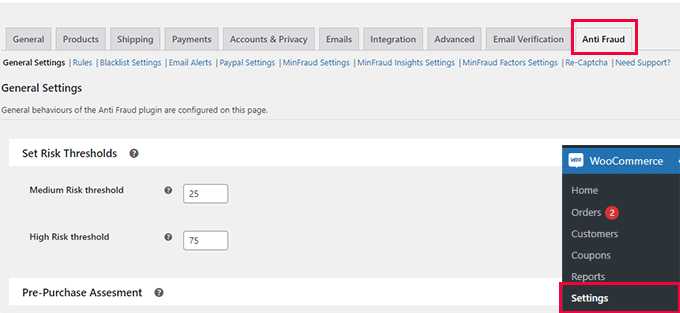
The simplest way to screen orders for fraud is to use a purpose-built WordPress plugin like WooCommerce Anti-Fraud. This plugin adds a powerful fraud detection engine to your store that calculates a risk score for each new order based on customizable rules.
You can set specific point values for risk factors like:
- Customer‘s location
- Order amount
- Proxy IP detection
- Email and password verification
If an order‘s total risk score exceeds your set threshold, the plugin will automatically cancel it or put it on hold for manual review. This saves you from having to analyze each order by hand. You can tweak the plugin‘s rules and point values over time to continuously improve its screening accuracy.
To install the plugin:
- Download it from the official WooCommerce.com marketplace or your account dashboard
- Go to Plugins → Add New in your WordPress dashboard
- Click "Upload Plugin" and select the zip file
- Activate the plugin and navigate to WooCommerce → Settings → Anti-Fraud to configure it
We recommend starting with the plugin‘s default rules and thresholds, then adjusting them gradually based on your store‘s customer base and fraud patterns. Be sure to regularly review the "Logs" tab to see which orders are being flagged and take action on any false positives.
2. Use Stripe Radar for Real-Time Fraud Scoring
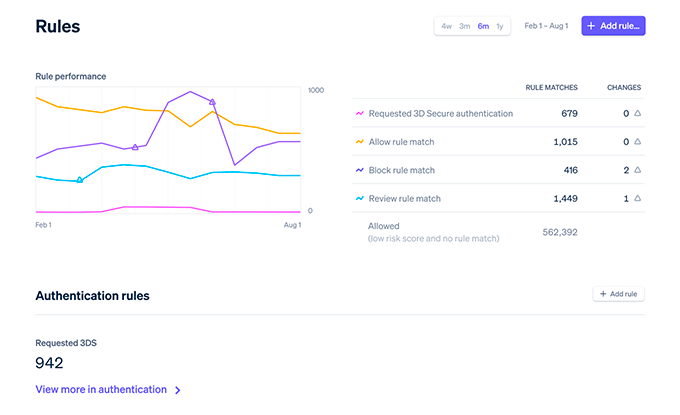
If you use Stripe as your payment processor (which we highly recommend for WooCommerce stores), you can take advantage of its industry-leading fraud detection technology called Radar. Radar uses machine learning to analyze hundreds of data points about each transaction and computes a real-time fraud risk score.
Because Radar has trained its algorithms on data from millions of global merchants, it‘s incredibly effective at spotting fake orders. In fact, Stripe claims that Radar can reduce fraud rates by over 50% compared to other scoring methods.
The best part is that Radar works automatically in the background to block risky payments before they‘re even processed. You can also set up custom rules to fine-tune its behavior for your store‘s specific needs.
To enable Radar:
- Log in to your Stripe dashboard and navigate to Radar → Overview
- Click "Enable Radar"
- Manage your settings under Radar → Rules
- Install the Stripe for WooCommerce plugin to connect Stripe to your store
The basic version of Radar is included for free with every Stripe account. For more advanced features like custom rule creation and multi-factor authentication, you may need to upgrade to Radar for Fraud Teams.
3. Carefully Consider Cash on Delivery Payment Options

While offering Cash on Delivery (COD) as a payment method can be convenient for customers in certain regions, it also opens the door to increased fraud. Scammers often exploit COD to place orders with stolen information or fake addresses, knowing they can receive the goods without actually paying for them.
If you do choose to accept COD, there are a few precautions you can take:
- Use a trusted local COD verification service to confirm the customer‘s identity and address before shipping
- Require a small upfront deposit via a standard payment method like credit card or bank transfer
- Set a maximum order value limit for COD transactions (e.g., $500)
- Collect and verify a government-issued ID for high-value orders
- Train your delivery personnel to check for signs of fraud and report suspicious activity
However, for most WooCommerce stores, the risks of COD outweigh the benefits. Unless it‘s an absolute must-have for your market, we recommend disabling COD entirely and sticking to more secure digital payment methods.
To turn off COD in WooCommerce:
- Go to WooCommerce → Settings → Payments in your WordPress dashboard
- Find "Cash on Delivery" in the list of payment methods and click "Manage"
- Uncheck the "Enable Cash on Delivery" box and save your changes
4. Restrict Sales to Specific Countries
One common tactic fraudsters use is placing orders from countries where the stolen card holder is unlikely to notice the unauthorized transaction. They may also take advantage of lax law enforcement or banking regulations in certain regions to evade detection.
You can combat this by limiting your store‘s sales to a specific list of allowed countries. In WooCommerce, go to Settings → General and select your desired countries under "Store Address" and "Selling Locations":

If you notice a pattern of fraud from a particular country where you don‘t have many legitimate customers, you may want to exclude that country entirely.
Keep in mind that geoblocking is not foolproof, as fraudsters can use VPNs and proxy servers to mask their true location. However, it can still be a useful tool as part of a broader fraud prevention strategy.
5. Require Account Creation and Email Verification for Customers
Fraudsters rely heavily on disposable email services like Mailinator and Guerrilla Mail to quickly generate fake accounts for placing bogus orders. By requiring all customers to sign up for a verified account before they can check out, you can close the door on many of these fake email schemes.
Here‘s how to require customer account creation in WooCommerce:
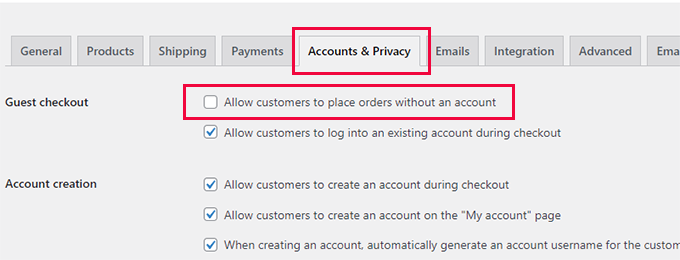
- Go to WooCommerce → Settings → Accounts & Privacy
- Select "Accounts are required for purchasing" under "Guest checkout"
- Check the box for "When creating an account, send the new user a link to set their password"
- Install and activate the free Email Verification for WooCommerce plugin
- Configure the plugin‘s settings to require email confirmation before account activation
Now, when a customer enters an email address at checkout, they‘ll be prompted to create an account and will receive a verification link. They won‘t be able to complete their purchase until they click that link to prove they own the email address.
This extra step deters many fraudsters and bots that rely on fake emails. It also gives you a way to communicate with customers and flag any accounts that fail the verification process.
6. Add a Web Application Firewall for Traffic Filtering

A web application firewall (WAF) acts as a shield between your WooCommerce store and incoming traffic, blocking malicious requests before they reach your site. WAFs use a combination of preset rules and machine learning to identify and filter out common threats like SQL injection, cross-site scripting, and credential stuffing attacks.
Two of the leading WAF providers for WordPress are Cloudflare and Sucuri. Both offer easy setup and robust protection against a wide range of attacks, including content scraping, spam, and brute force attempts.
With Cloudflare, you can create custom firewall rules to automatically block traffic based on criteria like:
- IP address
- Geographic location
- User agent string
- Request rate
- Presence of certain keywords or patterns
For example, you might set up a rule to challenge or block all traffic from known proxy networks or a specific country where you see a lot of fraud.
To enable Cloudflare‘s WAF:
- Sign up for a Cloudflare account and add your website
- Update your domain‘s nameservers to route traffic through Cloudflare
- Enable the WAF under Firewall → Managed Rules
- Create any desired custom rules under Firewall → Firewall Rules
- Consider installing the WP Cloudflare Super Page Cache plugin to optimize your WordPress site‘s speed and security settings
While a WAF is not a complete fraud prevention solution on its own, it‘s an excellent addition to your store‘s security stack. By filtering out blatantly malicious traffic, it frees up your other fraud screening tools to focus on more sophisticated threats.
7. Maintain Excellent Email Deliverability

For any customer email verification system to work, your transactional emails actually have to reach the recipient‘s inbox. Unfortunately, the default WordPress email configuration often leads to poor deliverability and high bounce rates.
To ensure your WooCommerce emails arrive successfully, we recommend using the free WP Mail SMTP plugin. It allows you to easily route your emails through a reliable third-party provider like Mailgun, Sendinblue, or SMTP.com.
With WP Mail SMTP, you can:
- Authenticate your emails with SPF and DKIM to improve delivery rates
- Track opens, clicks, and bounces for WooCommerce emails
- Receive email status reports and alerts to catch any issues early
High email deliverability is critical for effective fraud prevention, as it ensures your real customers can verify their accounts and receive important order updates. It also helps you maintain a good sending reputation, which in turn reduces the risk of your emails being flagged as spam.
Putting It All Together: A Multi-Layered Approach to WooCommerce Fraud Prevention
Each of the techniques we‘ve covered can help reduce fraud and fake orders in your WooCommerce store. However, they work best when used together as part of a comprehensive fraud prevention strategy.
| Technique | Blocks Fake Emails | Blocks Proxy Traffic | Verifies Billing Info | Real-Time Risk Scoring |
|---|---|---|---|---|
| Anti-Fraud Plugin | ✓ | ✓ | ✓ | |
| Payment Gateway Fraud Tools | ✓ | ✓ | ||
| Geoblocking | ✓ | |||
| Customer Email Verification | ✓ | |||
| Web Application Firewall | ✓ |
By layering these defenses and monitoring their performance over time, you can create an extremely effective fraud prevention system for your store. Remember to:
- Start with a solid foundation of security best practices, like using strong passwords and keeping your site updated
- Choose reputable, well-maintained plugins and services for each component of your fraud stack
- Regularly review your store‘s fraud data and adjust your settings based on the latest trends and attack methods
- Keep learning about emerging fraud techniques and countermeasures to stay one step ahead of scammers
Protect Your Profits: You Can‘t Afford to Ignore Fraud Prevention
We hope this in-depth guide has given you the knowledge and tools you need to prevent fraudulent orders in your WooCommerce store. Fraud is a constantly evolving threat, but with the right approach, you can minimize your risk and keep your hard-earned revenue safe.
Don‘t wait until fake orders start eating into your profits to take action. Implement these proven fraud prevention techniques today and enjoy the peace of mind that comes with a well-protected online business.
If you found this guide helpful, please share it with your fellow eCommerce entrepreneurs. Stay safe out there!
)