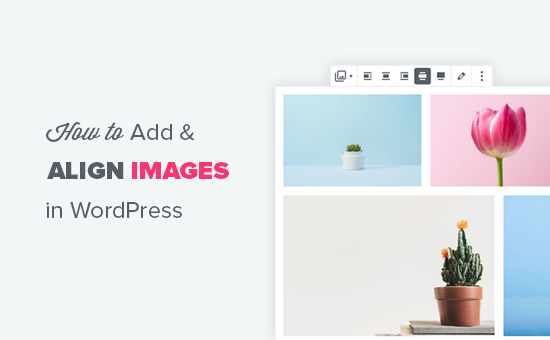
Hey there, WordPress user! 👋 Are you struggling to make your posts and pages look as stunning as you envision them? Do you spend way too much time wrestling with images that just won‘t align right or fit on the page?
I feel your pain. Getting images to behave in WordPress can be frustrating, especially if you‘re used to the old classic editor. But fear not – the block editor introduced in WordPress 5.0 is here to make your life easier! 🎉
In this ultimate guide, I‘ll walk you through everything you need to know to become an image alignment master. Whether you‘re a blogger, marketer, or business owner, these tips will help you create professional, eye-catching content that drives results.
📸 Why Images Matter
First, let‘s talk about why you should even care about images in the first place. Sure, they make your posts look prettier, but do they really make a difference? The answer is a resounding YES!
Check out these stats:
- Articles with images get 94% more views than those without (source)
- Facebook posts with images get 2.3x more engagement than those without (source)
- Tweets with images get 150% more retweets than those without (source)
The science is clear – visual content is incredibly effective at grabbing attention, communicating information, and encouraging action. So if you want your WordPress site to succeed, you need to leverage the power of images.
🖼️ Meet the Image Block
At the heart of image management in WordPress is the Image block. This is your go-to tool for inserting and configuring images in the block editor. Here‘s what it looks like:

There are a few different ways to add an image using this block:
Upload a new image from your computer. Simply click the "Upload" button and select an image file from your device. WordPress will automatically add it to your Media Library.
Choose an existing image from your Media Library. If you‘ve already uploaded the image you want to use, click the "Media Library" button to browse and select it.
Insert an image from a URL. If the image you want to use is hosted elsewhere online, you can paste its URL into the "Paste URL" field. Just be sure you have permission to use externally hosted images.
Once you‘ve inserted an image, you can customize it further using the block toolbar and settings panel.

Here are some of the key settings you can configure:
Alt text: This is a short description of the image for visitors using screen readers. It‘s important for accessibility and SEO. Be sure to include relevant keywords.
Image size: WordPress automatically creates multiple sizes of your image (thumbnail, medium, large, etc). You can choose which size to display.
Link settings: You can link the image to its media file, attachment page, a custom URL, or nothing at all.
Dimensions: Use the "Image dimensions" controls to set a custom width and height for the image. Note that this may crop the image.
Pretty simple, right? With just the Image block, you already have a ton of flexibility in how you display images. But what about when you need those images to play nice with your text? That‘s where alignment comes in.
↔️ Mastering Image Alignment
By default, images in WordPress are set to "full width". This means they stretch across the entire content area, with no text wrapping around them. This is fine for featured images or graphics that stand alone. But often, you‘ll want your images to share space with text for a more balanced, visually interesting layout.
That‘s where the alignment options come in. You‘ve probably seen these in other document editors like Microsoft Word – left, right, and center alignment. WordPress adds a couple more options into the mix.
Here‘s a quick overview of the different alignments and when to use them:
| Alignment | Description | When to Use |
|---|---|---|
| Left | Image is aligned to the left, with text wrapping around it on the right | – Highlighting an image that relates to the beginning of your content – Creating a magazine-style layout with alternating text and images |
| Right | Image is aligned to the right, with text wrapping around it on the left | – Showcasing an image that relates to the end of your content – Breaking up long paragraphs of text |
| Center | Image is placed in the middle of the content area, with empty space on either side | – Featuring images that don‘t have relevant text to wrap around – Centering infographics, charts, or other data visualizations |
| Wide width | Image stretches beyond the default content area, typically the full width of the screen | – Creating visual separation between sections of content – Displaying large, impactful graphics or photos |
| Full width | Image stretches across the entire screen, with no page margins | – Creating immersive, edge-to-edge featured images – Building unique full-screen layouts, like splash pages or portfolios |
To change the alignment of an image, simply select the block and choose an option from the alignment toolbar.

Play around with the different options to see how they affect your layout. Keep in mind that not every alignment will work well in every situation. Consider the size and aspect ratio of your image, as well as the length of your text.
Pro tip: Use alignment to create visual hierarchy 🏆
One of the most powerful ways to use image alignment is to create visual hierarchy on the page. This means arranging your content in a way that guides the reader‘s eye and emphasizes key information.
For example, you might left-align an image at the beginning of a section to signal the start of a new topic. Or you could alternate between left and right-aligned images to create a zigzag pattern that leads the reader down the page.
See this example from the WordPress.org homepage:

Notice how the images alternate between left and right alignment, creating a dynamic, engaging layout. The Hero are is also clearly separated with a wide-width image.
🏎️ Optimizing Images for Performance
Of course, all the fancy alignment tricks in the world won‘t matter if your images take forever to load. In fact, a study by Google found that 53% of mobile website visitors will leave if a page takes longer than 3 seconds to load (source).
Images are often the biggest culprit when it comes to slow load times. That‘s because images are typically the largest files on a web page. So it‘s important to optimize them for performance.
Here are some best practices for keeping your images lean and mean:
Resize images before uploading. Your images should only be as big as they need to be to fill their container. For example, if your content area is 800 pixels wide, there‘s no need to upload a 3000-pixel wide image. Use an image editing tool to resize the image to the appropriate dimensions.
Compress images to reduce file size. Large image files can significantly slow down your page. Use a tool like TinyPNG or Kraken.io to compress your images without sacrificing quality. Aim for a file size of less than 100 KB for most images.
Use the right file format. JPEGs are best for photos, while PNGs are better for graphics with transparency. GIFs should only be used for simple animations. WebP is an even better choice if your audience is mostly on Chrome or Firefox.
Implement lazy loading. Lazy loading defers the loading of images until they come into view on the screen. This way, your page can load faster initially, and images will only load as the user scrolls down. WordPress 5.5 introduced native lazy loading – just add the
loading="lazy"attribute to your image tags.Use a CDN. A content delivery network (CDN) is a distributed network of servers that delivers content to users based on their geographic location. By serving your images from a CDN, you can significantly reduce load times for users around the world. Popular options include Cloudflare and KeyCDN.
Implementing these optimizations on your WordPress site will not only improve the user experience, but also boost your search engine rankings. Google has explicitly stated that page speed is a ranking factor, so faster pages can help you rank higher and get more organic traffic.
🔌 Enhancing Images with Plugins
While the WordPress core image blocks are powerful on their own, sometimes you need a little extra functionality. That‘s where plugins come in.
Here are some of my favorite WordPress plugins for working with images:
1. Smush (free / pro)

Smush is a fantastic all-in-one image optimization plugin. It automatically compresses and resizes images on upload, and can even bulk optimize your existing media library. The pro version also includes lazy loading and WebP conversion.
2. Imagify (free / pro)

Imagify is another great choice for image optimization. It offers lossless compression, meaning your images will look just as good as the originals. The pro version includes more advanced optimization options and the ability to optimize PDFs.
3. ShortPixel (free / pro)

ShortPixel is a lightweight image optimization plugin that can compress images up to 90% without losing quality. It also offers WebP conversion and the ability to serve images from ShortPixel‘s global CDN.
4. Regenerate Thumbnails (free)

If you‘ve ever changed your theme or updated your image sizes, you may have ended up with a bunch of mismatched thumbnail sizes in your media library. Regenerate Thumbnails solves this problem by allowing you to regenerate all your thumbnails with a single click.
While there are many other great image plugins out there, these four cover the most essential optimizations and enhancements. Experiment with them to see which ones work best for your specific needs.
🏁 Wrapping Up
Phew, that was a lot of information to cover! But I hope this guide has given you a solid foundation in adding and aligning images in WordPress. To recap, here are the main points:
- Use the Image block to insert images into your posts and pages
- Customize images using the block toolbar and settings panel
- Choose the appropriate alignment for your layout and content
- Optimize images for performance with compression, resizing, lazy loading, and a CDN
- Enhance your images with plugins like Smush, Imagify, ShortPixel, and Regenerate Thumbnails
With these tools and techniques at your disposal, you‘ll be able to create stunning visual content that engages your audience and drives real results for your website. Don‘t be afraid to experiment and have fun with your layouts – after all, the best way to learn is by doing.
So go forth and create some amazing images! And if you have any questions or tips of your own, be sure to leave a comment below. I‘d love to hear from you.
Happy image aligning! 😊
)