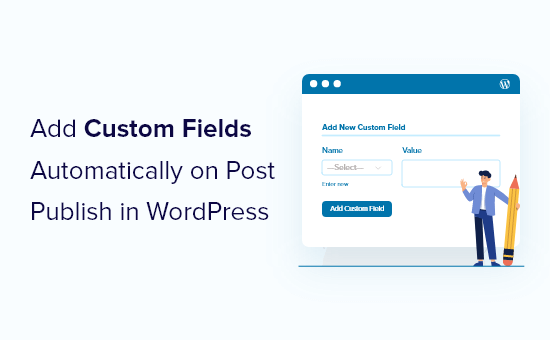
Hey there, WordPress user! Are you tired of manually adding the same custom fields to every new post on your site? Want to streamline your workflow and have custom fields populated automatically? You‘re in the right place!
In this comprehensive guide, we‘ll dive deep into the world of WordPress custom fields and show you how to use a simple code snippet to automatically add them to your posts when they‘re published. Say goodbye to tedious repetitive work and hello to a smarter way of managing post metadata.
Understanding WordPress Custom Fields
Before we jump into the how-to, let‘s make sure we‘re on the same page about what custom fields are and why they‘re so useful.
Custom fields, also known as post metadata, allow you to store additional information related to your WordPress posts and pages. While WordPress includes built-in fields like the post title, content, author, and date, custom fields let you add your own structured data to extend the default functionality.
Essentially, custom fields are key-value pairs associated with a specific post. The key is the name of the field, and the value is the data you want to store. For example, you might use a custom field with the key "featured_product" and the value "iPhone 14" to specify a featured product associated with a post.
Under the hood, custom fields are stored in the wp_postmeta table in your WordPress database. Each entry in the table includes the following:
- meta_id: a unique identifier for the field entry
- post_id: the ID of the post the field is associated with
- meta_key: the name of the custom field
- meta_value: the stored data for the field
This flexible structure allows plugins, themes, and developers to store a wide range of custom data and use it to extend WordPress in powerful ways.
Why Use Custom Fields?
So why go to the trouble of adding custom fields to WordPress? Here are a few key reasons:
Flexibility: Custom fields let you store any type of data you want with a post, greatly extending the default WordPress data structure.
Customization: With custom fields, you can tailor the WordPress admin to your specific needs, adding fields for data that‘s important to your site.
Improved user experience: Custom fields can be used to customize the front-end display of your site, like showing star ratings, product info, or location data.
Theme and plugin integration: Many WordPress themes and plugins rely on custom fields to enable their features, like page builders, SEO tools, and e-commerce systems.
To highlight the popularity of custom fields, consider these statistics:
- Over 55% of WordPress sites use custom fields in some form. (Source: WordPress Codex)
- Advanced Custom Fields, a popular custom field plugin, is active on over 1 million WordPress sites. (Source: WordPress.org)
Clearly, custom fields play a vital role in the WordPress ecosystem. By learning to use them effectively, you can tap into their power to build more flexible, functional WordPress sites.
Automatically Adding Custom Fields on Post Publish
Now that you understand the basics of custom fields, let‘s get into the nitty-gritty of how to automatically add them when a post is published. We‘ll use a handy code snippet that taps into WordPress hooks to streamline the process.
Here‘s the snippet:
add_action(‘wp_insert_post‘, ‘auto_add_custom_field‘, 10, 3);

function auto_add_custom_field($post_id, $post, $update) {
    // Only add field to new posts (not updates)
    if ($post->post_date == $post->post_modified) {
        // Get the post type
        $post_type = get_post_type($post);

        // Define fields to add by post type
        $fields = array(
            ‘post‘ => array(
                ‘custom_field_1‘ => ‘Default Value 1‘,
                ‘custom_field_2‘ => ‘Default Value 2‘
            ),
            ‘page‘ => array(
                ‘page_field‘ => ‘Page Value‘
            ),
            ‘product‘ => array(
                ‘price‘ => ‘0.00‘
            )
        );

        // If fields are defined for this post type, add them
        if (isset($fields[$post_type])) {
            foreach ($fields[$post_type] as $key => $value) {
                add_post_meta($post_id, $key, $value, true);
            }
        }
    }
}
Here‘s how the code works:
We use
add_actionto hook ourauto_add_custom_fieldfunction to thewp_insert_postaction, which fires whenever a post is created or updated.In the function, we first check if this is a new post (not an update) by comparing the
post_dateandpost_modifiedvalues.If it‘s a new post, we get the post type using
get_post_type.We then define an array called
$fieldsthat maps post types to the custom fields we want to add for that type. In this example, we‘re adding different fields to posts, pages, and a custom "product" type.We check if the current post type exists in the
$fieldsarray usingisset. If it does, we loop through each of the defined fields for that post type.For each field, we use
add_post_metato add the field to the post. Theadd_post_metafunction takes the post ID, field key, field value, and atrue/falseparameter to specify whether the field should be unique.
By using this snippet, you can define different custom fields to be added automatically for each post type on your site. This saves you the manual work of adding those fields to every new post.
Of course, you may want to customize the $fields array to match the specific custom fields and post types on your site. You can even use a plugin like Advanced Custom Fields to manage your field definitions and then reference them in the snippet.
To add this code to your site, you can either use a plugin like Code Snippets or add it to your theme‘s functions.php file. Just be sure to test thoroughly and always keep a backup before making changes to your site.
Tips for Using Custom Fields Effectively
As you start working with custom fields more extensively, here are a few tips to keep in mind:
Use clear, descriptive names. When defining custom field keys, use names that clearly describe the data being stored. This will make your fields easier to understand and maintain over time. For example, use
featured_image_captioninstead ofpic_text.Sanitize and validate data. If you‘re allowing user input for custom fields, be sure to properly sanitize and validate the data to prevent security issues. Use functions like
sanitize_text_fieldandabsintto clean up user input before saving it to the database.Use a consistent naming convention. Establish a clear naming convention for your custom fields and stick to it. For example, you might prefix all fields with
custom_or use a specific format like{post_type}_{field_name}. Consistency will make your fields more maintainable.Don‘t overuse custom fields. While custom fields are incredibly powerful, using too many can slow down your site and make it harder to manage. Be judicious in your use of custom fields and only add them when truly necessary.
Leverage helper functions. WordPress includes several helper functions for working with post metadata, like
get_post_metato retrieve field values andupdate_post_metato change existing values. Use these functions to simplify your code and ensure proper data handling.
By following these tips, you‘ll be well on your way to harnessing the power of custom fields to build more flexible, functional WordPress sites.
Conclusion
Custom fields are a vital tool for extending WordPress and building sites tailored to your unique needs. By automatically adding custom fields to your posts when they‘re published, you can save time and streamline your workflow.
The code snippet provided in this guide offers a solid starting point for implementing auto-generated custom fields. Whether you use it as-is or customize it to fit your specific requirements, you‘ll be able to leverage the flexibility of custom fields without the manual effort.
Remember, the key to success with custom fields is to use them strategically and follow best practices for naming, organization, and data validation. By doing so, you‘ll create a more maintainable, efficient WordPress site.
Additional Resources
Hungry for more? Here are some additional resources to help you become a custom field pro:
- The Complete Guide to WordPress Custom Fields: A deep dive into custom fields from the experts at Kinsta.
- Advanced Custom Fields: A powerful plugin for managing custom fields in WordPress.
- WordPress Meta Query: What It Is and How to Use It: Learn how to query for custom fields in your WordPress themes and plugins.
- WordPress Hooks Database: A comprehensive reference of WordPress action and filter hooks, great for finding hooks related to custom fields.
With these resources and the knowledge you‘ve gained from this guide, you‘re ready to take your WordPress development skills to the next level. Happy coding!
)