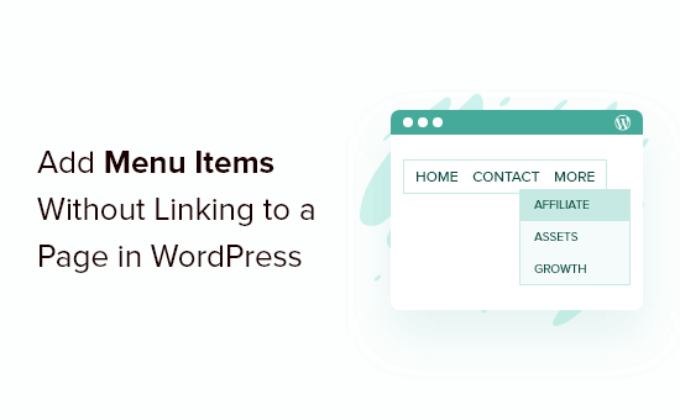
Hey there, WordPress user! Are you looking to level up your site‘s navigation menu? One pro trick you might not know about is adding titles to your menu that don‘t actually link to any page. These are called "unlinked menu titles" and they can be a game-changer for organizing your site and enhancing user experience.
In this ultimate guide, I‘ll walk you through exactly how to add unlinked titles to your WordPress menu, share some insider tips and best practices, and explore a few advanced techniques to take your menus to the next level. By the end, you‘ll be a menu maestro, ready to wow your visitors with your sleek, intuitive navigation. Let‘s dive in!
Why Use Unlinked Menu Titles?
First off, let‘s talk about why you would even want a menu title that doesn‘t go anywhere when clicked. It might seem counterintuitive, but trust me, there are some compelling reasons:
Organize dropdown menus. Unlinked titles are perfect for adding category headers to group related pages in a dropdown. Instead of just listing out all your pages, you can add titles like "About Us" or "Services" to break things up logically.
Create visual hierarchy. Titles help to visually break up your menu into distinct sections, making it easier for users to scan and find what they need. This is especially useful for sites with lots of pages.
Improve accessibility. Believe it or not, unlinked titles can actually make your menu more accessible. By grouping related items under a clear heading, you provide extra context for users navigating by keyboard or screen reader. (More on accessibility later!)
Boost SEO. While the titles themselves won‘t directly impact SEO, a well-organized menu structure can make it easier for search engines to crawl and understand your site‘s content. Plus, the improved UX signals may give you an indirect rankings boost.
Pretty compelling, right? According to a study by the Nielsen Norman Group, a well-designed navigation menu can increase user success rates by as much as 80%. So if you‘re not taking full advantage of unlinked titles, you could be missing out on some serious engagement and conversions.
How to Add an Unlinked Title to Your WordPress Menu
Alright, now that you‘re on board with why unlinked menu titles are so awesome, let‘s walk through how to actually create them in your WordPress dashboard. I promise it‘s easier than you might think!
- In your WordPress admin area, head to Appearance > Menus.
- Look for the Custom Links option in the left sidebar. Don‘t see it? Click Screen Options in the top right corner and make sure the box next to "Custom Links" is checked.
- In the URL field, enter a single hash/pound symbol (
#). This acts as a dummy link that we‘ll remove later. Leave it blank for now. - In the Link Text field, type in your snazzy new menu title. Keep it short and sweet for easy scanning.
- Click the Add to Menu button. Your new custom item will appear at the bottom of your menu structure on the right.
- Expand the new menu item by clicking the little arrow icon on the far right. In the Navigation Label field, delete that
#placeholder so the field is totally empty. This officially makes it an unlinked title! - Drag and drop your unlinked title into its rightful place in your menu hierarchy. Feel free to add submenu items underneath it as needed.
- Hit Save Menu and go check out your handiwork on the front end!
That‘s it! You‘ve now got a sleek, professional-looking unlinked title in your WordPress navigation. Give yourself a well-deserved pat on the back.
Now, if you really want to supercharge your menu skills, keep reading for some tips on styling, naming conventions, accessibility, and more.
Tips for Styling Your Unlinked Titles
Want your new unlinked titles to really pop? You can target them with CSS to apply custom fonts, colors, spacing, you name it. WordPress automatically adds a unique .menu-item-object-custom class to the <li> element for custom menu items, so that‘s usually the best way to hook into them.
For example, let‘s say you want to make your unlinked titles bold, uppercase, and add a bottom border for extra emphasis. You could add this snippet to your theme‘s stylesheet or the Additional CSS section in the Customizer:
.menu .menu-item-object-custom > a {
  font-weight: bold;
  text-transform: uppercase;
  border-bottom: 2px solid #333;
}
Or maybe you want to visually distinguish unlinked titles with a special icon using the ::before pseudo-element:
.menu .menu-item-object-custom > a::before {
  content: "\\f0c9";
  font-family: ‘Font Awesome 5 Free‘;
  margin-right: 5px;
}
The sky‘s the limit with CSS! Just make sure whatever styles you choose align with your overall brand aesthetic and don‘t interfere with readability or usability.
Choosing the Right Title Text
One quick but crucial tip: be intentional about the actual words you use for your unlinked menu titles. The goal is to make it crystal clear what the submenu items relate to at a glance.
Some good practices to keep in mind:
- Keep it concise. One or two words is ideal for scannability. Avoid long phrases.
- Use parallel construction. If most of your titles are nouns, stick with nouns. If they‘re adjectives, keep ‘em all adjectives.
- Prioritize clarity over cleverness. Puns and inside jokes are fun, but not at the cost of confusing your visitors.
- Consider your audience. What terminology will resonate with your specific users? Put yourself in their shoes.
For example, let‘s say you run a recipe blog. Instead of generic titles like "Recipes" or "Browse", you might try more evocative, user-friendly categories like:
- Main Dishes
- Quick & Easy
- Special Diets
- Cuisines
See how these titles are concise, parallel, clear, and targeted to the site‘s audience? That‘s the sweet spot you‘re aiming for with your unlinked menu titles.
Making Your Unlinked Titles Accessible
As mentioned earlier, unlinked menu titles can actually improve your site‘s accessibility when implemented thoughtfully. However, there are a few key things to keep in mind to ensure your menu works well for keyboard-only users and screen readers.
One potential issue is that a user tabbing through your menu might get confused or frustrated when landing on an unlinked title, since hitting "Enter" won‘t do anything. To mitigate this, consider adding an aria-label attribute to provide additional context, like so:
<li class="menu-item menu-item-object-custom" aria-label="Services submenu category">
  <a href="#">Services</a>
</li>
Or, you could implement a skip link that jumps directly to the next submenu item when the title receives focus:
<li class="menu-item menu-item-object-custom">
  <a href="#" aria-label="Skip to first Services submenu item" class="visually-hidden focusable">
    Services
  </a>
</li>
.visually-hidden:not(:focus) {
clip: rect(0 0 0 0);
clip-path: inset(50%);
height: 1px;
width: 1px;
margin: -1px;
overflow: hidden;
padding: 0;
position: absolute;
}The key is to put yourself in the shoes of a user who can‘t visually scan your menu and make sure they‘re still getting a clear, intuitive experience. When in doubt, do some hands-on testing with a real keyboard and screen reader to identify potential pain points.
Real-World Examples & Use Cases
Need some inspiration for how you might put unlinked menu titles to work on your own site? Here are a few examples from around the web:
Apple

Apple famously uses unlinked category titles in their main navigation menu, with products listed as submenu items underneath. This approach keeps the menu clean and focused while still surfacing key product lines.
Airbnb

Airbnb adds an unlinked "Property types" title to the filters dropdown in their search results. This helps users understand the context of the submenu items and more easily refine their search.
Wikipedia

Wikipedia‘s sidebar navigation menu uses an unlinked "Tools" title to group utility links like "Upload file" and "Special pages". This keeps these items tucked away but still easily accessible for power users.
The common thread here is using unlinked titles to organize complex menus, provide context, and highlight relationships between items. How could you apply this concept to improve your own site‘s navigation?
Advanced Tips & Tricks
If you really want to take your unlinked title game to the next level, here are a few more advanced tips to try:
Use a custom nav walker. For ultimate control over your menu markup, you can create a custom nav walker class to modify the HTML output. This lets you add custom attributes, classes, or even additional elements to your unlinked titles.
Dynamically populate titles. If your submenu items share a common category or tag, you could dynamically generate the unlinked title text to keep things consistent. For example, an e-commerce store could automatically use the product category name as the unlinked title.
Implement mega menus. Unlinked titles are a key component of mega menu design. If you have a large, complex site structure, consider using a mega menu plugin to create a more robust, visual navigation experience.
A/B test variations. Not sure if unlinked titles are right for your audience? Try running an A/B test comparing a menu with and without them. Monitor key metrics like time on site, pages per session, and conversion rate to see which approach resonates best.
The beauty of WordPress is its flexibility – if you can dream it, you can probably find a way to make it happen with a little creative coding!
Wrapping Up
Phew, that was a lot to cover! Let‘s recap the key takeaways from this ultimate guide to unlinked menu titles in WordPress:
- Unlinked titles help organize your menu, improve UX, and even boost accessibility when used thoughtfully.
- Adding an unlinked title is as easy as creating a custom menu item and leaving the URL field blank.
- Be strategic about your title text – keep it concise, clear, and user-focused.
- Use CSS to style your titles and make them visually distinct.
- Add
aria-labelattributes or skip links to improve keyboard accessibility. - Look to big sites like Apple and Airbnb for real-world inspiration and use cases.
Armed with this knowledge, you‘re ready to take your WordPress menus to new heights. Whether you‘re working on a small blog or a big corporate site, unlinked menu titles are a simple but powerful way to create a more intuitive, user-friendly navigation experience.
So go forth and start experimenting with unlinked titles on your own site! And if you have any other tips or creative use cases to share, I‘d love to hear about them in the comments.
)