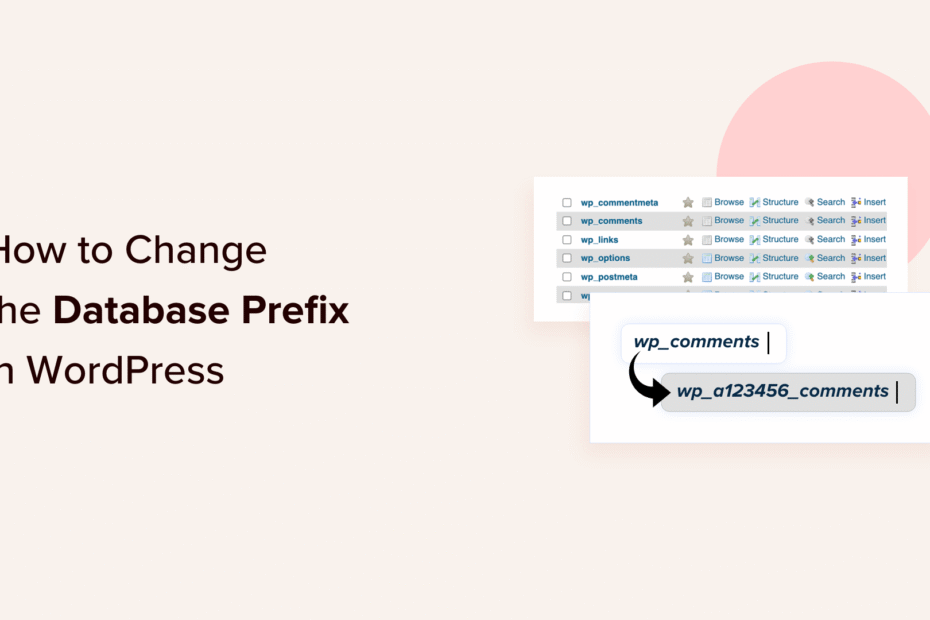
How to Change Your WordPress Database Prefix for Better Security (2026 Guide)
Are you concerned about the security of your WordPress website? One important step you can take to harden your site against hackers is changing the WordPress database prefix from the default "wp_". While it may sound technical, changing the database prefix is actually a straightforward process that can provide a real security boost.
In this expert guide, we‘ll walk you through why changing your WordPress database prefix improves security and the exact steps to change it without breaking your site. We‘ll also share some key best practices and other ways to protect your WordPress database. Let‘s dive in!
Why Change the WordPress Database Prefix?
First, let‘s cover why bothering to change the database prefix is worthwhile. By default, WordPress uses "wp_" as the prefix for all tables in its database, like wp_posts, wp_users, wp_comments, etc. Because this prefix is so widely known, it makes a hacker‘s job easier.
They can use automated tools to find WordPress databases and try to exploit them with SQL injection attacks, attempting to run malicious queries that could expose sensitive data or allow them to take control of your site. But if you change the prefix to something obscure hackers don‘t know, it makes it much harder for them to find and target your database tables.
While changing the prefix won‘t prevent every attack, it‘s an important layer in a defense-in-depth security approach. Think of it like moving your house key from under the doormat to inside a fake rock across the street. A determined thief could still find it, but most would give up long before discovering your hiding spot. Likewise, changing the wp_ database prefix won‘t stop the most advanced hackers but it will deter many automated attacks looking for easy wins.
Now that you understand the "why", let‘s look at exactly how to safely change your WordPress database prefix in a few steps.
How to Change the WordPress Database Prefix
Changing the database prefix involves editing some key WordPress files and your database itself, so it‘s critical that you make a complete backup of your WordPress database and files before getting started in case anything goes wrong. Seriously, don‘t skip this step!
There are a few ways to backup your WordPress database. You can use a plugin like UpdraftPlus or BackWPup to create a database backup, or do it manually via phpMyAdmin:
- Log in to phpMyAdmin from your hosting control panel
- Select your WordPress database from the left-hand menu
- Go to the Export tab
- Select the "Quick" export method and SQL format
- Click Go to download the database backup file
With your backup in hand, you‘re ready to start the database prefix change process which has three main parts:
- Editing wp-config.php
- Renaming database tables with SQL queries
- Updating any other references to the old prefix
Let‘s go through each step.
Step 1: Edit wp-config.php
Your wp-config.php file contains your WordPress configuration settings, including the database prefix. You‘ll need to access this file via FTP/SFTP or your host‘s file manager. It‘s located in the root folder of your WordPress installation.
Once you‘ve located wp-config.php, download a copy to your computer and open it in a text editor. Look for this line:
$tableprefix = ‘wp‘;
Change the value inside the single quotes to your desired prefix. For example:
$tableprefix = ‘mywp‘;
You can use a combination of letters, numbers, and underscores for your prefix, but don‘t use hyphens or spaces. Using a longer, random prefix is best for security.
Save your changes and re-upload the edited wp-config.php file, overwriting the original.
Step 2: Rename Database Tables
With the prefix changed in wp-config.php, the next step is renaming the actual tables in your WordPress database to use the new prefix. The easiest way to do this is with SQL queries in phpMyAdmin.
Once again, log in to phpMyAdmin and select your WordPress database. Click on the SQL tab to open a field where you can run queries.
Enter the following queries, replacing mywp with your chosen prefix and wp with your old one:
RENAME table wp_commentmeta TO mywp_commentmeta;
RENAME table wp_comments TO mywp_comments;
RENAME table wp_links TO mywp_links;
RENAME table wp_options TO mywp_options;
RENAME table wp_postmeta TO mywp_postmeta;
RENAME table wp_posts TO mywp_posts;
RENAME table wp_termmeta TO mywp_termmeta;
RENAME table wp_terms TO mywp_terms;
RENAME table wp_term_relationships TO mywp_term_relationships;
RENAME table wp_term_taxonomy TO mywp_term_taxonomy;
RENAME table wp_usermeta TO mywp_usermeta;
RENAME table wp_users TO mywp_users;
If you have additional custom tables, be sure to include them too with your new prefix.
Once you‘ve entered all the RENAME queries, click the Go button to run them. phpMyAdmin will display a success message when the tables have been renamed.
Step 3: Update References to the Old Prefix
Even though you‘ve updated wp-config.php and renamed the database tables, there may still be a few straggling references to the wp_ prefix lurking in the wp_options and wp_usermeta tables that need to be updated.
To find these, run the following SQL queries in phpMyAdmin (again replacing the prefix values):
SELECT * FROM mywp_options WHERE option_name LIKE ‘%wp_%‘;
SELECT * FROM mywp_usermeta WHERE meta_key LIKE ‘%wp_%‘;
The queries will return any rows that still contain the wp prefix. You‘ll need to edit each one to change wp to your new prefix.
For example, if one of the results is option_name with a value of wp_user_roles, double-click to edit it and change the value to mywp_userroles. Work through all the results until no more rows with wp appear.
Once you‘ve made all these changes, your database prefix change is complete! But before celebrating, it‘s important to thoroughly test your site to make sure everything is still working properly.
Visit your site‘s front-end and test logging in, publishing a new blog post, leaving a comment, and any other critical functions. If you notice anything not working right, restore your database backup and start over, double-checking each step.
WordPress Database Prefix Best Practices
Now that you know how to change your WordPress database prefix, here are a few best practices to keep in mind:
- Use a long, random prefix with a mix of letters, numbers, and underscores for the best security. Avoid common words or phrases.
- Don‘t use the same prefix across multiple sites. Generate a unique random prefix for each WordPress install.
- Change your database prefix as early as possible, ideally during the initial WordPress setup before launching your site. Changing the prefix on an established site with a large database is riskier.
- Always backup your full WordPress database and files before changing the prefix or making any other significant changes. Keep regular backups stored securely off-site.
Enhancing Your WordPress Database Security
Changing the database prefix is a great way to harden your WordPress site, but it‘s just one piece of the security puzzle. For complete WordPress database protection, consider taking these additional measures:
- Delete the default admin user and choose a unique username for your administrator account
- Use strong passwords and two-factor authentication to prevent brute force attacks
- Keep your WordPress core, plugins, and themes updated to patch any vulnerabilities
- Install a WordPress security plugin like Wordfence or Sucuri to monitor for suspicious activity
- Restrict database access to only trusted locations and users, and consider changing the database name from the default
- Enable automatic WordPress backups and regularly test restoring them to verify their integrity
- Implement a web application firewall (WAF) to filter out malicious SQL queries and other threats
By layering these security measures on top of changing your database prefix, you‘ll build a strong defense against hackers trying to exploit your WordPress database. While no site is 100% hack-proof, taking these proactive steps will greatly reduce your risk.
Wrapping Up
Changing your WordPress database prefix is a small change that can have a big impact on your site‘s security. By replacing the default wp_ prefix with a random, unique prefix, you‘ll disguise your database tables from hackers attempting SQL injection attacks and other exploits.
The process involves three key steps:
- Editing your wp-config.php file to change the $table_prefix variable
- Renaming your WordPress database tables to the new prefix with SQL queries
- Searching the options and usermeta tables for any other references to the old prefix and updating them
Be sure to backup your full WordPress database before getting started and thoroughly test your site after making the change. Pair changing your database prefix with other WordPress hardening best practices for the best protection.
Don‘t let the technical steps intimidate you — even beginner WordPress users can change their database prefix by carefully following the instructions. The few minutes of work are well worth the security advantages.
So what are you waiting for? Set aside some time this week to change your WordPress database prefix and level-up your site‘s security. Stay safe out there!
