
As a business owner, your time is precious. You can‘t afford to spend hours going back and forth with potential customers trying to gather the information needed for a price quote. That‘s where a request a quote form comes in.
By adding an RFQ form to your WordPress site, you can capture all the key details about a prospect‘s project upfront. This not only saves you time, but also makes it easy for customers to do business with you. In fact, research shows that 74% of consumers prefer to fill out a form or send an email to get pricing information, rather than call a business directly.
If you offer products or services that vary in price based on the customer‘s needs, a request a quote form is a must-have. When implemented effectively, quote forms can be a major driver of leads and sales. Case studies have found that RFQ forms can boost conversion rates by 30-50% compared to a traditional "contact us" form.
Ready to build your own request for quote form in WordPress? In this expert guide, I‘ll show you how to create a high-converting RFQ form, step-by-step. We‘ll cover form building strategies, design and UX tips, automated follow-up ideas, and more. Let‘s get started!
What to Include in Your Request a Quote Form
The key to a successful RFQ form is to get all the information you need from the prospect to deliver an accurate quote, without asking for so many details that they get overwhelmed and abandon the form. Aim to keep your form as short as possible, while still gathering the essentials.
Here are some of the most important fields to consider for your request a quote form:
- Name
- Phone Number
- Company/Organization
- Product/Service Needed
- Quantity/Scope of Project
- Estimated Budget
- Project Urgency/Timeline
- Additional Details/Comments
Some of these fields, like Name and Email, will be required on every RFQ form. But others may vary depending on your industry and quoting process.
For example, if you‘re a web designer, you may want to ask about the prospect‘s current website, goals for their new site, and examples of designs they like. If you sell physical products, you‘ll likely want to ask about quantity needed and shipping requirements.
Think about your ideal client and the details you usually need to put together a quote or proposal. Then focus your form around capturing those key pieces of information.
How to Build Your Request a Quote Form in WordPress
Now that you know what to include on your quote request form, it‘s time to build it in WordPress! The easiest way to do this is by using a drag-and-drop form builder plugin.
We recommend either WPForms or Gravity Forms. Both are feature-rich, beginner-friendly options used by over a million WordPress sites. For this guide, we‘ll use WPForms.
To get started, install and activate the WPForms plugin. You‘ll need at least the "Pro" level license to access the pre-built quote form template and advanced features.
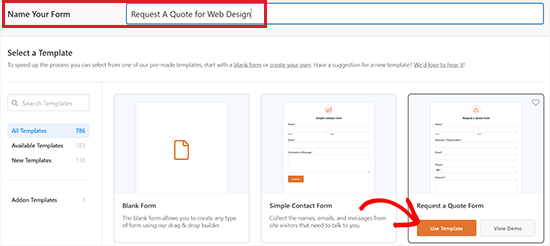
With the plugin installed, you can create a new form by going to WPForms → Add New. Choose the "Request a Quote Form" template as your starting point.
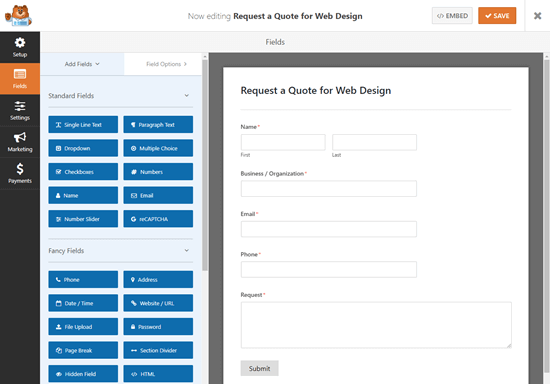
In the WPForms builder, you‘ll see your new quote form with the fields from the template. You can drag new fields from the left panel into the form, rearrange fields, or click to edit a field‘s options.
Here are a few ways to take your quote form to the next level:
Use Conditional Logic to show/hide fields based on the user‘s selections (only available in WPForms Pro and above). For example, you could have an option for "Business Website" or "Personal Website", and show specific fields for each.
Enable the "User Journey" addon to break your form into multiple pages. Multi-step forms can increase conversions by making the process feel more manageable for users.
Turn on the anti-spam honeypot option under Settings → General to prevent spam submissions without making users fill out a captcha.
When you‘re done customizing your form, hit "Save".
Designing an Effective Quote Request Form
To maximize conversions on your RFQ form, it needs to be well-designed and easy to use. Here are some UX and styling best practices to keep in mind:
Keep it short and sweet: Again, only ask for the information you absolutely need for the initial quote request. You can always follow up to get more details later. Aim to keep your form under 10 fields if possible.
Use a multi-column layout: If you have several fields, a multi-column layout can make your form appear shorter and more approachable. With WPForms, you can choose a column layout under Settings → General.
Make fields required strategically: Be selective about which fields you mark as required. For every required field, consider whether a user would realistically have that information and be willing to provide it at this stage.
Optimize for mobile: More and more users are filling out forms on mobile devices. To provide a seamless mobile experience, use a responsive form theme, keep field labels concise, and provide touch-friendly input options like checkboxes and dropdowns where possible.
Add a clear call-to-action: Your form‘s button text should provide a clear call-to-action that reinforces the value proposition. For example: "Get My Free Quote", "Claim Your Free Consultation", etc.
Customize your branding: Customize your form‘s fonts and colors to match your brand for a cohesive, professional look. WPForms makes it easy with pre-built form themes and custom CSS options.
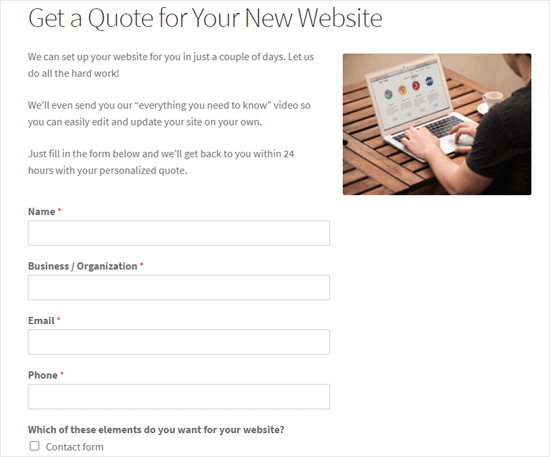
Here‘s an example of an optimized request a quote form design:
Configuring Your Quote Form Notifications
To ensure you never miss a new quote request, you‘ll want to configure instant email notifications. WPForms makes this simple under Settings → Notifications.
Send notifications to any relevant team members who need to be alerted about new quote requests. You may also want to include an admin email that multiple team members can access.
Customize the subject line and message using smart tags to automatically pull in the submitted details.
It‘s also a good idea to enable an autoresponse email. Under Settings → Confirmations, select "Show Page" and "Automatically send a notification email to users who submit this form."
Customize your confirmation message to set expectations and thank the user for their request. For example:
"Thanks for requesting a quote! A member of our team will be in touch within 1 business day with your custom quote. In the meantime, feel free to reply to this email with any additional details about your project."
By setting up these automatic notifications, you can be sure that no quote requests slip through the cracks and that every prospect gets a timely, professional response.
Promote Your Quote Form to Get More Leads
The most effective quote request form is the one your target customers can easily find when they need it. To make sure prospects see your RFQ form, focus on featuring it throughout your website and marketing.
Some easy ways to promote your request a quote form include:
- Adding a prominent CTA button in your main navigation
- Featuring the form or a link to it on your homepage
- Creating a dedicated "Request a Quote" landing page
- Linking to the form in your site footer
- Adding CTA buttons to relevant service and product pages
- Promoting the form in popups and slide-ins using a tool like OptinMonster
You can also drive more quote requests from other marketing channels by:
- Linking to your RFQ form in your email newsletter and signatures
- Promoting it on social media with organic posts and paid ads
- Featuring the form in retargeting campaigns
- Adding a "Request a Quote" CTA to your Google Business listing.
By making your quote form highly visible across touchpoints, you can capitalize on prospects‘ buying intent and bring in more leads.
Nurture Quote Request Form Submissions
Getting the request is just the first step. To turn those leads into paying customers, you need a plan for following up.
Start by setting a service level agreement (SLA) for your team that outlines your target response time for new quote requests. Ideally, you should follow up with the prospect within 24 hours while their need is still fresh.
Your first follow up should include:
- A personalized message from a real person, not a generic auto-reply
- A "quick quote" or ballpark estimate if possible
- A clear call-to-action on next steps, such as scheduling a call to discuss details
- Your contact information and working hours
After your initial reply, add the prospect to an email nurturing campaign tailored to their needs and buying stage. Your nurturing campaign might include:
- Case studies or portfolio pieces relevant to their industry or project type
- Testimonials and reviews from happy customers
- Helpful resources and guides related to their goals
- Limited time special offers or incentives for acting now
By staying top of mind and providing value at every touchpoint, you‘ll be more likely to close the sale when the prospect is ready to move forward.
Optimizing Your Quote Form for More Conversions
No matter how well-designed your RFQ form is, there‘s always room for improvement. To optimize your form over time, you‘ll want to monitor key metrics like:
- Number of form impressions
- Number of form submissions
- Form conversion rate
- Leads closed from RFQ form submissions
Use a form analytics tool to see where prospects are dropping off and identify opportunities to streamline your form.
You can also run A/B tests on your form to see what drives the most conversions. Some elements to test include:
- Form headline and description
- Call-to-action button text and color
- Number and order of fields
- Single vs. multi-column layout
- Required vs. optional fields
By analyzing the data and making informed optimizations, you can increase quote requests and leads over time.
Request a Quote Form Compliance and Privacy
When gathering personal information through your request a quote form, it‘s important to follow applicable data privacy laws and regulations.
These rules may include:
- The General Data Protection Regulation (GDPR) if you do business in the EU
- The California Consumer Privacy Act (CCPA) if you serve California residents
- The CAN-SPAM Act for any commercial emails you send
To stay compliant, make sure to:
- Only collect the information you truly need
- Have a clear privacy policy that covers how you collect, use, and protect user data
- Get explicit consent before adding users to your email list
- Provide an easy unsubscribe option in any nurturing emails
- Follow secure data handling practices and use SSL/HTTPS on your WordPress site
By respecting user privacy and following regulations from the start, you can avoid legal issues and build trust with your leads.
Putting It All Together
In today‘s fast-paced world, buyers want convenient, instant options for getting the information they need to make a purchase. A well-executed request a quote form delivers that while also saving your team valuable time.
By putting the strategies and best practices from this guide into action, you can build a high-converting RFQ form for your WordPress site. The upfront work to optimize your form and follow-up process will pay off in the form of more high-quality leads and sales for your business.
Remember – when it comes to converting quote requests, it‘s all about providing a seamless, user-friendly, and professional experience at every step. Put yourself in your ideal customer‘s shoes and deliver the responsive, helpful service you‘d want in their position.
Over to you – do you have a quote request form on your WordPress site? What strategies have worked well for encouraging submissions and nurturing those leads? Let me know in the comments!
)