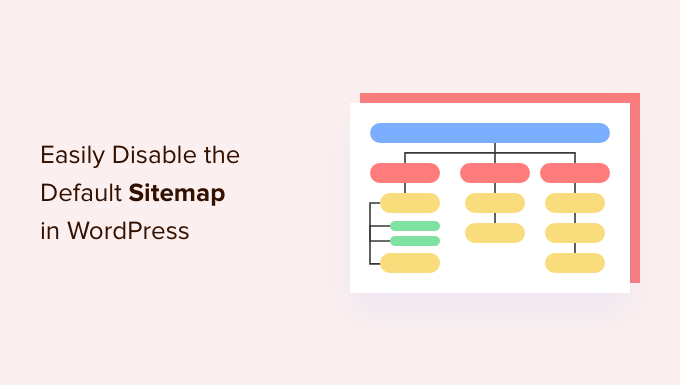
Hey there! If you‘re looking to disable the default WordPress XML sitemap, you‘re in the right place.
In this post, I‘ll teach you two simple methods to turn off the built-in sitemap functionality and replace it with a superior alternative for better SEO results. No coding skills needed!
First, let‘s discuss why you‘d want to disable the default WordPress sitemap in the first place. Then I‘ll walk you through the step-by-step process for each method.
What Is an XML Sitemap?
An XML sitemap acts as a roadmap of your website‘s content for search engines. According to Google, it can include information like:
- The full list of pages and posts on your site
- Metadata about each page (last updated, change frequency, importance, etc.)
- Images, videos, and news content
- Alternate language versions of pages
Essentially, the sitemap helps search engine bots efficiently crawl and index all your important content. The easier you make it for them, the better your chances of ranking well for relevant keywords.
Some key benefits of an optimized XML sitemap include:
- Faster indexing of new or updated content
- Ensuring all key pages are indexed
- Prioritizing your most important content
- Associating alternate language versions
- Improving crawl efficiency and saving "crawl budget"
Bottom line – XML sitemaps are crucial for good SEO, especially on larger websites. They‘ve become a standard best practice.
Limitations of the Default WordPress Sitemap
Back in August 2020 with version 5.5, WordPress started generating a default XML sitemap automatically. At first glance, this sounds great – one less technical SEO task to set up.
However, many SEOs quickly realized the built-in sitemap has some big shortcomings:
Lack of content control. It automatically includes ALL your posts and pages (drafts too!) with no way to pick and choose.
No custom post type or taxonomy support. If your site uses any custom content types, they won‘t be included by default.
Zero customization options. You can‘t change any metadata like update frequency, priority, or last modified dates.
No image, video, or news sitemaps. It only creates a basic posts and pages sitemap.
Compatibility issues. Some SEO plugins and sitemaps ended up generating duplicate sitemaps, confusing search engines.
So while the default sitemap is better than nothing, its limitations can actually end up hurting your SEO efforts more than helping.
That‘s why I recommend disabling the default sitemap and replacing it with a more robust solution. It only takes a few minutes but can make a big difference in your rankings and traffic.
How to Disable the Default WordPress Sitemap (2 Methods)
Now that you understand the "why", let me show you the "how". Here are the two easiest ways to turn off the default WordPress sitemap.
Method 1: Disable via SEO Plugin (Easiest)
If you‘re using a popular SEO plugin like Yoast SEO, All in One SEO, or Rank Math, you‘re in luck.
Each of these has a simple toggle to disable the default WordPress sitemap and use their own upgraded version instead.
Here‘s how to do it in Yoast SEO:
- In your WordPress dashboard, go to SEO > General > Features.
- Next to "XML Sitemaps", toggle the setting to On.
- Save your changes.

With that simple flip of a switch, Yoast will turn off the default sitemap and enable its own expanded functionality.
The process will be very similar in other SEO plugins – just look for the XML sitemap settings and make sure it‘s enabled. Consult your specific plugin‘s documentation for detailed steps.
Method 2: Disable via Code Snippet
If you aren‘t using an SEO plugin with built-in sitemap controls, you can still easily disable the default via a small code edit.
Here‘s how:
- Go to Appearance > Theme Editor in your WordPress dashboard.
- Click on the
Theme Functions (functions.php)file on the right. - Scroll down to the very bottom of the file.
- Paste in this code snippet:
add_filter( ‘wp_sitemaps_enabled‘, ‘__return_false‘ );- Click the "Update File" button.

With that quick one-liner, you just disabled the default WordPress sitemap. Easy peasy!
Pro tip: I highly recommend using a child theme before editing any theme files. This ensures your changes don‘t get overwritten when you update your theme down the line. Trust me, it‘s a best practice you want to follow.
The Best WordPress Sitemap Plugin Alternative
Now that you‘ve turned off the lackluster default sitemap, let‘s replace it with a more powerful option.
In my experience, the best WordPress sitemap plugin is hands-down All in One SEO (AIOSEO for short).
It‘s a comprehensive SEO toolkit that includes a robust sitemap generator. Plus it has tons of other helpful SEO features like schema markup, SEO audit checker, TruSEO on-page analysis, local SEO module, WooCommerce SEO, and more.
The AIOSEO sitemap has a ton of advantages over the default one:
- Include/exclude specific pieces of content
- Supports custom post types and taxonomies
- Automatically notify search engines about updates
- Create dedicated sitemaps for images, videos, and news
- Custom sitemap settings for update frequency, priority, and last modified
- Indexes WooCommerce products and other key e-commerce pages
- Customize sitemap name, path, and more
Basically, it gives you full control over your sitemap contents and optimization. You can fine-tune it to your heart‘s desire.
To set it up:
- Install the All in One SEO plugin
- Go to All in One SEO > Sitemaps and toggle it on
- Configure your sitemap settings and preferences
- Save changes and click "Notify Search Engines"

I suggest carefully review all the settings and excluding any thin, duplicate, or irrelevant content. The cleaner your sitemap, the better.
Some power user tips:
- Only include your most important content
- Assign higher priority values to key pages
- Exclude media files, archive pages, and thank you pages
- Add additional non-WordPress pages if applicable
- Create a separate video sitemap if you have video content
- Adjust the "Max posts per sitemap" and "Exclude posts older than" values
You can access your new sitemaps at domain.com/sitemap.xml and domain.com/sitemap_index.xml.
Fun fact: According to builtwith.com, over 28 million live websites use WordPress. That means sitemaps created by All in One SEO power a huge chunk of the web!
How to Submit Your Sitemap to Search Engines
Once your sitemap is generated, the final step is letting search engines know about it.
All in One SEO has a handy button to ping them automatically:

However, I also recommend submitting it via Google Search Console and Bing Webmaster Tools for good measure. This lets you access additional reporting and diagnostic tools.
In Google Search Console, go to Indexing > Sitemaps and enter your sitemap URL:

Repeat the process in Bing Webmaster Tools under Sitemaps > Submit sitemap.
That‘s it! Now Google and Bing will be able to efficiently crawl and index your site using your shiny new sitemap.
I suggest keeping an eye on your sitemap status and indexing coverage to make sure everything looks good.
Additional WordPress SEO Tips
Sitemaps are just one piece of the SEO puzzle. Some other key optimizations include:
- Installing an SEO plugin like All in One SEO
- Optimizing your titles, meta descriptions, and content
- Adding schema markup
- Improving site speed and Core Web Vitals
- Building high-quality backlinks
- Setting up Google Analytics and Search Console
By implementing WordPress SEO best practices across the board, you‘ll be well on your way to higher visibility and traffic from search.
Key Takeaways
If you remember nothing else from this guide, here are the key points:
- The default WordPress sitemap is extremely limited
- You can easily disable it via SEO plugin or code snippet
- All in One SEO is the best WordPress sitemap plugin
- Make sure to customize your sitemap settings and exclude thin content
- Submit your sitemaps to Google and Bing for faster indexing
- Sitemaps work best as part of a holistic SEO strategy
Now you‘re armed with everything you need to know about WordPress sitemaps. Go forth and optimize!
If you have any other questions about technical SEO or WordPress plugins, feel free to leave a comment.
Happy optimizing!
)