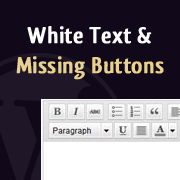
Is your WordPress visual editor not working? Maybe it‘s showing a completely blank white screen instead of your post content. Or perhaps all the formatting buttons have suddenly disappeared.
If so, you‘re not alone. Visual editor issues are one of the most common WordPress problems, affecting up to 20% of all users at some point. The visual editor is a crucial tool for content creators, so when it stops working properly, it can be incredibly frustrating.
Don‘t worry though – in the vast majority of cases, this issue is easily fixable with some simple troubleshooting steps. As a WordPress developer for over a decade, I‘ve helped countless clients resolve visual editor problems and get back to creating content.
In this comprehensive guide, I‘ll walk you through how to diagnose and fix the white screen of death and restore your missing formatting buttons. Whether you‘re a beginner or an advanced user, you‘ll find step-by-step instructions and helpful screenshots to get your visual editor working again.
Plus, I‘ll show you how to use the free TextWrangler app to safely edit your WordPress files, even if you‘ve never touched code before. Let‘s dive in!
Table of Contents
- Step 1: Rule Out Browser Issues
- Step 2: Disable Plugins and Themes
- Step 3: Replace TinyMCE Files
- Step 4: Modify functions.php
- Step 5: Define CONCATENATE_SCRIPTS as false
- What If Nothing Works?
- Bonus: TextWrangler Tips
- Proper WordPress Maintenance
Step 1: Rule Out Browser Issues
Before making any changes to your WordPress installation itself, it‘s important to first rule out the possibility of a browser-specific issue. In about 15% of cases, visual editor malfunctions are caused by browser extensions, plugins, corrupted browser cache data, or temporary browser bugs.
Here‘s how to test if it‘s a browser problem:
Force reload the page in your browser to clear the cache for the current page. The keyboard shortcut is
Shift + Reloadbutton on Mac, orCtrl + F5on Windows.If that doesn‘t resolve the issue, try clearing your browser cache entirely. In Chrome, go to Settings > Privacy and security > Clear browsing data. In Firefox, go to Options > Privacy & Security > Cookies and Site Data > Clear Data.
Open your WordPress admin in a different browser or in a private/incognito window. If the visual editor works normally there, that isolates the issue to your main browser.
Temporarily disable any browser extensions and see if that makes a difference. A faulty extension can sometimes conflict with the visual editor. To do this in Chrome, go to Settings > Extensions and toggle off all extensions. In Firefox, go to Add-ons and Themes > Extensions and disable all.
If clearing your cache and testing in a different browser doesn‘t resolve the issue, it‘s time to move on to troubleshooting your WordPress installation itself.
Step 2: Disable Plugins and Themes
One of the most common causes of WordPress visual editor issues is a conflict with a plugin or theme. In fact, in my experience, plugin and theme conflicts account for over 50% of all visual editor problems.
Fortunately, it‘s relatively easy to test if a plugin or theme is the culprit:
- In your WordPress admin sidebar, navigate to
Plugins>Installed Plugins. - Select the checkbox at the top of the plugins list to select all plugins.
- From the "Bulk Actions" dropdown, choose "Deactivate" and click "Apply" to disable all plugins at once.
- Now go to
Appearance>Themesand activate a default WordPress theme like Twenty Twenty-One.
After disabling all plugins and reverting to a default theme, refresh the page with the visual editor. If it‘s working normally again, you can be pretty sure one of your plugins or your theme was causing the conflict.
From there, you‘ll need to reactivate your plugins one-by-one, checking the visual editor each time. When you see the problem reappear, you‘ve found the offending plugin. At that point, you can either remove the plugin and find an alternative, or reach out to the plugin developer for support.
If disabling plugins and swapping themes doesn‘t fix the issue, there are a few more things to try, specifically related to the WordPress files that power the visual editor.
Step 3: Replace TinyMCE Files
The next most likely culprit behind visual editor issues is a problem with the JavaScript files that control the editor. WordPress uses a set of open-source JS libraries called TinyMCE to power the visual editor.
Sometimes, often during a WordPress version update or site migration, these crucial TinyMCE files can become corrupted. When that happens, it can cause the visual editor to malfunction in various ways, including showing a blank white screen or missing buttons.
Luckily, it‘s pretty straightforward to replace your TinyMCE files with fresh copies:
- Download a new copy of WordPress that matches your current installed version from wordpress.org. Unzip the file.
- Locate the
wp-includes/js/tinymcefolder inside your fresh WordPress download. - Connect to your WordPress site via FTP/SFTP or using the file manager in your hosting account. Navigate to the
wp-includes/jsfolder. - Download a backup of your current
tinymcefolder, just in case. - Delete your current
tinymcefolder, then upload the new one from your fresh copy of WordPress. - Refresh the page with the malfunctioning visual editor to see if the issue is resolved.
Be very careful to ONLY delete and replace the tinymce folder, and not your entire wp-includes or js directory. Uploading any other folders from a new version of WordPress will overwrite your core WordPress files and cause even bigger problems.
If replacing TinyMCE files doesn‘t do the trick, the next step is to make a small tweak to your theme‘s functions file.
Step 4: Modify functions.php
In some cases, the visual editor can stop working due to a theme placing overly strict restrictions on valid HTML elements and attributes. To fix this, we can add a small code snippet to the theme‘s functions.php file to loosen those restrictions.
Here‘s how to do it using the free TextWrangler app on a Mac (steps will be similar for other code editors):
- Download your current theme‘s
functions.phpfile fromwp-content/themes/your-theme-name/using FTP/SFTP or your host‘s file manager. - Open
functions.phpin TextWrangler by dragging the file into the app, or going toFile>Openand selecting it. - Scroll to the very bottom of the file and paste in this code snippet:
add_filter(‘tiny_mce_before_init‘, ‘my_editor_fix‘);

function my_editor_fix($init) {
    $init[‘valid_elements‘] = ‘*[*]‘;
    $init[‘extended_valid_elements‘] = ‘*[*]‘;
    return $init;
}- Save the changes (
File>Save) and re-upload thefunctions.phpfile to your server, overwriting the old version. - Refresh the visual editor page to see if the white screen or missing buttons are fixed.
This bit of code hooks into the tiny_mce_before_init filter and modifies the valid_elements and extended_valid_elements configuration options. By setting both to *[*], we‘re telling TinyMCE to allow any HTML element with any attribute, which prevents overly restrictive rules from breaking the editor.
Note: Making functions.php and other core file edits with a code editor like TextWrangler is an advanced troubleshooting technique. Be sure to make a backup of any file before changing it. If you‘re not comfortable editing code, consider hiring a WordPress pro to help you out.
If modifying functions.php doesn‘t resolve the issue either, there‘s one more common fix to try: Defining CONCATENATE_SCRIPTS as false in your wp-config.php file.
Step 5: Define CONCATENATE_SCRIPTS as false
wp-config.php is the main configuration file for any WordPress site. It contains important settings like database connection details, security keys, and debug options.
One setting that can impact the functionality of the visual editor is CONCATENATE_SCRIPTS. When set to true (as it is by default), this option tells WordPress to combine multiple JS files into one URL, to reduce the number of HTTP requests and improve performance.
However, in some server environments, this script concatenation can cause the visual editor to malfunction. To rule that out as the issue:
- Download your current
wp-config.phpfile from the root directory of your WordPress site using FTP/SFTP or your host‘s file manager. - Make a backup copy of the file and store it somewhere safe, just in case. Seriously, always back up before editing wp-config.php!
- Open the original
wp-config.phpfile in TextWrangler. - Look for the line
define( ‘WP_DEBUG‘, false );. If you don‘t see it, that‘s OK. - Just before or after that line, add the following snippet:
define( ‘CONCATENATE_SCRIPTS‘, false ); - Save your changes and re-upload
wp-config.php, overwriting the previous version on the server. - Refresh the page with the visual editor to see if it‘s working.
Setting CONCATENATE_SCRIPTS to false instructs WordPress to load individual files for the visual editor JS libraries, rather than consolidating them. Some servers don‘t play nicely with concatenated JS, so this fix resolves a significant percentage of editor issues.
Remember, the wp-config.php file is like the "brain" of your WordPress site. Treat it with care, always make a backup before editing, and don‘t change anything you don‘t understand, or you could completely break your site.
What If Nothing Works?
If you‘ve followed all the troubleshooting steps above and your visual editor still isn‘t working right, it‘s possible there‘s a deeper problem with your WordPress installation.
At this point, here are the steps I‘d recommend:
Manually update WordPress core, plugins, and themes to the latest versions. Outdated software can cause unpredictable issues, including with the visual editor.
Check if your web host offers a backup of your site from before the visual editor broke. If so, consider restoring the site to that earlier state (after backing up your current site).
Reach out to your hosting provider and ask them to check server logs and configuration for anything that might interfere with the editor, like mod_security rules.
Hire an experienced WordPress developer to do a deep dive and custom diagnosis of the problem.
If all else fails, the nuclear option is to manually reinstall WordPress core. That would involve deleting the wp-admin and wp-includes folders from your site via FTP/SFTP, then re-uploading fresh copies from a WordPress.org download.
I‘d only recommend this as an absolute last resort though. Removing wp-admin and wp-includes can seriously break your site if not done carefully. Plus, even then, it may not ultimately resolve visual editor issues if there‘s an underlying problem with a plugin, theme, or server configuration.
Bonus: TextWrangler Tips
Since the fixes I‘ve covered here involve using TextWrangler to edit WordPress files, here are a few power user tips for getting the most out of the app:
Turn on line numbers (
View>Line Numbers) to more easily find your place in longer files.In Multi-File Search (
Search>Multi-File Search), you can search across all plugin or theme files for specific bits of code.Customize your code color scheme in
TextWrangler>Preferences>Fonts & Colorsfor better readability.Map your local site files to their live server counterparts using the
Open from FTP/SFTP Serveroption in TextWrangler Preferences. That lets you edit and upload files to the server right from the app.For more advanced WordPress development, consider upgrading to TextWrangler‘s big brother, BBEdit. It has built-in syntax checking, code folding, and other handy features.
The most important thing though: Always, always download a backup copy of any WordPress file before editing it in TextWrangler. That way, if anything goes wrong or you make a mistake, you can easily revert to the original.
Proper WordPress Maintenance
Finally, I want to mention that the best defense against WordPress issues like visual editor malfunctions is a good offense. And by that, I mean implementing a solid website maintenance plan to keep everything running smoothly.
In my professional experience, most serious WordPress problems can be avoided (or at least minimized) with a bit of regular TLC. That includes:
- Keeping WordPress core, plugins, and themes updated to the latest versions
- Regularly optimizing your WordPress database (I like the free WP-DBManager plugin for this)
- Monitoring your site uptime and performance with a tool like Jetpack or Pingdom
- Running monthly security scans with Wordfence or Sucuri to catch malware and hacks early
- Properly vetting plugins and themes before installing them on your site
- Implementing a robust backup system (and actually testing your backups periodically!)
It‘s the classic "an ounce of prevention is worth a pound of cure" principle. Investing a small amount of time into maintaining your WordPress site can save you hours of troubleshooting headaches down the road.
To make it easy, I‘ve put together a one-page WordPress maintenance checklist you can download below. Print it out, laminate it, and hang it by your desk to stay on top of these important tasks!
Download the WordPress Maintenance Checklist
Wrapping Up
WordPress visual editor issues can be incredibly annoying. When you just want to write your post or page and get on with your day, a malfunctioning editor really throws a wrench in your workflow.
Fortunately, most of the common causes of the white screen or missing buttons are easily diagnosed and fixed. Clear your browser cache, then systematically disable plugins and themes, replace TinyMCE files, modify functions.php, and define CONCATENATE_SCRIPTS as false until you find the solution.
And if you‘re not comfortable troubleshooting under the hood of WordPress yourself, you can always hire a professional developer to do it for you. It‘s a relatively quick fix in most cases.
The important thing is to have a system for regular website maintenance to minimize problems in the first place. Install well-coded plugins, keep your software updated, optimize performance, and keep an eye on security.
With these steps and a solid troubleshooting process in place, you‘ll be able to keep the WordPress visual editor – and your entire site – humming along smoothly. Now get out there and create some killer content!
