Are you struggling to convert browsers into buyers in your WooCommerce store? You might be overlooking one crucial element: the short product description.
According to a study by Nielsen Norman Group, 20% of unsuccessful purchases are due to incomplete or unclear product information. That‘s where a compelling short description comes in. It‘s your chance to quickly highlight the key features and benefits of your product, grab the shopper‘s attention, and persuade them to keep reading.
In this comprehensive guide, we‘ll cover everything you need to know about short product descriptions in WooCommerce:
- Why Short Descriptions are Essential
- How to Add a Short Description in WooCommerce
- 8 Pro Tips for Writing Descriptions That Sell
- Displaying Short Descriptions on Shop & Category Pages
- Creating Custom Product Page Layouts
- Optimizing Your WooCommerce Store for More Sales
Whether you‘re a WooCommerce beginner or a seasoned pro, this guide will provide you with actionable insights and tactics to level up your product descriptions and boost your bottom line. Let‘s dive in!
Why Short Descriptions are Essential
Think of a short product description like an elevator pitch. You have just a few seconds to capture the shopper‘s interest and convince them that your product is worth their time.
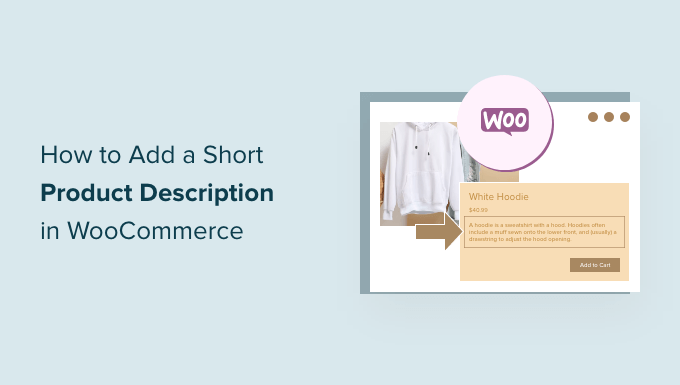
Short descriptions are usually the first thing potential customers will read after the product title. They appear prominently near the top of the product page, close to the image, price, and add-to-cart button. Your short description needs to make a memorable first impression and compel shoppers to continue exploring the page.
Here are a few key benefits of well-crafted short product descriptions:
Increased Engagement: Shoppers are more likely to interact with your product page if you pique their interest right off the bat with a punchy short description.
Better Scannability: Most people will scan a page before deciding to read it in full. Short descriptions help them quickly glean the essential info they need to make a purchase decision.
Improved SEO: While not as important as your main product description, short descriptions still provide an opportunity to naturally incorporate keywords and boost your search engine rankings.
Higher Conversions: By highlighting your product‘s unique value proposition and answering common questions upfront, you can nudge hesitant shoppers closer to the "add to cart" button.
In fact, a study by Salsify found that the number one reason people buy a product online is the quality of product descriptions and images. If you want to stand out from competitors and drive more sales, nailing your short descriptions is key.
How to Add a Short Description in WooCommerce
Adding a short product description in WooCommerce is a breeze. Just follow these simple steps:
- From your WordPress dashboard, navigate to Products → All Products.
- Find the product you want to edit and click on its title, or click "Add New" to create a new product.
- In the Product data section, look for the "Product short description" field.
- Enter your short description into this box. You can use basic HTML tags for formatting (bold, italics, etc.)
- Publish or update the product.

It‘s really that easy! Your short description will now show up on the individual product page, usually somewhere near the top by the product image and price. The exact placement may vary depending on your theme.
Pro Tip: Keep your short descriptions concise and punchy. Aim for around 100-150 characters max. This ensures they display nicely on all screen sizes and are easy to digest at a glance.
8 Pro Tips for Writing Descriptions That Sell
Now that you know where to add short descriptions, let‘s talk about how to write ones that grab attention and motivate shoppers to buy. Here are eight expert tips to keep in mind:
- Focus on Benefits, Not Just Features. Don‘t simply list off your product specs. Explain how each feature will improve the customer‘s life or solve their problem.
Bad: "600W motor"
Good: "Powerful 600W motor blends the toughest ingredients with ease"
- Use Vivid, Sensory Language. Choose words that evoke emotion and help the reader visualize using your product. Think textures, scents, sensations.
Bad: "Natural cotton t-shirt"
Good: "Buttery soft, 100% organic cotton feels light and luxurious against your skin"
- Incorporate Social Proof. If your product has won awards, earned rave reviews, or been featured in the media, mention that social proof right in the short description.
Example: "5-star rated", "Oprah‘s Favorite Things 2022", "Over 15,000 happy customers"
Optimize for Search Engines. While you don‘t want to stuff your short description with keywords, working in one or two naturally can help boost your search rankings for those terms.
Use Scarcity and Urgency Tactics (Sparingly). If you‘re running a limited time sale or only have a few items left in stock, mention that in the short description. Just be sure to use this tactic honestly and judiciously, or you could hurt your credibility.
Example: "75% off, today only!", "Only 3 left in stock, order now before they‘re gone!"
Split Test Different Descriptions. Try out a few different short descriptions for the same product and see which one performs best. You can use a tool like Google Optimize to easily run A/B tests.
Keep it Skimmable with Bullet Points or Emojis. Most people will scan your short description before reading the whole thing. Make key points easy to pick out by using bullets, line breaks, or even relevant emojis.
Don‘t Oversell. While you want to get shoppers excited about your product, don‘t veer into hyperbole or unsupported claims. Stick to the facts and be authentic to build trust.
By putting these tips into action, you can create short descriptions that don‘t just inform, but persuade. Remember, your goal is to quickly convey the value of your product and compel shoppers to learn more.
Displaying Short Descriptions on Shop & Category Pages
Short descriptions are great for engaging shoppers once they land on an individual product page. But what about attracting clicks from your shop and category pages in the first place?
By default, most WooCommerce themes only display short descriptions on single product pages. However, you might want to show a short snippet on collection pages too, to entice more people to visit the full product details.
There are two main ways to add short descriptions to your shop and category pages:
- Edit your theme‘s template files (requires coding)
- Use a plugin (no coding required)
If you‘re comfortable with PHP and WordPress theme development, editing your template files gives you the most control. You can use WooCommerce hooks to add short descriptions exactly where you want.
Here‘s a snippet you can pop into your theme‘s functions.php file to display short descriptions below products on the shop page:
add_action( ‘woocommerce_after_shop_loop_item‘, ‘display_short_description_shop_page‘, 5 );
function display_short_description_shop_page() {
    global $product;

    if ( ! $product->get_short_description() ) return;
    ?>
    <div class="woocommerce-product-details__short-description">
        <?php echo apply_filters( ‘woocommerce_short_description‘, $product->get_short_description() ) ?>
    </div>
    <?php
}
If you‘d rather not mess with code, you can use a plugin like Product Short Descriptions for WooCommerce. This lets you enable short descriptions on shop and category pages with a single click, no coding needed.

Displaying short descriptions on collection pages can be a great way to boost click-through rates and help shoppers find the right products faster. Just be sure to keep them concise so you don‘t overwhelm the page with too much text.
Creating Custom Product Page Layouts
If you really want to take control of how and where your short descriptions appear, consider using a page builder plugin to design 100% custom product page layouts.
Page builders let you drag and drop various elements like text, images, and buttons to create unique pages without writing code. Many even come with pre-built product page templates to give you a head start.
My favorite page builder for WooCommerce is SeedProd. It‘s lightweight, user-friendly, and includes tons of eCommerce-specific blocks like:
- Product title
- Product price
- Short description
- Full description
- Add to cart button
- Product images
- Customer reviews
Here‘s how you can use SeedProd to whip up a custom product page layout in minutes:
- Install and activate the SeedProd plugin
- Go to SeedProd → Landing Pages and click "Add New Landing Page"
- Choose the "Product" page type and pick a template (or start from scratch)
- Add the Product Short Description block to your desired location
- Customize the design using the visual editor and style settings
- Publish your new product page layout

With a custom product page layout, you can position your short description in the perfect spot to grab attention and drive conversions. You can also add trust signals, urgency elements, and more to craft a high-converting page.
Optimizing Your WooCommerce Store for More Sales
Crafting compelling short descriptions is a fantastic way to level up your product pages and persuade more shoppers to buy. But it‘s just one part of optimizing your WooCommerce store for success.
To really maximize your sales potential, you‘ll also want to:
- Design a user-friendly shop and category page layout
- Streamline your checkout process to reduce cart abandonment
- Offer multiple payment methods like PayPal and Apple Pay
- Display customer reviews and trust badges
- Create a mobile-responsive design
- Optimize your page load speeds
By combining conversion-focused short descriptions with these other best practices, you‘ll be well on your way to WooCommerce success.
Boost Your Sales with Better WooCommerce Short Descriptions
There you have it! You‘re now equipped with the knowledge and actionable advice you need to write WooCommerce short descriptions that engage, inform, and convert.
Remember, a great short description should:
✓ Highlight key benefits and features
✓ Use vivid, persuasive language
✓ Be concise and easy to skim
✓ Incorporate social proof
✓ Optimize for search engines
✓ Create a sense of urgency
I know this might seem like a tall order for just a few lines of text. But with practice and experimentation, you‘ll get a feel for what resonates with your unique target audience.
If you implement the tips and tactics covered in this guide, I‘m confident you‘ll start seeing more engagement, higher click-through rates, and most importantly, more sales.
So what are you waiting for? Go audit your existing short descriptions and see where you can sprinkle in some extra persuasive power. Your bottom line will thank you.
For more expert WooCommerce advice and insights, be sure to check out our other articles on choosing the best WooCommerce theme, must-have plugins for online stores, and eCommerce SEO.
Here‘s to your selling success!
