
Hey there! If you‘re looking to create a centralized hub where your team or customers can access all the information they need, you‘re in the right place. Today, we‘re diving deep into how to build an incredible wiki-style knowledge base on WordPress.
As a WordPress expert who‘s built countless knowledge bases, I‘m excited to share my proven tips and top plugin picks for 2026. Whether you‘re supporting employees or end-users, this guide will walk you step-by-step through creating an invaluable information resource. Let‘s get started!
Why Every Business Needs a Wiki Knowledge Base
Before we get technical, let‘s talk about why having a knowledge base is a game-changer. A wiki is like giving your team a superpower – the ability to instantly access shared knowledge and contribute their own expertise.
Check out these eye-opening stats:
| Stat | Source |
|---|---|
| The average employee spends 2.5 hours per day searching for information | McKinsey |
| 70% of customers prefer to use a company‘s website to get answers to their questions | Forrester |
| Knowledge bases can reduce support ticket volume by up to 60% | Groove HQ |
| 74% of users prefer using a knowledge base if it‘s available and meets their needs | Zendesk |
The impact is clear: a well-crafted knowledge base boosts productivity, enhances customer support, and empowers people to find answers fast. No more endless email chains or wasting time hunting down information!
Why WordPress is the Ideal Platform for Your Wiki
Now, you might be wondering – why use WordPress for a wiki? While platforms like MediaWiki (used by Wikipedia) are popular, WordPress has some unique advantages:
Familiarity: Most people already know how to use WordPress. Its intuitive editor makes it a breeze for anyone to contribute content.
Flexibility: With thousands of plugins and themes, you can customize your wiki to match your exact needs and brand.
Integration: Your knowledge base can integrate seamlessly with your main WordPress site and other key tools like live chat and analytics.
Affordability: WordPress is open source and free. Even premium wiki plugins are cost-effective compared to standalone software.
In my experience, WordPress is the most versatile and user-friendly option for building a feature-packed knowledge base. Speaking of features, let‘s check out the top plugins for the job!
The Best WordPress Wiki Plugins for 2026
1. Heroic Knowledge Base
When it comes to WordPress wiki plugins, Heroic Knowledge Base is tough to beat. I‘ve used it for projects big and small and have always been impressed by its extensive features and ease of use.
Here are some of the standout capabilities:
- Drag-and-drop article and category ordering
- Customizable page layouts and themes
- Built-in analytics to track views and searches
- User feedback and voting on articles
- Option to restrict content to logged-in users
One of the things I love most about Heroic KB is how simple it makes organizing your content. You can structure articles and categories in a logical hierarchy and easily rearrange them as your wiki grows.
The analytics are also super handy for understanding what information users are searching for and engaging with most. You can use these insights to optimize your content and fill knowledge gaps.
Setting Up Your Heroic Knowledge Base
Ready to get started with Heroic KB? Here‘s a quick walkthrough of the setup process:
- Install and activate the plugin from the WordPress Plugin Directory
- Create your categories by going to "Heroic KB" → "Categories"
- Add articles under "Heroic KB" → "Articles", assigning them to relevant categories
- Customize your wiki‘s design by choosing a template, uploading your logo, and setting brand colors under "Heroic KB" → "Settings"
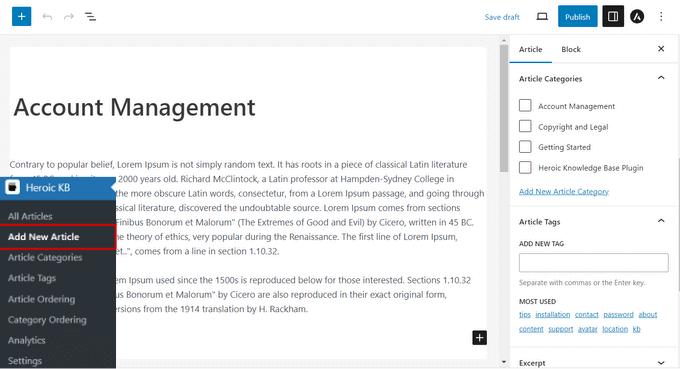
The Heroic KB article editor
It‘s really that easy! With a little content planning and categorization, you‘ll have a professional-looking, organized wiki ready to go.
2. Yada Wiki
If you‘re looking for a more lightweight option, Yada Wiki is a great choice. While it may not have quite as many bells and whistles as Heroic KB, its focus on simplicity and collaboration makes it perfect for teams who want to get up and running quickly.
Some key features of Yada Wiki include:
- Clean, distraction-free article layouts
- Gutenberg block editor for easy content creation
- Automatic tables of contents and internal linking
- Revision history and moderated editing
One standout aspect is the emphasis on collaborative editing. You can allow trusted users to suggest changes that must be approved by an admin. This is an excellent way to maintain quality control while still encouraging contributions from subject matter experts.
Here‘s a quick overview of setting up Yada Wiki:
- Install and activate the Yada Wiki plugin
- Create a new page and insert the Yada Wiki block
- Add your content using the built-in editor
- Configure your wiki settings, including editing permissions and display options
That‘s it! Yada Wiki may be simple, but don‘t underestimate its collaborative power.
3. BetterDocs
For knowledge bases geared towards customer support, BetterDocs is my go-to recommendation. It has all the wiki essentials plus some amazing features tailored for customer self-service:
- Stylish, UX-optimized article layouts
- Instant search and article recommendations
- Detailed user engagement analytics
- Instant answers chatbot (add-on)
- Integrations with popular support tools
One of the coolest features of BetterDocs is the optional chatbot add-on. It can automatically suggest relevant articles based on user queries, providing instant 24/7 support. Talk about a productivity supercharger!
To set up BetterDocs:
- Install and activate the BetterDocs plugin
- Choose a template that matches your site design
- Create categories and articles, taking advantage of the WYSIWYG content editor
- Configure essential settings like your wiki URL, category display, and search parameters
With BetterDocs‘ sleek design and support-focused features, you‘ll have an impressive customer knowledge base that‘s optimized for self-service.
Tips for an Effective WordPress Wiki
Now that you know the top plugin contenders, let‘s talk about some best practices for creating a wiki that really shines.
1. Plan Your Content Architecture
Before diving into writing articles, take time to map out your wiki‘s structure. Having a clear hierarchy of categories and subcategories will make your content easier to navigate and help you spot any gaps.
I like to start by brainstorming the main topics my wiki will cover, then drill down into subtopics that fall under each one. Aim for a structure that feels intuitive for your users.
2. Standardize Your Article Format
Using a consistent article template will make your wiki feel more cohesive and professional. Establish guidelines for things like:
- Title and heading formatting
- Tone and voice
- Image and video use
- Internal and external linking
- Attribution and sources
Standardizing your format will also make it easier for contributors to create content that aligns with your wiki‘s style.
3. Leverage Internal Linking
Linking related articles together is a fantastic way to help users discover relevant information and understand relationships between concepts. Plus, it encourages people to dive deeper into your wiki.
Whenever you write an article, consider what other content could provide valuable context or next steps. Use clear anchor text and avoid over-linking to maintain readability.
4. Encourage Contributions and Feedback
The beauty of a wiki is that it‘s collaborative. Invite your team members to share their knowledge by writing and updating articles. Make the contribution process clear and celebrate their efforts.
Similarly, encourage users to provide feedback on articles through comments, ratings, or surveys. This input is gold for identifying areas to improve and understanding what content resonates best.
5. Regularly Update and Expand Content
Your wiki is a living resource that should evolve along with your business. Set up a regular review process to revisit and refresh articles as information changes. Keep an eye on your wiki‘s analytics to see which articles are getting the most traction.
Consider creating a content calendar to plan new articles and make sure your wiki keeps growing. Identify gaps where users are searching for information but not finding it. A knowledge base is never "done" – there‘s always room for expansion!
Go Forth and Build Your Wiki!
Whew, that was a whirlwind tour of building an amazing wiki on WordPress! I hope this guide has given you the tools and inspiration to create a knowledge base that will be a game-changer for your team or customers.
Remember, a wiki is an investment in long-term knowledge sharing and productivity. It takes some planning and effort to get right, but the payoff is absolutely worth it.
To recap, here are the key steps:
- Choose the right WordPress wiki plugin for your needs (I recommend Heroic KB, Yada Wiki, or BetterDocs)
- Plan your wiki structure and create a style guide
- Write and organize your articles using wiki best practices
- Encourage contribution and regularly update content
- Watch your wiki flourish into an indispensable resource!
If you have any questions or tips of your own, I‘d love to hear them. Leave a comment and let‘s keep the knowledge sharing going.
Here‘s to your wiki success!
)