
Hey there, WordPress site owner! Let me guess – you work hard to create awesome content and get your site in front of as many people as possible. But do you really know the people behind the pageviews?
Understanding your WordPress followers is key to creating a site that truly serves your audience and achieves your goals. When you know who‘s following you, what content resonates with them, and how they discover and engage with your site, you can:
- Create more of the content that attracts your ideal followers
- Optimize your site design and user experience to keep people engaged
- Promote your site in the right places to get in front of your target audience
- Build relationships with your fans to turn them into superfans
Sounds good, right? But how do you actually see all your WordPress followers and glean those valuable insights? Never fear, intrepid site owner – I‘ve got you covered.
In this post, I‘ll walk you through 4 easy ways to view your WordPress followers, including:
- Using Google Analytics to see follower demographics and behavior
- Viewing your email subscriber data to understand your most loyal fans
- Analyzing social media followers to learn what content sparks engagement
- Tracking WordPress.com followers (and a note for WordPress.org users)
Plus, I‘ll share tips for engaging your followers, leveraging data to grow your audience, and putting your insights into action. Let‘s dive in!
1. See Your Followers Using Google Analytics
Google Analytics is a powerful (and free!) tool for understanding your WordPress site traffic and followers. Once you connect Google Analytics to your site, you can see:
- How many unique visitors (aka potential followers) your site attracts
- Demographic info like age, gender and location of your followers
- Which devices and browsers your followers use to view your site
- The most popular content that keeps followers engaged
- Behavior flow to see how followers navigate through your site
To tap into this data goldmine, first set up Google Analytics on your WordPress site. I highly recommend using the MonsterInsights plugin to make the setup process a breeze.
How to Set Up Google Analytics with MonsterInsights
- Install and activate the MonsterInsights plugin on your WordPress site
- Go to the MonsterInsights settings page and click "Authenticate with your Google account"
- Select the Google account you want to use and allow MonsterInsights access
- On the next screen, select the website you want to track
- That‘s it! Google Analytics tracking is now enabled on your site
Now, on to the fun part – viewing your follower data in Google Analytics. In your Google Analytics account, navigate to Audience > Overview to see key insights like:

(Image source: Elegant Themes)
Scroll down further on the Audience Overview page to see more detailed follower demographics:
(Image source: Neil Patel)
But wait, there‘s more! Other helpful Google Analytics reports for understanding your WordPress followers include:
- Interests: See follower affinities and in-market segments to learn what makes them tick
- Geo: Explore where in the world your followers are located
- Mobile: Discover which devices your followers use and if your site is mobile-optimized
- Behavior Flow: Visualize the paths followers take through your site
To make Google Analytics even more WordPress-friendly, MonsterInsights displays your most important stats right in your WordPress dashboard:

(Image source: MonsterInsights)
Bottom line – Google Analytics gives you an in-depth view of your WordPress followers so you can give the people what they want.
2. Get to Know Your Email Subscribers
For most WordPress sites, email subscribers are the cream of the crop when it comes to followers. After all, they‘ve entrusted you with their personal info and virtual space in their inbox.
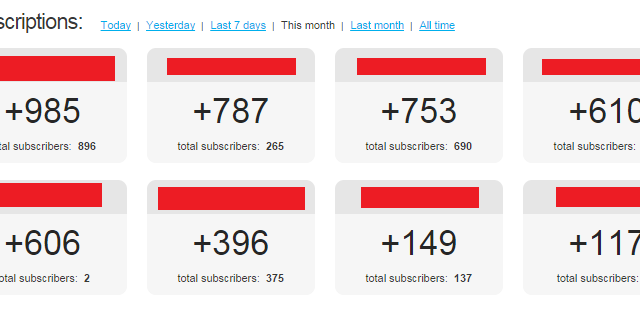
Luckily, email marketing platforms come with robust reporting to help you understand and engage these VIP followers. Constant Contact, for example, shows key subscriber insights like:
- Total number of subscribers and growth over time
- Subscriber email activity and engagement rates
- Contact profiles with name, organization, and other info subscribers provide
- Signup sources to see where you‘re attracting the most subscribers
To view this data in Constant Contact:
- Login to your Constant Contact account
- Go to the Contacts page
- View your overall list growth and click into segments to see detailed subscriber profiles

(Image source: Constant Contact)
Armed with these insights, you can segment subscribers to deliver more personalized content, analyze what drives the most signups to optimize your list growth, and keep an eye on engagement to spot improvement opportunities.
No email list yet? Here‘s a quick checklist to start building your subscriber base:
- Choose a reputable email marketing service (Constant Contact, Mailchimp, ConvertKit, etc.)
- Create a branded signup form and place it prominently on your site (hello, header and footer!)
- Offer a compelling lead magnet or content upgrade to entice people to subscribe
- Promote your list on social media and in your highest-traffic content
- Deliver consistent value to keep subscribers engaged and referring others
3. Dig Into Your Social Media Followers
Social media is a fantastic channel for connecting with your WordPress followers and expanding your reach. Most platforms provide business accounts with audience insights to help you learn what makes your followers tick.
On Facebook, for instance, your Page Insights show follower demographics, growth over time, and the content that sparks the most engagement:

(Image source: Facebook for Business)
Instagram, Twitter and LinkedIn have similar audience analytics for business accounts. And with a WordPress plugin like Smash Balloon, you can sync all your social media feeds and stats right to your site.
So what should you look for in your social media follower data? A few key metrics to note:
- Follower growth over time and spikes that may indicate successful content/campaigns
- Most popular posts to see what topics and formats resonate with followers
- Engagement rate (likes, comments, shares) to gauge how invested followers are
- Demographics to compare with your target audience and spot growth opportunities
For example, say you notice a large portion of your Instagram followers are millennials interested in sustainability. You could use this insight to post more reels about eco-friendly products, partner with sustainable brands for giveaways, and adjust your bio/highlights to appeal to this segment.
4. View WordPress.com Followers (and a Note for WordPress.org Users)
If you‘re one of the 30 million+ sites hosted on WordPress.com, congratulations – you have built-in follower tracking! Just head to Stats > Insights in your WordPress.com dashboard to see how many lovely people are following your site.

(Image source: WordPress.com Support)
For those using self-hosted WordPress.org, you won‘t find this baked-in follower feature. Instead, stick with the other methods covered in this post – Google Analytics for site followers, email subscriber data, and social media audience insights.
Considering a move from WordPress.com to WordPress.org? This migration guide has you covered.
Bonus: Track Web Push Notification Subscribers
Want to take follower engagement to the next level? Web push notifications are an emerging tactic for staying connected with visitors beyond your site.
With a tool like PushEngage, visitors can opt-in to receive browser notifications when you publish new content or promotions. Then you can track metrics like:
- Total push notification subscribers and growth over time
- Subscriber location, device and browser data
- Push notification opt-in sources and CTRs

(Image source: PushEngage)
To set up web push notifications on WordPress:
- Sign up for a PushEngage account (or other web push service)
- Install the PushEngage WordPress plugin
- Customize your opt-in prompt and start collecting subscribers!
Putting Your WordPress Follower Insights to Work
Whew, that was a lot of data! But don‘t let your valuable follower insights just sit there. Put them to work to create a better experience for your audience and grow your WordPress site:
- Spot your best content and make more of it
- See where followers get stuck and streamline your site navigation
- Learn what motivates followers to engage and adapt your CTAs
- Deliver personalized content/offers based on follower segments
- Identify top follower sources and double down on what‘s working
The more you understand your followers, the better you can serve them and turn them into raving fans.
Your WordPress Follower Engagement Action Plan
Ready to put this into practice? Here‘s your action plan:
- Set up Google Analytics with MonsterInsights to track site visitors and follower behavior
- Connect your email marketing platform to view subscriber data and segment your list
- Dive into audience insights for your social media platforms and post follower-friendly content
- Check your WordPress.com follower stats (or skip if you‘re on WordPress.org)
- Consider web push notifications as a new follower engagement channel
- Block time on your calendar each month to review follower data and optimize accordingly
- Watch your follower count and investment grow!
See? That wasn‘t so hard! With a little setup and consistent analysis, you‘ll be an expert on your WordPress followers in no time.
Over to You
Whew, that was a lot of info! But I hope you feel empowered to go forth and get to know your WordPress followers like the back of your hand.
Just remember – understanding your audience is an ongoing process. Make time to regularly review your data and adjust your approach as you learn and grow.
Now I want to hear from you:
What‘s one insight you uncovered about your WordPress followers? How will you use it to improve your site? Leave a comment below!
)