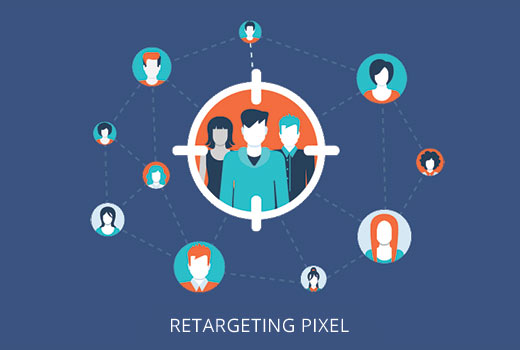
Want to start running retargeting ads on Facebook and Instagram? The first step is installing the Facebook pixel (now called the Meta pixel) on your WordPress website.
With the Meta pixel in place, you‘ll be able to:
- Build custom audiences of past website visitors to retarget with ads
- Track conversions and measure the ROI of your Facebook ad campaigns
- Improve your ad targeting and optimization with the data the pixel collects
In this comprehensive guide, we‘ll walk you through exactly how to create and install the Meta pixel on WordPress, step-by-step. We‘ll also cover best practices for ecommerce sites using WooCommerce or Easy Digital Downloads.
Whether you‘re a WordPress beginner or a seasoned pro, you‘ll come away with everything you need to start running high-performing remarketing campaigns on Facebook. Let‘s dive in!
What Is the Facebook Pixel?
The Facebook pixel is a small snippet of JavaScript code that you install on your website. Its main purpose is to track visitor activity, which you can use for two powerful features:
Remarketing: Show ads to past website visitors as they browse Facebook and Instagram. This keeps your brand top-of-mind and brings people back to convert.
Conversion Tracking: Measure which Facebook ads are generating leads, sales, and other key actions on your website. See the cost per conversion and ROAS.
Here are a few key Facebook pixel stats that show how valuable this tool is:
- The average clickthrough rate (CTR) for retargeting ads is 10X higher than regular Facebook ads
- Website visitors who are retargeted with display ads are 70% more likely to convert
- Nearly 60% of marketers say Facebook ads produce the best ROI of any digital channel
By installing the Meta pixel on your WordPress site, you‘ll be able to tap into these benefits for your own business.
Facebook Pixel Changes in 2026
The Facebook pixel has undergone some significant changes in the last few years. Most notably, Apple‘s iOS 14 update in 2021 started requiring apps to ask users for permission to track their data.
This made pixel tracking less reliable, since many users now opt out. As a result, Facebook introduced Aggregated Event Measurement. This protocol anonymizes and limits pixel data collection to preserve user privacy.
Facebook is also investing heavily in improving its server-side tracking. The Conversions API lets you send web events directly from your server to Facebook‘s, instead of relying on the browser pixel.
This first-party data helps plug the gaps in pixel tracking and improve attribution. We‘ll show you how to set up the Conversions API later in this guide.
[iOS 14 prompt screenshot]How to Set Up the Meta Pixel in WordPress
Here‘s how to create your Meta pixel and install it on WordPress:
Step 1: Create Your Meta Pixel
- From your Meta Business Suite Dashboard, go to All Tools > Events Manager
- Click Connect New Data Source > Web
- Select Meta Pixel and click Connect
- Name your pixel (e.g. "WordPress Site") and enter your website URL
- Click Continue
Step 2: Install the Meta Pixel on WordPress
Next, you need to add the pixel base code to your WordPress site. There are a few different ways to do this:
Option 1: Install a WordPress Plugin
The easiest way for beginners to install the Meta pixel is using a plugin. Some of the most popular options are:
We recommend the official Meta for WordPress plugin as it‘s developed by Facebook and has the most features. It lets you:
- Install the pixel base code in one click
- Track key events like page views, searches, and form submissions
- Set up dynamic ads
- Integrate the Conversions API for server-side tracking
To use it, install and activate the plugin on your WordPress site. Go to Meta for WordPress > Home and click Get Started.
Select Pixel and paste your Pixel ID (from step 1) into the Pixel ID field. Click Confirm.
[Meta for WordPress screenshot]Option 2: Edit Your WordPress Theme Code
If you‘re comfortable editing your WordPress theme‘s code, you can add the pixel manually:
- In Events Manager, go to Data Sources > Meta Pixels > Get Started > Manually add pixel code
- Copy the base code from the Meta Pixel Code box
- Go to Appearance > Theme Editor in your WordPress dashboard
- Open the header.php file for your active theme
- Paste the code just above the closing
</head>tag - Click Update File
Note: Be careful when editing your theme files directly. One mistake can break your site. We recommend using a child theme or a plugin like WPCode to avoid issues.
Option 3: Use Google Tag Manager (GTM)
Already using GTM on your WordPress site? You can add the Meta pixel through your GTM dashboard instead:
- In GTM, go to Tags > New
- Click the Tag Configuration box and select Meta Pixel
- Paste your Pixel ID
- Under Triggering, choose All Pages
- Click Save on your new pixel tag
This will install the base code on every page of your site. To add specific event tags, create a new Custom HTML tag and paste in the Standard Events from Events Manager.
Step 3: Confirm Your Pixel Is Working
Once you‘ve installed the pixel using one of the methods above, you should see it start tracking data within a few hours. To check that it‘s working:
- Go to Events Manager and click on your site to give you a list of events received in the last 24 hours
- Use the Meta Pixel Helper Chrome extension to check that the pixel is firing on key pages
- Watch the Diagnostics and Pixel Check sections in Events Manager to monitor event issues and breakdowns
If you don‘t see any activity after 24 hours, repeat the setup steps above. Make sure you‘ve installed the code snippet on every page of your site.
Advanced Pixel Implementations
Congrats, you now have the standard Meta pixel installed on your WordPress site! Here are a few advanced implementation steps to take your tracking (and remarketing) to the next level:
Set Up Events
In addition to the default PageView event, you can track 17 Standard Events like Add to Cart, Lead, and Purchase. This lets you see which of your Facebook ads are driving the most valuable actions.
To set up events, go to Events Manager > Select Your Pixel. Check the available events for your installation method.
We recommend tracking these events to start:
- ViewContent when someone visits a product page
- AddToCart when they click an "Add to Cart" button
- InitiateCheckout when they go to the checkout page
- Purchase when they complete an order
- Lead when they fill out a contact form
You can set these up automatically through the Meta for WordPress plugin. Or customize the code snippet that fires on each relevant page or click interaction.
[Screenshot of events overview]Install the Conversions API
The Conversions API lets you send web events directly from your server to Facebook‘s. This improves the accuracy of your data and reporting by filling in the gaps in pixel tracking.
Some WordPress plugins like Meta for WordPress offer an easy Conversions API integration. Alternatively, you can set it up yourself:
- In Events Manager, go to Data Sources > Settings > Conversions API
- Follow the instructions to generate an access token
- Install the official Facebook for WordPress plugin
- Go to Settings > Advanced > Facebook Access Token and paste in your token
- Go to Event Manager and verify the web events being received
Note: The Conversions API has some technical requirements, like an SSL certificate and a minimum PHP version. Make sure your WordPress hosting supports them before setting it up.
Configure Automatic Advanced Matching
If you refer people to sign up for your site, you likely have a steady stream of visitor identification data like names and email addresses.
With Automatic Advanced Matching, you can pass this data along with the pixel to improve your targeting and reporting capabilities:
- In Events Manager, go to Settings > Advanced Matching
- Toggle "Enable Automatic Advanced Matching" on
- Select which user identification data parameters you want to share
- Integrate the necessary code changes into your site
Common user data parameters to include are em (email), fn (first name), and ln (last name).
This helps Facebook build more robust user profiles and increases the total number of attributed conversions.
[Advanced matching settings screenshot]Set Up Dynamic Ads for Ecommerce Sites
Do you have a WooCommerce or Easy Digital Downloads store? With the Meta pixel, you can run dynamic product ads that automatically show people the exact items they viewed on your site:
- Create a product catalog with all your items and upload it to Meta Business Manager
- Go to Catalogs and set up your product feed, either manually or using a plugin like Meta for WooCommerce
- Install the Meta pixel on your site using the instructions above, making sure to include the
ViewContentevent on product pages andPurchaseon your thank you page - Create a dynamic ad campaign in Ads Manager that pulls in products from your feed
Facebook will track which items people view and add to their cart. It will then show them those same products in ads across Facebook and Instagram.
This is a highly effective way to bring back window shoppers and recover abandoned carts. According to Facebook, dynamic ads have a 2.6X higher conversion rate than standard retargeting.
[Dynamic ad example image]Creating Custom Audiences for Remarketing
Now that your Meta pixel is installed and tracking events, you can use this data to build custom audiences for remarketing.
Here are the steps:
- In Audiences, click Create Audience > Custom Audience
- Choose Website as your source
- Use the dropdown menus to select your targeting criteria, like:
- All website visitors in the past X days
- People who visited specific web pages containing your product or pricing info
- Visitors by time spent, e.g. top 25% of time on site
- Give your audience a name and click Create Audience
We recommend building these starter audiences:
- All Visitors (180 days): Website visitors in the past 6 months
- Leads: People who completed a lead gen form in the past 90 days
- Engaged Visitors: Top 25% of time spent on site in the past 60 days
- Cart Abandoners: Added to cart in the past 30 days but didn‘t purchase
- Customers: Made a purchase in the past 180 days
- Newsletter Subscribers: Visited the newsletter signup confirmation page
Pro Tip: You can create Lookalike Audiences based on your custom audiences to find new people most similar to that group. This expands your cold audience targeting.
Launching Facebook Remarketing Campaigns
Finally, you‘re ready to start serving ads to your custom audiences! Remarketing is a powerful way to:
- Drive repeat sales by upselling past customers
- Provide relevant content to each custom audience segment
- Keep branded searches high among people actively considering your products
Here‘s how to set up a remarketing campaign based on your Meta pixel data:
- In Ads Manager, click + Create
- Choose your campaign objective (e.g. Conversions, Catalog Sales) and give it a name
- At the Ad Set level, select your retargeting audience under Custom Audiences
- Set your ad creative, copy, CTA and destination URL
- Choose your placements (Facebook news feed, Instagram, etc.)
- Set your daily or lifetime budget and schedule
- Click Publish!
Your ads will then start showing to people in your target audience as they browse Meta properties. Monitor your campaign results and adjust your targeting and creative to optimize performance.
[Remarketing campaign screenshot]Pro Tip: Improve your remarketing CTR by offering people a compelling reason to come back, like a discount code, free shipping, or new products. And don‘t be afraid to get personal – custom audiences typically convert best with highly relevant creative.
Troubleshooting Meta Pixel Issues
Having problems getting your pixel up and running? Here are some common issues and how to solve them:
Pixel isn‘t tracking any events: Double check that you‘ve installed the code snippet on every page of your site, either manually or via a plugin. Make sure your domain and pixel ID match.
Pixel isn‘t tracking specific events: Verify that the Standard Event code is implemented correctly on the relevant page or element. Use the Event Markup Helper to set up events without code.
Conversions are lower than expected: Conversions may be underreported if the pixel fires before the conversion event. Implement the Conversions API for the most robust server-side tracking.
Pixel isn‘t sending data to Ads Manager: Make sure your ad account is linked to your Meta Business Manager. Remove any unnecessary characters or spaces from your pixel base code.
Events aren‘t visible in Events Manager: Double check your aggregated event configuration and add any missing events to the Events Manager list. Disable Tracking Protection on your web browser.
If you‘re still having issues after trying these troubleshooting steps, open a support ticket with Facebook Ads Help Center.
Get Started with Facebook Remarketing on WordPress Today
It‘s clear that in 2026, the Facebook pixel is a must-have for any business running ads and remarketing campaigns on Meta‘s platforms. Use this guide to get your WordPress site set up for success!
Remember, the sooner you install the Meta pixel, the sooner you can start building robust custom audiences and conversion data.
Looking for more ways to optimize your Facebook ad performance? Check out our guides to Facebook ad landing pages and ecommerce Facebook ads.
)