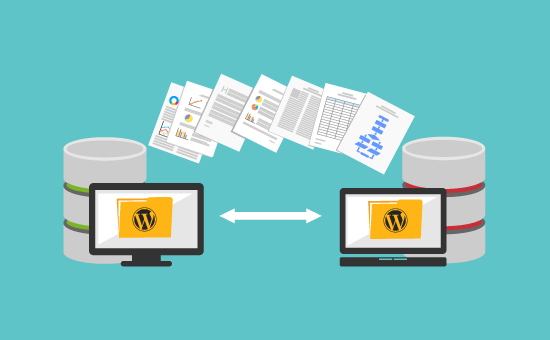
Are you looking to move your WordPress site to a new hosting provider? Whether you‘re seeking better performance, more features, or lower costs, migrating to a new host is a common need. In fact, WordPress now powers over 40% of all websites, making it more important than ever to choose a reliable host that can scale with your site.
However, moving WordPress to a new server can be a daunting task, especially if you‘re not a technical expert. The stakes are high – one misstep could lead to data loss, extended downtime, or even SEO penalties. But fear not! By following this comprehensive, step-by-step migration guide, you can safely move your WordPress site to a new host with no downtime required.
Step 1: Choose the Right WordPress Host for Your Needs
The first step in a successful migration is selecting the best WordPress hosting provider for your specific needs. Don‘t make the mistake of choosing solely based on price. Consider these key factors:
- Performance – Look for hosts with fast, reliable servers, low-density environments, and a strong track record of uptime.
- Features – Ensure the host offers the features your site requires, such as SSL certificates, staging environments, and backup tools.
- Support – Verify that the host provides expert WordPress support through multiple channels to quickly resolve any issues.
- Scalability – Choose a host that can easily accommodate your site‘s growth with upgrades and additional resources.
- Price – While not the only factor, consider the overall value and ROI of the hosting plan as it relates to your budget.
A few of the top managed WordPress hosting providers we recommend include:
- WP Engine – Offers an enterprise-grade platform with advanced security and performance features.
- Flywheel – Provides an intuitive hosting experience tailored for agencies and freelancers.
- Kinsta – Delivers top-tier performance and expert support powered by Google Cloud infrastructure.
- Cloudways – Simplifies the management of WordPress sites on leading cloud providers like AWS and Google Cloud.
Step 2: Prepare Your Site for Migration
Now that you‘ve chosen a new WordPress host, it‘s crucial to properly prepare your site for migration. This phase will help you avoid data loss and reduce the risk of compatibility issues. Follow these steps:
- Update WordPress core, plugins, and themes – Ensure your site is running the latest versions to minimize the chances of migration issues.
- Check PHP version compatibility – Verify that your new host supports the same or a newer version of PHP as your current environment.
- Test and verify backups – Confirm that you have a complete, working backup of your WordPress files and database. Store a copy securely on your local device.
- Install a maintenance mode plugin – Use a plugin like WP Maintenance Mode to display a user-friendly notice during the brief DNS propagation period later in the process.
- Document existing integrations and settings – Make a record of any third-party services, API keys, or custom configurations you‘ll need to reconnect post-migration.
By taking the time to properly prepare, you‘ll streamline the migration process and minimize the potential for unexpected issues.
Step 3: Migrate Your WordPress Files
With your site prepped, it‘s time to migrate your WordPress files to the new host. You have two primary options:
- Manually transfer files via FTP/SFTP
- Use a WordPress migration plugin
Manual Migration via FTP/SFTP
For more technical users, manually migrating WordPress files via FTP or SFTP offers full control over the process. Follow these steps:
- Connect to your current server using an FTP client like FileZilla.
- Navigate to your WordPress root directory (usually
/public_html/or/www/). - Download all WordPress core files, plugins, themes, and uploads to your local device.
- Connect to your new server via FTP and upload all the downloaded files to the new WordPress root directory.
Using a WordPress Migration Plugin
For most users, the easiest and most reliable way to migrate WordPress files is by using a migration plugin. Duplicator is one of the most popular and highly-rated options. Here‘s how to use it:
- Install and activate the free Duplicator plugin on your existing WordPress site.
- Go to Duplicator > Packages and click "Create New".
- Name your package, select "Archive and Database" as the package type, then click "Next".
- Click "Build" to generate the package files (Installer.php and Archive.zip).
- Download both files to your local device.
- Upload Installer.php and Archive.zip to the root directory of your new WordPress host using FTP/SFTP.
- Navigate to
http://yournewdomain.com/installer.phpin your web browser to run the installer script. - Enter your new database connection details and run the installer to extract and configure your WordPress files on the new server.
Duplicator simplifies the migration process by bundling your WordPress files and database into a single package that can be easily installed on your new host.
Step 4: Migrate Your WordPress Database
In addition to your site files, you‘ll also need to migrate your WordPress database, which contains all your posts, pages, settings, and more. Here are two methods:
- Use phpMyAdmin to manually export and import your database.
- Use the Duplicator plugin to automate the process.
Manual Database Migration with phpMyAdmin
If you‘re comfortable working with databases, you can migrate your WordPress database manually using phpMyAdmin on both your old and new hosting accounts. Follow these steps:
- Log into phpMyAdmin on your current host and select your WordPress database.
- Click "Export" and choose "Quick" as the export method, then click "Go" to download the SQL file.
- Log into phpMyAdmin on your new host and create a new database.
- Select the new database, click "Import", and upload the SQL file you exported in step 2.
- Update the
DB_NAME,DB_USER,DB_PASSWORD, andDB_HOSTvalues in thewp-config.phpfile in your WordPress root directory to match the new database details.
Automated Database Migration with Duplicator
If you used Duplicator to migrate your WordPress files in the previous step, you‘re in luck – Duplicator can also automate the database migration process. When you run the installer.php script on your new host, it will automatically import your database backup into the new database you specify. No manual steps required!
Step 5: Configure DNS and Test Your Migrated Site
At this point, you should have a fully migrated copy of your WordPress site on the new host. However, your domain still points to your old host. Before updating your DNS records, it‘s important to thoroughly test your migrated site to ensure everything works as expected.
Preview Your Migrated Site Before DNS Changes
To preview your migrated WordPress site before pointing your domain to the new host, you can use a temporary URL provided by your new host or modify your local device‘s hosts file to override the DNS.
If your new host provides a temporary URL (e.g. http://12.34.56.78/~username/), simply navigate to that URL in your browser to view the migrated site.
To modify your hosts file locally, follow these steps:
- Open the
hostsfile on your computer using a text editor with admin privileges.- Windows:
C:\Windows\System32\drivers\etc\hosts - Mac:
/etc/hosts - Linux:
/etc/hosts
- Windows:
- Add a new line at the bottom of the file with the following format:
IP_ADDRESS DOMAIN_NAME- Replace
IP_ADDRESSwith the IP address of your new server. - Replace
DOMAIN_NAMEwith your website‘s domain name. - Example:
12.34.56.78 www.yourdomain.com
- Replace
- Save the
hostsfile and flush your DNS cache.- Windows: Open Command Prompt and run
ipconfig /flushdns - Mac: Open Terminal and run
sudo killall -HUP mDNSResponder - Linux: Open Terminal and run
sudo systemd-resolve --flush-caches
- Windows: Open Command Prompt and run
After modifying your hosts file, you can access the migrated site on your new host using your domain name, while the rest of the internet still sees the old site. This allows you to thoroughly test the migration without any downtime.
Update Your Domain‘s DNS Records
Once you‘ve verified that your migrated WordPress site works properly on the new host, it‘s time to update your DNS records to point your domain to the new server. Here‘s how:
- Log into your domain registrar or DNS management service.
- Locate the DNS management settings for your domain.
- Update the A record (or AAAA record for IPv6) for your domain to point to the IP address of your new server.
- If your domain uses a CNAME record for
www, update it to point to your domain name (e.g.yourdomain.com). - Save your changes and allow up to 48 hours for DNS propagation.
After updating your DNS records, visitors will start seeing the migrated site on your new host. During the propagation window, some users may still see the old site, which is why it‘s important to keep both sites live until the DNS fully propagates.
Post-Migration Performance Optimizations
With your WordPress site successfully migrated, take some time to optimize its performance on the new host. Some best practices include:
- Enable Caching – Use a caching plugin like WP Rocket or take advantage of your new host‘s built-in caching system to speed up page load times.
- Optimize Images – Compress your images or use a plugin like ShortPixel to reduce file sizes without sacrificing quality.
- Minify CSS and JavaScript – Minimize your code files to reduce their size and improve loading speeds.
- Implement a Content Delivery Network (CDN) – Serve your static files from a distributed network of servers to reduce latency and improve global loading times.
By implementing these performance optimizations, you can ensure that your migrated WordPress site runs at peak efficiency on its new host.
Step 6: Complete Post-Migration Tasks
Congratulations – you‘ve successfully migrated your WordPress site to a new host with no downtime! However, there are still a few important tasks to complete post-migration:
- Thoroughly test your migrated site – Click through your pages, posts, and key functionality to identify any issues or anomalies. Test your forms, checkout process, and any third-party integrations.
- Monitor performance and uptime – Keep a close eye on your site‘s speed and availability in the days following your migration. Address any performance issues promptly.
- Cancel your old hosting account – Once you‘ve verified that the migration was successful and all DNS changes have propagated, cancel your old hosting account to avoid duplicate charges. Check if you‘re eligible for a prorated refund for unused time.
- Update vendor accounts – If you‘re using any third-party services, APIs, or plugins, ensure that you‘ve updated your account details to reflect the new hosting environment.
- Implement a regular backup strategy – Start capturing regular backups of your migrated site to protect you in case of data loss or mishaps in the future.
By following this comprehensive migration guide, you can move your WordPress site to a new host with confidence, knowing that you‘ve taken every precaution to minimize risk and eliminate downtime. While the process may seem daunting at first, careful planning and execution will ensure a smooth transition to your new and improved hosting environment. Remember, investing the time to properly migrate your site will pay dividends in the form of better performance, security, and scalability for your WordPress site.
