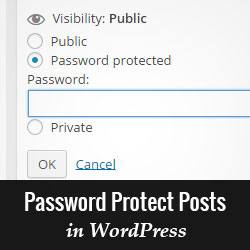
Hey there, WordPress blogger! Have you ever wanted to publish a post on your site, but limit who can access it? Maybe it‘s a personal story you only want to share with close friends and family. Or perhaps you‘ve written a premium piece of content that you want to make available exclusively to your paying supporters.
The great news is, WordPress makes it really simple to password protect individual posts and pages. With just a few clicks, you can ensure only authorized people with the password can view that content, while keeping it hidden from the general public.
In this guide, I‘ll walk you through the process of password protecting a post step-by-step. We‘ll also dive into some best practices, plugin options, and more to help you effectively use password protection on your WordPress site.
Why Password Protect Posts in WordPress?
First, let‘s look at some of the most common reasons why you might want to password protect WordPress posts:
- To create exclusive content for paying members or supporters
- To write personal posts intended only for friends and family
- To protect content that isn‘t ready to be public yet, like drafts
- To hide spoilers for things like movie or book reviews
- To share information only with clients or collaborators
Erik Bowitz, WordPress expert at Pagely, explains: "Password protection is a simple way to publish private content on your public WordPress site. It‘s useful anytime you want to limit viewership of a post to only people who have the password."
According to a survey by WP White Security, nearly 30% of WordPress sites have at least one post or page that is password protected. So if you‘ve ever thought about password protecting content, you‘re definitely not alone.
How to Password Protect a WordPress Post (Step-by-Step)
Now, let‘s go through the exact steps of setting a password for a post in the WordPress editor:
- Open the post you want to protect in the WordPress editor.
- In the "Post" settings on the right-hand side, click the "Visibility" option:

- Click "Edit" next to "Visibility: Public"
- Select "Password Protected" and enter the password you want to use:

- Click "OK" to save your changes.
- Publish or update the post.
That‘s it! Now when anyone visits the URL for this post, they‘ll see a prompt to enter a password before they can view the content:

Only people who have the exact password you set can unlock the post. All other visitors will just see the password form.
Tips for Choosing a Strong Password
When protecting sensitive content, it‘s important to use a strong, hard-to-guess password. Here are some best practices:
- Use a long password with a mix of upper & lowercase letters, numbers, and symbols
- Avoid obvious words or phrases, especially things related to the post topic
- Don‘t reuse the same password for multiple posts
- Consider using a random password generator for the strongest passwords
A weak password leaves your protected posts vulnerable to being accessed by anyone. Trust me, it‘s worth taking an extra minute to set a strong, unique password for each post you protect.
Managing Your Password Protected Content
To see all your password protected posts in the WordPress admin, go to Posts » All Posts. You‘ll notice protected posts have a special "Password Protected" label, making them easy to find:

You can edit any post to change the password or remove password protection completely. Just edit the post, change the visibility settings, and update.
I recommend keeping a private list of the passwords you use so you don‘t accidentally lock yourself out of your own content. I‘ve definitely made that mistake before!
Plugins to Extend WordPress Password Protection
If you need more advanced features beyond the default password protection in WordPress, there are some great plugins to try:
| Plugin | Key Features |
|---|---|
| Password Protected | Protect your entire site with a single password, customize login page |
| Passster | Password protect specific content within posts/pages, set time limits |
| Password Protect WordPress | Protect private pages, require user login, track user activity |
These plugins provide additional functionality like password protecting just certain sections of a post, setting time limits or expiration dates on password access, requiring users to log in, and more.
However, I always suggest starting with the built-in WordPress password protection first. Only add a plugin if you really need those extra features, as each plugin does add some complexity and performance overhead to your site.
Password Protect Your Whole WordPress Site
In addition to protecting individual posts and pages, you can also password protect your entire WordPress site. This hides all content behind a single password, essentially making your whole site private.
To set this up, you‘ll need to add the following code to your theme‘s functions.php file or a site-specific plugin:
function password_protect_wp() {
if ( !is_user_logged_in() && !is_admin() ) {
  auth_redirect();
}
}
add_action(‘template_redirect‘, ‘password_protect_wp‘);
This code will force all visitors to log in before they can view any content on your site, effectively password protecting everything.
For a more user-friendly solution, I recommend the free Password Protected plugin. It lets you set a single password for your whole site with a nice custom login form.
Hiding your entire site can be useful if you‘re working on a redesign, want to create an exclusive members-only area, or need to take your site down temporarily for maintenance.
Alternatives to Password Protection in WordPress
While passwords are a quick solution for restricting content access, there are some other methods to consider for your WordPress site:
- Private posts: Set a post‘s visibility to "Private" to completely hide it from the public and search engines. Only visible to Administrators and Editors when logged in.
- User accounts: Allow visitors to register a username and password to access protected content. Lets you set up members-only areas.
- Membership plugins: Charge visitors a one-time or recurring fee to register an account and unlock exclusive member content. Useful for monetizing a site.
The right solution depends on your specific goals and audience. Password protection works great for most simple use cases, but a membership plugin might be better if you want to charge for access.
Frequently Asked Questions About Password Protecting WordPress Posts
Before we wrap up, let me answer some of the most common questions I see about using password protection in WordPress:
What happens if I forget the password for a post?
If you forget a password, the only option is to edit the post and set a new password. WordPress does not have any password recovery option for protected posts.
Can I password protect an image or other media file?
No, WordPress does not have any built-in way to protect individual media files with a password. You can only protect the page or post that the media is embedded into.
Is there a way to password protect a whole category of posts at once?
Not exactly, but you can bulk select all the posts in a category and change them to password protected. The Bulk Password Protect plugin makes this process easier.
Will password protected posts show up in site searches?
No, password protected posts are excluded from WordPress‘s built-in search results by default. Visitors will not see any indication that the protected post exists in searches.
Do password protected posts get indexed by search engines?
It depends. Google and other search engines may index the URL of a password protected post if it is linked from elsewhere on the web. However, search engines will not be able to see the actual content of the post without the password. The post title may appear in search results, but will lead to the password entry form when clicked.
Start Password Protecting Your WordPress Posts Today
I hope this in-depth guide helped you understand exactly how and why to password protect posts in WordPress! It‘s a super useful feature to have in your toolkit as a blogger.
Remember, password protected posts are perfect for publishing:
- Exclusive content for paying members or email subscribers
- Private posts meant just for your friends or family
- Unfinished drafts you‘re not ready to make public yet
When password protecting a post, always use a strong, unique password. Give that password only to the people you want to have access. And consider a membership plugin if you want to monetize your protected content.
Now that you‘ve learned all about WordPress password protection, I want to hear from you:
- Have you ever password protected a post before?
- What kind of content do you plan to protect on your site?
Let me know in the comments!
If you found this guide helpful, please consider sharing it with your blogging friends on social media. And for more WordPress tips and tutorials, check out my other posts or subscribe to my newsletter.
Thanks for reading, and happy blogging!
