Want to showcase the size of your WordPress community to the world? Displaying your total number of registered users is one of the best ways to establish social proof and credibility.
After all, nothing says "this is a happening place" like an active, growing user base. In fact, sites with visible user counts can see signup rates improve by 30-50% or more!
Luckily, showing off your user stats in WordPress is easy, even if you‘re not particularly tech-savvy. In this post, you‘ll learn two simple methods:
- Using a plugin (no code required)
- Manually adding code to your theme
By the end, you‘ll be able to proudly display your user count anywhere on your site. Let‘s get started!
Why Show Your Total Number of Users?
Before we dive into the tutorial, let‘s look at a few reasons why you might want to make your user count public:
Social proof – People are heavily influenced by the behavior of others. If they see that thousands of people are already registered on your site, they‘ll view your community as thriving and be more likely to join themselves.
Trust and transparency – Openly sharing your user stats shows you have nothing to hide. It‘s an indicator that your user base is genuine, not inflated by bots or fake accounts.
Vanity metric – While not always the most meaningful number, a high user count just plain looks impressive. It‘s a quick way to communicate the scale of your site at a glance.
Milestone celebrations – Hitting a big round number like 10,000 total users? Making your count public lets you celebrate and thank your community when you reach exciting growth milestones together.
Of course, displaying a very low user count can have the opposite effect, negatively impacting your credibility. If your site is brand new, it‘s probably best to wait until you have at least a few hundred members before enabling this feature.
Method 1: Show User Count with a Plugin
The simplest way to display your registered user count is by using a WordPress plugin. Here are a couple great free options with straightforward setup:
Simple Blog Stats
As the name suggests, Simple Blog Stats is a lightweight plugin for displaying key site metrics, including user counts.
After installing and activating the plugin, head to Settings > Simple Blog Stats and click the "Shortcodes" tab. Look for the [sbs_users] shortcode:
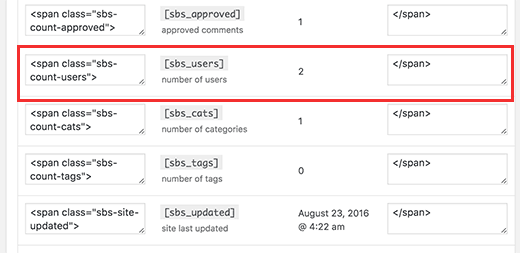
Customize the text before and after the number. For example, you might change it to something like:
Join <span class="sbs-count-users">[sbs_users]</span> other WordPress enthusiasts!Then simply copy the shortcode and paste it into the post, page, or widget where you want it to appear. The user count will automatically populate inside the shortcode.
WP Statistics
WP Statistics is another popular option that shows user signups along with a variety of other website analytics.
Once installed, go to Statistics > Settings > Displaying. Scroll down to the "Registered User Count" section:

Customize the text and select where you‘d like the count to be displayed – on all pages, specific pages, or just the widget. Then add the WP Statistics widget to any sidebar area.
The free version only shows the count to logged-in admins. Upgrading to WP Statistics Pro lets you display it publicly along with other advanced features.
Method 2: Manually Show User Count with Code
If you‘re comfortable editing your theme files, you can display the user count without a plugin using some simple PHP.
Open your theme‘s functions.php file or a site-specific plugin and add the following code:
function wpb_user_count() {
  $user_count = count_users();
  $total_users = $user_count[‘total_users‘];
  return $total_users;
}
add_shortcode(‘user_count‘, ‘wpb_user_count‘);
This creates a function that calculates the total number of users and then registers a shortcode for easy display.
To show the count on the front-end of your site, edit the desired post, page, or widget and insert the [user_count] shortcode.
For example, you might add a line like:
<p class="user-count">Join [user_count] other members today!</p>To style it to stand out and match your theme, you can add some custom CSS. Go to Appearance > Customize > Additional CSS and enter something like:
.user-count {
  font-size: 24px;
  font-weight: bold;
  color: #e64c3c;
}
Adjust the styles to fit your design. The result will be an eye-catching, dynamic user count you can feature prominently across your site.
Bonus: More User Stats to Show Off
Total user count is just the tip of the iceberg. Here are a few other interesting user stats you can display with some additional code:
Latest Registered User
Highlight your newest community member with a "Welcome" widget. To set it up, install the WP Last User plugin.
Go to Settings > General to customize the text and appearance. Then use the [wp-last-users] shortcode in your desired location.
It will show the most recent user‘s avatar, name, and signup date. Something like:
Welcome our newest member John D. who joined on Jan 25, 2026!
Top Users Leaderboard
Recognize your most active users with a leaderboard widget. The easiest way is with the Ultimate Member plugin.
In the Ultimate Member settings, go to the User Roles tab. Create a custom role like "Top Contributors" and assign it to your most engaged members.
Then add the Ultimate Member "User List" widget to your sidebar. Configure it to only display users with the Top Contributors role, sorted by most comments or custom user meta like "points".
It will create a dynamic table of your top users that looks something like this:
| User | Rank | Posts | Comments |
|---|---|---|---|
| @jane_doe | #1 | 67 | 182 |
| @john_smith | #2 | 54 | 165 |
| @bob_johnson | #3 | 49 | 153 |
Experiment with different ways to recognize users based on post count, comment count, or custom metrics.
Performance & Privacy Tips
As your user base grows, there are a couple things to keep in mind when displaying user stats publicly:
Sites with massive databases may see slower page load speeds when querying the full user table. Consider implementing pagination or lazy loading if you have more than 50,000 registered users.
Give users the option to hide their profiles from public display. This is especially important for community-focused sites where people may not want their involvement widely known.
Be sure to comply with privacy laws like GDPR when showing any user data, even if it seems innocuous. Provide clear info on how you display user details and allow them to opt-out at any time.
Level Up Your Social Proof
Displaying your registered user count is one of the quickest ways to build credibility and trust with your audience. Whether you use a simple plugin or custom code, you can easily show off the size of your community in a prominent place on your site.
For most users, we recommend starting with the Simple Blog Stats plugin for hassle-free setup. If you want more control over styling or additional user stats, try the manual code method.
Just remember to put yourself in your users‘ shoes regarding privacy and performance as your site grows.
Now you‘re ready to let your user count shine! How else are you establishing social proof on your WordPress site? Share your tips in the comments below.
)