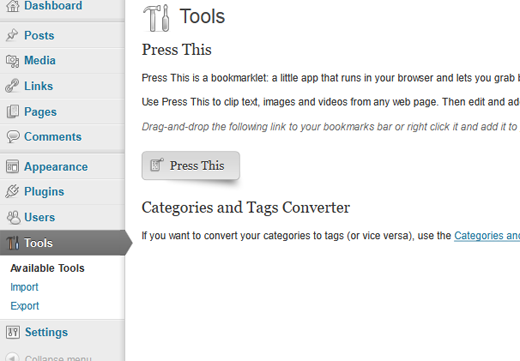
Hey there, WordPress user! If you‘ve been exploring your WordPress dashboard, you might have noticed the Tools menu item sitting in the left sidebar. Maybe you‘ve clicked on it and poked around a bit, but you‘re not quite sure what everything does. Well, fear not! In this in-depth guide, we‘ll walk you through everything you need to know about the WordPress Tools menu and how to use it to streamline your site management.
What is the Tools Menu in WordPress?
The Tools menu houses a collection of, you guessed it, tools that help with various WordPress site management tasks. These tools are designed to make certain processes more efficient and user-friendly. While you might not use them on a daily basis like you would the Posts or Pages sections, they‘re still valuable to understand and have in your WordPress toolkit.
According to W3Techs, WordPress powers over 40% of all websites on the internet, and that number continues to grow every day. With such widespread usage, it‘s important for WordPress to offer easy-to-use, built-in tools for common site management needs.
Available Tools
When you click on the Tools menu, the first section you‘ll see is Available Tools. Here‘s what you‘ll find:
Press This
Press This is a handy little bookmarklet that allows you to quickly share content from anywhere on the web to your WordPress site. If you find an article, image, or video that you want to share with your readers, Press This makes it super simple.
To install the Press This bookmarklet, simply drag the Press This link to your browser‘s bookmarks bar. Now, when you‘re browsing the web and come across something you want to share:
- Select the text you want to quote in your post
- Click the Press This bookmarklet
- A popup window will appear with the post title, link, and your selected text already filled in
- Add any additional commentary, images, or formatting you‘d like
- Click Publish to instantly share the content on your site
It‘s a great way to quickly share curated content with your audience without disrupting your browsing flow.
Categories and Tags Converter
Categories and tags are both taxonomies in WordPress, but they serve different purposes. Categories are meant for broad grouping of post topics, while tags are meant to describe specific details of your posts. Sometimes, you might start out using categories, but later realize that tags would be a better fit, or vice versa.
That‘s where the Categories and Tags Converter comes in. This tool allows you to convert existing categories to tags or tags to categories.
Here‘s how it works:
- Select the taxonomy you want to convert from (Categories to Tags or Tags to Categories)
- Choose whether you want to convert all items or select specific ones
- If converting only specific items, select the ones you want to convert
- Click the Convert button
- Your categories will now be tags, or your tags will now be categories!
Keep in mind that if you convert a category to a tag, it will be removed from the category list and added to the tag list, so make sure you really want to make the switch before running the converter.
Import and Export
Another key section of the Tools menu is the Import and Export area. As the names imply, these tools allow you to bring content into your WordPress site (import) or save content from your site in a portable format (export).
When to Use Import and Export
There are a few common scenarios where you might want to use the import or export tools:
- Migrating content from another platform (like Blogger, Tumblr, or Joomla) to your WordPress site
- Transferring content from one WordPress site to another
- Creating a backup of your site‘s content
- Moving a site from a local development environment to a live server
Essentially, any time you need to move a large amount of content into or out of your WordPress site, the import and export tools are your friends.
Supported Import Platforms
WordPress supports importing content from several popular platforms, including:
- Blogger
- Tumblr
- Movable Type and TypePad
- Blogroll links (OPML)
- RSS feeds
- Joomla
- WordPress (from another WordPress site)
The exact steps for importing content will vary a bit depending on the platform you‘re coming from. In general though, you‘ll need to export your content from your existing platform first, which will give you an XML file. Then, in your WordPress site, you‘ll go to Tools → Import, choose your platform, and follow the prompts to upload your XML file and import the content.
Exporting Your WordPress Content
Exporting your WordPress content is even simpler. Just go to Tools → Export and choose what content you want to export:
- All content
- Posts
- Pages
- Media
- Custom post types (if you have any)
You can also filter your exported content by category, author, date range, and post status (published, draft, etc.).
Once you choose your export settings, click Download Export File. WordPress will generate an XML file containing all your selected content, which you can then save to your computer. This XML file can be used to import your content into another WordPress site, or just kept as a backup.
In fact, regularly exporting your site‘s content is a smart habit to get into. That way, if anything ever goes wrong with your site, you‘ll have a fairly recent backup that you can use to restore things.
Tips for Using WordPress Tools Effectively
Now that you know what the various WordPress tools do, here are a few expert tips for getting the most out of them:
- Get in the habit of regularly backing up your site by exporting your content at least once a month (or more often if you post frequently). Store the backup files somewhere safe, like an external hard drive or cloud storage service.
- If you‘re converting categories to tags or vice versa, take a moment to plan out your new taxonomy structure first. Sketch out which categories should become tags, and which tags might need to be consolidated into categories.
- When importing content from another platform, take the time to clean up your exported file first. Delete any old or irrelevant content so you‘re not cluttering up your new WordPress site.
- If you use Press This frequently, consider customizing the default posting settings (like category and tags) to fit your needs. You can do this by modifying the
wp-config.phpfile.
Here‘s a handy table summarizing the key WordPress tools:
| Tool | Purpose |
|---|---|
| Press This | Quickly share web content on your WordPress site |
| Categories & Tags Converter | Convert categories to tags or tags to categories |
| Import | Bring content from other platforms into WordPress |
| Export | Save your WordPress content in a portable XML format |
Putting it All Together
Whether you‘re a WordPress beginner or a seasoned pro, understanding and utilizing the built-in Tools can make managing your site a whole lot easier. From quickly sharing content with Press This to ensuring you have backups of all your hard work, the Tools menu has a lot to offer.
So go ahead, dive into those Tools and see how they can streamline your WordPress workflow. Trust me, your future self will thank you!
And of course, if you ever need more guidance, the WordPress codex and resources like WPBeginner are always here to help. Happy WordPressing!
