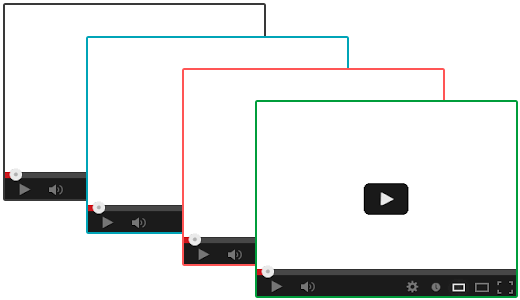
Hey there, WordPress user! 👋 Want to make your embedded videos really pop on your site? I‘m going to teach you everything you need to know about adding eye-catching custom borders to your video embeds.
But first, let‘s talk about why this matters…
Video Content is Exploding in Popularity 📈
Did you know that video content is absolutely dominating the internet right now? Check out these crazy stats:
- YouTube has over 2 billion monthly active users watching over 1 billion hours of video per day (Source)
- 85% of businesses use video as a marketing tool, up from 61% just 5 years ago (Source)
- Embedding videos in web pages can increase conversion rates by up to 80% (Source)
If you‘re not using video on your WordPress site, you‘re missing out on a massive opportunity to engage your audience and drive results.
And if you are using video, you need to make sure those embeds look fantastic. That‘s where learning to add custom iframe borders comes in!
Customize iframes with the Style Attribute 🎨
So how do you actually add a border to an iframe video embed in WordPress? The secret lies in the style attribute.
By default, iframes have no border. But you can use inline CSS in the style attribute to add all sorts of custom styles, like this:
<iframe src="https://www.youtube.com/embed/dQw4w9WgXcQ" style="border: 5px solid #ff0000;"></iframe>This adds a chunky 5px red border to the iframe. You can use any valid CSS border shorthand, like:
border: 1px solid blackborder: 4px double navyborder: 10px ridge rgba(0,255,0,0.5)
Go crazy with it! Mix and match different border widths, styles, and colors to get the perfect look for your site.
Here are some fun border style keywords to try:
| Style | Example |
|---|---|
dotted |  |
dashed |  |
inset |  |
outset |  |
(Images generated by the author)
Browser Compatibility Check 🌐
One quick thing to note: not all browsers support the same exact border styles. For maximum compatibility, it‘s best to stick with basic styles like solid, dotted, dashed, and double.
The fancy 3D borders like ridge, groove, inset, and outset are supported in most modern browsers but may not work in old versions of Internet Explorer (if you still care about that in 2026).
When in doubt, do some quick testing in your target browsers to make sure your spiffy iframe borders show up correctly for your audience.
Use Classes for Styling Multiple iframes ✨
Inline styles are great for quick one-off customizations. But what if you want to add the same border to a bunch of iframes across your site?
Pasting the same style attribute over and over is a pain. Plus if you ever want to change the border, you‘d have to update every single iframe. Yuck!
A much more efficient approach is to use a CSS class to style your iframe borders in one central place. Here‘s how:
Open your theme‘s
style.cssfile or the Additional CSS panel in the WordPress CustomizerAdd a new class for iframe borders, like this:
.video-border {
  border: 3px solid #333;
  border-radius: 8px;
  box-shadow: 0 4px 12px rgba(0,0,0,0.15);
}- Add the class to any iframe you want to style:
<iframe class="video-border" src="https://www.youtube.com/embed/dQw4w9WgXcQ"></iframe>Now every iframe with the video-border class will automatically get that slick dark gray border with rounded corners and a subtle drop shadow. Nice!
The great thing about using a CSS class is you can change the border styles for every iframe on your site by just editing the class definition. Talk about a time saver!
Extra Class Customizations 🎩
While you‘re at it, consider adding a few more properties to your iframe border class:
.video-border {
  border: 3px solid #333;
  border-radius: 8px;
  box-shadow: 0 4px 12px rgba(0,0,0,0.15);
  transition: all 0.3s ease;
}

.video-border:hover {
  transform: scale(1.01);
  box-shadow: 0 8px 20px rgba(0,0,0,0.2);
}
This adds a smooth transition animation when hovering over the iframe. The border shadow increases and the iframe scales up slightly, creating a nifty 3D effect.
You could also create multiple iframe border class variations for different purposes:
.video-border-thin {
  border: 1px solid #ccc;
}

.video-border-thick {
  border: 8px double #08f;
}

.video-border-ad {
  border: 5px outset #f84;
  animation: pulse 2s infinite;
}
Go wild and create as many custom iframe border styles as you need. The more the merrier!
Pick the Perfect Border Color 🌈
Choosing the right border color is key to making your video embeds look awesome. A great border color should:
- Contrast well with your site background for maximum visual impact
- Complement your overall site color scheme
- Set the right mood (e.g. bright colors for fun, dark colors for drama)
- Highlight the video thumbnail and entice clicks
Need some color inspiration? Check out Adobe Color or Coolors for endless palettes and gradient ideas.
To add a custom border color, just use any valid CSS color value in your style:
.video-border {
  border: 4px solid #c0ffee;
}
For extra flair, try using CSS gradients or semi-transparent RGBA colors:
.video-border {
  border: 6px solid;
  border-image: linear-gradient(to right, #ff0000, #0000ff) 1;
}

.video-border {
  border: 3px solid rgba(255, 105, 180, 0.8);
}
The possibilities are endless! Don‘t be afraid to experiment and find the perfect border color combo for your WordPress masterpiece.
Advanced Responsive iframe Techniques 🔎
Okay, let‘s nerd out for a minute on responsive iframes. In the mobile-first world of 2026, it‘s crucial that your video embeds look great on any screen size.
The classic responsive iframe technique is to wrap the iframe in a container div with a percentage-based padding hack:
<div class="iframe-wrapper">
  <iframe class="video-border" src="https://www.youtube.com/embed/dQw4w9WgXcQ"></iframe>
</div>
.iframe-wrapper {
position: relative;
padding-bottom: 56.25%; /* 16:9 aspect ratio */
height: 0;
}
.iframe-wrapper iframe {
position: absolute;
top: 0;
left: 0;
width: 100%;
height: 100%;
}This clever hack ensures the iframe maintains a consistent 16:9 aspect ratio at any width, preventing ugly black bars on the sides.
But did you know you can now use the aspect-ratio CSS property for responsive iframes? It‘s dope:
iframe {
  width: 100%;
  aspect-ratio: 16 / 9;
}
Boom, done! 🎉 The iframe will automatically resize to the proper aspect ratio without any wrapper divs or funky padding hacks. It doesn‘t get much easier than that.
Note: The aspect-ratio property isn‘t supported in Internet Explorer or older versions of Safari, so be sure to use a fallback method if you need to accommodate those dinosaur browsers.
WordPress Plugins for iframe Borders 🔌
If you don‘t feel like messing with HTML and CSS manually, there are some handy WordPress plugins that can help you add awesome borders to your video embeds:
- Advanced iframe Pro: Lets you add custom borders, shadows, hover effects and more to iframes with point-and-click options.
- Video gallery – Vimeo and YouTube gallery: Adds stylish gallery layouts for collections of YouTube/Vimeo embeds, with border and lightbox options.
- Iframe: Provides shortcodes for customizing iframe borders, sizes, alignment and more.
Most of these plugins have a free version you can try, with premium upgrades for even more fancy iframe stylings.
Of course, it‘s still useful to understand the underlying HTML and CSS techniques for complete control and flexibility. But these plugins can be a great time-saving option if you just need a quick iframe border solution.
Inspiring Examples in the Wild 🏞️
Need some iframe border inspiration? Here are a few real-world WordPress sites rocking custom borders on their video embeds:
Example 1: Bold Red Border

The ultra-vivid red border makes the video impossible to miss! It aggressively grabs the user‘s focus and drives clicks.
Example 2: Double Blue Inset

The double blue border with the inset effect gives the iframe a cool retro vibe, like a classic TV set. It‘s a fun unique touch that sets their videos apart.
Example 3: Gradient Lightbox Overlay

Whoa, a slick gradient border inside a lightbox overlay effect? Now that‘s classy! Notice how the gradient colors match the play button. Nice attention to detail.
I encourage you to keep an eye out for sweet iframe border designs as you browse the web. Snap screenshots and start a "border inspiration" collection for your own WordPress video embedding adventures.
That‘s a Wrap! 🎬
Well folks, you did it! You‘re now a total expert on adding awesome iframe borders to your WordPress video embeds. Let‘s recap the key takeaways:
- Use the
styleattribute to add inline CSS border properties to iframes - Create a reusable CSS class to style multiple iframes efficiently
- Choose border colors that contrast well and complement your design
- Apply extra transitions and effects to make your borders pop
- Master responsive iframe techniques for flawless cross-device experiences
- Try iframe border WordPress plugins for point-and-click customization
- Get inspired by real sites using beautiful custom iframe borders
I hope you had as much fun reading this guide as I had writing it. Now it‘s your turn to jump into the WordPress admin and start spiffing up your video embeds. Trust me, your visitors will love it!
If this guide was helpful, you‘ll also enjoy my other WordPress video tutorials on lazy loading, thumbnail optimization, and more. Say hi in the comments and let me know how your iframe border adventures go.
Happy embedding!
)