Hey there, WordPress developer! Are you looking to take your content creation to the next level? Creating your own TinyMCE plugins enables you to add powerful custom functionality to the WordPress editor.
Whether you want to insert specific HTML snippets, prompt users for input, or apply custom styles, a TinyMCE plugin lets you do it all. In this in-depth tutorial, I‘ll walk you through the process of building your own plugin step-by-step.
What is TinyMCE?
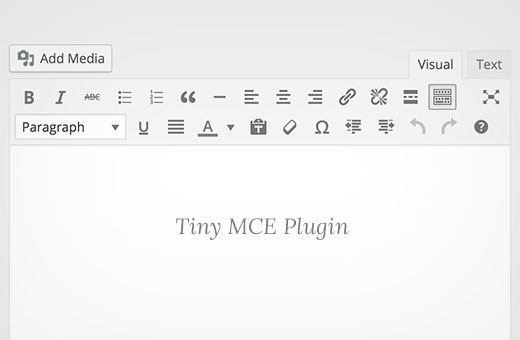
First, let‘s clarify what TinyMCE is. TinyMCE is a popular open source rich text editor used in many applications, including WordPress. In fact, it powers the classic WordPress editor and is still used in the block editor for certain blocks like Custom HTML.

Source: Kinsta
While the new Gutenberg block editor has its own extensive APIs, knowing how to extend TinyMCE is still valuable. According to WordPress.org, over 40% of all websites are powered by WordPress. And among those, over 60% are still using the classic editor according to Edit.org. So there‘s a huge user base that can benefit from TinyMCE plugins.
Why Create a TinyMCE Plugin?
There are many reasons you might want to create your own TinyMCE plugin:
- Insert common snippets of HTML with a click
- Create popups prompting users to enter data to insert
- Define custom inline styles or formats
- Add complex elements like tables or media embeds
- Integrate with third party APIs
For example, the popular Classic Editor plugin has over 5 million active installations. It restores the old TinyMCE editor for users who prefer it over Gutenberg. Plugins like TinyMCE Advanced and Ultimate TinyMCE also extend the editor with additional features.
Whether you‘re building client sites, creating your own plugins, or just want to enhance your publishing workflow, mastering TinyMCE customization is a great skill to have. So let‘s dive in!
Creating a TinyMCE Plugin (5 Steps)
Here‘s a high-level overview of the steps we‘ll cover:
- Set up the plugin folder and main file
- Create a PHP class to house our plugin code
- Use WordPress hooks to register our TinyMCE plugin script
- Define the plugin functionality with JavaScript
- Customize the icon, form fields, styling, etc.
Feel free to follow along or just read through for understanding. I‘ll provide the full code at the end as well.
Step 1: Plugin Setup
To start, create a new folder in /wp-content/plugins/ to house your plugin. You can call it whatever you like, but for this example we‘ll use my-tinymce-plugin.
Inside that folder, create your main plugin file. This should be named the same as your folder with a .php extension. Open it up and add the following plugin header:
<?php
/*
Plugin Name: My TinyMCE Plugin
Description: Adds custom TinyMCE functionality to the WordPress editor
Version: 1.0
Author: Your Name
*/
This tells WordPress the key details about your plugin. It will use this to display info on the Plugins page.
Step 2: Plugin PHP Class
Next, we‘ll create a PHP class to avoid conflicts and group our code logically. Add this below the header:
class My_TinyMCE_Plugin {

  public function __construct() {
    add_action(‘admin_init‘, array($this, ‘init_plugin‘));
  }

  public function init_plugin() {
    // Check permissions
    if(!current_user_can(‘edit_posts‘) && !current_user_can(‘edit_pages‘)) {
      return;
    }

    // Check if visual editor is enabled
    if(get_user_option(‘rich_editing‘) !== ‘true‘) {
      return;
    }

    // Register plugin script
    add_filter(‘mce_external_plugins‘, array($this, ‘register_plugin‘));

    // Register editor button
    add_filter(‘mce_buttons‘, array($this, ‘register_button‘));
  }

  public function register_plugin($plugins) {
    $plugins[‘my_plugin‘] = plugin_dir_url(__FILE__) . ‘plugin.js‘;
    return $plugins;
  }

  public function register_button($buttons) {
    array_push($buttons, ‘my_plugin_button‘);
    return $buttons;
  }

}

$my_tinymce_plugin = new My_TinyMCE_Plugin();
Here‘s what this does:
- We define our class,
My_TinyMCE_Plugin - The
__construct()method fires when the class is instantiated - We hook into
admin_initto trigger theinit_plugin()method - In
init_plugin()we first check if the user is able to edit posts/pages, and has the visual editor enabled. If not, we exit to avoid unnecessary processing. - We then use the
mce_external_pluginsfilter to register our JavaScript plugin file (which we‘ll create next) - And we use
mce_buttonsto register a custom button for our plugin - Finally, we create a new instance of the class to kick things off
The mce_* hooks and the plugin.js file are how WordPress knows about our custom TinyMCE plugin. The JavaScript is where we‘ll define what it actually does.
Step 3: Plugin JavaScript
Create a new file called plugin.js in your plugin folder. This is where the magic happens! Here‘s a sample plugin that prompts the user to enter a URL and creates a custom link:
(function() {
  tinymce.PluginManager.add(‘my_plugin‘, function(editor, url) {

    // Add a button to the editor toolbar
    editor.addButton(‘my_plugin_button‘, {
      text: ‘Custom Link‘,
      icon: false,
      onclick: function() {
        // Open a popup window
        editor.windowManager.open({
          title: ‘Insert Custom Link‘,
          body: [
            {
              type: ‘textbox‘,
              name: ‘url‘,
              label: ‘URL‘,
              value: ‘https://‘
            }
          ],
          onsubmit: function(e) {
            // Get the user‘s input
            var url = e.data.url;

            // Get any selected text
            var selectedText = editor.selection.getContent();

            // Insert the link HTML with a custom class
            editor.insertContent(
              ‘<a href="‘ + url + ‘" class="my-custom-link">‘
              + selectedText + ‘</a>‘
            );
          }
        });
      }
    });

  });
})();
Let‘s break this down:
- We use an anonymous function to avoid global scope pollution
- We call
tinymce.PluginManager.add()to register our plugin script with TinyMCE - Inside that, we use
editor.addButton()to create a button in the toolbar- We set the button text and disable the icon (you can enable this if you provide an icon file)
- In the
onclickcallback, we open a popup window witheditor.windowManager.open() - This popup includes a form with a single textbox input for a URL
- When the form is submitted…
- We get the entered URL from the form data
- We use
editor.selection.getContent()to get any currently selected text - Finally, we use
editor.insertContent()to wrap that selected text in a link with the provided URL and a custom CSS class
You can customize the popup form fields, do validation on the input data, apply different classes or inline styles, or anything else you need.
That‘s really all there is to it! Go ahead and activate your plugin in the WordPress admin. Then open up a post or page using the classic editor. You should see your shiny new button in the TinyMCE toolbar:

Select some text, click the button, enter a URL, and voila! Your custom link has been inserted.
Step 4: Plugin Enhancements
There are lots of ways you can build on this basic example:
- Use your own button icon by providing an icon file and setting the
iconproperty to its URL - Customize the popup form with additional fields like CSS classes,
targetattribute,relattributes, etc. - Use
editor.selection.getContent()to check if text is selected first, and alert the user if not - Hook into the
onsubmitcallback to sanitize and validate user input before injecting it into the editor - Internationalize your plugin text for translations
The TinyMCE API provides a ton of options for interacting with the editor and DOM. You can create very powerful plugins!
Step 5: Troubleshooting
If you run into issues with your plugin, here are a few things to check:
- Make sure your plugin folder and file names match the references in your PHP code
- Double check that the
mce_external_pluginsandmce_buttonshook names are correct - Verify you‘ve replaced all instances of "my-plugin", "My_Plugin", etc. with your own names
- Check the browser console for JavaScript errors related to undefined functions or syntax issues
You can also use console.log() statements in your JavaScript code to inspect variable values and confirm your code is running as expected.
Conclusion
I hope this deep dive into WordPress TinyMCE plugins has been helpful! Customizing the editor can be a powerful way to improve your publishing experience and streamline common tasks.
To learn more, I recommend these resources:
- The official TinyMCE documentation
- The WordPress Plugin Handbook for general best practices
- This TinyMCE WordPress Quick Start guide
Armed with this knowledge, what will you build? Feel free to share your TinyMCE plugin ideas and experiences in the comments!
)