Hey there, WordPress friend! Do you find yourself struggling to keep track of all your different website login passwords? I know the feeling. It seems like every new site or app wants us to create yet another username and password combo to remember.
The temptation is strong to just use the same password everywhere, or to make them so simple that they‘re easy to remember (looking at you, "password123"). But did you know that 52% of people reuse the same password for multiple (but not all) accounts? Even more concerning, 13% use the same password for all their accounts!
The problem is, reusing passwords like this is incredibly risky for your WordPress site‘s security. If just one of those other accounts gets hacked in a data breach, an attacker could gain access to your website‘s admin panel and wreak havoc.
But don‘t panic! By the end of this guide, you‘ll know exactly how to easily manage secure, unique passwords for all your WordPress needs. The secret lies in using a handy tool called a password manager. Let‘s dive in!
Why Reusing Passwords is Scary (And How Password Managers Help)
Picture this: your favorite online store gets hacked, and your account password ends up posted on the dark web. If you used that same password for your WordPress site, it‘s now at risk! Attackers could use it to:
- Deface or delete your website content
- Install malware to infect your visitors
- Steal sensitive customer data
- Vandalize your company‘s reputation
- Hold your site for ransom
- And more 😱
Yikes, right? These kinds of "credential stuffing" attacks are all too common. 34% of American adults have had an account compromised according to one survey. Hackers use huge lists of known username/password combos from data breaches to automatically try logging into many other sites, just to see what works.
That‘s why using a unique, random password for every login is so important. But trying to remember a hundred complex passwords is basically impossible for us mere mortals! And storing sensitive logins in your browser, a spreadsheet, or sticky notes is just asking for trouble.
The good news is a trusty password manager app solves all these problems:
✅ Generates a new random, secure password for every account
✅ Encrypts and stores all your passwords in a digital vault
✅ Syncs logins across all your devices
✅ Fills in username & password fields automatically
✅ Alerts you if any of your accounts have been breached
✅ Makes it easy to securely share logins as needed
With a password manager, all you have to remember is one strong master password (or passphrase). The app handles the rest! You‘ll have peace of mind knowing your WordPress site and other accounts are protected from password-related hacks.
The Best Password Managers for WordPress Users (2026 Edition)
So which password manager app should you trust to guard the keys to your WordPress kingdom? While there are several great options, these are our top three picks for 2026:
1. 1Password
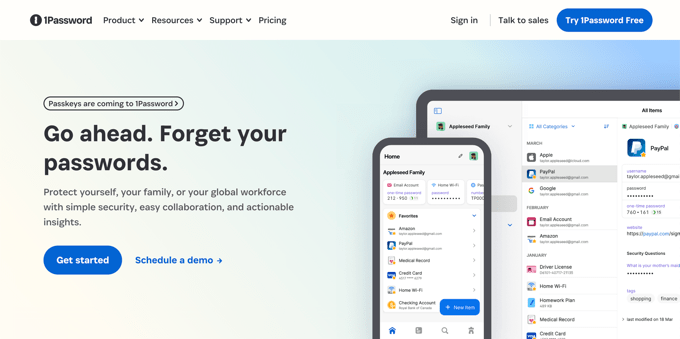
1Password is the cream of the crop when it comes to user-friendly security. It‘s the app we personally use and recommend here at WPBeginner. Their apps strike a perfect balance of powerful features and ease of use.
Top features for WordPress users include:
- Advanced end-to-end encryption to protect your data
- Support for biometric unlock and hardware security keys
- Watchtower breach monitoring and password health reports
- Secure sharing for teams, families, freelancers and clients
- Extensive admin controls for seeing teammates‘ password usage
- Item storage for server details, software licenses, SSH keys, etc.
Plans start at just $2.99/month for individuals, or $19.95/month for teams. You can try all premium features free for 14 days.
2. Bitwarden

Bitwarden is an increasingly popular option, especially among the open-source community. While not as polished as 1Password, it offers a solid set of features at budget-friendly prices.
Highlights include:
- All core features available for free (syncing, 2FA, secure sharing)
- Cross-platform apps and browser extensions
- Open-source transparency and security audits
- Affordable paid plans starting at $10/year for personal use
- Family and team sharing from $40/year
- Self-hosted option for maximum control over your data
If you‘re comfortable with a bit more DIY setup in exchange for lower costs, Bitwarden could be a great fit.
3. LastPass
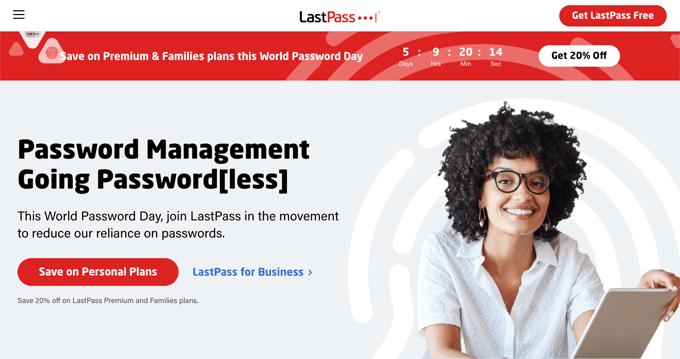
LastPass is a pioneer in the password manager space. While their free plan used to be among the most generous, recent changes have made it less appealing compared to Bitwarden. Still, it remains a solid paid option starting at $3/month.
LastPass has also suffered a few security breaches over the years. While it appears no passwords were actually compromised, it has shaken trust for some users. The company has been transparent about the incidents and made security improvements in response.
Some notable LastPass features:
- Automated password changer to update hundreds of sites at once
- Multiple 2FA options including LastPass Authenticator app
- One-to-many sharing for teams or family up to 6 users
- Emergency access to give trusted contacts account access
- Built-in dark web monitoring for account breaches
Besides these three, other great options are Dashlane, Keeper, RoboForm, and KeePass. While not as full-featured, Apple‘s iCloud Keychain and Google‘s Password Manager are convenient built-in choices within their respective ecosystems.
How to Set Up a Password Manager for WordPress in 4 Steps
Getting starting with a password manager is easier than you might think! While the exact steps vary a bit by app, the general process goes like this:
Choose a password manager and sign up. Install the app on your computer/phone and any browser extensions.
Create your master password. This is the one password you must remember, so make it strong! Use a long phrase that‘s memorable to you but hard to crack. Enable 2FA for an extra layer of protection.
Import existing passwords. Most password managers can import from your browser or a CSV file. You can also add logins manually as you go.
Update weak and duplicate passwords. Your password manager can identify accounts that need better passwords. Replace them with new, generated ones as you log in.
That‘s it! From now on, let your password manager fill, save, and sync passwords for you. Each time you log into WordPress, it will supply your secure admin credentials.
WordPress-Specific Password Security Tips
Your password manager will go a long way in securing your WordPress site. But for maximum protection, add these other login security layers:
Enable 2FA on Your WordPress Admin Account
Two-factor authentication requires a second piece of information (like a code from your phone or security key) in addition to your password. Even if an attacker got ahold of your password, they would be unable to log in without that second factor.
The free WP 2FA plugin makes it easy to enable 2FA on your WordPress admin account. You can use an authenticator app, security key, or backup codes for your second factor.
Add Login Attempt Limiting
By default, WordPress allows unlimited login attempts. A brute force attacker could keep guessing passwords over and over until they crack it. Login attempt limiting plugins block an IP address after a certain number of failed attempts within a given time period.
Great free plugins for this include Limit Login Attempts Reloaded and Login Lockdown. For even more protection, consider upgrading to a premium security plugin like iThemes Security Pro which can ban IPs after failed logins across your entire network.
Require Strong Passwords for All Users
If you have multiple user accounts on your WordPress site, a weak password on any of them could compromise the entire site. In addition to using 2FA and login limiting, you can use a plugin to enforce strong password requirements.
Force Strong Passwords is a free plugin that requires all users to use a password with a certain strength level. For more advanced controls and additional security features, consider a paid solution like Password Policy Manager within iThemes Security Pro.
Change Your WordPress Admin Username and Login URL
By default, WordPress uses "admin" as the first user account username. This makes it easier for hackers to target that account. Similarly, the default login URL of "/wp-admin" or "/wp-login.php" is a dead giveaway.
To make it harder for attackers to find and access your login page, change both your admin username and login URL. You can change your username manually in the database, or use a plugin like Username Changer.
To customize your login URL, use a free plugin like WPS Hide Login. Change the URL to something unique like "/my-secret-login" so automated hacking tools can‘t easily find it.
Password Security is Possible (With the Right Tools)
I know we‘ve covered a lot here! But don‘t feel overwhelmed. Improving your WordPress password security doesn‘t have to be complicated or time-consuming, especially with a good password manager.
By taking an afternoon to set up 1Password, Bitwarden, or another trusted password manager, you‘ll gain immense peace of mind. With unique, generated passwords for every account and easy autofill across devices, you can put weak password worries behind you for good.
Combine your password manager with WordPress-specific security layers like 2FA and login attempt limiting, and you‘ll be well on your way to a hack-proof website.
Now that you know how to create strong passwords and use a password manager, put that knowledge into action! Your website (and your customers) will thank you. Stay safe out there!
