Hello there, WordPress user! If you‘re reading this, chances are you‘re eager to learn more about the WordPress administration screens and how to use them effectively. Well, you‘ve come to the right place!
As a WordPress expert, I‘m here to guide you through the ins and outs of the WordPress admin area, sharing insights and tips from years of experience managing WordPress sites. By the end of this comprehensive guide, you‘ll have a solid understanding of what the admin screens are, why they‘re called "screens" instead of "pages," and how to navigate and utilize them like a pro.
What are WordPress Administration Screens?
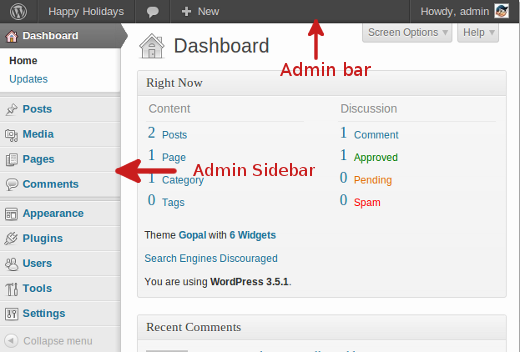
At its core, WordPress is a powerful content management system (CMS) that enables you to create, publish, and manage a website with ease. The WordPress administration screens, also known as the admin panel or dashboard, are where all that management magic happens.
Think of the admin screens as your mission control center for your WordPress site. It‘s where you‘ll perform essential tasks like:
- Creating and editing posts and pages
- Uploading and managing media files
- Moderating comments
- Customizing your site‘s appearance
- Installing and configuring plugins and themes
- Managing user accounts and permissions
- Configuring site settings
- And much more!
When you log into your WordPress site by appending /wp-admin to your site‘s URL (e.g., www.yoursite.com/wp-admin), you‘ll be taken to the main admin screen called the Dashboard. From there, you can access all the other admin screens using the navigation menu on the left-hand side.
Why "Screens" and not "Pages"?
You might be wondering why WordPress calls these admin sections "screens" instead of "pages." After all, they look and function a lot like web pages, right?
The reason for this terminology is to avoid confusion with the "Pages" post type in WordPress. In WordPress, "Pages" refers specifically to static content pages that you create and publish on your site, like your About page or Contact page. These are different from the administrative screens that make up the backend of your site.
By using the term "screens," WordPress makes it clear that these are part of the admin interface and not frontend pages that your site visitors can access. It‘s a small but important distinction that helps keep things clear and organized.
The Significance of the WordPress Admin Area
Now that you know what the WordPress administration screens are let‘s talk about why they‘re so important.
According to WordPress.org, WordPress powers over 40% of all websites on the internet, making it by far the most popular CMS in the world. For each of those millions of WordPress sites, the admin area serves as the central hub for managing and maintaining the site.
Consider these stats:
- There are over 55,000 plugins in the WordPress Plugin Directory, and the average WordPress site has 20-30 plugins installed. (Source: ManageWP)
- WordPress users produce about 70 million new posts and 77 million new comments each month. (Source: WordPress.com)
- The WordPress Theme Directory has over 8,000 free themes available, and thousands more premium themes are available from third-party marketplaces. (Source: WordPress.org)
All of this activity – from publishing content to managing plugins and themes – happens through the WordPress admin screens. Without the admin area, you wouldn‘t be able to perform any of the tasks necessary to run a WordPress site.
Moreover, the WordPress admin screens are designed to be user-friendly and intuitive, even for those who aren‘t particularly tech-savvy. By providing a centralized, well-organized interface for site management, WordPress empowers users to take control of their websites without needing to learn complex coding languages or hire a developer for every little change.
Now that you understand the significance of the WordPress admin screens let me share some tips to help you navigate them like a seasoned pro.
1. Customize Your Admin Menu
The admin menu on the left-hand side of your screen is your primary means of navigating between different admin sections. By default, it includes links to all the core WordPress screens, as well as any additional screens added by your active plugins and theme.
If you find the menu becoming cluttered or want to prioritize certain items, you can customize it to suit your needs. Plugins like Admin Menu Editor and Adminimize allow you to rearrange, hide, or rename menu items, making it easier to access the screens you use most often.
2. Use Keyboard Shortcuts
Did you know that WordPress has built-in keyboard shortcuts for common tasks? For example, you can use Shift + Alt + M to jump to the Media Library from anywhere in the admin area, or Shift + Alt + T to go to the Themes screen.
Familiarizing yourself with these shortcuts can save you time and streamline your workflow. Check out the full list of WordPress keyboard shortcuts in the WordPress Codex.
3. Master the Screen Options and Help Tabs
At the top of most WordPress admin screens, you‘ll see a "Screen Options" tab. Clicking this tab reveals a panel where you can customize what information is displayed on that particular screen.
For example, on the Posts screen, you can use the Screen Options to choose which columns are visible in the posts list (e.g., author, categories, tags, comments), as well as how many posts are displayed per page.
Similarly, the Help tab provides contextual information and resources related to the current screen. If you‘re ever unsure about a particular setting or option, check the Help tab for guidance.
4. Embrace Bulk Actions
When managing a large WordPress site, efficiency is key. That‘s where bulk actions come in handy.
On list pages like Posts, Pages, and Comments, you can select multiple items using the checkboxes on the left and then apply an action to all of them at once. For example, you can select multiple posts and choose to publish, unpublish, trash, or move them to a different category, all with a single click.
Bulk actions are a great way to save time when performing repetitive tasks or making sweeping changes to your site.
5. Utilize Quick Edit
In addition to bulk actions, many WordPress admin list pages also offer a Quick Edit feature. Hovering over an individual item in the list reveals options like Edit, Quick Edit, Trash, and View.
Clicking Quick Edit allows you to make changes to that item‘s key properties (e.g., title, slug, date, category, tags) without loading the full editing screen. This can be a big time-saver when you need to make minor adjustments on the fly.
Keep Your Admin Area Secure
As the control center for your WordPress site, it‘s crucial to keep your admin area locked down and secure. Here are a few key security tips:
- Always use strong, unique passwords and enable two-factor authentication if available.
- Keep your WordPress core, plugins, and themes updated to the latest versions.
- Only give admin access to trusted users, and regularly review user permissions.
- Consider changing your login URL from the default
/wp-adminto something less predictable. - Implement a security plugin like Wordfence or Sucuri to protect against common threats like brute force attacks and malware.
By prioritizing security, you can minimize the risk of your site falling victim to hackers or malicious actors.
Extending the WordPress Admin with Plugins
One of the best things about WordPress is its extensive ecosystem of plugins. In addition to adding new features and functionality to your site‘s frontend, many plugins also extend or enhance the WordPress admin screens.
For example, a plugin like Admin Columns allows you to customize the columns displayed on admin list pages, while a plugin like User Switching adds the ability to quickly switch between user accounts for testing and debugging purposes.
When evaluating plugins, always consider their impact on your admin area. Look for plugins that integrate seamlessly with the native WordPress UI and provide genuinely useful enhancements to your workflow.
Some of my favorite admin-focused plugins include:
- Admin Menu Editor
- Admin Columns
- Admin Custom Login
- Adminimize
- User Switching
By carefully selecting and configuring plugins, you can tailor your WordPress admin experience to perfectly suit your needs and preferences.
Conclusion
There you have it, folks! A comprehensive guide to the WordPress administration screens and how to use them effectively.
We‘ve covered a lot of ground in this post, from the basic definition and terminology of the WordPress admin area to tips for efficient navigation, security best practices, and helpful plugins.
Remember, mastering the WordPress admin screens is essential to becoming a confident and capable WordPress user. By understanding the purpose and functionality of each screen, you can take full control of your site and achieve your web presence goals.
So, get in there and start exploring! Familiarize yourself with the different admin sections, experiment with customizations and plugins, and don‘t be afraid to seek out additional resources and support when needed.
With a little practice and persistence, you‘ll be navigating the WordPress admin like a pro in no time. Happy WordPressing!
