Hey there, WordPress user! Are you looking to give your website a unique look and feel? One of the easiest and most effective ways to do that is by utilizing custom backgrounds. In this in-depth guide, we‘ll dive into everything you need to know about custom backgrounds in WordPress, from what they are and why you should use them, to step-by-step instructions for implementing them on your site.
What are Custom Backgrounds in WordPress?
At its core, the custom background feature in WordPress is a theme option that allows you to set a specific background color or image for your website. When enabled, this feature gives you the power to personalize the backdrop of your site‘s layout without the need for coding or design skills.
Technically speaking, when you set a custom background in WordPress, you‘re instructing your theme to apply a specific CSS background property to the body element of your site‘s HTML. This background then appears behind your site‘s content, header, footer, and sidebar, creating a cohesive and branded look.
Types of Custom Backgrounds in WordPress
There are two main types of custom backgrounds you can use in WordPress:
Solid Color Backgrounds – With a solid color background, you select a single color to fill the entire backdrop of your site. This is a simple yet effective way to reinforce your brand colors and create a clean, professional look.
Image Backgrounds – Image backgrounds allow you to use a custom graphic or photo as your site‘s backdrop. This could be anything from a subtle texture or pattern to a stunning full-screen photo. When using an image background, you have additional options to control how the image repeats and scales.
The Popularity of Custom Backgrounds in WordPress
Custom backgrounds have become a staple feature of WordPress themes, with a vast majority of modern themes supporting this option out of the box. In fact, a study by WordPress theme provider Themeisle found that over 80% of their themes included custom background functionality.
This widespread adoption is a testament to the power and flexibility of custom backgrounds in WordPress web design. By providing an easy way for users to personalize their sites, custom backgrounds have become an essential tool for creating unique and memorable WordPress websites.
Why Use Custom Backgrounds in WordPress?
Now that you know what custom backgrounds are, let‘s explore some of the key benefits and reasons to use them on your WordPress site.
Reinforce Your Brand Identity
One of the primary reasons to use a custom background is to strengthen your website‘s branding. By choosing a background color or image that aligns with your brand‘s visual identity, you create a cohesive and professional look that reinforces your brand in the minds of your visitors.
For example, if your brand colors are blue and white, setting a light blue background can instantly make your site feel more "on-brand." Similarly, if you have a branded texture or pattern, using it as your background image can subtly reinforce your brand throughout your site.
Set the Mood and Tone of Your Site
Your choice of background can also have a significant impact on the overall mood and tone of your website. Different colors and images evoke different emotions and associations, allowing you to create a specific atmosphere that aligns with your site‘s purpose and audience.
For instance, a soft, pastel background might create a calming and friendly vibe, perfect for a lifestyle blog or wellness website. On the other hand, a dark, bold background could convey a sense of sophistication and luxury, making it a great choice for a high-end fashion or tech brand.
Enhance Readability and User Experience
When used strategically, custom backgrounds can actually improve the readability and user experience of your WordPress site. By choosing a background color or image that contrasts well with your text color, you can make your content easier to read and more visually appealing.
Additionally, a well-designed background can help guide your user‘s eye toward important content or calls-to-action. For example, using a subtle gradient or pattern in the background can create visual interest and depth, while still keeping the focus on your site‘s main content.
Stand Out from the Crowd
In a sea of generic WordPress websites, a custom background can be the key to making your site stand out and memorable. By featuring a one-of-a-kind background design, you instantly differentiate your brand and create a lasting impression on your visitors.
This is especially valuable in crowded and competitive niches, where a unique visual identity can be the deciding factor in attracting and retaining audiences. With a custom background, you have the power to make your WordPress site truly yours and leave a lasting impact on your users.
How to Add Custom Backgrounds in WordPress
Sold on the benefits of custom backgrounds? Great! Let‘s walk through the steps of actually adding a custom background to your WordPress site.
Using the WordPress Customizer
The easiest way to add a custom background in WordPress is by using the built-in Customizer tool. Here‘s how:
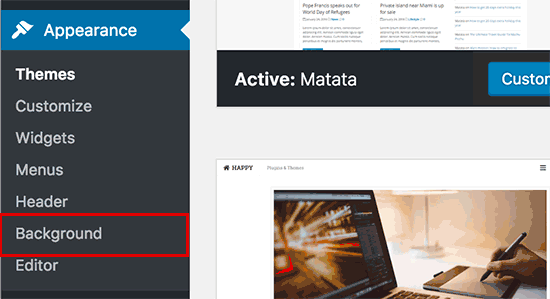
- Log in to your WordPress dashboard and navigate to Appearance > Customize.
- In the Customizer sidebar, click on "Background Image."
- Click the "Select Image" button to either upload a new image or choose one from your media library.
- Once your image is selected, you can adjust its display settings, such as whether to repeat the image or keep it fixed in place on scroll.
- If desired, you can also select a background color to be used when the image doesn‘t cover the full background.
- Click the "Publish" button to save your changes and apply your new custom background.
That‘s it! Your custom background should now be live on your WordPress site.
Adding Custom Background Support to a Theme
If your WordPress theme doesn‘t have built-in support for custom backgrounds, you can easily add this functionality yourself by modifying your theme‘s code. Here‘s a step-by-step guide:
- Open your theme‘s
functions.phpfile using a code editor. - Add the following line of code to enable custom background support:
add_theme_support( ‘custom-background‘ );- Save the
functions.phpfile and re-upload it to your server. - The "Background Image" option should now appear in your WordPress Customizer, allowing you to set a custom background as described in the previous section.
Troubleshooting Custom Background Issues
While adding a custom background is generally a straightforward process, you may occasionally run into issues. Here are a few common problems and their solutions:
Background not appearing – Make sure you have properly selected and saved your background image or color in the Customizer. If using an image, double-check that it has been uploaded successfully and the file path is correct.
Background appearing stretched or distorted – This can happen if your background image is too small for your site‘s layout. Try using a larger image (ideally at least 1920px wide) or adjust the background size and repeat settings in the Customizer.
Background color not taking effect – If you have both a background color and image set, the image will take precedence. To use a background color alone, remove the background image in the Customizer.
By following these troubleshooting tips and double-checking your settings, you should be able to resolve most common issues with custom backgrounds in WordPress.
Choosing the Right Background for Your WordPress Website
While custom backgrounds offer a lot of creative freedom, not every background choice will be right for your specific WordPress site. Here are some key factors to consider when selecting a background image or color:
Brand Consistency
First and foremost, your background should align with and reinforce your brand‘s visual identity. This means using colors, patterns, and imagery that are consistent with your logo, color palette, and overall brand style.
For example, if your brand is known for its sleek, minimalist aesthetic, a busy or cluttered background image would feel out of place. Instead, opt for a simple solid color or subtle texture that complements your brand‘s look and feel.
Readability and Contrast
Your background should also prioritize readability and legibility of your site‘s content. After all, what good is a stunning background if it makes your text difficult to read?
To ensure optimal readability, choose a background color or image that contrasts well with your text color. A good rule of thumb is to use a light background with dark text, or vice versa. Avoid using colors that are too similar in tone or brightness, as this can make your text harder to distinguish.
Mood and Atmosphere
As mentioned earlier, your background plays a big role in setting the mood and tone of your website. When choosing a background, consider the emotions and associations you want to evoke in your visitors.
For example, if you‘re creating a website for a yoga studio, you might choose a calming, nature-inspired background image to create a sense of tranquility and wellness. On the other hand, if you‘re designing a portfolio site for a grunge rock band, a gritty, textured background could help convey an edgy and rebellious vibe.
User Experience
Finally, consider how your background choice will impact the overall user experience of your site. A background that is too visually complex or distracting can draw attention away from your content and make it harder for users to navigate your site.
In general, it‘s best to choose a background that is subtle and unobtrusive, allowing your content to take center stage. If using an image background, make sure it is high-quality and optimized for fast loading times to avoid frustrating users with slow page loads.
Examples of Effective Custom Backgrounds
To help illustrate these principles, let‘s take a look at a few examples of WordPress websites with effective custom backgrounds:
Airbnb – The popular vacation rental platform uses a simple, light gray background color to create a clean and professional look. The subtle texture adds visual interest without distracting from the site‘s content.
charity: water – This nonprofit organization uses a full-screen background video of flowing water to immediately connect visitors with their mission and create an immersive, emotive experience.
Tesla – The electric car manufacturer‘s website features a sleek, dark background that perfectly complements their high-tech, cutting-edge brand image. The background‘s simplicity allows the site‘s striking product images and copy to take center stage.
By taking inspiration from these examples and keeping the key factors of brand consistency, readability, mood, and user experience in mind, you‘ll be well-equipped to choose a custom background that elevates your WordPress site to the next level.
Advanced Custom Background Techniques
Once you‘ve mastered the basics of adding custom backgrounds to your WordPress site, you may want to explore some more advanced techniques to take your backgrounds to the next level. Here are a few ideas to get you started:
Using CSS for Granular Control
While the WordPress Customizer provides an easy way to set a global background for your site, you can use CSS to apply custom backgrounds to specific pages, posts, or sections of your site. This allows for even greater customization and flexibility in your design.
To apply a custom background to a specific page or post, you can use the following CSS snippet:
.postid-123 {
  background-image: url(‘path/to/image.jpg‘);
}
Replace .postid-123 with the actual ID of your desired page or post, and adjust the url path to point to your chosen background image.
Similarly, you can target specific sections of your site, such as the header or footer, with CSS:
header {
  background-color: #333;
}

footer {
  background-image: url(‘path/to/texture.png‘);
}
By using CSS to apply custom backgrounds, you can create unique and dynamic designs that change throughout your site.
Creating Parallax Backgrounds
Parallax backgrounds are a popular web design trend that create a 3D effect by making the background image move slower than the foreground content as the user scrolls. This can add depth and visual interest to your WordPress site.
To create a parallax background in WordPress, you‘ll need to use a combination of HTML, CSS, and JavaScript. Here‘s a basic example:
<div class="parallax">
  <div class="parallax-content">
    <!-- Your content here -->
  </div>
</div>
.parallax {
background-image: url(‘path/to/image.jpg‘);
background-attachment: fixed;
background-position: center;
background-repeat: no-repeat;
background-size: cover;
height: 500px;
}window.addEventListener(‘scroll‘, function() {
let parallax = document.querySelector(‘.parallax‘);
let scrollPosition = window.pageYOffset;
parallax.style.backgroundPositionY = scrollPosition * 0.5 + ‘px‘;
});This code creates a <div> with a fixed background image that moves at a slower rate than the content inside it. The JavaScript code adjusts the background position based on the user‘s scroll position, creating the parallax effect.
Implementing Video Backgrounds
Video backgrounds are another eye-catching design trend that can make your WordPress site stand out. By using a looping video as your background, you can create a dynamic and engaging visual experience for your visitors.
To add a video background to your WordPress site, you can use the following HTML and CSS:
<div class="video-background">
  <video autoplay loop muted>
    <source src="path/to/video.mp4" type="video/mp4">
  </video>
  <div class="video-content">
    <!-- Your content here -->
  </div>
</div>
.video-background {
position: relative;
overflow: hidden;
width: 100vw;
height: 100vh;
}
.video-background video {
position: absolute;
top: 50%;
left: 50%;
min-width: 100%;
min-height: 100%;
width: auto;
height: auto;
transform: translateX(-50%) translateY(-50%);
z-index: -1;
}This code creates a full-screen video background that automatically plays, loops, and is muted. The video is positioned to always fill the background area, while your content appears on top of it.
When using video backgrounds, be sure to optimize your video file for web use to ensure fast loading times. You should also provide alternative content for users who have video disabled or are using assistive technologies.
Wrapping Up
Custom backgrounds are a powerful tool for personalizing your WordPress website and creating a unique, branded experience for your visitors. By carefully selecting your background images and colors, you can reinforce your brand identity, set the mood and tone of your site, enhance readability and user experience, and stand out from the competition.
Remember to keep key factors like brand consistency, contrast, and user experience in mind when choosing your backgrounds, and don‘t be afraid to experiment with advanced techniques like CSS, parallax, and video backgrounds to take your designs to the next level.
With this ultimate guide at your fingertips, you‘re ready to start implementing custom backgrounds on your WordPress site and creating a one-of-a-kind web presence. So go forth and let your creativity shine through your backgrounds – your visitors will thank you for it!
