Hey there, WordPress user! If you‘re looking to organize your blog posts and make your site easier to navigate, categories are an essential tool to understand. In this guide, we‘ll dive deep into what categories are, how they work, and how to use them like a pro on your WordPress website.
What is a Category in WordPress?
In WordPress, a category is a taxonomy that allows you to group related posts together. Think of categories like the chapters in a book – they provide a logical structure for your content and help readers find what they‘re looking for.
Let‘s say you have a fitness blog. You might have categories like:
- Workouts
- Healthy Recipes
- Weight Loss Tips
- Motivation
Then within each category, you can have subcategories that drill down into more specific topics. Under Workouts, you might have Strength Training, Cardio, Yoga, and so on.
Image source: WPBeginner
According to WordPress.com, the ideal number of categories for a blog is 5-10. Having too many top-level categories can overwhelm readers and make your site look cluttered. On the other hand, having too few limits your ability to organize content effectively.
By thoughtfully planning out your categories, you create a roadmap for your content that keeps readers engaged and search engines happy.
Categories vs. Tags: What‘s the Difference?
WordPress has another taxonomy called tags which can seem very similar to categories at first glance. However, they serve distinct purposes:
| Categories | Tags |
|---|---|
| Broad groupings of posts | Describe post specifics |
| Hierarchical (can have subcategories) | Not hierarchical |
| Required (must have at least one per post) | Optional |
| Used for site structure and navigation | Used for filtering and searching content |
Table: Key differences between categories and tags
A good rule of thumb is to choose categories for the table of contents of your site and tags for the index. If a topic is important enough that you‘ll write multiple posts about it, make it a category. If it‘s a one-off topic or a detail you want to make searchable, use a tag.
How to Add Categories in WordPress
Ready to set up your categories? Adding them in WordPress is simple. Here‘s how:
- Log in to your WordPress dashboard and go to Posts > Categories.
- Enter a Name for your new category. This is what readers will see.
- Choose a Slug, which is a URL-friendly version of the name. WordPress will auto-generate this but you can customize it.
- If this is a subcategory, choose a Parent category from the dropdown.
- Optionally, enter a Description to give more context about what the category covers.
- Click the Add New Category button to save it.
You can also add categories on the fly while writing a post by clicking Add New Category in the Categories panel in the post editor:
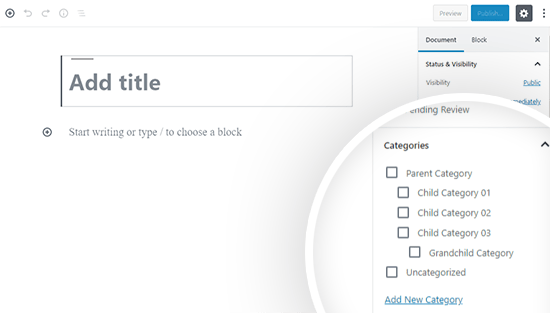
Image source: WPBeginner
Editing and Deleting Categories
As your blog grows, you may need to edit or delete categories from time to time. Perhaps you want to change a category name, merge old categories, or get rid of one you no longer use.
To edit a category:
- Go to Posts > Categories.
- Hover over the category you want to edit and click Edit.
- Make your changes and click Update.
Keep in mind that changing a category‘s slug will change its URL. Set up a 301 redirect from the old URL to the new one to avoid breaking links and losing SEO value.
To delete a category:
- Go to Posts > Categories.
- Hover over the category you want to delete and click Delete.
- Confirm that you want to delete the category.
Be very cautious about deleting categories, especially if they have posts assigned to them. When you delete a category, posts will be reassigned to the default Uncategorized category.
If you have a lot of categories to manage at once, use the Bulk Actions dropdown to Edit or Delete multiple categories together.
Converting Categories to Tags or Vice Versa
Changing your mind about a taxonomy? No problem. WordPress has a built-in importer to convert categories to tags or tags to categories.
- Go to Tools > Import.
- Click Categories and Tags Converter.
- Select the taxonomy you want to convert from and to.
- Choose the terms you want to convert.
- Click Convert.

Image source: WPBeginner
Remember, converting a category to a tag (or vice versa) will change its URL. Update any internal links and set up URL redirects as needed.
Tips for Using Categories Effectively
Want to become a master of WordPress categories? Follow these tips:
- Plan your categories before adding content. A little forethought goes a long way for keeping your site organized!
- Aim for 5-10 top-level categories, with subcategories if needed.
- Avoid duplicate categories that cover the same topic.
- Always assign a post to the most relevant category. Don‘t leave any as Uncategorized.
- Use descriptive category names, but avoid keyword stuffing.
- Assign a post to 1-2 categories max. If you need more, your categories may be too specific.
- Optimize your category pages for SEO. Include relevant keywords in titles, URLs, and descriptions.
Displaying Categories on Your Site
You‘ve set up your categories – now put them to work! Make sure readers can find content by displaying categories in key areas, like:
- Navigation menu
- Sidebar widgets
- Breadcrumbs
- Related post sections
Most WordPress themes have built-in options for displaying categories. Check your theme‘s documentation or customizer settings.
You can also use plugins like Categories Images or List Category Posts to customize how categories appear on your site.
Conclusion
Categories are an essential tool for organizing your WordPress blog or website. When used strategically, they create a logical structure for your content, improve site usability, and even boost SEO.
The key is to plan out your categories carefully, use them consistently, and display them prominently so readers can find the content they‘re looking for.
By following the tips in this expert guide, you‘ll be able to tame even the most unruly content and create a user-friendly site that both readers and search engines will love.
Further Reading
- How to Create a Child Category in WordPress via WPBeginner
- Categories Versus Tags and SEO in WordPress via Search Engine Journal
- How to Style Your Category Page to Boost Rankings and Clicks via Elegant Themes
