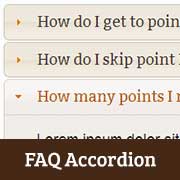
Hey there! If you‘re looking to add a user-friendly FAQ section to your WordPress site, you‘ve come to the right place. In this in-depth guide, I‘ll show you exactly how to create an attractive, functional FAQ accordion using jQuery.
But first, why use an accordion for your FAQs? According to research by Kayako, 90% of consumers now expect brands to have an online self-service option like an FAQ. A well-organized FAQ can reduce your customer support volume by quickly addressing common questions and issues.
An accordion takes this a step further by making your FAQs more compact and scannable. Visitors can easily browse the questions and expand only the ones that are relevant to them. This provides a better user experience than a long page of FAQ content or forcing users to navigate to separate pages for each question.
Step 1: Create Your WordPress FAQ Content
Before you can build your accordion, you‘ll need the FAQ content itself. In WordPress, there are a few different ways you can structure this:
| Method | Pros | Cons |
|---|---|---|
| Regular posts/pages | Simple to set up, no extra plugins needed | FAQ content mixed in with other site content |
| Custom post type | Keeps FAQs separate, can be extended with custom fields | Requires custom code or plugin |
| FAQ plugin | Pre-built FAQ functionality, may include accordion option | Less customization and control than custom implementation |
I recommend using a custom post type for your FAQs. This keeps them separate from your other content and gives you flexibility to add custom fields as needed. Here‘s a quick example of how to register a custom post type for FAQs:
function wpb_faq_post_type() {
    $labels = array(
        ‘name‘                  => ‘FAQs‘,
        ‘singular_name‘         => ‘FAQ‘,
        ‘menu_name‘             => ‘FAQs‘,
        ‘name_admin_bar‘        => ‘FAQ‘,
        ‘add_new‘               => ‘Add New‘,
        ‘add_new_item‘          => ‘Add New FAQ‘,
        ‘new_item‘              => ‘New FAQ‘,
        ‘edit_item‘             => ‘Edit FAQ‘,
        ‘view_item‘             => ‘View FAQ‘,
        ‘all_items‘             => ‘All FAQs‘,
        ‘search_items‘          => ‘Search FAQs‘,
        ‘not_found‘             => ‘No FAQs found.‘,
        ‘not_found_in_trash‘    => ‘No FAQs found in Trash.‘
    );

    $args = array(
        ‘labels‘                => $labels,
        ‘public‘                => true,
        ‘publicly_queryable‘    => true,
        ‘show_ui‘               => true,
        ‘show_in_menu‘          => true,
        ‘menu_position‘         => 5,
        ‘menu_icon‘             => ‘dashicons-editor-help‘,
        ‘query_var‘             => true,
        ‘rewrite‘               => array( ‘slug‘ => ‘faq‘ ),
        ‘capability_type‘       => ‘post‘,
        ‘has_archive‘           => true,
        ‘hierarchical‘          => false,
        ‘supports‘              => array( ‘title‘, ‘editor‘ ),
        ‘show_in_rest‘          => true
    );

    register_post_type( ‘faq‘, $args );
}
add_action( ‘init‘, ‘wpb_faq_post_type‘ );
Add this code to your theme‘s functions.php file or a custom plugin. Now you‘ll have a dedicated "FAQs" section in your WordPress admin sidebar where you can manage your questions and answers.
Step 2: Enqueue Necessary Scripts & Styles
To create the accordion functionality, we‘ll be using the jQuery UI library. This is a collection of pre-built interactive components, including an accordion widget.
While WordPress includes jQuery by default, it doesn‘t include jQuery UI. So we need to enqueue these files ourselves. Add this code to your functions.php file:
function wpb_accordion_scripts() {
    wp_enqueue_script( ‘jquery-ui-accordion‘ );
    wp_enqueue_style( ‘wpb-jquery-ui-style‘, ‘https://code.jquery.com/ui/1.13.2/themes/base/jquery-ui.css‘ );
    wp_enqueue_script( ‘wpb-accordion-init‘, get_template_directory_uri() . ‘/js/accordion-init.js‘, array(‘jquery‘), ‘1.0‘, true );
}
add_action( ‘wp_enqueue_scripts‘, ‘wpb_accordion_scripts‘ );
This does a few important things:
- Enqueues the
jquery-ui-accordionscript which is included with WordPress - Enqueues a jQuery UI theme CSS file from a CDN (in this case the "base" theme)
- Enqueues a custom
accordion-init.jsscript which we‘ll create next
You can use any theme from the jQuery UI theme gallery. The "base" theme is fairly minimal so it‘s a good starting point. But there are many other options like "Blitzer", "Cupertino", "Humanity", etc.
Feel free to experiment with different themes to find the best match for your site‘s design. You can also create your own custom jQuery UI theme using the ThemeRoller tool.
Step 3: Initialize the Accordion
Next, we need to actually initialize the accordion in JavaScript. Create a new file called accordion-init.js in your theme‘s JS directory and add this code:
jQuery(function($) {
  $(‘.accordion‘).accordion({
    collapsible: true,
    active: false,
    heightStyle: ‘content‘
  });
});
Let‘s break this down:
- The
$(‘.accordion‘)selector targets any element with the "accordion" class. We‘ll apply this class to the container div in the next step. - The
.accordion()function initializes the accordion widget on the selected element(s) collapsible: trueallows all panels to be collapsed. By default, one panel must always be open.active: falsemeans all panels will be collapsed initially. You can set this to an integer (0-based) to specify which panel should be open by default.heightStyle: ‘content‘sets the height of each panel to fit its content. The default‘auto‘setting gives all panels a fixed equal height.
There are many more configuration options you can use to customize how the accordion functions. Some other useful ones include:
animate: specifies if/how panels animate when opening and closingclasses: allows you to customize accordion element class namesevent: set which user action triggers panel toggles ("click" or "mouseover")icons: specify custom icons for headers (e.g. arrows, +/- signs)
Step 4: Create the FAQ Accordion Template
Now it‘s time to output the actual FAQ content in accordion format. We‘ll do this by creating a custom page template. Create a new file in your theme called page-faq.php and add this code:
<?php
/**
 * Template Name: FAQ Page
 */

get_header();
?>

<div class="accordion">
    <?php
    $faqs = new WP_Query(array(
        ‘post_type‘ => ‘faq‘,
        ‘posts_per_page‘ => -1,
        ‘orderby‘ => ‘menu_order‘,
        ‘order‘ => ‘ASC‘,
    ));

    while ($faqs->have_posts()) : $faqs->the_post();
    ?>
        <h3><?php the_title(); ?></h3>
        <div><?php the_content(); ?></div>
    <?php
    endwhile;
    wp_reset_postdata();
    ?>
</div>

<?php
get_sidebar();
get_footer();
Some key things to note:
- The
Template Namecomment allows this template to be selected on a per-page basis - The main accordion container has the
accordionclass we targeted in step 3 - Inside that, we use a custom
WP_Queryto fetch all FAQ posts, ordered by the "menu_order" attribute - The FAQ question is output inside an
<h3>element (the accordion header) - The FAQ answer is output inside a
<div>element (the accordion panel)
Feel free to customize this template to fit your theme‘s structure and design.
Step 5: Create an FAQ Page & Select Template
The final step is to create a page to display your FAQs. In your WordPress dashboard, go to Pages > Add New. Enter a title (e.g. "Frequently Asked Questions") and select the "FAQ Page" template we created in step 4 from the Template dropdown.
Now when you view this page on your site, you should see your FAQs displayed in a fully functional jQuery accordion! Visitors can easily expand and collapse questions to find the information they need.
Bonus: Styling Your Accordion
The jQuery UI theme you enqueued in step 2 will provide some default styling for the accordion. But you can (and should) customize this to fit your site‘s unique design.
Use your browser‘s developer tools to inspect the HTML elements and experiment with targeting them in CSS. Here are a few key elements to style:
.ui-accordion .ui-accordion-header {
    /* Style the clickable question headers */
}
.ui-accordion .ui-accordion-content {
    /* Style the opening/closing answer panels */
}
.ui-accordion .ui-accordion-header-icon {
    /* Style the open/close icons (if using) */
}
.ui-state-active,
.ui-widget-content .ui-state-active,
.ui-widget-header .ui-state-active,
a.ui-button:active, .ui-button:active,
.ui-button.ui-state-active:hover {
    /* Style the "active" (open) accordion panel */
}
For inspiration, check out these 20+ jQuery accordion examples to see the variety of designs possible.
Alternative: Using an FAQ Plugin
While coding your own custom FAQ accordion gives you the most control, you may prefer the simplicity of using a pre-built WordPress FAQ plugin. Some quality free options include:
- Accordion FAQ – Responsive accordion FAQs with schema markup
- Ultimate FAQ – Includes accordion and other display options plus search
- Easy Accordion – User-friendly accordion builder, highly customizable
Before choosing a plugin, make sure to carefully review the features, options, and performance impact to ensure it fits your specific needs.
Conclusion
Hopefully this guide has given you all the information you need to add an FAQ accordion to your WordPress site. To recap, the key steps are:
- Create your FAQ content (preferably as a custom post type)
- Enqueue jQuery UI and a theme CSS file
- Initialize the accordion in JavaScript
- Create a custom template to output the FAQs in accordion format
- Create an FAQ page and select the accordion template
- Style the accordion to match your theme
By following these steps, you‘ll have an attractive, functional, and user-friendly FAQ section that reduces customer support requests and improves your site‘s overall experience. Plus, you‘ll gain valuable skills working with jQuery UI and WordPress theme customization.
If you run into any issues or have additional questions, don‘t hesitate to consult the WordPress.org support forums or the jQuery UI documentation. And remember, the WordPress community is full of helpful developers who are happy to share their knowledge and experience.
Now go forth and accordion-ize your FAQs! As always, happy WordPressing!
)