Have you ever seen a WordPress error message like "Unable to create directory wp-content/uploads. Is its parent directory writable by the server?" or "Plugin could not be activated because the plugin directory is not writable?" If so, you‘re not alone. According to a survey by WP White Security, 41% of WordPress sites have experienced file permission issues at some point.
Chmod is the key to solving these common WordPress errors, but for many users, it remains a mysterious and intimidating command. Fear not! By the end of this guide, you‘ll understand what chmod is, how it works, and how to use it safely to keep your WordPress site running smoothly.
What is Chmod?
Chmod stands for "change mode," and it‘s a command used on Unix-like operating systems to change the permissions of files and directories. In the context of WordPress, chmod is most often used to make sure that the web server has the proper read, write, and execute permissions it needs for core functionality.
Every file and directory on your WordPress site‘s server has a set of permissions that specify what actions different types of users can perform. These break down into three types:
| Permission | File | Directory |
|---|---|---|
| Read (r) | Allows viewing and copying of the file‘s contents | Allows viewing files in the directory (but not necessarily accessing them) |
| Write (w) | Allows modifying and deleting the file | Allows creating, renaming, and deleting files in the directory |
| Execute (x) | Allows running the file as a program (not common for WordPress) | Allows accessing files in the directory (alongside read permission) |
These permissions are set for three categories of users:
- Owner: The user who owns the file or directory (typically your WordPress site‘s system user)
- Group: Users who are members of the group assigned to the file or directory
- World (others): All other users on the system
When you run the chmod command, you‘re specifying which of these permissions to grant or revoke for each user category.
Why is Chmod Important for WordPress?
To perform its basic functions, WordPress needs to able to read and write certain files and directories on your server. Some common examples include:
- The
wp-contentdirectory and all its subdirectories (to store uploads, plugins, and themes) - The WordPress root directory (to update core files)
- The
.htaccessfile (to manage permalinks and rewrites)
If the web server doesn‘t have the proper permissions to read and write these files, you‘ll encounter errors when trying to perform essential tasks like installing plugins, updating themes, or uploading media.
Incorrect permissions can also have security implications. If files that should be read-only are set to be writeable by any user, it creates an opportunity for hackers to modify your site‘s code and potentially inject malware.
According to WP White Security, over 73% of WordPress sites have at least one file or directory with permissions that are too lax, making them vulnerable to hacks. That‘s why it‘s crucial to understand how to use chmod correctly.
How to Use Chmod
You can run the chmod command via SSH on the command line, or through an FTP client‘s GUI.
Using Chmod via SSH
To change permissions with SSH, you‘ll first need to connect to your server using a terminal. Once logged in, navigate to your WordPress directory. From there, the basic syntax for chmod is:
chmod [permissions] [filepath]
So to give WordPress read and write permissions for the uploads directory, you would use:
chmod 755 /var/www/wordpress/wp-content/uploads
Using Chmod via FTP
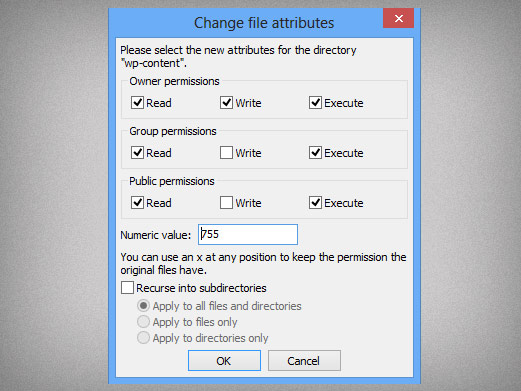
If you prefer a graphical interface, you can use an FTP client like FileZilla to change permissions. After connecting to your server, navigate to the file or directory you want to modify, right-click it, and select "File Attributes" or "File Permissions."
There, you‘ll see checkboxes to set the read, write, and execute permissions for each user category. You can also enter the desired chmod permissions numerically in a text field.
For a step-by-step visual guide, check out our video tutorial on using chmod with FTP above.
Calculating Chmod Permissions
To specify permissions for each user type, chmod uses a three-digit octal number. Each digit represents a user category, in the order of owner, group, and world.
The three types of permissions are assigned values like so:
- Read (r) = 4
- Write (w) = 2
- Execute (x) = 1
To calculate the number for each digit, you add up the values for the permissions you want to grant that user category. Here are some common examples:
| Octal | Permissions | Description |
|---|---|---|
| 7 | rwx | Read, write, and execute |
| 6 | rw- | Read and write only |
| 5 | r-x | Read and execute (common for directories) |
| 4 | r– | Read only |
| 0 | — | No permissions granted |
So for example, 644 permissions would give read-write access to the file‘s owner, and read-only access to the group and world. A directory with permissions of 755 would be readable and writeable by the owner, but read-only for everyone else.
Recommended Chmod Permissions for WordPress
For most WordPress installs, the recommended baseline permissions are:
- Files: 644 (rw-r–r–)
- Directories: 755 (rwxr-xr-x)
This allows WordPress to write to files while keeping them from being modified by other users on the system. For directories, the execute permission is necessary to allow the web server to traverse them.
Certain WordPress files should have even tighter permissions to enhance security:
wp-config.php: 440 or 400 (r——– or r——–).htaccess: 644 (rw-r–r–)
These tighter permissions prevent other system users from reading potentially sensitive data like database credentials.
One important exception is the wp-content/uploads directory, which needs to be writeable by the web server to allow uploading media through WordPress. For this reason, it‘s commonly assigned 775 permissions.
It‘s crucial to avoid assigning 777 (rwxrwxrwx) permissions to any WordPress file or directory. This allows any user on the system complete control, which is a major security risk. According to WP White Security, 13% of WordPress sites have at least one file or directory set to 777 permissions unnecessarily. Don‘t let your site become a statistic!
Chmod and File Ownership
It‘s important to note that file permissions are closely intertwined with file ownership and groups. For WordPress to have access to modify files, the system user that runs the web server needs to own them (or belong to a group with write permissions).
You may need to change the owner and/or group of WordPress files after an update or migration. To do this, use the chown command:
chown -R [owner]:[group] /var/www/wordpress
When you assign ownership to the web server user (commonly www-data, apache, or nginx), those files will inherit the permissions granted to the owner category.
Troubleshooting Chmod Issues
If you run into permissions problems with WordPress, follow these troubleshooting steps:
Check for typos: Make sure there are no misplaced characters or incorrect directory names in your chmod command.
Verify ownership: Use
ls -lto list the current owner and group of the problematic files. Make sure they match your web server user and group.Check your web server configuration: Look for any web server directives that might override the expected permissions.
Consult your web host: Some managed WordPress hosting providers use custom setups that require different permissions. Ask their support team for guidance.
Increase permissions gradually: Instead of jumping straight to 777, try incrementally increasing access by changing the user category. For example, if 644 doesn‘t work, try 664 (rw-rw-r–) before 777.
Revert changes: If altering permissions doesn‘t resolve the issue, change them back to avoid unnecessary security risks.
If you‘re still having trouble, don‘t hesitate to ask for help in the WordPress.org support forums or consult a professional developer.
Wrapping Up
We hope this in-depth guide to chmod has given you the knowledge and confidence to manage your WordPress site‘s file permissions. Remember, chmod is a powerful tool that should be wielded with care and precision. When in doubt, stick to the principle of least privilege and only grant the minimum permissions necessary.
For more advanced chmod usage, like setting the sticky bit on directories, check out the official chmod manual.
By mastering chmod, you‘ll be better equipped to troubleshoot common WordPress errors, harden your site‘s security, and keep everything running smoothly. Happy chmod-ing!
