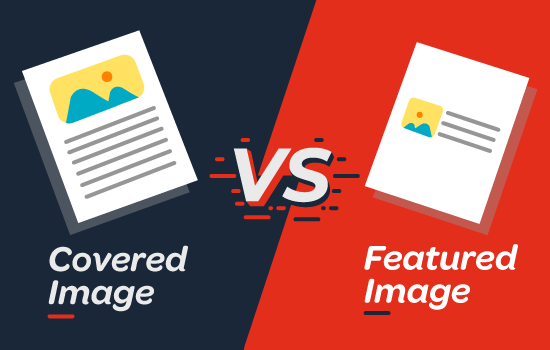
Hey there, WordPress user! 👋 If you‘re wondering about the difference between a cover image and featured image in WordPress, you‘ve come to the right place. As a WordPress developer and content creator, I know how confusing these two terms can be, especially if you‘re new to the block editor.
In this in-depth guide, I‘ll clearly explain what cover images and featured images are, how they‘re different, and when to use each one for maximum impact. I‘ll also share some pro tips and best practices to take your imagery to the next level. Let‘s dive in!
What is a Cover Image in WordPress?
A cover image is a large, full-width image that spans the entire page, often with text and other elements overlaid on top of it. Cover images were introduced in WordPress 5.0 as part of the new block editor (Gutenberg).
Cover images are meant to be visually immersive and attention-grabbing. When someone lands on your page, the cover image is the first thing they see, setting the tone for your content.
Cover Image Block
To add a cover image, you use the aptly-named Cover block. The Cover block allows you to:
- Upload an image or video
- Set the height and width
- Overlay text, buttons, and other blocks on top
- Apply color overlays, gradients, and background effects
- Set a parallax effect (more on this later)
Here‘s what the Cover block looks like in the editor:

As you can see, the block settings give you a lot of creative control. You can use the Cover block to create impactful hero sections, lead-ins, and section dividers.
When to Use a Cover Image
So when should you use a cover image in WordPress? Here are some common scenarios:
Homepage header – Make a bold first impression with a striking cover image and overlay text. Great for quickly communicating your site‘s purpose.
Section lead-ins – Use cover images with text to introduce new sections of content. It‘s an effective way to break up long pages.
Parallax effects – Cover images support parallax effects where the background image appears to move slower than the content in the foreground. This adds visual interest and depth.
Landing pages – For landing pages and product showcases, full-width cover images are great for setting the scene and drawing attention to key information.
Contextual imagery – Reinforce your content with relevant cover images that add meaning and emotion to the text.
The thing to remember with cover images is that a little goes a long way. Too many full-width images can be overwhelming, so use them purposefully and sparingly for maximum effect.
What is a Featured Image in WordPress?
Featured images have been around a lot longer than cover images, since WordPress 2.9 in fact! A featured image (also known as a post thumbnail) is the primary image used to represent a post.
Unlike cover images which appear in the body content, featured images usually appear in "meta" locations, such as:
- Post previews and archive pages
- Recent/Related post widgets
- Social media links and embeds
- Search results and post listings
Most WordPress themes have designated spots for featured images, like a grid of thumbnails or list of teasers. Featured images entice people to click through to your content.
Setting a Featured Image
To set a featured image, open the post editor and look for the Featured image panel in the sidebar:

Click the "Set featured image" link to open the media library, then either upload a new image or select an existing one.
Some themes let you customize how featured images are displayed. For example, you might be able to:
- Enable/disable featured images
- Set a default featured image
- Choose a crop format (square, 16:9, portrait, etc.)
- Display featured images on posts, pages or both
- Customize image sizes
- Add image effects and filters
If you‘re not sure how your theme handles featured images, play around with different options and preview your changes.
Featured Image Best Practices
When selecting featured images for your WordPress posts, keep these tips in mind:
Represent the content – Your featured image should give an at-a-glance preview of what the post is about. Avoid generic stock photos.
Optimize for social – Featured images display when posts are shared on social media. Use eye-catching images with bold text overlays to boost clickthroughs.
Brand your images – Build brand awareness by adding your logo, colors or fonts to featured images. A consistent visual identity builds trust.
Keep a consistent aspect ratio – If your theme crops featured images in post previews, keep yours the same size and orientation to avoid awkward crops.
Compress and optimize – Large images can slow down your site. Compress featured images and consider lazy-loading for a speed boost.
Statistics show that articles with images get 94% more views than those without. Featured images are an easy way to add visual appeal to your blog archives and post previews.
Cover Image vs Featured Image: The Key Differences
Now that we‘ve defined cover images and featured images, let‘s recap the main differences:
| Cover Image | Featured Image |
|---|---|
| Appears in the body content | Appears in meta locations (post listing, widgets, social media) |
| Added with the Cover block | Added via Featured Image panel |
| Spans full width of the page | Usually a smaller thumbnail |
| Supports text, button & block overlays | Static image only |
| Can apply color & image effects | Customized with theme settings |
| Used for creative layout and storytelling | Used as post "avatar" for quick recognition |
To put it simply:
- Use cover images for immersive storytelling within your content
- Use featured images as the "face" of your post to attract visitors
Both have their place in an effective WordPress content strategy. The key is knowing when and how to leverage their strengths.
How to Use Cover Images and Featured Images Together
You might be wondering, can you use cover images AND featured images in the same post? Absolutely! In fact, I recommend it.
Your featured image can serve as a "teaser" for your post, while your cover images provide deeper visual context within the post itself. Here‘s how I like to approach it:
Set a featured image that captures the main theme of the post. This will appear in your post listings and shares.
In the post itself, use the first cover block to expand on the featured image with a bolder title and excerpt.
Add 2-3 more cover images throughout the post to break up long sections and reinforce key points. Alternate between text and visual covers.
Include a final cover image as a CTA or lead-in to other relevant posts.
Here‘s a quick mockup of what this might look like:

See how the featured image and cover images work together? The featured image provides a branded preview, while the cover images create an engaging flow and visual hierarchy in the post.
Of course, the strategy you use will depend on your content goals and audience preferences. The beauty of WordPress is that it gives you the flexibility to experiment and find what works for you.
Key Takeaways and Next Steps
Phew, that was a lot to cover (pun intended)! Let‘s recap the most important points:
Cover images are large, full-width images added with the Cover block. Use them in the body content to create visual impact and engaging layouts.
Featured images are thumbnails used to represent posts in listings and shares. Set them in the Featured Image panel and customize their display with theme settings.
Cover images and featured images serve different purposes, but can be used together for a cohesive visual strategy.
Opt for original, high-quality, content-relevant images and always compress for optimal performance.
Don‘t overdo it with the cover images. Be purposeful and use them to enhance the content, not distract from it.
Now that you‘re armed with this knowledge, I encourage you to audit your WordPress site and see how you can level up your use of cover images and featured images. Analyze what‘s working, what‘s not, and where you can create a more engaging visual experience for your audience.
If you found this guide helpful, I‘d love to hear about it! Feel free to share your thoughts, questions and success stories in the comments. And if you‘re hungry for more WordPress tips, check out our other resources and tutorials.
Until next time, happy WordPress-ing! 🚀
)