Hey there, WordPress user! If you‘re curious about what goes on behind the scenes of your website, you‘ve come to the right place. In this article, we‘ll be taking an in-depth look at databases, specifically the MySQL database that powers your WordPress site.
What is a Database?
A database is an organized collection of structured data that can be easily accessed, managed, and updated. Imagine a giant filing cabinet where information is stored in labeled folders and organized in a way that makes it easy to find what you need. That‘s essentially what a database does for your website.
Why Use a Database?
Databases are essential for any website or application that needs to store and retrieve data efficiently. With a database, you can:
- Organize and structure data in a logical, consistent way
- Quickly search and retrieve specific pieces of information
- Ensure data integrity and reduce data redundancy
- Handle large amounts of data and complex data relationships
- Secure sensitive information with access controls and encryption
Types of Databases
There are several types of databases, each with its own strengths and use cases. The most common types include:
- Relational databases (SQL): Organize data into tables with predefined relationships, using SQL for queries and management. Examples: MySQL, PostgreSQL, Microsoft SQL Server.
- NoSQL databases: Designed for unstructured, rapidly changing data with flexible schemas. Examples: MongoDB, Cassandra, Couchbase.
- Graph databases: Use nodes and edges to represent complex relationships between data entities. Examples: Neo4j, Amazon Neptune.
For WordPress and most other content management systems, relational databases like MySQL are the go-to choice.
How WordPress Uses a MySQL Database
WordPress uses a MySQL database to store and manage all your website‘s content and settings. From posts and pages to user comments and plugin options, everything is neatly organized into tables within the database.
Key WordPress Database Tables
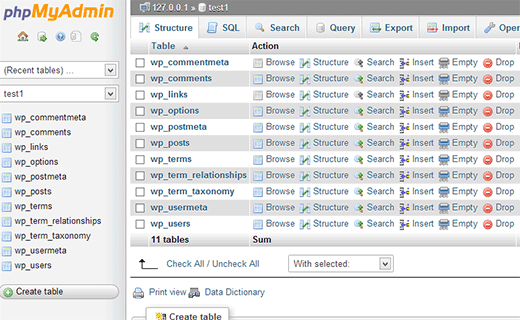
During installation, WordPress automatically creates several default tables in your MySQL database. The most important ones include:
wp_posts: Stores all your content, including posts, pages, and custom post types.wp_postmeta: Stores metadata for your content, like custom fields and post settings.wp_comments: Stores comments and comment metadata for your posts and pages.wp_users: Stores user account information and roles for your WordPress site.wp_options: Stores configuration settings for your WordPress site and installed plugins.
Note that the "wp_" prefix can be changed for security purposes, so your tables might have a different prefix like "wp_your_customprefix".
These tables are all linked together through relationships and foreign keys. For example, each post in the wp_posts table has an associated author in the wp_users table, connected by the post_author column.
WordPress Database Queries
Whenever you load a page on your WordPress site, WordPress runs a series of MySQL queries to fetch the necessary data from the database. For example, to display a single blog post, WordPress might run queries like:
SELECT * FROM wp_posts WHERE ID = 123;
SELECT * FROM wp_postmeta WHERE post_id = 123;
SELECT * FROM wp_comments WHERE comment_post_ID = 123;
These queries retrieve the post content, metadata, and comments for the specific post with an ID of 123. WordPress then combines this data with your theme templates to render the final HTML page.
WordPress Database Management Best Practices
As a WordPress site owner, it‘s important to understand some best practices for managing and maintaining your MySQL database:
Regular Backups
Backing up your WordPress database is crucial for protecting your site against data loss or corruption. You should aim to create backups on a regular schedule, such as daily or weekly, and store them securely offsite.
There are several methods for backing up your database:
- Manual exports via phpMyAdmin or the MySQL command line
- WordPress backup plugins like UpdraftPlus or BackupBuddy
- Automated backups through your web hosting provider
Database Optimization
Over time, your WordPress database can become bloated with unnecessary data like post revisions, orphaned metadata, and transients. This can slow down your site‘s performance and make your database harder to manage.
To keep your database lean and efficient, you can:
- Regularly clean up your database with a plugin like WP-DBManager or Advanced Database Cleaner
- Optimize your database tables with a tool like phpMyAdmin or WP-Optimize
- Configure WordPress to automatically purge old post revisions and other unwanted data
Security Best Practices
Securing your WordPress database is essential for protecting your site from hacking attempts and data breaches. Some key security measures include:
- Using a strong, unique password for your MySQL database user
- Changing the default "wp_" table prefix to something harder to guess
- Limiting database access to only trusted IP addresses
- Enabling SSL encryption for connections between WordPress and MySQL
- Keeping WordPress core, plugins, and themes up to date to patch known vulnerabilities
By following these best practices and staying vigilant, you can ensure your WordPress database remains secure and performant.
Conclusion
We‘ve covered a lot of ground in this deep dive into WordPress databases! From the basic concepts of databases and how WordPress uses MySQL, to practical tips for managing and securing your database, I hope you‘ve gained a better understanding of what goes on under the hood of your WordPress site.
Remember, your database is the backbone of your WordPress site, so it‘s important to treat it with care and attention. By regularly backing up, optimizing, and securing your database, you‘ll keep your site running smoothly and avoid costly data loss or downtime.
If you‘re hungry to learn more about WordPress databases and how to work with them, I recommend exploring these resources:
- The official WordPress Codex page on the database: https://codex.wordpress.org/Database_Description
- MySQL documentation and tutorials: https://dev.mysql.com/doc/
- WordPress database management plugins in the Plugin Directory: https://wordpress.org/plugins/search/database+management/
Armed with this knowledge, you‘re well on your way to becoming a WordPress database expert. Happy database wrangling!
