Understanding the Difference Between Padding and Margin in WordPress: An In-Depth Guide for 2026
As a WordPress user, you‘ve likely encountered the concepts of padding and margin when customizing the layout and spacing of elements on your pages or posts. While padding and margin both involve adding space around elements, they work in distinct ways. Thoroughly understanding the difference is key to mastering WordPress design and creating polished, professional-looking sites.
In this comprehensive guide, we‘ll dive deep into padding vs. margin in WordPress. We‘ll clearly define each property, showcase how they function in the WordPress editor with up-to-date screenshots, and provide expert tips and best practices to help you expertly control spacing on your WordPress site. Let‘s get started!
What are Padding and Margin?
Before we examine padding and margin in the specific context of WordPress, let‘s define each term in relation to web design and CSS:
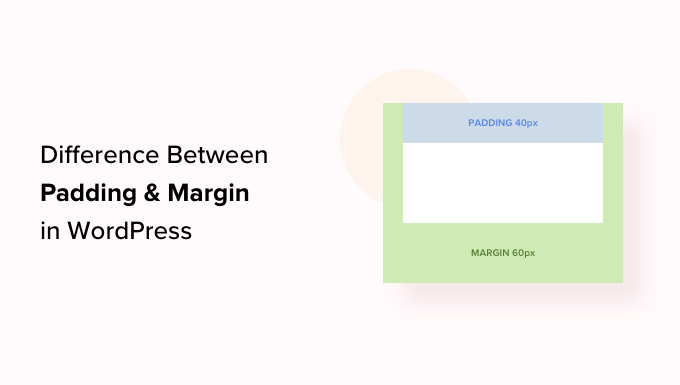
Padding is the space between an element‘s content and its border. Increasing padding makes the content appear smaller as it adds space around it INSIDE the element‘s borders.
Margin is the space OUTSIDE an element‘s borders that separates it from adjacent elements. Margins are used to push elements away from each other.
A simple box model diagram is helpful for visualizing margin vs padding:
[Insert box model diagram image showing content, padding, border and margin]As you can see, padding is applied inside the element‘s border, while margin is applied outside the border. This is the key distinction to keep in mind as we explore how padding and margin come into play in WordPress.
Adjusting Padding and Margin in the WordPress Block Editor
WordPress‘s default content editor as of 2026 is the Block Editor (also known as Gutenberg). Most WordPress themes now support this modern, visual editor which allows you to easily add, rearrange and customize blocks of content.
Each block in the Block Editor has its own settings, including options to control the padding and margin. Here‘s how you can modify these properties:
- Click on the block you want to adjust to select it.
- In the Block Settings sidebar on the right, look for the "Dimensions" section.
- Under Dimensions, you‘ll see two sets of number input fields labeled "Padding" and "Margin."
- By default, there will be a "linked" icon that applies the same value to all four sides of the block. To set different values for top, right, bottom and left, click the "unlink" icon.
- Enter your desired padding or margin values in pixels or ems.
- To apply the same value to opposite sides (e.g. left/right), click the "link" icon between them.
Here‘s an example of what the spacing controls look like in the Block Settings sidebar:
Note that not all blocks have the same spacing options – some simple blocks may only allow you to set padding, while more complex blocks like Columns or Groups include more granular controls.
While the Block Editor makes it fairly intuitive to adjust padding and margin, it‘s still critical to understand exactly how each property functions to achieve your desired layout.
Key Differences Between Padding and Margin
Now that we‘ve covered how to control padding and margin in WordPress, let‘s summarize the main differences between the two:
Location: Padding is the space inside an element‘s border, while margin is the space outside an element‘s border.
Spacing: Padding creates space around the content inside an element, while margin creates space around the outside of an element.
Background: Padding is included in an element‘s background color or image, while margin is always transparent.
Adjacent elements: Padding does not collapse between adjacent elements, while vertical margins do collapse.
Element size: Padding is included in an element‘s total width and height, while margin is not.
Here‘s an example that illustrates how padding and margin affect two adjacent paragraph elements:
As you can see, padding creates space inside each paragraph and is included in the background color, while margin creates transparent space outside/between the paragraphs.
Responsive Design Considerations
Effective use of padding and margin is especially crucial in responsive web design. As your WordPress site adapts to different screen sizes, you‘ll want to ensure your content remains readable and well-spaced on mobile devices.
Here are some tips for utilizing padding and margin in responsive layouts:
Use relative units like ems or rems instead of pixels for padding and margin values. This allows spacing to scale proportionally across screen sizes.
Apply more padding on larger screens to keep content readable, but reduce padding on mobile to avoid awkward gaps.
Adjust margin to maintain consistent spacing between elements even as their widths change on different devices.
Make sure important content is not pushed outside of mobile viewports due to excessive padding or margin.
You can customize padding/margin for specific screen sizes using CSS media queries either in your theme‘s stylesheet or by adding custom CSS via the WordPress Customizer or a plugin.
Best Practices for Padding and Margin in WordPress
To wrap up, here are some expert tips and best practices to keep in mind when working with padding and margin in WordPress:
Maintain consistency in padding and margin values across pages and elements for a cohesive look. Consider defining global values in your stylesheet.
Use padding to improve the readability of text content. Add enough padding around paragraph text so lines have "breathing room."
Apply margin to visually group related elements and separate distinct sections of a page. Think of margin as a way to control "flow" down the page.
Avoid using excessive padding or margin, as this creates awkward white space and can make elements feel disconnected. Aim for balanced, purposeful spacing.
Remember that vertical margins collapse between elements. If you apply a bottom margin to one element and a top margin to the element below it, only the larger margin will take effect.
Use your browser‘s developer tools to inspect elements and see how padding and margin are applied. This can help you troubleshoot spacing issues.
By deeply understanding the unique roles of padding and margin and following these best practices, you‘ll be well on your way to crafting beautifully-spaced WordPress sites. While the Block Editor simplifies customizing spacing, knowing the "why" behind padding and margin empowers you to create pixel-perfect designs.
For more advanced control over your WordPress site‘s layout and spacing, consider using a page builder plugin like Elementor or Divi, or exploring the world of custom theme development. The more you practice applying margin and padding with purpose, the more it will become second nature.
Happy spacing!
