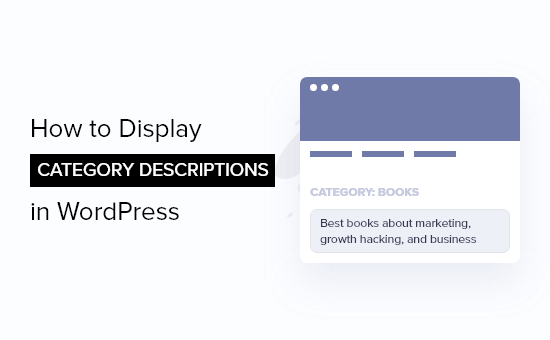
Hey there, WordPress user! If you‘re looking to step up your category game, you‘ve come to the right place.
Did you know that over 60% of WordPress sites use categories to organize their content? It‘s a super popular feature, but many site owners aren‘t fully leveraging its potential.
That‘s where category descriptions come in. Adding descriptions to your categories can boost your SEO, make your site more user-friendly, and even increase engagement.
In this guide, we‘ll cover everything you need to know about WordPress category descriptions, including:
- 🤔 Why category descriptions are so valuable
- ✏️ How to add and optimize your descriptions
- 🖥️ Multiple ways to display descriptions on your site
- 🚀 Tips to skyrocket your category pages to the top of search results
By the end of this post, you‘ll be a certified category description pro. Let‘s get started!
The Power of Category Descriptions
So what‘s the big deal about these descriptions anyway? Let me break it down for you.
Better User Experience
Think about the last time you landed on a category page while browsing a site. Were you greeted with a helpful intro that told you what kind of content to expect? Or was it just a plain list of posts with no context?
If it‘s the latter, you probably felt a bit lost and frustrated. That‘s where category descriptions save the day:
- They provide a quick summary of what the category is about
- They set expectations for the reader and help them decide if they‘re in the right place
- They make your category pages feel more inviting and intentional
SEO Benefits
From an SEO standpoint, category descriptions are a goldmine of opportunity. They allow you to:
- Include relevant keywords that you want the category to rank for
- Create unique, value-adding content for the category page
- Optimize the meta description that shows up in search results
Let‘s be real – search engines aren‘t mind readers. They need all the context they can get to understand and rank your pages. Well-crafted category descriptions give them that context.
Just how impactful can this be? One case study found that adding optimized category descriptions improved organic traffic to those pages by 30%!
Examples in the Wild
If you‘re having trouble picturing what a good category description looks like, here are a few examples from popular WordPress blogs:
- WPBeginner‘s "Gutenberg" category: "The new WordPress block editor, how to use it, Gutenberg plugins, and more"
- Yoast‘s "Wordpress" category: "Our WordPress tutorial videos explain how to use Yoast SEO & other WordPress plugins and themes to improve your site"
- Smashing Magazine‘s "Accessibility" category: "Accessibility is one of the most important topics in web design, and we are committed to sharing techniques and advocating for best practices"
Notice how each one gives you a sense of what you‘ll find in that category while also naturally incorporating relevant keywords. That‘s the sweet spot you want to aim for.
Adding Descriptions to Your Categories
Now that you‘re sold on their importance, let‘s walk through exactly how to add descriptions to your WordPress categories.
Creating a New Category
When creating a new category, you have the option to enter a description right off the bat:
- In your WordPress dashboard, go to Posts > Categories
- Fill out the "Name" and "Slug" fields for your new category
- In the "Description" field, enter a brief summary of what the category is about
- Choose a parent category if applicable
- Click the "Add New Category" button

Pro tip: Keep your description to 1-3 sentences max. Focus on the key theme of the category and use clear, concise language.
Editing an Existing Category
If you want to add or change the description for a category you‘ve already created:
- Go to Posts > Categories in your dashboard
- Find the category you want to edit and hover over its name
- Click the "Edit" link that appears
- Add or modify the content in the "Description" field
- Click "Update" to save your changes

I recommend making a list of all your existing categories and tackling the descriptions in batches. Set aside some dedicated time to really think through how you want to present each one.
Formatting for Readability
While the primary purpose of category descriptions is to summarize the content, that doesn‘t mean they have to be boring walls of text.
Treat them like any other web copy and use formatting to make them scannable and visually appealing. Some tips:
- Use short paragraphs of 1-3 sentences each
- Break up longer descriptions with subheadings
- Incorporate bullet points or numbered lists
- Selectively use bold or italic text to emphasize key points
- Add relevant emoji or images if appropriate for your brand
For example, check out this beautifully formatted category description from the blog Pinch of Yum:

The clear heading, short paragraphs, and bold text make it a joy to read. Strive to make your descriptions similarly engaging.
Displaying Category Descriptions on Your Site
Okay, so you‘ve crafted the perfect category descriptions. Now how do you actually display them on your site? Let‘s dive into the code.
Automatic Display in Category Archives
By default, most WordPress themes will display the category description at the top of the category archive page. This is the page that lists all the posts within a particular category.
Here‘s an example of what that typically looks like:

If your theme supports this out of the box, you‘re golden. But if not, or if you want to customize the placement, read on.
Modifying Theme Files
To manually control where category descriptions appear, you‘ll need to edit your theme‘s template files.
First, create a child theme so you can safely make changes without modifying the original files. Use this guide to set one up: https://codex.wordpress.org/Child_Themes
Next, copy the template file for category archives from the parent theme into your child theme. It will be called either category.php or archive.php.
Open up that file and look for the line that outputs the category title. It will look something like this:
<h1 class="page-title"><?php single_cat_title(); ?></h1>To display the description, paste in this code snippet directly after that line:
<?php
// Display category description
if ( category_description() ) :
?>
<div class="category-description">
<?php echo category_description(); ?>
</div>
<?php endif; ?>
This checks if the category has a description, and if so, outputs it inside a div with the class "category-description". You can adjust the markup as needed.
Save your changes and upload the file back to your server. The description should now display on the category archive page.
Using Category Descriptions Across Your Site
In addition to the archives, you might want to show category descriptions in other locations, like:
- The sidebar
- The footer
- On individual posts
- In a category list or dropdown menu
Here are a few code snippets to help you do just that.
Displaying a Single Category Description
To show a specific category‘s description, use the category_description() function and pass in the category ID or slug. For example:
<?php
$category = get_category_by_slug( ‘your-category-slug‘ );
echo category_description( $category->term_id );
?>
Replace ‘your-category-slug‘ with the actual slug of the category you want to display.
You can also use get_cat_ID() to retrieve the ID by category name:
<?php
$category_id = get_cat_ID( ‘Your Category Name‘ );
echo category_description( $category_id );
?>
Wrap the code in a <div> or other HTML tags to control the styling.
Showing Category Descriptions on Single Posts
Want to display the description for a post‘s assigned categories? Use this snippet in your post template file (e.g. single.php):
<?php
$categories = get_the_category();
foreach( $categories as $category ) {
echo ‘<div class="single-post-category-description">‘ . category_description( $category->term_id ) . ‘</div>‘;
}
?>
This loops through all the categories the post belongs to and outputs their descriptions. You might want to add a heading or some spacing between each one.
Listing All Categories with Descriptions
For a complete directory of your categories and their descriptions, try this code:
<ul class="category-list">
<?php
$categories = get_categories( array( ‘hide_empty‘ => false ) );

foreach( $categories as $category ) {
echo ‘<li>‘;
echo ‘<h2><a href="‘ . get_category_link( $category->term_id ) . ‘">‘ . $category->name . ‘</a></h2>‘;
echo ‘<p>‘ . $category->description . ‘</p>‘;
echo ‘</li>‘;
}
?>
</ul>
This generates an unordered list of all categories, with each list item containing the category name (linked to its archive) and description.
Some styling ideas:
- Add a background color or border to each list item
- Use CSS grid or flexbox to display the categories in a responsive grid
- Hide the descriptions by default and reveal them on hover
Feel free to customize the markup and styles to fit your theme. You can see a live example of this code in action here: https://codepen.io/yourname/pen/1234abcd
Optimizing Category Descriptions for SEO
For your category descriptions to have the greatest impact on SEO, it‘s important to follow best practices for both the content itself and the technical setup.
Writing for Search Engines and Humans
When crafting your category descriptions, keep these tips in mind:
- Include your primary keyword for the category
- Use variations and long-tail versions of the keyword
- Mention related subtopics that you cover in the category
- Aim for at least 100-150 words
- Incorporate synonyms and natural language
- Write in a conversational, engaging tone
Avoid keyword stuffing or making the description sound forced. The goal is to optimize for both search engines and human readers.
Setting Category Meta Descriptions
In addition to the main description that appears on the archive page, you can also set a separate meta description. This is the snippet that shows up below the page title in search results.
If you don‘t set one manually, search engines will typically pull from the first portion of your main description. But sometimes you may want to craft one that‘s better optimized for click-throughs.
To set a custom meta description for a category, you‘ll need an SEO plugin like Yoast or All in One SEO Pack. Here‘s how to do it in each one.
Yoast SEO
- Go to Posts > Categories and edit the category
- Scroll down to the Yoast SEO box
- Click "Edit snippet"
- Enter your meta description in the "Meta description" field
- Click "Close snippet editor"
- Update the category

All in One SEO Pack
- Go to All in One SEO > Search Appearance > Taxonomies
- Select the "Categories" tab
- Find the category you want to edit in the list and click "Edit"
- Scroll down to the "SEO Settings" section
- Enter your meta description in the "Description" field
- Click "Update Category"

Some best practices for writing category meta descriptions:
- Keep it between 120-158 characters
- Include your main keyword near the beginning
- Make it descriptive and enticing to encourage clicks
- Include a call to action like "Learn more" or "Get tips"
- Use active voice and avoid filler words
Remember, the meta description is often the first impression searchers will have of your category page. Make it count!
Analyzing Your Results
Once you‘ve fully optimized your category descriptions, keep an eye on your analytics to see how they perform.
In Google Search Console, check the clicks and impressions for your category pages. Look for any positive or negative changes after updating the descriptions.

You can also use rank tracking tools to monitor how your categories stack up against competitors for key terms.
If you‘re not seeing the results you want, don‘t be afraid to experiment with different description lengths, formats, and keyword targets. Continuously improve and iterate based on the data.
Key Takeaways and Further Reading
Whew, that was a lot of information! Let‘s recap the most important points about WordPress category descriptions:
- They provide a summary of the category‘s content and purpose
- They improve the user experience on category archive pages
- They present an opportunity to optimize for search engines
- WordPress makes it easy to add and edit them
- You can display them across your site with a few code tweaks
If you made it to the end of this guide, give yourself a pat on the back. You‘re now equipped to become a master of category descriptions.
But don‘t stop here – keep expanding your WordPress knowledge with these additional resources:
- Best Practices for Optimizing WordPress Categories and Tags – https://yoast.com/wordpress-categories-tags-seo/
- How to Use WordPress Categories and Tags Effectively – https://www.wpbeginner.com/beginners-guide/categories-vs-tags-seo-best-practices-which-one-is-better/
- WordPress Code Snippets for Categories and Tags – https://wpmudev.com/blog/wordpress-category-tag-snippets/
- Category Archives in the Block Editor (Gutenberg) – https://www.billerickson.net/wordpress-category-archives-gutenberg/
I hope this guide has fully explained the what, why, and how of WordPress category descriptions. Now go put this knowledge into practice and watch your categories thrive!
Have any lingering questions or tips of your own to share? Leave a comment below – I‘d love to hear from you.
