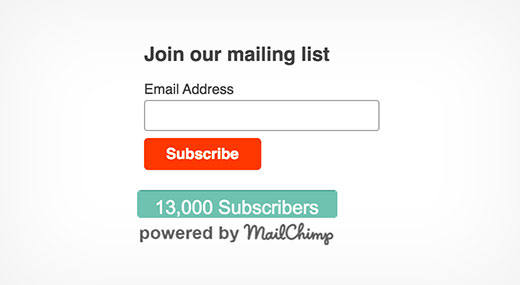
How to Display Your MailChimp Subscriber Count in WordPress (2026)
Are you using MailChimp to grow your email list on WordPress? Showing off your subscriber count is a great way to provide social proof and encourage even more people to sign up.
After all, if visitors see that thousands of others have already subscribed, they‘ll feel more compelled to join your list as well. It‘s a powerful psychological trigger.
In this article, we‘ll show you two methods to display your MailChimp subscriber count in WordPress:
- Using a WordPress Plugin (beginner-friendly)
- Manually with the MailChimp API (requires code)
Feel free to click the links above to jump to your preferred section. We‘ll also share some tips on positioning your subscriber count for maximum conversions.
Let‘s get started!
Why Display Your MailChimp Subscriber Count?
Before we dive into the tutorial, let‘s quickly discuss the benefits of showing your MailChimp subscriber count on your WordPress site:
Social proof: A large subscriber count proves that your content is popular and worth signing up for. It builds instant credibility.
Trust: Being transparent about your list size helps establish trust with potential subscribers. They know your list is sizable and legitimate.
Conversions: When implemented well, showcasing your subscriber count can boost your email opt-in rate and accelerate your list growth.
The key is to display your count prominently without being overly promotional. You want it to feel natural and integrated with your design.
With that in mind, let‘s look at how to set this up on your site.
Method 1: Display MailChimp Subscriber Count Using a WordPress Plugin
The easiest way to show your MailChimp subscriber count in WordPress is by using a plugin. This approach is best for beginners as it doesn‘t require any code.
There are a few different MailChimp subscriber count plugins available. Here are our top picks:
- MailChimp Subscriber Count (free)
- MailChimp Top Bar (free)
- Capture & Convert MailChimp (premium)
For this tutorial, we‘ll use the free MailChimp Subscriber Count plugin. It‘s simple to set up and provides an easy shortcode to display your count.
Step 1: Install the MailChimp Subscriber Count Plugin
First, you‘ll need to install and activate the free MailChimp Subscriber Count plugin on your WordPress site.
To do this, go to Plugins > Add New in your WordPress dashboard and search for "MailChimp Subscriber Count." Click "Install Now" and then "Activate."
Step 2: Configure Plugin Settings
Next, go to Settings > MailChimp Subscriber Count in your WordPress dashboard to configure the plugin settings.
The first thing you‘ll need to do is enter your MailChimp API key:
- Log into your MailChimp account and go to your Account Settings.
- Navigate to Extras > API Keys.
- If you haven‘t already, click "Create A Key" to generate a new API key.
- Copy your API key.
- Go back to the plugin settings in WordPress and paste in your API key. Save changes.
After entering your API key, the plugin will fetch your MailChimp lists. Use the dropdown menu to select the list you want to display the subscriber count for.
You can also customize the formatting of your displayed subscriber count using the provided options. For example:
- Odometer format: 55,123
- Comma format: 55,123
- Number format: 55123
When you‘re happy with the settings, save your changes.
Step 3: Display Your MailChimp Subscriber Count
Now you‘re ready to display your MailChimp subscriber count on your site! The plugin provides a simple shortcode that you can add to any post, page, or widget.
Just copy this shortcode:
[mailchimp_subscriber_count]Then paste it wherever you want your subscriber count to appear. You may want to add some text before or after it, such as:
Join over [mailchimp_subscriber_count] happy subscribers!
Consider adding the shortcode to your sidebar, header, after post content, or in a popup. We‘ll provide some tips on positioning later in this article.
Note: The plugin caches the subscriber count for 24 hours to improve performance. The number won‘t update instantly when someone new subscribes.
And that‘s it! You‘ve now added live social proof to your site by displaying your MailChimp subscriber count with a WordPress plugin.
Method 2: Display MailChimp Subscriber Count Manually Using the API
If you‘re comfortable with code, you can create your own custom WordPress plugin to display your MailChimp subscriber count using the API.
This gives you more control and allows you to retrieve just the number without any extra formatting or branding.
We‘ll walk through the process step-by-step. You can also download the completed plugin file at the end.
Step 1: Create a New Plugin File
First, you‘ll need to create a new PHP file for your plugin. We recommend naming this something like mailchimp-subscriber-count.php
Open a text editor and add the following code to your new file:
<?php
/*
Plugin Name: MailChimp Subscriber Count
Plugin URI: https://www.yourwebsite.com/
Description: Displays MailChimp subscriber count using the API
Version: 1.0
Author: Your Name
*/

function display_mailchimp_count() {
    // Get subscriber count
    $subscriber_count = 0;

    // Display count
    return number_format($subscriber_count);
}

add_shortcode(‘mailchimp_count‘, ‘display_mailchimp_count‘);
This code sets up a basic structure for your plugin, including the header information and a function to display the subscriber count. It also registers a shortcode [mailchimp_count] that you can use to display the count on your site.
Don‘t worry, we‘ll fill in the missing pieces next.
Step 2: Add MailChimp API Wrapper
To interact with the MailChimp API, we‘ll use an open-source PHP wrapper library. This abstracts a lot of the API complexity.
Download the library from the MailChimp PHP repository:
Unzip the downloaded file. You should see a folder called "src" which contains the API wrapper files you need.
Upload the "src" folder to your WordPress plugins directory alongside your mailchimp-subscriber-count.php file.
Step 3: Get Subscriber Count via API
Now let‘s fill in the missing piece in your plugin file to actually retrieve the subscriber count from MailChimp.
Update your display_mailchimp_count() function with the following code:
function display_mailchimp_count() {
    // Include MailChimp API wrapper
    require_once(‘src/Mailchimp.php‘);
    use \DrewM\MailChimp\MailChimp;

    // Retrieve API key from your wp-config.php file
    $api_key = get_option(‘mc_api_key‘);

    // Instantiate API
    $mailchimp = new MailChimp($api_key);

    // Retrieve default list subscriber count
    $result = $mailchimp->get(‘lists‘);
    $subscriber_count = $result[‘lists‘][0][‘stats‘][‘member_count‘];

    // Display count
    return number_format($subscriber_count);
}
Here‘s what this code does:
Includes the MailChimp API wrapper library and pulls in the MailChimp class.
Retrieves your MailChimp API key from the WordPress database (assumes you‘ve defined this in your wp-config.php file as a constant.)
Instantiates a new MailChimp API object using your API key.
Uses the API to retrieve your list data and pluck out the subscriber count from the first (default) list.
Returns the formatted subscriber count.
Make sure to replace ‘mc_api_key‘ with the actual name of the constant or option where you‘ve stored your MailChimp API key.
Step 4: Install and Use Plugin
Your custom MailChimp subscriber count plugin is now complete! The final plugin file should look like this:
<?php
/*
Plugin Name: MailChimp Subscriber Count
Plugin URI: https://www.yourwebsite.com/
Description: Displays MailChimp subscriber count using the API
Version: 1.0
Author: Your Name
*/

function display_mailchimp_count() {
    // Include MailChimp API wrapper
    require_once(‘src/Mailchimp.php‘);
    use \DrewM\MailChimp\MailChimp;

    // Retrieve API key from your wp-config.php file
    $api_key = get_option(‘mc_api_key‘);

    // Instantiate API
    $mailchimp = new MailChimp($api_key);

    // Retrieve default list subscriber count
    $result = $mailchimp->get(‘lists‘);
    $subscriber_count = $result[‘lists‘][0][‘stats‘][‘member_count‘];

    // Display count
    return number_format($subscriber_count);
}

add_shortcode(‘mailchimp_count‘, ‘display_mailchimp_count‘);
To install the plugin:
Upload the mailchimp-subscriber-count.php file and src folder to your /wp-content/plugins/ directory.
Go to the Plugins screen in your WordPress admin and activate the "MailChimp Subscriber Count" plugin.
You can now display your subscriber count anywhere on your site by using this shortcode:
[mailchimp_count]Feel free to customize the shortcode output by adding text before or after it. You can also wrap it in HTML tags to style it.
Some examples:
Join over [mailchimp_count] subscribers!
Where to Display Your MailChimp Subscriber Count
Now that you know how to display your MailChimp subscriber count in WordPress, where should you actually show it?
Here are some high-impact locations to consider:
Sidebar/widget area: Many blogs display email opt-in forms in their sidebar, making it a natural place to show your subscriber count as well.
Header: Displaying your count prominently in the header makes it one of the first things visitors notice, instantly establishing social proof.
Footer: While not as visible as the header, the footer is still a common location for email signup forms and social proof.
After post content: Consider adding your subscriber count after each blog post to capture readers‘ attention while they‘re engaged.
Popups/slide-ins: Displaying your subscriber count in popups and slide-ins can make them feel more authentic and encourage signups. Use with caution to avoid annoying visitors.
Dedicated landing page: If you have an email-focused landing page, highlighting your subscriber count can increase conversions.
No matter where you decide to display your count, the key is to make it prominent without being overly distracting or promotional. Use it to enhance your signup forms, not replace them.
You can display your count in multiple locations for maximum impact. Just be sure to keep it consistent and avoid oversaturating your site.
How to Rapidly Grow Your MailChimp Subscriber Count
Displaying your MailChimp subscriber count is a great tactic for social proof, but it works best when you actually have an impressive number to showcase!
If your list is still small, here are some tips to accelerate your growth:
Offer a lead magnet: Entice signups by offering a free ebook, course, discount, or other incentive in exchange for an email address.
Use exit-intent popups: Capture visitors‘ attention with a targeted offer just before they leave your site.
Run a giveaway: Partner with other businesses to host a joint giveaway, collecting email addresses as entries.
Guest post: Publish guest posts on popular blogs in your niche, driving traffic back to a dedicated landing page with your signup form.
Host a webinar: Collect email addresses during webinar registration, then follow up with a targeted campaign.
Leverage social media: Promote your lead magnet and signup forms across your social media channels.
Optimize your signup forms: Make sure your signup forms are prominently placed, mobile-friendly, and easy to complete.
By combining these growth strategies with live social proof, you can rapidly scale your MailChimp subscriber count and email list.
Why Building an Email List is Essential
As you implement these strategies to showcase and grow your MailChimp subscriber count, it‘s important to remember the bigger picture:
Building an email list is one of the most valuable things you can do for your online business or blog.
Why? Because email allows you to build a direct relationship with your audience. Unlike social media or search engine traffic, your email list is an asset that you own and control.
With email, you can:
- Drive traffic on demand to your latest content or offers
- Build trust and authority with your subscribers over time
- Segment your audience for targeted campaigns and messaging
- Generate on-demand sales for your products or services
- And more
In other words, your email list is the key to creating a sustainable, profitable online business for the long term.
Showcasing your MailChimp subscriber count is a great way to strengthen your list building efforts. By providing social proof and making signup more compelling, you can grow your list faster than ever before.
We hope this article has helped you learn how to display your MailChimp subscriber count in WordPress! With email driving an average ROI of $36 for every $1 spent, it‘s well worth the effort.
If you found this post helpful, please consider sharing it with your followers and subscribing to our email list. We‘ll send you more in-depth articles like this to help you grow your online business.
