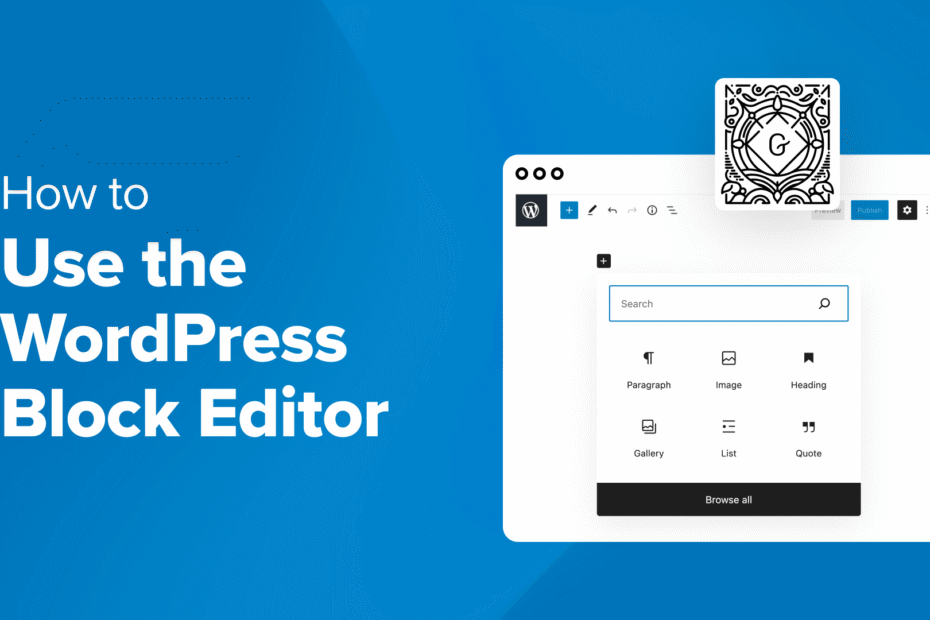
Hello there, WordPress user! If you‘re reading this, chances are you‘ve heard about the block editor (aka Gutenberg) and are wondering what it‘s all about. Maybe you‘re a bit intimidated by this newfangled way of creating content.
Well, fear not! As a WordPress expert, I‘m here to guide you through everything you need to know to become a block editor pro. By the end of this tutorial, you‘ll be creating stunning posts and pages faster than ever.
Why Should You Use the WordPress Block Editor?
Before we dive into the how-to, let‘s talk about why you should bother learning the block editor at all. After all, the classic editor had been working just fine for years, right?
While the classic editor was serviceable, the block editor is truly a game-changer for creating content in WordPress. Here are a few reasons why:
Blocks = Total Customization
With the block editor, every piece of content is a block that you can individually style and configure. This gives you so much more control over the look and layout of your posts compared to the classic editor.
No Coding Required
Want to create a multi-column layout? Add buttons? Display a pricing table? With Gutenberg, you can do all that and more without writing a single line of code. Blocks make complex designs accessible to everyone.
Reusable Content
Tired of fixing the same CTA text on a dozen pages? Gutenberg lets you save blocks or groups of blocks and reuse them anywhere. Update once, update everywhere.
More Engaging Content
The block editor‘s flexibility allows you to create much more engaging, media-rich content. Your posts go from simple text and images to dynamic, multi-layered masterpieces.
Just how popular is this new editor? Well, consider these statistics:
- Over 63 million WordPress posts are published every month, and most are now created with the block editor
- 5+ years since Gutenberg was first introduced, it has become the default editing experience
- There are now over 100 blocks included with WordPress core, with countless more added by plugins
Sources: WordPress.org, Kinsta
Convinced yet? Great, let‘s learn how to use this powerful tool!
Mastering the Block Editor Interface
The first step to becoming a Gutenberg guru is familiarizing yourself with the editor interface. Here‘s a quick tour:

Source: WordPress.org
- At the top is the toolbar, which contains tools for adding blocks, undo/redo, content structure, and more global settings.
- The main part of the screen is the content area. This is where you‘ll add blocks to compose your content. Each block is a distinct section with its own toolbar and settings.
- On the left side is the block inserter. This panel is for adding new blocks. You can browse all available blocks, see your saved reusable blocks, or search for a specific block.
- On the right side is the settings sidebar. This will display different options depending on what is currently selected:
- With a block selected, you‘ll see block-specific settings for things like color, size, and style.
- With no block selected, you‘ll see global post settings like categories, featured image, and scheduling.
Got the lay of the land? Excellent! Next up, the most essential Gutenberg skill…
Adding & Editing Blocks
Blocks are the heart of the Gutenberg editor. Everything is a block – paragraphs, headings, images, lists, galleries, embeds, and more. Here‘s how to add and configure them:
Adding Blocks
There are a few ways to add a new block:
- Click the "+" icon in the top left corner or between any two blocks. This opens the block inserter popup, where you can browse or search blocks. Click a block to insert it.
- Hover between blocks and click the "+" icon that appears. This inserts a new block directly at that spot.
- Type "/" followed by the block name, like "/image". Hit enter and the block will be added at your cursor position.
- Paste content like text, images, or URLs onto the editor. WordPress will automatically convert it to the appropriate block type.
Configuring Blocks
Once you have a block in place, there are many ways to configure it:
- Each block has its own toolbar that appears when the block is selected. This contains common formatting and block-specific options. For example, the paragraph block toolbar has alignment, bold, italic, and link buttons.
- Block-specific options are also found in the settings sidebar. With a block selected, the sidebar will display customization options like colors, typography, size, backgrounds, etc.
- To edit a block‘s content, just click into it and start typing. For non-text blocks like images or embeds, click the "Edit" button in the toolbar.
Moving, Duplicating & Removing Blocks
Of course, you‘ll often need to rearrange, copy, and delete blocks as you compose your content. Here‘s how:
Moving Blocks
There are a few ways to move blocks around:
- Hover over a block. You‘ll see up/down arrows appear on the left side. Click these to move the block up or down.
- Click the block‘s toolbar, then click the up/down arrows to move.
- Click and drag a block using the "move" handle on the left side of the block.
- Use the keyboard shortcuts Alt + ↑/↓ to move the selected block.
Duplicating Blocks
Want to quickly copy a block and its settings? No problem:
- Click a block to select it
- In the block toolbar, click the 3-dot icon and choose "Duplicate" (or use the keyboard shortcut Ctrl/Cmd+Shift+D)
Removing Blocks
Deleting blocks is a snap:
- Select the block, then click the 3-dot icon and choose "Remove block"
- Select the block and hit the Delete key on your keyboard
Styling & Customizing Blocks
One of the key advantages of the block editor is the ability to style content block-by-block without any coding. Let‘s look at some common customizations:
Colors & Typography
You can set the color and appearance of text blocks like paragraphs, headings, lists, etc.:
- Select the text block
- In the settings sidebar, look for the "Color settings" and "Typography" panels
- Choose colors for text and background
- Set the font size using the predefined sizes or the custom slider
- Some blocks have additional options like drop cap and line height
Many other blocks like buttons, columns, and media also support color settings.
Alignment
Need to align a block left, right, or center? Easy:
- Select the block
- In the block toolbar, click the Align icon
- Choose your alignment – left, center, or right
Some blocks like images, galleries, and embeds also support wide width and full width alignments. This makes the block wider than the content area for an eye-catching break from the normal layout.
Adding a CSS Class
If you want to target a specific block with custom CSS, you can assign a CSS class to it:
- Select the block
- In the "Advanced" panel of the block settings sidebar, find the "Additional CSS class" field
- Enter your class name
Then in your theme‘s custom CSS or the WordPress Customizer CSS panel, you can write styles targeting that class.
Creating Multi-Column Layouts
One of the most powerful features of the block editor is the ability to split content into multiple columns. This was incredibly difficult in the classic editor without custom HTML and CSS.
The Columns Block
The Columns block makes it a snap to create multi-column designs:
- Add a Columns block
- Choose the number of columns (up to 6)
- Inside each column, add any other blocks you like – text, images, etc.
- Use the column settings sidebar to adjust the size and style of columns
The Group Block
The Group block is a versatile container that can hold multiple blocks:
- Add a Group block
- Inside the Group block, add other blocks
- Select the Group block to apply background colors, padding, etc. to the entire group
Combining Columns & Group
With the Columns and Group blocks together, you can create some really sophisticated layouts:
[Group]
  [Columns]
    [Column]
      (Blocks)
    [Column]
      (Blocks)
  [/Columns]
[/Group]
This gives you a visually distinct and separate section (the Group) split into however many columns you need. The possibilities are endless!
Reusable Blocks: Work Smarter, Not Harder
Do you ever find yourself adding the same content over and over to different pages or posts? With reusable blocks, you can save blocks or groups of blocks and quickly add them anywhere.
Creating a Reusable Block
To save a reusable block:
- Select the block(s) you want to reuse
- Click the 3-dot icon in the block toolbar
- Choose "Add to Reusable blocks"
- Give your reusable block a name
- Click "Save"
Your reusable block will now appear under the "Reusable" tab of the block inserter, ready to be used on any page or post.
Managing Reusable Blocks
You can manage all your reusable blocks by going to "Tools" > "Reusable blocks" in the WordPress admin sidebar.
Here you can:
- Edit the contents of a reusable block (changes apply everywhere the block is used)
- Delete reusable blocks you no longer need
- Export & import reusable blocks to other WordPress sites
Block Patterns: Ready-Made Layouts
In addition to individual blocks, the editor also includes pre-made "patterns" – collections of blocks arranged into pleasing designs that you can add with one click.
To browse patterns, click the block inserter and go to the "Patterns" tab. You‘ll find patterns for all sorts of common use cases:
- Hero sections
- Calls to action
- Featured content
- Galleries
- Pricing tables
- Testimonials
- And many more
Click on any pattern to insert it into your content, then customize the placeholder text and images to suit your needs. It‘s a great way to quickly build out professional, cohesive pages without having to design every section from scratch.
Frequently Asked Questions
Still have questions about using the block editor? Here are answers to some common queries:
Can I still use my old content created in the classic editor?
Yes! Content created in the classic editor will continue to work just fine. When you open an old post, you‘ll see a "Classic" block containing that content. You can leave it as-is, or convert it to blocks if desired.
What happens to my content if I disable the block editor?
If you install the Classic Editor plugin to disable the block editor, your content will display the same as it always has. However, I‘d recommend sticking with the block editor – it‘s the future of WordPress and switching back at this point will make future transitions harder.
Where can I find more block plugins?
The WordPress plugin repository has a special section just for block-enabled plugins. You can also find many block plugins on GitHub and third-party marketplaces.
How can I keep up with Gutenberg development and new features?
The official Gutenberg development blog is the best source for news and updates about the block editor and its future. You can also follow the #gutenberg tag on WordPress.org and the Gutenberg Times newsletter.
Go Forth & Create!
Whew, that was a lot! But armed with this knowledge, you‘re well on your way to block editor mastery. Just remember:
- Blocks are your friends. Get comfortable adding, moving, and customizing them.
- The block inserter and settings sidebar are your hub for block management.
- Columns, groups, and patterns let you quickly build complex layouts.
- Reusable blocks save tons of time when you have repeating content.
- Have fun exploring what‘s possible with blocks – the creative freedom is exhilarating!
I hope this guide has been helpful for you on your journey to Gutenberg guru status. Now go forth and create some amazing content! If you have any other questions, feel free to leave a comment and I‘ll be happy to assist.
Happy block editing!
)