Hey there, WordPress user! If you‘re looking to create an amazing website that‘s easy for visitors to navigate, you‘ve come to the right place. In this ultimate guide, we‘ll dive deep into the world of WordPress navigation menus.
Navigation menus are like the road maps of your website – they guide visitors to all your most important content. Without effective navigation menus, your amazing pages and posts might never be discovered! That‘s why it‘s so crucial to understand how to use this powerful built-in WordPress feature.
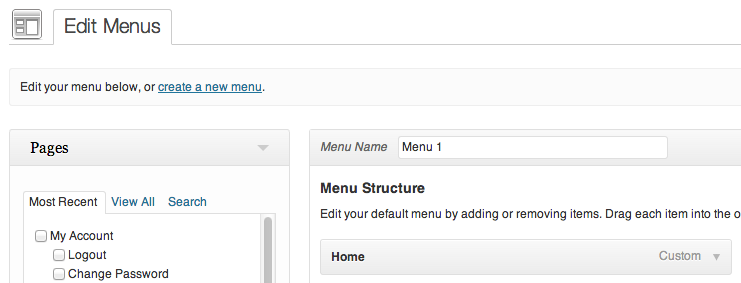
At its core, a navigation menu is simply a list of links pointing to key pages or sections of your website. WordPress makes it incredibly easy to create menus via the built-in "Menus" editor in the dashboard (Appearance > Menus). Here, you can create custom menus containing whatever pages, posts, custom links, or categories you want, and then assign those menus to designated areas of your site like the header, footer, or sidebar.
According to WordPress.org, over 37% of all websites on the internet use WordPress. And considering navigation menus are a default feature used in virtually every WordPress theme, that means tens of millions of sites are relying on WordPress menus to help visitors get around.
WordPress themes can register multiple "menu locations" – designated spots where menus can be displayed. Common menu locations include:
- Primary Menu (usually appears in the site header)
- Footer Menu
- Sidebar Menu
- Mobile Menu (optimized for display on mobile devices)
Your theme may offer additional menu locations as well. These menu locations provide incredible flexibility – there‘s no need to hard-code your menu into your theme template files. You can create whatever custom menus you want via the dashboard and assign them to whichever menu locations you choose.
Imagine walking into a grocery store with no signs pointing to different aisles or departments. You‘d have to wander around aimlessly to find what you need – not the best customer experience, right?
The same principle applies to your website. If visitors can‘t easily find what they‘re looking for, they‘re likely to get frustrated and leave. In fact, research by Nielsen Norman Group found that "easy navigation" is one of the top 10 most important factors in creating good UX.
Effective navigation menus help visitors in several key ways:
- Discovery: Menus give visitors an overview of your site‘s content and features at a glance.
- Efficiency: With logical menu organization, users can find content in the fewest number of clicks.
- Context: Menu labels help visitors understand how different pages relate to one another.
- Credibility: A well-organized menu demonstrates professionalism and expertise.
So basically, investing time in creating strategic, user-friendly navigation menus is critical to your site‘s overall success. Getting your menus right will keep visitors happily browsing your valuable content!
Ready to start building your own amazing navigation menus? The process is super simple in WordPress. Here‘s a quick step-by-step breakdown:
- Log in to your WordPress dashboard and go to Appearance > Menus.
- Click the "create a new menu" link near the top of the screen.
- Enter a name for your menu, like "Main Menu," and click the "Create Menu" button.
- Under the "Add menu items" section, select the pages, posts, custom links, or categories you want to include in the menu.
- Click the "Add to Menu" button to add the selected items to the menu.
- Drag and drop the menu items to rearrange their order or nest them under other items to create drop-down sub menus.
- When the menu structure looks good, click the "Save Menu" button.
- Under the "Menu Settings" section, select the menu location where you want this menu to appear (like "Primary Menu").
- Click "Save Menu" one more time and you‘re done!
You can view the new menu on your actual website to make sure it looks how you want. Feel free to experiment with adding different types of content to your menus, creating sub-menus for related pages, and even enabling advanced options like CSS classes for more control over styling.
Creating a navigation menu in WordPress is easy enough, but creating a highly effective menu requires some strategic thinking. Having worked with countless WordPress websites over the years, I‘ve learned a few key best practices that can make a huge difference:
1. Keep top-level items to a minimum
Having too many items in your main navigation can be overwhelming for visitors. They may struggle to quickly find what they need. As a general rule, aim for no more than 7 top-level menu items. This aligns with George A. Miller‘s famous research on cognitive psychology showing most people can only hold 7 (plus or minus 2) items in working memory.
2. Use clear, concise labels
Menu labels should be short (1-3 words), clear, and descriptive. Avoid jargon or branded terms that visitors may not understand. Each label should give a strong indication of what the user will find on that page. For example, use "About" instead of "Our Story" or "Services" instead of "What We Do."
3. Organize items logically
Think about what content is most important to your visitors and prioritize that in the menu structure. Use card sorting or tree testing to see how real users would group and label your content. Items in a drop-down sub menu should be clearly related to the parent item.
4. Leverage visual hierarchy
A menu isn‘t just a list of words – it‘s a visual UI element. Consider how design factors like color, contrast, font size, and spacing can create visual hierarchy and draw attention to key items. Adding a border or background color to your primary CTA button can make it stand out.
5. Design for mobile
More than half of all web traffic comes from mobile devices, so your navigation menu must be optimized for smaller screens. Most themes will automatically convert menus to a mobile-friendly toggle or "hamburger" menu on mobile, but test to ensure this works well. Keep menu labels extra short on mobile and try to keep sub-menus to a single level.
Here‘s a quick summary of these best practices:
| Best Practice | Description |
|---|---|
| Limit Items | Use no more than 7 top-level items |
| Clear Labels | Keep labels short, clear, and jargon-free |
| Logical Order | Prioritize content and group related items |
| Visual Design | Use visual hierarchy to highlight key items |
| Mobile-Friendly | Ensure menus are easy to use on mobile devices |
By following these guidelines, you‘ll be well on your way to creating navigation menus that are highly usable and effective.
What if you want to add a custom menu to a new location in your theme? Or create an entirely new menu location? You can absolutely do that with some light coding.
To register a new menu location, add the following code to your theme‘s functions.php file:
function register_my_menu() {
  register_nav_menu(‘new-menu-location‘, __( ‘New Menu Location‘ ));
}
add_action( ‘init‘, ‘register_my_menu‘ );
Be sure to replace ‘new-menu-location‘ with the actual name you want to use for the location. This name will appear in the "Menu Settings" section of the WordPress Menu editor.
Then, to display the menu on the front-end of your site, add the following code into your theme template file where you want the menu to appear:
<?php wp_nav_menu( array( ‘theme_location‘ => ‘new-menu-location‘ ) ); ?>Again, replace ‘new-menu-location‘ with the actual name you used when registering the menu. This code will output the menu in a default unordered list structure. You can further customize the HTML output by passing additional arguments to the wp_nav_menu() function.
Still not convinced navigation menus are worth putting time and effort into? Let‘s look at some data that demonstrates the real impact of effective navigation on key website metrics.
A study by the Nielsen Norman Group found that sites with good navigation had:
- Lower bounce rates: Users were 50% less likely to leave immediately
- Longer session durations: Users spent an average of 22% more time on the site
- More pages per session: Users viewed 31% more pages per session on average
Research by KoMarketing focused specifically on B2B websites found that after reaching a company‘s homepage:
- 50% of visitors want to see the company‘s products/services page
- 47% want to see an About Us page
- 43% want to see Contact Us info
Without clear navigation menus, visitors may struggle to find these key pages and get frustrated enough to leave.
According to Adobe, good navigation can lead to a 200% increase in conversions. That‘s huge! By helping visitors find the content and products they need faster, effective menus guide more users further down the sales funnel.
By now, you should have a solid foundation in WordPress navigation menus. But if you really want to take your menus to the next level, here are a few more advanced tips:
1. Use mega menus: For sites with a ton of content, a mega menu can display a large number of navigation options in a more organized, visually appealing format. Many WordPress themes support mega menus out of the box, or you can use a plugin like Max Mega Menu.
2. Enable sticky navigation: A "sticky" navigation menu stays visible at the top of the screen as the user scrolls down the page. This makes it easier for visitors to navigate to other content without having to scroll back to the top. Most themes have a sticky menu option built-in, but you can also use a plugin like Sticky Menu to easily set it up.
3. Add navigation breadcrumbs: Breadcrumbs are a type of secondary navigation that shows the user‘s current location in the site hierarchy, like "Home > Blog > Category > Post Title". Breadcrumbs are especially helpful for sites with a lot of pages and/or a deep hierarchy. Yoast SEO is a popular plugin that includes breadcrumb functionality.
4. Make it accessible: Ensure your menus work well for visitors using screen readers or navigating by keyboard. Use proper semantic markup, provide skip navigation links, and ensure sufficient color contrast. WebAIM‘s article on accessible navigation menus provides detailed guidelines.
5. Customize to your audience: The most effective navigation is tailored to your site‘s specific audience and their goals. Use analytics data to see what content is most popular and optimize your menus to make that content easy to find. Conduct user research to understand the language your visitors use and their mental models for how content should be organized.
Key Takeaways & Next Steps
Phew, that was a ton of information on WordPress navigation menus! Let‘s recap some of the most important points:
- Navigation menus guide visitors to your most important content, so they‘re critical for good UX and achieving your site‘s goals.
- WordPress makes it super easy to create custom navigation menus via the built-in Menu editor.
- Most WordPress themes have multiple menu locations you can assign menus to (header, footer, sidebar, etc.)
- Follow navigation menu best practices like limiting top-level items, using clear labels, organizing logically, optimizing for mobile, and leveraging visual design.
- Use wp_nav_menu() to add custom menu locations to your theme template files.
- Effective navigation has been shown to reduce bounce rates, increase session durations, boost conversions, and more.
Now that you‘re armed with all this knowledge, it‘s your turn to take action. Audit your current navigation menus and look for opportunities to simplify and optimize based on the best practices we covered. Consider running some user tests to validate that your menu structure and labels make sense to your audience.
If you‘re feeling more ambitious, you could even register new menu locations in your theme and add menus to new areas of your site. Or explore some of the more advanced techniques like implementing a mega menu or breadcrumbs.
The most important thing is to always consider the real human visitors who will be relying on your navigation to find their way around your site. Put yourself in their shoes, anticipate their needs and goals, and design your menus to provide the best possible user experience. Your visitors (and your conversion rates) will thank you!
)