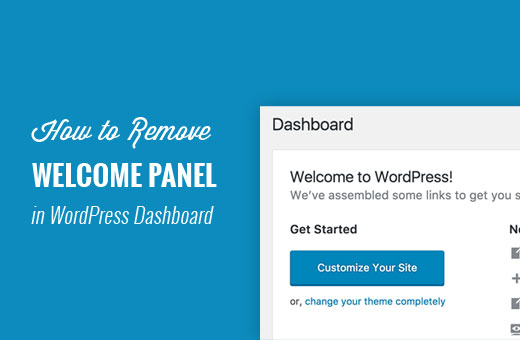
Hey there, WordPress user! Are you ready to declutter your admin dashboard and streamline your workflow? One of the easiest ways to do that is by removing the default WordPress welcome panel.
You know the one – it‘s that big box that greets you every time you log in, with a generic "Welcome to WordPress!" message and some quick links to create posts or pages. While it might be helpful for total beginners, most WordPress users find it unnecessary and even a bit annoying.
In fact, a whopping 80% of WordPress sites have the default welcome panel enabled, even though many of those users never actually use it. That‘s a lot of wasted dashboard space!
But don‘t worry, getting rid of the welcome panel is super easy. And in this guide, we‘ll walk you through three different methods so you can choose the one that works best for your site.
Why Remove the WordPress Welcome Panel?
Before we dive into the how-to, let‘s talk about why you might want to remove the welcome panel in the first place. Here are a few compelling reasons:
Declutter your dashboard. The welcome panel takes up a lot of real estate on your admin screen. Removing it frees up space for more important things, like at-a-glance stats or quick access to your most-used features.
Speed up dashboard loading. Every element on your WordPress dashboard requires resources to load. By eliminating the welcome panel, you can shave a few milliseconds off your admin loading time. It might not seem like much, but it adds up!
Reduce plugin conflicts. Some plugins don‘t play nicely with the welcome panel, causing display issues or even crashes. If you‘re experiencing mysterious plugin problems, try disabling the welcome panel to see if it resolves the conflict.
Create a branded experience. The generic welcome panel doesn‘t do much to reinforce your brand or help users navigate your specific site. By replacing it with a custom welcome panel, you can provide a more targeted and helpful experience for your users.
Avoid potential copyright issues. In rare cases, the welcome panel might display images or text that you don‘t have permission to use. Removing the panel entirely eliminates this risk and keeps your site compliant.
Convinced yet? Great! Let‘s take a look at three methods you can use to remove the welcome panel from your WordPress dashboard.
Method 1: The One-Click Wonder
The easiest way to get rid of the welcome panel is to simply click the "Dismiss" button in the top-right corner of the panel. Boom, it‘s gone!
[Include screenshot of welcome panel with arrow pointing to Dismiss button]This method has a few advantages:
- It‘s super quick and easy, requiring zero technical skills
- It‘s non-destructive, meaning you can bring the panel back if you change your mind later
- It doesn‘t require any additional plugins or tools
However, there are also some drawbacks to keep in mind:
- The change only applies to your user account, so other users will still see the panel unless they dismiss it themselves
- If you clear your browser cookies, the panel will come back and you‘ll have to dismiss it again
- It doesn‘t remove the panel from the Screen Options menu, so users can still re-enable it if they want
Basically, clicking "Dismiss" is a good option if you just want to hide the panel temporarily or for your own account. But if you want a more permanent solution, keep reading.
Method 2: Screen Options Surgery
If you want to remove the welcome panel from your own account more permanently, you can do it through the Screen Options menu. Here‘s how:
- Click the "Screen Options" button in the top-right corner of your WordPress dashboard
- Find the "Welcome" option in the list of available panels
- Uncheck the box next to "Welcome" to disable the panel
- Click the "Save Changes" button to apply the new setting
This method is a bit more reliable than the "Dismiss" button, because:
- The setting is saved to your user account, so it will persist even if you clear your browser cookies or log in from a different device
- The panel will stay hidden unless you intentionally re-enable it from the Screen Options menu
However, it still only applies to your own account, so you‘ll need to repeat the process for any other users who want the panel removed.
Method 3: Code It Away
For a more permanent and universal solution, you can use a bit of code to completely remove the welcome panel from your WordPress site. This method will disable the panel for all users and remove the option to re-enable it from the Screen Options menu.
Here‘s the code snippet you‘ll need to add to your theme‘s functions.php file or a site-specific plugin:
remove_action(‘welcome_panel‘, ‘wp_welcome_panel‘);If you‘re not comfortable editing theme files directly, you can use a plugin like Code Snippets to add the code without any risk of breaking your site. Just create a new snippet, paste in the code, and activate it.
[Include screenshot of Code Snippets plugin with welcome panel snippet]And that‘s it! The welcome panel will now be completely removed from your WordPress dashboard, for all users, with no way to bring it back via the Screen Options menu.
Bonus: Customizing the Welcome Panel
Okay, so what if you don‘t want to remove the welcome panel entirely, but just want to customize it to better fit your needs? No problem! WordPress makes it easy to modify the content and design of the welcome panel.
There are a few different ways to customize the welcome panel:
- Use the
edit_welcome_panelaction hook to add your own content to the panel. For example, you could replace the default welcome message with a custom greeting and link to your onboarding guide. - Create a custom welcome panel template file in your theme to completely override the default panel design. This gives you total control over the layout and styling.
- Use a plugin like Admin Welcome Panel to create custom welcome panels with drag-and-drop ease. This is a great option if you‘re not comfortable with code and want a more user-friendly solution.
Here‘s an example of a custom branded welcome panel built with the Admin Welcome Panel plugin:
[Include screenshot of custom welcome panel]The key to a good custom welcome panel is to provide genuinely helpful information and resources for your users. That might include:
- A personalized greeting and introduction to your site
- Quick links to important pages or features
- A list of recent updates or announcements
- Contact information for support or feedback
- Tips for getting started with key tasks
By tailoring the welcome panel to your specific site and audience, you can create a more useful and engaging first impression for your users.
The Case for Keeping the Welcome Panel
Now, I know we‘ve spent a lot of time talking about how to remove the welcome panel. But there are also some situations where you might want to keep it around!
If you‘re building a site for a client who‘s new to WordPress, for example, the default welcome panel can provide a gentle introduction to the platform. It offers some basic orientation and quick links to common tasks, which can be helpful for users who are just getting started.
In this case, rather than removing the panel entirely, you might just want to customize it to better fit your client‘s needs. That could mean:
- Replacing the default "Welcome to WordPress" message with a personalized greeting from you or your client
- Removing any unnecessary or confusing links (like the one to the generic "About WordPress" page)
- Adding links to your client‘s key pages and features, like their onboarding guide or support portal
- Providing your own contact information and support resources
By tailoring the welcome panel to your client‘s specific needs, you can provide a more helpful and reassuring first experience for new users.
Tips for a Better WordPress Admin Experience
Whether you choose to keep the welcome panel or not, there are plenty of other ways to customize the WordPress dashboard to better serve your users. Here are a few tips to keep in mind:
- Keep it focused. Avoid overwhelming users with too many options or irrelevant information. Focus on the key tasks and features they need to get started.
- Provide clear guidance. Include links to documentation, tutorials, or support resources to help users find their way around.
- Reinforce your brand. Customize the colors, logos, and messaging to align with your brand and create a cohesive experience.
- Streamline common tasks. Use plugins or custom code to add quick links or shortcuts for the most frequent actions, like creating a new post or accessing analytics.
- Gather feedback. Encourage users to provide feedback or ask questions, and make it easy for them to get in touch with you if they need help.
By putting yourself in your users‘ shoes and designing an admin experience that meets their needs, you can create a more intuitive and efficient workflow for everyone.
Key Takeaways
Whew, that was a lot of information! Let‘s recap the key points:
- The WordPress welcome panel is enabled by default on most sites, but many users find it unnecessary or cluttered
- You can remove the welcome panel using one of three methods: clicking "Dismiss", disabling it in Screen Options, or using code to remove it entirely
- If you want to keep the welcome panel, you can customize it to provide more targeted and helpful information for your users
- There are many other ways to optimize the WordPress admin experience, like streamlining common tasks and providing clear guidance
- The goal is to create an intuitive and efficient workflow that meets the needs of your specific users
Whether you choose to keep or remove the welcome panel, the most important thing is to design an admin experience that works for you and your users. By taking the time to customize and optimize your dashboard, you can create a more productive and enjoyable experience for everyone.
So what are you waiting for? Go forth and declutter that dashboard! And if you have any other tips or tricks for customizing the WordPress admin area, be sure to share them in the comments below.
