Hey there, WordPress user! 👋 If you‘re looking to unlock the full potential of user management on your site, you‘ve come to the right place.
In this ultimate guide, we‘ll dive deep into WordPress user profiles – what they are, why they matter, and how to use them effectively. We‘ll also cover more advanced techniques that you can use to take your user profiles to the next level.
Whether you‘re a WordPress beginner or a seasoned pro, you‘ll gain valuable insights that you can apply right away. Let‘s get started!
What is a User Profile in WordPress? 🔎
At its core, a WordPress user profile is a collection of information about an individual user of your website. When you create a new user account, WordPress automatically generates a profile that contains essential data like:
- Username
- Email address
- Role (Administrator, Editor, Subscriber, etc.)
This base profile can then be fleshed out with additional info like:
- First and last name
- Nickname/display name
- Password
- Bio
- Personal website
- Social media links
- And much more
You can think of a user profile as a digital ID card that uniquely identifies each user and contains key facts about them. It‘s like a driver‘s license for your WordPress site! 🪪
Why User Profiles Matter
So why are user profiles so important? For starters, they allow you to:
Manage your user base effectively. With detailed profiles, you can easily see who your users are, what roles they have, and how active they are on your site. This is especially vital for membership sites, online courses, and any other WordPress site with lots of users.
Personalize the user experience. By collecting key data points about your users, you can tailor your content, offers and messaging to their specific needs and interests. According to a study by Epsilon, 80% of consumers are more likely to do business with a company that offers personalized experiences.
Empower users to manage their accounts. A well-designed user profile page gives users control over their information and preferences. They can update their password, change their display name, manage email subscriptions, and more – all without needing to contact you for help.
Strengthen your community. User profiles help to humanize your site and create a sense of community. When users can see each other‘s bios, photos and interests, they‘re more likely to interact and form connections.
The bottom line? User profiles are a crucial piece of the WordPress user management puzzle. By leveraging them effectively, you can create a more personalized, engaging site that better serves your users.
How to Create a User Profile in WordPress 🧑💻
Now that you know why user profiles matter, let‘s walk through how to actually create one in WordPress. The process is pretty straightforward:
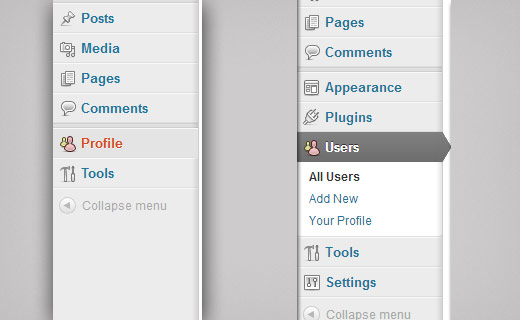
- Log in to your WordPress dashboard and click on "Users" in the left-hand menu.
- Click the "Add New" button at the top of the screen.
- Fill out the form with the user‘s key information:
- Username (required)
- Email (required)
- First and last name
- Website
- Password (you can manually create one or use the generated password)
- User role (the default role is Subscriber)
- Click the "Add New User" button to create the account.
User Profile Page Walkthrough
After you create a new user account, the user will have access to their profile page in the WordPress dashboard. Here‘s a quick tour of what they‘ll see:

- Personal Options: This section contains preferences for the WordPress back-end interface, like toolbar visibility and admin color scheme.
- Name: Here the user can update their display name and choose how they want their name to be publicly displayed (e.g. just first name, first and last name, nickname, etc.).
- Contact Info: The user can add or update their email address, website URL and social media profiles.
- About Yourself: This is where the user can write a bio that appears at the end of their posts and on their author archive page. Most themes display this bio, though some may require a small tweak to the template files.
- Account Management: The user can change their password, log out of all other sessions (useful if they suspect unauthorized access) and delete their account entirely.
One important thing to note is that the exact options a user sees on their profile page will depend on their user role.
For example, a Subscriber will only be able to update a limited set of options, while an Administrator will have access to everything. Keep this in mind as you‘re setting up profiles for different types of users.
How to Use the WordPress Profile Page to Change Your Password 🔐
One of the most important functions of the user profile page is allowing users to change their passwords. Strong, unique passwords are essential for keeping WordPress sites secure.
In fact, according to a 2022 report by Sucuri, weak and reused passwords are one of the most common entry points for WordPress hackers. By empowering your users to easily update their passwords, you can greatly reduce the risk of unauthorized access.
Fortunately, changing a password via the profile page is super simple:
- Go to the WordPress dashboard and click on "Profile" in the left-hand menu.
- Scroll down to the "Account Management" section.
- Enter your new password in the "New Password" field.
- Click the "Update Profile" button to save your new password.
That‘s it! Just make sure to choose a strong password that‘s at least 12 characters long and includes a mix of upper and lowercase letters, numbers and symbols.
Password Best Practices
While we‘re on the topic of passwords, here are a few other best practices to keep in mind:
- Never reuse passwords across multiple sites. If a hacker gains access to one of your accounts, they can easily try that same password on other sites.
- Use a password manager to generate and store unique passwords. Tools like LastPass and 1Password make it easy to use strong, unique passwords for every account without having to remember them all.
- Enable two-factor authentication (2FA) whenever possible. 2FA adds an extra layer of security by requiring a second form of verification (like a code from your phone) in addition to your password. Many WordPress plugins offer 2FA functionality.
- Force a password reset if you suspect a breach. If you think an account has been compromised, immediately reset the password and log out all other sessions via the user profile page.
By following these password best practices and making it easy for users to update their passwords, you can dramatically improve the security of your WordPress site. 🔒
Advanced User Profile Techniques 🚀
So far we‘ve covered the basics of WordPress user profiles. But there‘s so much more you can do to customize profiles and unlock powerful features for user management and engagement.
Here are a few advanced techniques to consider:
Add Custom User Profile Fields
The default WordPress user profile fields are a good starting point, but most sites will benefit from additional custom fields. These allow you to collect more specific data points about your users that you can use for personalization, segmentation and more.
Some examples of custom fields you might want to add include:
- Birthday 🎂
- Job title 💼
- Company
- Phone number ☎️
- Address 🏠
- Interests/hobbies
- Email preferences (e.g. daily vs weekly newsletter)
- Custom checkboxes, dropdowns, and radio buttons
There are two main ways to add custom user profile fields to WordPress:
1. Use a plugin: The easiest way to add custom fields is with a plugin like User Registration, Profile Builder or ACF. These plugins provide simple drag-and-drop tools for building custom registration and profile forms without writing any code.
2. Use custom code: If you‘re comfortable with PHP, you can also add custom profile fields programmatically. This involves using WordPress hooks to create the fields, save field data and display it on the front-end and back-end of your site. The Plugin Handbook has a great guide on this more advanced method.
No matter which method you choose, adding custom profile fields is an excellent way to capture more valuable data about your users. Just be sure to only collect data that you actually plan to use, and make it clear to users how their data will be used. More on this in the best practices section below!
Allow Users to Edit Profiles From the Front-End
By default, users have to log in to the WordPress dashboard to edit their profiles. But for some types of sites – particularly membership sites and online courses – allowing users to edit their profiles directly from the front-end can be a big improvement.
Front-end profile editing makes it easier for users to manage their accounts without having to navigate the WordPress back-end. It also allows you to create a more seamless, branded experience that matches the look and feel of the rest of your site.
The easiest way to enable front-end profile editing is with a plugin that‘s specifically designed for this purpose. Some of the best options are:
With these plugins, you can easily create a front-end profile editing page with just a few clicks. Users will be able to update their profile information, change their password, and even upload a profile picture – all without ever seeing the WordPress dashboard.
If you want even more control over the design and functionality of your front-end profiles, you can also code your own custom profile templates. This requires a bit more technical know-how, but it allows you to create a completely unique profile experience that‘s tailored to your exact needs.
Use Profile Data to Personalize Content and Offers
One of the most powerful things you can do with user profile data is to use it to personalize the content and offers that each user sees on your site.
For example, let‘s say you have an online course site with courses on a variety of topics. You could use profile data to:
- Show each user courses that match their selected interests
- Recommend blog posts and resources based on their skill level or job title
- Send targeted email campaigns with special offers for courses they haven‘t taken yet
The possibilities here are endless! By collecting key data points about your users and using that data to personalize their experience, you can create a site that feels tailor-made for each individual user.
There are a few different ways to personalize content in WordPress based on user profile data:
- Use a plugin like If-So or Personalize to show different content blocks based on user meta data.
- Use a marketing automation tool like ActiveCampaign or ConvertKit to send targeted email campaigns based on user interests and behavior.
- Create custom user segments with a plugin like User Insights and use those segments to show different offers or content.
No matter which approach you choose, the key is to start with good data. Make sure you‘re collecting the right information in your user profiles, and that you have a clear plan for how you‘ll use that data to improve the user experience.
User Profile Best Practices and Tips ✅
We‘ve covered a lot of ground in this guide! As you start working with user profiles on your own WordPress site, here are a few key best practices and tips to keep in mind:
1. Only collect the data you need
It can be tempting to collect as much user data as possible, but resist the urge to go overboard. Every piece of data you collect should have a clear purpose and benefit for your users.
Collecting too much data not only creates unnecessary work for you, but it can also make users uncomfortable and less likely to trust your site. Be transparent about what data you collect and why, and give users control over their data with tools to update and delete their profiles.
2. Leverage profile data to personalize the user experience
As we covered above, user profile data is a goldmine for personalization. Look for ways to use the data you collect to create a more relevant, targeted experience for each user.
Some ideas:
- Recommend blog posts or products based on user interests
- Show targeted offers or upgrades based on user behavior
- Customize email campaigns with user-specific content and CTAs
3. Create a clear privacy policy
With the growing focus on data privacy, it‘s more important than ever to be transparent about how you collect and use user data. Create a clear, easy-to-understand privacy policy that outlines what data you collect, how you use it, and how users can manage their data.
Make sure to also provide clear opt-out options for any non-essential data collection or email marketing. The more control and transparency you give users over their data, the more they‘ll trust your site.
4. Use strong passwords and two-factor authentication
We talked about this above, but it bears repeating: strong passwords and two-factor authentication are essential for keeping user accounts secure.
Make sure to enforce strong password requirements (at least 12 characters with a mix of letters, numbers and symbols), and strongly encourage users to enable two-factor authentication. You can also use a plugin like Force Strong Passwords to automatically enforce strong passwords for all users.
5. Periodically clean up inactive user accounts
Over time, it‘s inevitable that some user accounts will become inactive. Maybe a user signed up for your site but never actually logged in, or maybe they stopped using your site months or years ago.
To keep your user base clean and up-to-date, it‘s a good idea to periodically audit your user list and remove any inactive accounts. You can use a plugin like User Insights to easily see which users haven‘t logged in recently, and then delete those accounts in bulk.
Just be sure to send a warning email before deleting any accounts, and provide a way for users to reactivate their account if they want to keep it.
Wrapping Up 🎉
Whew, that was a lot of information! But hopefully you now have a much better understanding of WordPress user profiles and how to use them effectively on your site.
To recap, user profiles are a powerful tool for managing your user base, personalizing the user experience, and creating a stronger sense of community on your site. By leveraging custom profile fields, allowing front-end profile editing, and following best practices for data collection and security, you can take your user profiles to the next level.
Of course, every WordPress site is unique, so don‘t be afraid to experiment and find what works best for you and your users. And if you have any questions or run into any challenges along the way, don‘t hesitate to reach out to the WordPress community for help. We‘re all in this together!
Thanks for reading, and happy profiling! 🙌
)