Hey there, WordPress user! If you‘re looking to take your content creation skills to the next level, it‘s time to dive into the world of the WordPress text editor.
While the visual editor is great for beginners, the text editor offers much more flexibility and control for those who are willing to learn a bit of HTML. In this comprehensive guide, we‘ll cover everything you need to know to master the text editor and become a WordPress power user.
What Is the WordPress Text Editor?
First, let‘s clarify what we mean by a "text editor" in the context of WordPress.
The WordPress text editor is a plain text editing field built into the WordPress post and page editors. It allows you to write and edit your content in HTML code, as opposed to the WYSIWYG (What You See Is What You Get) interface of the visual editor.
With the text editor, you have direct control over the HTML tags, styles, and structure of your content. This is different from a general purpose text editor like Notepad or Sublime Text, which are standalone applications used for writing and editing code files.
According to WordPress.org, the text editor is "for those who have at least a basic understanding of HTML. It is a plain text field that does not show any styling, and you are required to type in all the necessary HTML tags to format your text."
How to Use the WordPress Text Editor
Now that you know what the text editor is, let‘s walk through how to actually use it to write and format your WordPress posts and pages.
Switching to the Text Editor
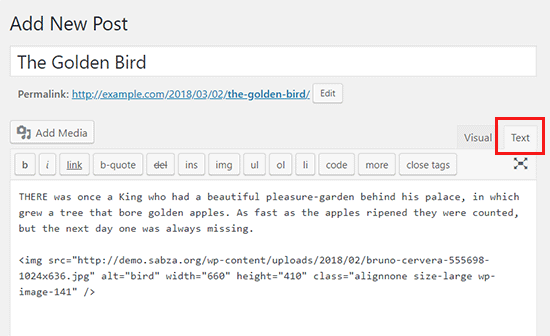
By default, WordPress will open the visual editor when you create a new post or page. To switch to the text editor, simply click on the "Text" tab in the upper right corner of the editor window.
[Insert Screenshot: Switching to Text Editor]Writing in Plain Text/HTML
Once you‘re in the text editor view, you‘ll see your content stripped of all styling and formatting. This is where you‘ll type out your content in plain text and add any necessary HTML tags to structure and style it.
For example, let‘s say you want to create a simple paragraph with a bolded word. In the text editor, you would write:
<p>This is a paragraph with a <strong>bolded</strong> word.</p>As you can see, you need to manually add the paragraph tags <p> around your text and the <strong> tags around the word you want to bold.
Formatting Shortcuts
While the text editor requires you to write out your HTML tags, it does include a few handy shortcuts to speed up your formatting.
In the toolbar above the editing field, you‘ll see a drop-down menu labeled "Paragraph." This allows you to quickly apply common HTML tags like headings, paragraphs, and preformatted text without having to type them out.
There are also buttons for creating lists, blockquotes, horizontal lines, and more. Simply click on the appropriate button and the HTML tags will be inserted into your content at the cursor position.
Adding Links and Images
To add a link in the text editor, you‘ll need to use the <a> tag with the href attribute pointing to the URL you want to link to. For example:
<a href="https://www.example.com">Click here</a> to visit Example.com.For images, you‘ll use the <img> tag with the src attribute pointing to the image file URL. You can also add alt text and specify the width and height if needed.
<img src="image.jpg" alt="My Image" width="500" height="300">Previewing Your Changes
One downside of using the text editor is that you don‘t get a real-time preview of your formatted content like you do in the visual editor. However, you can easily preview your changes by clicking the "Preview" button in the "Publish" panel on the right side of the screen.
This will open a new tab showing what your post or page will look like with all your HTML formatting applied.
Advantages of Using the WordPress Text Editor
So why would you choose to use the text editor over the visual editor? Here are a few key advantages:
Greater control over your content‘s HTML. With the text editor, you have complete control over the HTML structure and styling of your post or page. This allows you to create more complex layouts and designs that may not be possible with the visual editor alone.
Ability to paste in content from external sources. If you write your posts in another application like Google Docs or Microsoft Word, pasting that content into the visual editor can often bring in messy and unwanted formatting. By pasting into the text editor, you can start with a clean slate and add your own HTML formatting.
Compatibility with page builder plugins. Many popular WordPress page builder plugins like Elementor and Divi use their own visual editors that can sometimes conflict with the built-in WordPress editor. Switching to the text editor can help avoid these conflicts and ensure your content displays correctly.
Faster loading times for your pages. Because the text editor doesn‘t include all the behind-the-scenes processing and styling of the visual editor, your pages may load slightly faster for your visitors.
According to a study by Heap, the average WordPress post contains 41% more HTML characters than actual text content. By using the text editor to optimize your HTML, you could significantly reduce the code bloat and improve your page load times.
HTML Tags Cheat Sheet
To help you get started with HTML formatting in the WordPress text editor, here are some of the most commonly used tags:
| Tag | Description |
|---|---|
<p> | Defines a paragraph |
<h1> to <h6> | Defines HTML headings |
<strong> | Defines important text (bold) |
<em> | Defines emphasized text (italics) |
<br> | Inserts a single line break |
<ul> | Defines an unordered list |
<ol> | Defines an ordered list |
<li> | Defines a list item |
<a> | Defines a hyperlink |
<img> | Defines an image |
<blockquote> | Defines a section that is quoted from another source |
For a more complete list, check out the WordPress.org HTML Cheat Sheet.
Conclusion
The WordPress text editor is a powerful tool for anyone who wants to take their content creation to the next level. By learning a bit of HTML and getting comfortable with the text editor interface, you can gain much greater control over the formatting and structure of your posts and pages.
While it may take some practice to get used to writing in HTML, the benefits of using the text editor are well worth the effort. With cleaner code, faster page loads, and more precise styling, you‘ll be able to create content that stands out from the crowd.
So go ahead and give the WordPress text editor a try on your next post or page. And if you get stuck, don‘t forget to refer back to this guide for helpful tips and examples.
Additional Resources
- WordPress.org: Using the Text Editor
- WPBeginner: How to Easily Add HTML in WordPress Blog Posts
- WordPress.tv: Introduction to HTML for WordPress Users
