Hey there, WordPress user! If you‘ve ever wanted to tweak your theme‘s design or functionality directly, you might have come across the WordPress theme editor. This handy tool lets you access and modify your theme‘s files right from the WordPress admin dashboard. Sounds convenient, right?
But hold up! Before you start editing away, it‘s important to understand exactly what the theme editor is, how it works, and some crucial best practices to keep your site running smoothly.
In this comprehensive guide, we‘ll dive deep into the WordPress theme editor. I‘ll explain what it does, how to use it safely, and some alternative methods for customizing your theme. Let‘s get started!
What is the WordPress Theme Editor?

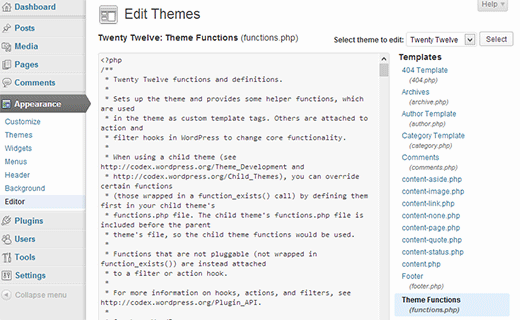
The WordPress theme editor is a built-in code editor that allows you to directly edit the files of your currently active theme. You can access it by going to Appearance > Theme Editor in your WordPress admin menu.
On the right side of the screen, you‘ll see a list of the template files, stylesheets, and scripts that make up your theme. These include files like:
- header.php
- footer.php
- single.php
- page.php
- functions.php
- style.css
Clicking on one of these files will load it into the editor panel on the left, where you can view and modify the code.
At the top of the file list, you‘ll also see a dropdown menu labeled "Select theme to edit". This allows you to switch between your installed themes and edit the files for a theme that is not currently active. Keep in mind that switching themes here does not actually change your site‘s active theme – it only changes which theme is loaded into the editor.
So in a nutshell, the theme editor provides a way to access and edit your theme‘s underlying code directly from your WordPress admin area. Pretty handy, right?
Risks of Using the Theme Editor
Now, I know it might be tempting to jump right in and start tweaking your theme files. But let me pump the brakes for a sec! Editing your theme code directly comes with some big risks, especially if you‘re not super comfortable with HTML, CSS, and PHP.
Here are a few key dangers to watch out for:
Breaking your site: Even a tiny syntax error or misplaced character in your theme files can bring down your whole site. Yikes! In fact, a survey by WP Engine found that 25% of WordPress users have crashed their site by editing theme files.
Losing customizations: Any direct changes you make to your theme files will get overwritten when you update the theme to a new version. Unless you‘re using a child theme (more on that later), you‘ll lose all your hard work.
Security vulnerabilities: If you accidentally paste in malicious code or a buggy plugin snippet, you could open up security holes for hackers to exploit. Not good!
Locking yourself out: If you mess up the code in a critical file like functions.php, you might not be able to access the WordPress admin at all to fix it. Hello, frantic call to your hosting support!
So while the theme editor can be a powerful tool, it‘s definitely not something to mess around with lightly. But fear not, intrepid reader! Let‘s look at some best practices for using the editor responsibly.
Tips for Safely Using the Theme Editor
If you do need to make a quick tweak to your theme‘s code and feel confident using the editor, here are some tips to minimize the risk of something going wrong:
Use a child theme: Instead of editing your main theme files directly, create a child theme and make your changes there. That way, your customizations are kept separate and won‘t get erased by theme updates. If you‘re not sure how to make a child theme, check out our guide on creating a WordPress child theme.
Back up your site first: Before making any code changes, always take a full backup of your WordPress files and database. That way, you can quickly restore your site if something breaks. There are plenty of great WordPress backup plugins to make this easy.
Test changes on a staging site: If possible, make your code customizations on a separate development or staging version of your site first. Many web hosts offer "staging environments" that let you safely test changes before pushing them live. For example, Kinsta and WP Engine both have one-click staging features.
Double-check your syntax: When editing theme files, always be sure to double-check your code for proper formatting and syntax. A misplaced comma, missing semicolon, or unbalanced bracket can all cause PHP errors that break your site. Use a code editor with syntax highlighting to help spot potential issues.
Document your changes: If you make a lot of customizations to your theme files, it‘s a good idea to keep a record of what you changed and why. This can help you (or another developer) understand what‘s going on if you need to troubleshoot issues later. Consider using comments in your code or keeping a separate changelog.
Alternatives to the Theme Editor
If the idea of editing theme files directly makes you nervous, don‘t worry – there are plenty of other great ways to customize your WordPress theme. Here are a few of my favorites:
WordPress Customizer

The real-time WordPress theme customizer is one of the most user-friendly ways to make theme modifications – no code required! You can access it under Appearance > Customize.
Using the customizer‘s visual, sidebar-based interface, you can easily:
- Tweak theme colors and fonts
- Customize your header, navigation menus, and widgets
- Upload a custom logo or header image
- Rearrange your homepage layout
- Modify other theme-specific settings
The great thing about the customizer is that you can see a live preview of your changes before publishing them. Plus, customizations made here are saved in your database, so they won‘t get overwritten by theme updates.
Page Builders
If you really want to take your theme customization to the next level, you might want to try a page builder plugin. These powerful tools let you create totally custom page designs using a visual, drag-and-drop interface.
Some of the most popular WordPress page builders include:
| Plugin | Active Installs | Price |
|---|---|---|
| Elementor | 5+ million | Free (Pro version available) |
| Beaver Builder | 1+ million | $99 – $546 |
| Divi | 700,000+ | $89/year or $249 lifetime |
| Brizy | 200,000+ | Free (Pro version available) |
Many of these page builders also include theme building functionality, letting you design custom headers, footers, post templates, and more. This can be a great way to get the look you want without messing with code.
Custom CSS
If you‘re comfortable with CSS, you can often make small theme tweaks by adding custom CSS code. This lets you override your theme‘s default styles without editing the full stylesheet.
There are a few places you can add custom CSS in WordPress:
- The Additional CSS area in the WordPress customizer
- The Custom CSS setting in the Jetpack plugin
- In your child theme‘s style.css file
Just keep in mind that CSS added via the customizer or Jetpack will take precedence over CSS in your child theme. So if you‘re not seeing a change you made in your child theme, check if you have custom CSS set elsewhere that might be overriding it.
Child Themes
We‘ve mentioned child themes a few times already, but let me explain why they‘re so important for theme customization.
A WordPress child theme is a separate theme that inherits the styling and functionality of its parent theme. You can think of it like an overlay that sits on top of the main theme files.
The big advantage of using a child theme is that you can safely make code customizations without worrying about them being overwritten. When you update the parent theme to a new version, your child theme is unaffected.
Child themes are surprisingly easy to create – you just need a new theme folder with a couple key files:
- style.css: For adding custom CSS
- functions.php: For modifying theme functionality or enqueueing scripts/styles
From there, you can copy over any template files from the parent theme that you want to modify, like header.php or page.php. Just make sure not to edit anything in the parent theme folder directly.
Using a child theme is definitely the recommended way to heavily customize a WordPress theme. It keeps your changes separate and makes your site much easier to maintain and update over time.
Disabling the Theme and Plugin Editors
Finally, if you want to completely prevent the theme and plugin editors from being used on your site, you can disable the file editing functionality altogether.
To do this, you‘ll need to add the following line to your wp-config.php file:
define( ‘DISALLOW_FILE_EDIT‘, true );
Once this constant is defined, the theme and plugin editors will no longer be accessible in the WordPress admin area. This is often a good idea for client sites or multi-author environments where you don‘t want users to accidentally (or intentionally) break the site‘s code.
Keep in mind that even with the editor disabled, theme and plugin files can still be edited via FTP or by other administrators with access to the server. But disabling the editor adds an extra layer of security and mistake-proofing.
Frequently Asked Questions
Before we wrap up, let me quickly address some of the most common questions I hear about the WordPress theme editor:
Can I use the theme editor to create a new theme?
Technically you could create a new theme using the built-in editor, but it‘s not really designed for that. You‘re better off creating a new theme locally in a development environment, then uploading it to your site via FTP. Trust me, it‘ll be much easier to work with the full file structure and without the risk of breaking your live site!
Will the theme editor work with page builders?
The WordPress theme editor only provides access to the underlying code files of your theme. If you‘re using a page builder like Elementor or Beaver Builder, you‘ll typically make design customizations through the page builder‘s own interface instead. You won‘t see those builder-specific settings and configurations in the theme editor.
What happens if I edit a theme that‘s not active?
When you select a different theme to edit from the dropdown menu, it only loads that theme into the editor window. It does NOT change your site‘s active theme. Until you actually activate a theme under Appearance > Themes, any edits made will not be visible to visitors. Just be careful not to make changes to an inactive theme that you aren‘t ready to publish yet.
Conclusion
Well folks, that about covers everything you need to know to use the WordPress theme editor like a pro! To recap, the theme editor is a powerful tool for making granular code customizations to your theme files directly from the WordPress admin.
But with great power comes great responsibility. Editing theme code directly always poses some risks, like breaking your site‘s layout or losing changes when updating the theme.
To minimize those risks, I highly recommend using a child theme, testing changes on a staging site first, and keeping the theme editor disabled for multi-author sites. And if you‘re not totally comfortable with HTML and CSS, there are plenty of great code-free customization options like the WordPress customizer and page builder plugins.
The most important thing is to find a sustainable workflow that lets you customize your theme safely. Whether that‘s making careful edits to a child theme or using the drag-and-drop interface of a page builder is up to you.
Now get out there and make your WordPress site look awesome! And remember, if you ever get stuck or need some advice, you can always drop a comment below. I‘m here to help!
