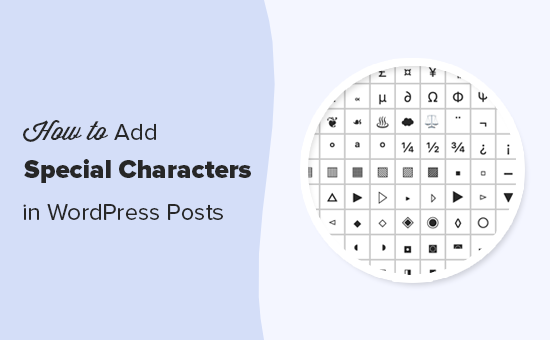
How to Easily Add Special Characters in WordPress (2026 Guide)
Do you want to add symbols like ®, ©, ™, or other special characters in your WordPress posts and pages? While they‘re not found on a typical keyboard, inserting special characters is actually quite easy once you know how.
In this guide, we‘ll show you multiple ways to add any special character or symbol to your WordPress content. Simply use the links below to jump to the method you prefer:
- Using HTML Character Entities
- Special Characters in the Classic Editor
- Inserting Special Characters in the Block Editor
- Adding Special Characters with a WordPress Plugin
- Accessibility Tips for Special Characters
- How to Add Emojis in WordPress
- Frequently Asked Questions
But first, let‘s look at a few reasons why you might want to use special characters in the first place.
Benefits of Using Special Characters in WordPress
Special characters can give your content more polish and professionalism when used appropriately. Here are a few key benefits:
- Properly attribute trademarks (™), registered trademarks (®), and copyrights (©) to protect your intellectual property
- Improve readability by using real bullet points (•), arrows (→), fractions (½), etc.
- Insert currency symbols (¥, €, £) for clarity in pricing or financial content
- Add math symbols (÷, ≤, √, ∞) for numerical equations and expressions
- Provide accurate accented characters (é, ñ, ü) in multiple languages
- Spice up your text with fun symbols like stars (★), hearts (♥), music notes (♪), and more
Essentially, special characters allow you to go beyond plain text and more accurately communicate your message. When used strategically, they can enhance the professionalism and effectiveness of your WordPress posts and pages.
With that in mind, let‘s dive into how to actually add them to your site, starting with the most versatile method.
Method 1: Using HTML Character Entities
HTML character entities are special codes that tell web browsers to display a certain character. They‘re a reliable way to insert special characters in WordPress, or any HTML-based content.
To use an HTML entity, you type an ampersand (&), followed by the entity name or number, and end with a semicolon (;).
For example, to display a copyright symbol, you would type either © or © in your content.
Here are the HTML entities for some of the most common special characters:
| Character | HTML Entity | Numeric Reference |
|---|---|---|
| © | \© | \© |
| ® | \® | \® |
| ™ | \™ | \™ |
| € | \€ | \€ |
| £ | \£ | \£ |
| ¥ | \¥ | \¥ |
| • | \• | \• |
| → | \→ | \→ |
| ← | \← | \← |
For a complete reference of available HTML character entities, check out this handy chart.
To use HTML entities in WordPress, simply type them directly into the post editor wherever you want the special character to appear. This works in both the Classic Editor and Block Editor.
Pro tip: If you plan to use a special character frequently, consider bookmarking its HTML entity reference or using a text replacement shortcut via a tool like AutoHotkey or TextExpander.
While HTML entities offer the most control, WordPress provides easier ways to insert special characters depending on your editor. Let‘s take a look.
Method 2: Special Characters in the Classic Editor
If you‘re still using the Classic Editor in WordPress, you‘re in luck! It has a built-in special character inserter located in the second row of the formatting toolbar.
First, make sure you‘re in the Visual editor mode, not the Text (HTML) mode. Then click the Ω (omega) icon to open the special characters menu:
[Screenshot]From there, simply click a character to insert it into your post at the current cursor position. You‘ll find symbols for copyright, registered trademark, currency, math, punctuation, Latin languages, and more.
However, this menu is quite limited compared to the full range of HTML entities available. It‘s best for quickly adding the most common special characters to your posts.
Method 3: Inserting Special Characters in the Block Editor
With the introduction of the Gutenberg block editor in WordPress 5.0, the special character menu works a bit differently.
To access special characters in the Block Editor:
- Click the ¶ or cog icon in the top right to show the editor options
- Select the "Special characters" button (Ω icon)
The special characters modal will appear, allowing you to browse and insert symbols into your post. Again, it offers a limited set compared to HTML entities but covers the essentials.
One quirk of the Block Editor‘s special character inserter is that it only works on Windows computers, not Macs. If the button doesn‘t work for you, here are a couple of alternate Block Editor methods…
Using the Custom HTML Block
If you know the HTML entity for your desired special character, the easiest way to insert it is with the Custom HTML block:
- Click the + icon to add a new block
- Search for "custom HTML" and select it
- Type or paste your HTML entity into the block
The special character will appear when you preview or publish the post.
Switching to the Code Editor
For more control over your content‘s HTML, you can use the Block Editor‘s Code view:
- Click the cog icon to show the editor options
- Select "Code editor"
- Locate the HTML for the block or text where you want to insert the special character
- Type or paste the HTML entity
- Switch back to the Visual Editor mode to preview
This method takes a bit more work but allows you to precisely place special characters anywhere in your posts.
Method 4: Adding Special Characters with a WordPress Plugin
If you use special characters often and want a more convenient way to insert them, consider using a dedicated WordPress plugin.
A plugin called Insert Special Characters adds a new button to the WordPress editor that allows you to quickly browse and insert hundreds of special characters and symbols:
[Screenshot]Some key features:
- Searchable library of 100s of special characters
- Organizes characters into categories like Currency, Math, Punctuation, etc.
- Works with both the Classic Editor and Block Editor
- Provides shortcodes for each special character
- Supports accent and language-specific characters
If you‘re not comfortable using HTML entities directly, a plugin like this streamlines the process of adding special characters in WordPress.
Accessibility Tips for Special Characters
Improper use of special characters can make your content less accessible to people with disabilities. Here are a few tips to keep your content accessible:
- Don‘t use special characters in place of images or icons – always include alternative text
- Avoid using special characters decoratively if they don‘t add context or meaning
- Use the correct HTML entities consistently so screen readers pronounce them properly
- Include special characters in your site‘s accessibility statement if they‘re used often
Taking these extra steps will help ensure your special characters enhance the reading experience for everyone.
How to Add Emojis in WordPress
Emojis are a popular way to add personality and visual flair to your content. They‘re distinct from special characters in that they have their own Unicode characters and aren‘t part of standard HTML.
WordPress makes it easy to add emojis in both the Classic and Block editors:
- Windows: Press the . (period) key while holding the Windows key
- Mac: Press Control + Command + Space bar
This keyboard shortcut will bring up an emoji picker where you can browse and insert emojis directly into your posts.
Just be sure to use emojis thoughtfully, as too many can make your content look unprofessional. For more tips, check out our full guide on how to use emojis effectively in WordPress.
Frequently Asked Questions
Do special characters affect WordPress SEO?
Generally, no. Using special characters appropriately can even enhance your content‘s appearance in search results. However, avoid using special characters excessively or in place of standard letters, as this can look spammy to both search engines and readers.
Will special characters look the same in all browsers?
Most modern web browsers support HTML entities and will display special characters consistently. However, very old browsers may not support certain characters. You can use numeric character references for the widest compatibility.
Can I use special characters in my WordPress slugs?
For maximum compatibility, it‘s best to avoid special characters in post and page URLs. Stick to lowercase alphanumeric characters and hyphens to ensure your links work properly everywhere. You can still freely use special characters in the post content itself.
How do I use special characters in WordPress alt text?
To use special characters in a WordPress image‘s alt text, simply type the HTML entity in the Alternative Text field as shown here:
The special character will appear in the alt text on the front end of your site.
Do I have to use HTML entities for special characters?
HTML entities aren‘t strictly required in WordPress if you‘re using a Unicode-compatible text editor. However, they ensure your special characters will always display correctly regardless of the editor, browser, or device. Using HTML entities is the most reliable approach.
Can I copy and paste special characters?
Yes, most special characters can be copied and pasted directly into the WordPress editor. However, this may not always work depending on the character and your device. If a copy-pasted character doesn‘t show up correctly, you can always fall back to HTML entities.
How do I use special characters in WordPress custom CSS?
To use a special character in your theme‘s custom CSS, type a backslash () followed by the character‘s hexadecimal code. For example, to use an emoji heart, you would type something like: .class \2665 CSS properties }
For WordPress developers, a tool like Copy Character can help you quickly get the CSS-escaped version of any special character.
Conclusion
As you can see, there are lots of ways to add special characters to your WordPress posts, pages, and even custom CSS. Whether you prefer HTML entities, visual editor tools, or a dedicated plugin, you have the power to enhance your content with the perfect characters and symbols.
The key is to think strategically and use special characters to clarify your message – not just to decorate. A few well-placed characters can add polish and precision, while too many will look cluttered and distracting.
If you‘re not sure where to start, spend a few minutes browsing an HTML character entity reference to see what‘s available. Start with the essentials like copyright, trademark, and bullets, then work your way up to more advanced characters as needed.
Above all, remember that your readers are the priority, so always consider accessibility and readability as you compose your character-enhanced WordPress masterpieces!
For more ways to enhance your WordPress content, check out our guides on how to add a table of contents in WordPress and how to create multi-column content.
