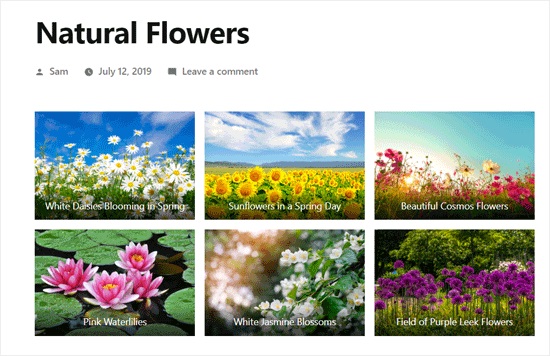
Are you looking to showcase your images in a more visually appealing way on your WordPress website? A photo gallery can be the perfect solution, allowing you to display multiple images in a grid or slideshow format.
In this beginner‘s guide, we‘ll take a closer look at what galleries are in WordPress, how they work, and some tips and best practices for creating engaging, user-friendly image galleries on your site.
What Is a Gallery in WordPress?
In WordPress, a gallery is a collection of images that are displayed together on a page or post. Instead of inserting individual images one by one, you can use the built-in gallery feature to upload multiple images at once and display them in a grid or slideshow.
Galleries are ideal for showcasing:
- Photography portfolios
- Product images for an online store
- Restaurant menus
- Event photos
- Real estate listings
- Screenshots for tutorials
Here‘s an example of what a basic WordPress gallery looks like:
Why Use a Gallery in WordPress?
According to recent research, articles with images get 94% more views than those without. Visual content is also highly engaging and shareable on social media platforms.
Using a WordPress gallery has several advantages over just inserting images into your page content, such as:
Cleaner layout: Galleries keep your images organized in a grid or slideshow, instead of scattered throughout the page. This makes your content easier to scan and navigate.
Improved page speed: With a gallery, you can display multiple image thumbnails that link to the full-size versions. This means your page loads faster since it‘s not loading every full-size image at once.
Enhanced user experience: Most gallery plugins and themes include features like lightboxes or pop-ups that let users click to view larger versions of images without leaving the page. This provides a better browsing experience.
Better SEO: Gallery images are a great opportunity to include relevant keywords in your image titles, captions, and alt tags. This can give your content an SEO boost and help your pages rank higher in image search results.
How to Create a Gallery in WordPress
WordPress makes it fairly easy to create a simple image gallery using the built-in Gallery block. Here are the basic steps:
- Open the page or post editor where you want to add the gallery.
- Click the "+" button to add a new block and search for the "Gallery" block.
- Drag the Gallery block into your content area.
- Click the "Upload" button to select images from your computer or choose from your media library.
- Select the images you want to include in the gallery and click "Create a new gallery".
- Customize the gallery settings, such as the number of columns, image size, and whether to link images to attachment pages.
- Publish or update the page to view the final gallery.
Here‘s a screenshot of what the Gallery block looks like in the WordPress editor:
While the built-in Gallery block works fine for basic image galleries, it does have some limitations, such as:
- Limited layout options (only supports grid layout)
- No built-in lightbox feature for full-size images
- Minimal customization options for things like margins, borders, and hover effects
- Doesn‘t support some image file types like SVG
- Not optimized for performance on media-heavy sites
For more advanced gallery layouts and features, you‘ll likely want to use a dedicated WordPress gallery plugin.
WordPress Gallery Plugins
To take your WordPress galleries to the next level, consider using one of the many gallery plugins available. These plugins extend the functionality of the native Gallery block, providing more customization options, layouts, lightbox effects, and integrations.
According to WordPress.org, some of the most popular gallery plugins include:
| Plugin Name | Active Installs | Rating |
|---|---|---|
| Envira Gallery | 100,000+ | 4.8/5 |
| NextGEN Gallery | 800,000+ | 3.7/5 |
| Modula Image Gallery | 60,000+ | 4.7/5 |
| Photo Gallery by 10Web | 400,000+ | 4.5/5 |
| FooGallery | 200,000+ | 4.7/5 |
"Envira Gallery is a great option for beginners who want an easy-to-use plugin with powerful features. The drag-and-drop builder is intuitive and the galleries are optimized for speed." – Syed Balkhi, WPBeginner Founder
When choosing a WordPress gallery plugin, look for ones that offer:
- Drag-and-drop builders
- Multiple gallery layouts (masonry, grid, carousel, etc.)
- Pre-built templates
- Lightbox features
- Video support
- Built-in image optimization
- Social media integration
- Responsive design
Be sure to also check the plugin‘s reviews, ratings, and compatibility with your version of WordPress before installing. It‘s smart to choose plugins that have a large user base and are actively maintained to ensure you get continued support and updates.
WordPress Gallery Best Practices
To make sure your WordPress galleries look great and function properly, follow these tips and best practices:
1. Optimize Your Images
Before uploading images to your galleries, make sure they are optimized for the web. This means reducing the file size as much as possible without sacrificing quality. Some tips:
- Resize images to the appropriate dimensions (aim for under 1MB per image)
- Use "Save for Web" in image editing tools like Adobe Photoshop
- Run images through a compression tool like TinyPNG
- Use next-gen formats like WebP when possible
Optimizing your images will ensure your galleries load quickly and don‘t slow down your page speeds. Slow-loading images can negatively impact user experience and hurt your SEO.
2. Use Descriptive Image Names & Alt Tags
When uploading images to your gallery, take the time to give them descriptive file names rather than something like "IMG_123.jpg". For example, if the photo is of a sunset on the beach in Hawaii, you might name it "hawaii-beach-sunset.jpg".
Also fill out the alt text field with a brief description of what the image contains. This helps visually impaired visitors using screen readers understand your content. It also gives search engines more context about your images.
3. Add Captions & Watermarks
If it makes sense for your gallery, consider adding captions below each image to provide additional context. Most gallery plugins allow you to easily add and customize captions.
For photographers and other creatives, you may also want to add a watermark to your gallery images to protect your work and prevent unauthorized use. Look for gallery plugins that offer built-in watermarking features.
4. Make Galleries Responsive
With the majority of web traffic now coming from mobile devices, it‘s critical that your galleries are fully responsive and mobile-friendly. Make sure your gallery plugin uses responsive design so images adapt to any screen size.
Also consider enabling touch-friendly features like swiping and pinch-to-zoom, especially if you expect a lot of mobile traffic.
5. Optimize for Performance
Finally, always keep performance in mind when setting up your galleries. Even with optimized images, galleries with a large number of images or thumbnails loading all at once can significantly slow down your pages.
Some tips to optimize gallery performance:
- Limit the number of images per page (pagination)
- Use lazy loading to only load images as they come into view
- Integrate with a CDN to serve optimized images
- Minimize animations or special hover effects
- Keep lightboxes simple and clean
Many gallery plugins have settings to easily enable features like pagination and lazy loading, so explore your options.
"Performance is key for any WordPress site, but especially important for image and video-heavy sites using galleries. A good gallery plugin should allow you to create beautiful designs without sacrificing speed." – Thomas Griffin, OptinMonster & Soliloquy Founder
Showcase Your Images with WordPress Galleries
Galleries are a powerful tool for enhancing the visual appeal of your WordPress website. When planned and executed well, a gallery can boost engagement, encourage users to explore more of your site, and even improve conversions.
To recap, here are the main steps for creating effective galleries in WordPress:
- Choose the right gallery plugin based on your needs
- Optimize your images for faster loading times
- Organize your images into albums or categories
- Write descriptive titles, captions, and alt text
- Customize your gallery layout and styles
- Enable lightbox and hover effects
- Make your galleries responsive and mobile-friendly
- Optimize galleries for performance and speed
By following these WordPress gallery best practices, you‘ll be well on your way to showcasing your images in style and delivering a strong user experience.
Still have questions about WordPress galleries? Check out WPBeginner‘s Gallery archives for even more tips and tutorials.
