Hey there, WordPress web designer! Let me guess:
You‘ve poured your heart into crafting brilliant website copy. You‘ve extolled the virtues of your product or service with carefully chosen words. But when you preview the page, all you see is a daunting, endless wall of text. 😱
You know that website visitors don‘t read every word – they scan. In fact, research shows that users only read around 20% of the text on an average page.
So how do you get your key messages across loud-and-clear? How do you pique a skimmer‘s interest and inspire them to take action?
Two words: feature boxes.
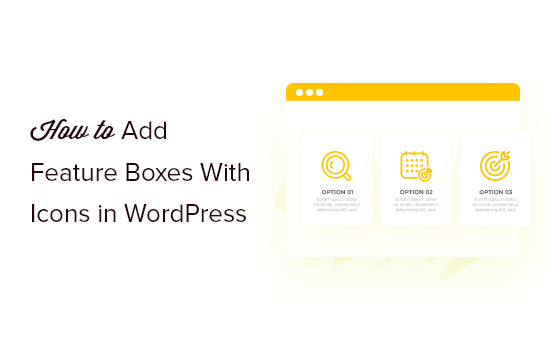
By showcasing your most compelling selling points in visually striking, easily digestible "boxes" (or cards), you can swiftly convey value and guide users to conversion.
The best part? Adding persuasive feature boxes to your WordPress site is a snap – no coding skills required. In this guide, I‘ll walk you through two user-friendly methods:
- Using the WordPress Block Editor (Gutenberg)
- Using the SeedProd Page Builder Plugin
But first, let‘s unpack what makes feature boxes so darn effective.
The Science Behind Irresistible Feature Boxes
Feature boxes combine several potent ingredients of high-converting web design:
Visual symbols. The human brain processes images 60,000 times faster than text. By pairing each feature with a relevant icon, you help the brain latch onto and retain the concept more readily.
Chunked content. Studies show that breaking content into small, distinct units enhances comprehension and recall. A tidy matrix of feature boxes is much easier for the eye to navigate than a dense hairball of paragraph text.
Ample whitespace. Leaving breathing room around page elements reduces cognitive load and guides the gaze in a deliberate reading path. Feature boxes surrounded by healthy margins let the key points shine unobstructed.
Contrasting colors. Using bold brand colors for icons, borders or backgrounds grabs attention and signals importance. Visitors can zero in on feature boxes effortlessly.
When artfully combined, these elements create an ultra-skimmable, memorable and persuasive section that visitors can‘t help but notice.
In fact, a case study by Visual Website Optimizer found that replacing a bland, text-only product description with eye-catching iconized feature boxes increased conversions by 12.9%!
Now for the moment you‘ve been waiting for: how to bring these conversion-boosting beauties to your own WordPress website.
Method 1: Crafting Feature Boxes Using the WordPress Block Editor
With WordPress version 5.0, the classic TinyMCE post editor was replaced by the more flexible, drag-and-drop Gutenberg block editor. While it took some getting used to, this new system makes laying out media-rich content (like feature boxes) so much easier.
Step 1: Add a Columns Block
From the WordPress dashboard, open up the page or post you want to jazz up with some feature box goodness. Click into a spot where you‘d like them to appear. Then hit the trusty + icon to add a new block:
[screenshot – page with + icon]In the blocks menu, look for the Columns block and give it a click. You‘ll see a smattering of different column layouts to choose from:
[screenshot – column layouts]For a nicely balanced feature box, I recommend sticking with 2-4 columns maximum. Let‘s roll with the 3 column layout for this example.
Step 2: Insert Some Snazzy Icons
Now the fun begins! It‘s time to hunt down some slick icons to bring your feature boxes to life.
If you already have a treasured collection of icon files (SVGs or PNGs), you‘re welcome to upload those to the WordPress Media Library and add them as individual Image blocks within your columns.
But if you‘d rather not fuss with image files, you can tap into a vast library of ready-made icons by installing the Font Awesome plugin. Font Awesome is a popular icon toolkit that makes it a cinch to embed scalable vector icons with a quick shortcode or HTML snippet.
Once you‘ve installed Font Awesome, click the + icon inside your first column and add a Paragraph block. Then slot in a shortcode like this:
[icon name="wordpress"]
…swapping out "wordpress" for the name of your desired icon.
Font Awesome‘s icon library covers just about every concept under the sun. Peruse the full list here to find the perfect symbols for your features.
Rinse and repeat for the rest of your columns until you have a nice row of icons in place.
[screenshot – 3 columns with icons]Step 3: Spell Out the Benefits
With your icons locked and loaded, it‘s time to articulate the features they represent. Underneath each icon, add another Paragraph block for your snappy feature text.
Keep descriptions laser-focused and skimmable. Aim for 1-2 punchy lines per feature – this isn‘t the place for elaborate expositions. Think bullet points, not epistles.
For instance, if you‘re showcasing an email marketing service:
- 24/7 expert support
- No long-term contracts
- 100+ pre-designed templates
If you want to beef up the heading text for each feature box, you can use a Heading block instead of a Paragraph.
Step 4: Beautify Your Boxes
The home stretch! Let‘s make those feature boxes really pop.
Click on your Columns block to open up its settings sidebar. Here you can toy around with width, spacing, colors and other styling options:
[screenshot – column block settings]Maybe add a splash of color to the background or borders. Maybe bump up the icon size or tweak the alignment. The world is your oyster!
For a dose of extra drama, you could even add entrance animations to your feature boxes. Imagine icons that swivel and text that slides whenever the section comes into view!
To set that up, select each inner block (icons and text) and head over to the Block Settings. Open the Advanced panel and pick your animation style and duration under Display Settings:
[screenshot – block animation settings]Now preview your handiwork and marvel as your feature boxes gracefully pirouette into place!
Congratulations, you‘re now the proud owner of magnetic, conversion-primed feature boxes – no premium page builder required. Give yourself a well-earned pat on the back. 🙌
But what if you crave even MORE customization options and pre-designed pizzazz? In that case…
Method 2: Designing Feature Boxes Using The SeedProd Page Builder Plugin
Page builder plugins are like the secret weapon in a web designer‘s arsenal. They allow you to construct pages by dragging and dropping pre-made content blocks into pixel-perfect layouts – all without writing a line of code.
While there‘s no shortage of page builders to choose from, my personal favorite is SeedProd. It‘s exceptionally user-friendly, performant, and comes loaded with 100+ gorgeous page templates and 25+ content blocks – including picture-perfect feature boxes.
Step 1: Install & Activate SeedProd
After purchasing your SeedProd license, log into your WordPress dashboard and head to Plugins > Add New. Upload the plugin .zip file you received and activate the plugin.
Then hop on over to SeedProd > Settings and drop in your license key to enable all the premium goodies.
Step 2: Spin Up a New Landing Page
We‘ll be building our feature boxes on a shiny new landing page. From the SeedProd menu, click "Create New Landing Page".
[screenshot – create new page]You‘ll see a smorgasbord of slick pre-designed templates to start from. For this tutorial, let‘s select the "Blank Template" so we can build our feature boxes from scratch.
Give your page a name and permalink, then click the "Save and Start Editing the Page" button.
[screenshot – template gallery]Step 3: Stack Up Some Columns
After a moment of magic, the SeedProd page builder will whisk you away to a fresh canvas. Your mission: pile on the pretty page parts!
In the left menu blocks, look for the Advanced Columns block. Drag that sucker onto your page. Then click the "Change Columns" button overlay to explore different column configurations.
[screenshot – change columns]I‘m partial to the 3 column layout for feature boxes, but feel free to pick your poison. Click to apply your selection.
Step 4: Plop In Some Icons
Now it‘s icon time! SeedProd spoils you with not one, but TWO built-in icon block options under the Standard menu:
- Icon
- Icon Box
The Icon block is perfect for minimalist, monochrome icons. The Icon Box gives you a bit more pizazz with color backgrounds, fancy outlines, and entrance animations.
For this guide, let‘s go with the Icon block. Drag one into your first column:
[screenshot – add icon block]To customize your icon, click the block and tinker with the Block Settings on the left:
- Icon: Click "Change Icon" to peruse a searchable library of 2,000+ icons in every theme imaginable. When you spot The One, click to insert it.
- Alignment: Tweak your icon placement with the alignment buttons. For feature boxes, center alignment keeps things tidy.
- Icon Size: Go big and bold or small and subtle. This responsive slider has you covered for any device size.
- Icon Color: Make it match! Use this color picker to coordinate icon hues with your brand palette or overall page design.
Repeat the process for your remaining columns until you have a trio of tantalizing icons ready to rock.
Step 5: Write Some Snappy Copy
You didn‘t think I‘d forgotten about the words, did you? Compelling feature copy is the Robin to an icon‘s Batman.
Fortunately, SeedProd has a trusty Text block to help us out. Yank one of those into each column, just beneath your spiffy new icons.
[screenshot – add text block]For each text block, just click and type (or paste) to pour in your carefully crafted feature descriptions. Remember, punchy and purposeful is the name of the game here!
To pretty up your prose, highlight any text and a mini formatting menu will materialize. Here you can rapidly italicize, bold, colorize, or even "hyperlink-ize" your wording.
If you prefer more of a title and subtitle structure, SeedProd‘s Headline block renders one or more lines in a heartier header font. Simply adjust the Heading Tag to dial in the hierarchy (H2, H3, etc.)
Step 6: Primping & Polishing
By now, your feature boxes are really shaping up! If you‘re feeling extra fancy, you can add some final flourishes in the Advanced tab of your Column and Text block settings:
- Background Color: Splash some personality behind those features with a background color. Semi-transparent tints keep things feeling light and airy.
- Borders: Add a tasteful outline around individual feature boxes or the entire section. Rounded corners lend a modern touch.
- Padding / Margin: Hone the spacing within and between boxes for a flawlessly balanced presentation.
Once you‘re satisfied with your masterpiece, smash that big green Publish button and send it out into the world!
The result: a fabulously functional feature section that effortlessly enlightens and entices your visitors. Oooh la la! 💃
Bonus: Inspiring Examples of Feature Boxes in the Wild
Theory is great and all, but sometimes you just need to see stellar feature boxes in action to really "get it". Here are a few dazzling specimens from across the web:
CoSchedule
[screenshot – CoSchedule feature boxes]CoSchedule‘s feature boxes strike a perfect balance between friendly and functional. The bright, bold icons mirror the product UI and the one-line labels convey benefits at a glance.
Airtable
[screenshot – Airtable feature boxes]Airtable takes an unconventional approach with circular feature "pops" that beg to be tapped. Each icon illustrates the feature with a touch of whimsy. The varying background colors add visual interest while staying cohesive.
Zapier
[screenshot – Zapier feature boxes]Zapier‘s feature boxes prove that less is more. The simplified two-tone icons allow the succinct value props to shine. Ample whitespace keeps the section feeling light and approachable.
Putting It All Together
Phew, that was a whirlwind tour of feature box creation! Let‘s recap the key takeaways:
- Feature boxes are content containers that combine icons, concise text, and contrasting visuals to communicate key benefits at a glance.
- You can build basic feature boxes right in the WordPress editor using the Columns block, Image or Icon blocks, and text blocks.
- For more advanced designs and customization, the SeedProd page builder plugin provides a library of pre-designed feature box templates and granular styling controls.
- Effective feature boxes are succinct, scannable, and visually engaging. Limit each box to 1-2 key points and choose relevant icons that reinforce the concept.
- Feature boxes follow established web design best practices like chunking content, incorporating visuals, and leveraging whitespace – all of which boost comprehension and conversions.
Now it‘s YOUR turn to feature box like a pro. Tinker around with the tools and tactics from this tutorial on your own WordPress site. Experiment with different icon styles, layouts, and microcopy until you land on a combo that feels authentic to your brand.
Most importantly, have FUN flexing your newfound feature box muscles! Your visitors (and your conversion rates) will thank you.
And should you ever need a refresher on anything we‘ve covered here, don‘t hesitate to bookmark this guide and refer back anytime. I‘m always here to help you design dazzling WordPress websites – one feature box at a time. 😉
)