Hey there, WordPress friend! 👋 If you‘re anything like me, you probably spend a lot of time staring at the WordPress admin dashboard. It‘s like our digital home, right? But after a while, that default grayscale color scheme can start to feel a bit…blah. 😐
The good news is, changing up your admin colors is quick, easy, and dare I say…fun! Customizing your backend can boost your motivation, speed up your workflow, and make managing WordPress feel fresh again. 🎨
In this guide, I‘ll walk you through everything you need to know to give your dashboard a colorful makeover. We‘ll cover:
- Why you might want to change your admin colors in the first place
- WordPress‘ built-in admin color schemes and how to switch between them
- How to create and install your own custom color palette
- Tips for choosing the perfect admin colors for your site
- Plugins that give you even more color customization options
- Other ways to personalize your WordPress backend
Whether you‘re a WordPress beginner or a seasoned pro, you‘ll finish this post with the skills to make your admin area a productivity paradise. Let‘s dive in! 🏊♀️
Why Customize Your WordPress Admin Colors?
Before we get into the "how", let‘s talk about the "why". After all, you might be thinking: "The default WordPress admin looks fine…why bother changing it?"
Well, let me give you a few compelling reasons:
Branding and consistency. 🖌️ Over 40% of the world‘s websites run on WordPress. Chances are, your site visitors will recognize the default WordPress styles, which can make your brand look generic. Customizing your admin to match your frontend creates a seamless, professional experience.
Productivity and focus. 🧘 Studies show that color psychology can have a big impact on our mood and concentration. Swapping out the stark blacks and grays for soothing blues or energizing greens could help you power through your WordPress to-do list.
Ease of use. 🙌 If you have a team working in WordPress or you build sites for clients, using admin color schemes is an easy way to provide a better user experience. You can use colors to create visual cues, like a red scheme for staging sites vs. a blue one for live sites.
Accessibility. 👓 WordPress aims to be accessible for all, but the default color scheme doesn‘t work for everyone. High contrast colors or reduced brightness can make the admin dashboard easier to read for users with visual impairments.
Because you can! 😎 Hey, sometimes you just want to mix things up and express your style. There‘s nothing wrong with adding a little personality to your digital workspace. You do you!
Now that you‘re sold on the benefits of an admin color switcheroo, let me show you just how simple it is to do.
WordPress‘ Built-in Admin Color Schemes
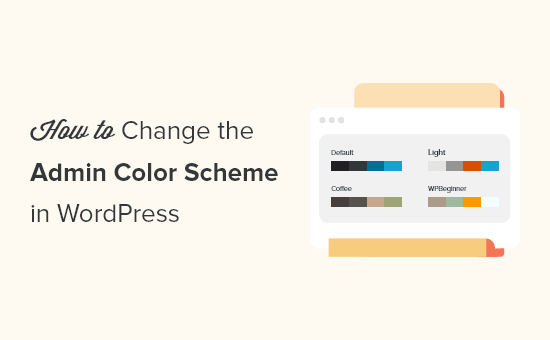
First, let‘s talk about the easy, plug-and-play options already waiting for you in WordPress. As of version 5.7, the core platform comes with eight pre-installed color schemes. Here‘s the rundown:
| Color Scheme | Hex Colors | Best For |
|---|---|---|
| Default | #1d2327, #2c3338, #f0f0f1 | Classic WordPress vibe |
| Light | #e5e5e5, #999, #d64e07 | Bright, clean, minimal style |
| Blue | #096484, #4796b3, #52accc | Calming, trustworthy, professional |
| Coffee | #46403c, #59524c, #c7a589 | Warm, earthy, cozy feeling |
| Ectoplasm | #413256, #523f6d, #a3b745 | Cool, modern, eye-catching |
| Midnight | #25282b, #363b3f, #69a8bb | Elegant, sophisticated, focused |
| Ocean | #627c83, #9ebaa0, #738e96 | Soothing, natural, balanced |
| Sunrise | #b43c38, #cf4944, #dd823b | Energetic, bold, creative |
To switch between these schemes, simply:
Log into your WordPress admin dashboard and click on Users > Profile in the sidebar menu.
Look for the Admin Color Scheme section. You‘ll see the 8 options with colored dots representing each palette.
Click on a scheme to see a live preview of how it will look. You can flip between them until you find one that feels right.
Once you‘ve made your selection, scroll down and click Update Profile to save your changes.

Boom! 💥 Your WordPress admin will be sporting some spiffy new shades. It‘s a great way to quickly change up the look without any coding needed.
But for some of you WordPress wizards out there, those pre-set options might not cut it. Maybe your site has a very specific brand color that you want to carry over to the backend, or you just want to flex your design muscles. 💪
In that case, it‘s time to level up and create your own completely custom WordPress admin color scheme. Don‘t worry, I‘ll hold your hand through the process!
Creating a Custom Admin Color Scheme
If you want full control over the colors that make up your WordPress admin theme, you‘ll need to create a CSS file with your chosen hues and upload it to your site. Here‘s how to do it step-by-step:
Head to the free WordPress Admin Schemes web app and start playing with the color picker to get your perfect palette dialed in. The site will generate the CSS code you need as you change the colors.
Under "Scheme Name", enter a unique name for your theme like "Breezy Blue" or "Ravishing Red". Keep it short but descriptive!
Click Build Scheme to generate your admin color scheme CSS file. It will auto-download to your computer.
Now you need to get that file onto your WordPress site. Use FTP or a file manager plugin to upload the CSS file to your current theme‘s directory. It should live in
/wp-content/themes/your-theme-name/.Next, add a small code snippet to your theme to tell WordPress about the new color scheme option. Open up your theme‘s
functions.phpfile or use a plugin like Code Snippets to create a new snippet.Paste in this PHP code, replacing
breezy-bluewith your theme file name and colors:
function wporg_admin_color_scheme() {
    $theme_dir = get_stylesheet_directory_uri();

    wp_admin_css_color( ‘breezy-blue‘, __( ‘Breezy Blue‘ ),
        $theme_dir . ‘/breezy-blue.css‘,
        array( ‘#25b7d3‘, ‘#0c5f7e‘, ‘#e1e5e7‘, ‘#111111‘ )
    );
}
add_action(‘admin_init‘, ‘wporg_admin_color_scheme‘);
Save the
functions.phpfile or Code Snippet. Now head back to your User Profile page in the WordPress admin.Look for your shiny new color scheme in the "Admin Color Scheme" section, select it, and click "Update Profile" to active it.

If everything worked correctly, your WordPress dashboard should be doused in your dazzling custom color scheme! It can take a few tries to get the CSS just right, so don‘t be afraid to tweak and repeat the process.
How to Choose the Right Admin Colors
With great power comes great responsibility, WordPress friends. 🕷️ Just because you CAN create a crazy technicolor admin theme, doesn‘t always mean you should.
Choosing colors for your site backend requires some strategy to get the maximum benefit. Here are a few tips to keep in mind:
Consider color psychology. 🧠 Cooler tones like blue and green tend to be calming and aid concentration, while warm tones like red and orange can be stimulating and energetic. Think about the mood you want your dashboard to set.
Keep it on brand. 👔 Incorporating your brand colors in the admin area creates a cohesive experience, especially if you‘re inviting clients or team members to log in. Stick to 2-3 primary colors to keep it simple yet stylish.
Don‘t forget accessibility. 👀 Not all color combos work for all users. Make sure your admin text has enough contrast against the background colors to be easily readable. Tools like WebAIM‘s Color Contrast Checker can help.
Test on multiple devices. 📱 Your admin color scheme might look great on your laptop, but turn into a muddy mess on mobile. Before committing to a palette, preview it on a few different screen sizes and resolutions to check for funky inconsistencies.
Have fun with themes! 🎭 Your admin colors can (and should!) change with the seasons or reflect current events. Rocking a spooky orange and black palette for Halloween or a sparkly gold for New Years is a fun way to keep your backend feeling fresh year-round.
My favorite trick is to create a few different admin themes for different purposes. For client projects, I‘ll whip up a branded color scheme to wow them after the site handoff. For my personal sites, I use different admin themes to easily distinguish between my staging environment and live site. That way I never make the dreaded mistake of tinkering with the wrong database! 😅
Plugins to Customize WordPress Admin Colors
If you‘re not really the DIY type, you can still get a custom color scheme with the help of some handy dandy WordPress plugins. Here are a few highly-rated options to check out:
Admin Color Schemes – Adds 14 pre-made color schemes to choose from and lets you tweak them with a color picker. Also has options to colorize the admin bar, login page, and more.
Material WP Admin Theme – Transforms your backend into a sleek, modern Material Design style dashboard with 6 color themes included. Great for fans of the flat aesthetic!
Absolute Admin & Dashboard – A more broad admin customization plugin that includes 8 pre-built color skins along with drag-and-drop dashboard widgets, login page styles, menu managers, and more.
While these plugins offer some convenient color schemes out of the box, I still recommend learning how to make your own admin themes. It‘s a valuable skill that will let you perfectly match your site‘s unique style!
Best Practices for Implementing Admin Color Schemes
So you‘ve crafted an amazing set of admin colors, installed them on your site, and you‘re basking in the glow of your newly beautified backend. Awesome work! 👏 Here are a few final tips to keep in mind as you put your color scheme to work:
Get your team on board. 👥 If you collaborate with other folks in WordPress, make sure to sync up on your admin color strategy. It‘s jarring to log in expecting one color scheme and get blasted with another! Use a plugin like User Role Editor to assign color schemes based on user permissions.
Keep colors consistent. 🎨 Once you settle on an admin palette, stick with it across all your sites (or at least all the related ones). Constantly changing up color schemes creates confusion and adds unnecessary cognitive load. I recommend documenting your color hex codes in a brand style guide so you can easily reference and reuse them.
Don‘t go overboard. 🌈 It‘s tempting to go wild with the color picker, but remember: the goal is to enhance your WordPress experience, not overwhelm it. Limit yourself to 2-4 primary colors and use them sparingly. You want your content to shine, not compete with a distracting rainbow dashboard!
Revisit and refine. 🔍 Your perfect WordPress palette might not reveal itself on the first try, and that‘s okay! Don‘t be afraid to live with a color scheme for a few weeks, note what‘s working and what‘s not, and make tweaks. You can even survey your site users to get feedback on your admin theme – you might be surprised what you learn!
Remember: your WordPress dashboard is YOUR space to customize for your needs. Have fun exploring the color possibilities and crafting an admin area that makes you excited to log in and get to work. 💻
Beyond Admin Color Schemes: More Ways to Customize WordPress
Changing up your admin color scheme is a great first step towards personalizing the WordPress backend, but it‘s definitely not the only trick up my sleeve! Here are a few more ways you can transform the look and feel of your dashboard:
Custom admin fonts – Using a plugin like Admin Custom Font, you can change the typeface of your admin text to add more personality (or readability!).
Login page customization – Your WordPress login page is the first thing you see when starting a work session, so why not jazz it up? Plugins like Login Designer make it easy to change the colors, logo, and layout to match your branding.
White label branding – If you build sites for clients, adding your own branding to their WordPress dashboard is a nice professional touch. The free White Label CMS plugin lets you replace the WordPress logos and labels with your own.
Menu item management – Do you have admin sidebar menu items that you never use? Hide them from view with the Admin Menu Editor to streamline your dashboard and minimize distractions.
Custom content creation – If you find yourself constantly publishing the same types of content, use a plugin like Oasis Workflow to set up post templates that match your unique editorial flow.
With these bonus tips in your customization toolkit, you can transform the WordPress admin from a boring, generic backend into a turbocharged productivity hub! ⚡
Wrapping Up
Phew, that was a lot of WordPress admin color talk! 😅 I hope this guide has shown you how simple and impactful customizing your dashboard colors can be. Whether you choose a pre-made color scheme, install a plugin, or handcraft your own theme, taking control of your admin aesthetic can boost your efficiency and make managing your site feel like a joy, not a chore.
The key is to experiment and find the right color combo that works for YOU. Don‘t be afraid to try out a few different options until you land on a look that feels authentic to your brand and personal style. And remember: you can always change it up when you need a fresh dose of inspiration!
To recap, here are the key steps for changing your WordPress admin color scheme:
- Choose one of WordPress‘ 8 built-in color schemes
- Create your own custom color scheme with the WordPress Admin Schemes tool
- Install your custom colors via FTP or a plugin like Code Snippets
- Choose your colors strategically based on contrast, consistency, and psychology
- Extend your customizations with plugins for fonts, logos, menus, and more
Now it‘s your turn – go forth and color your WordPress world! 🌈 If you have any questions or want to share your own snazzy admin color creations, drop me a comment below. I‘d love to see how you make WordPress your own!
)