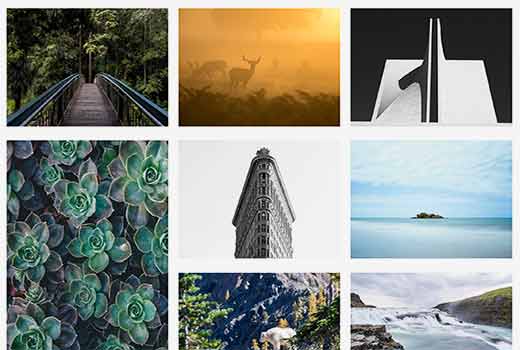
Hey there! 👋 Are you looking to take your WordPress site‘s visual appeal to the next level? Finding the perfect background images can make a huge impact, but it‘s not always easy to find high-quality, free photos that fit your site‘s style.
Don‘t worry, I‘ve got you covered. As a WordPress expert and design enthusiast, I‘m here to share my best tips and resources for discovering beautiful free background images. Whether you want an awe-inspiring nature scene, a cool abstract pattern, or something in between, you‘ll be able to find the ideal image to elevate your site‘s design.
Why Background Images Matter
Before we jump into where to find great background images, let‘s talk about why they‘re so important. Did you know:
- Articles with an image once every 75-100 words get double the number of social shares compared to articles with fewer images. (Source)
- People following directions with text and illustrations do 323% better than people following directions without illustrations. (Source)
- Content with relevant images gets 94% more views than content without relevant images. (Source)
Adding visually striking, relevant images like backgrounds is essential for capturing your audience‘s attention and making your content more engaging and memorable.
How to Find the Best Background Images for Your Needs
Now that you understand the importance of great background visuals, let‘s get into how to find them! Here‘s my step-by-step process:
1. Define your image criteria
Before you start your image search, take a moment to think about what kind of background will work best for your site. Consider your:
- Branding: What colors, moods, and visual style fit your brand identity?
- Functionality: Do you need an image that works well with text overlays, or one that seamlessly repeats?
- Audience: What type of imagery will resonate with your target audience and complement your content?
2. Browse free stock photo sites
My go-to sources for free, high-quality background images are stock photo sites. They have huge libraries of photos covering every imaginable subject and style. Most of the images are free to use commercially with no attribution required, thanks to the generous photographers who contribute to the community.
Here are my top picks for the best free stock photo sites for backgrounds:
| Site | Image Variety | License | Standout Features |
|---|---|---|---|
| Unsplash | 2M+ high-res lifestyle & nature photos | Free for commercial & personal use | Collections curated by industry, ability to search by image |
| Pexels | 3M+ diverse stock photos & videos | Free for commercial & personal use | Searchable by color, Canva integration |
| Pixabay | 2.3M+ photos, vectors & illustrations | Free for commercial & personal use | AI-based image search, variety of graphic types |
| Burst | 1000s of modern, trendy stock photos | Free for commercial & personal use | New photo collections weekly, business & product images |
| StockSnap.io | High-res photos in a curated gallery | CC0 license | Search by multiple keywords, hundreds of images added weekly |
Each site has a unique collection, so I recommend browsing a few of them to see which one has images that best fit your criteria. You can enter keywords related to the image subject, mood, colors or composition to find relevant results.
For example, if you‘re looking for a calm, nature-inspired background, you might search for keywords like:
- Tranquil landscape
- Foggy forest
- Ocean horizon
- Minimal leaves
- Pastel sky
3. Narrow down by image type
In addition to searching by subject, you can also look for specific types of images that make great backgrounds:
Abstract images like blurred lights, color gradients and smooth textures are popular, versatile choices. They add visual interest without distracting from your foreground content.
Patterns and geometric designs can give your site a modern, stylized look. From bold chevron to subtle polka dots, repeating patterns are great for creating a cohesive background.
Nature scenes like sweeping landscapes, beaches and forests can make your site feel expansive and serene. Just make sure the image isn‘t too busy and has space for your content to shine.
Architecture and urban environments can add an edgy, artistic vibe, especially in black & white. Close-up architectural details work well as textured backgrounds.
As you‘re browsing, be sure to consider the composition, color scheme and "mood" of the images in relation to your site‘s content. A background image is most effective when it complements the message you want to convey.
4. Check image specs
Once you‘ve found an image you like, take a closer look at the file specs before downloading:
Image dimensions: For background images, bigger is better. Look for photos that are at least 1920 x 1080 pixels to ensure your background will look crisp on large, high-resolution devices. You can always scale down a large image to fit your layout, but you can‘t scale up a small image without pixelation.
File type: JPG is the most common image file type you‘ll find on stock photo sites. It offers decent quality with a small file size. For backgrounds with transparency, look for PNG files. For the fastest loading speeds, consider downloading WebP versions of your images if available.
5. Edit and test the images
Once you‘ve downloaded a background image you like, I recommend making a few tweaks to help it fit your site perfectly:
Crop the image to the exact dimensions of your site‘s background image area. This will help the image fill the space without getting stretched or distorted. Use an aspect ratio calculator like Aspect Ratio Calculator to figure out the proportions you need to match.
Adjust the colors if needed to match your site‘s color palette. You can use a tool like Adobe Color to create a custom color palette from your background image, then apply those colors to your text and other elements for a cohesive look.
Add a semi-transparent overlay to soften the background and make text more legible. In CSS, you can use the
linear-gradient()function to layer a semi-transparent color over your background image. For example:
.background {
  background-image: linear-gradient(rgba(255, 255, 255, 0.6), rgba(255, 255, 255, 0.6)), url(‘path/to/image.jpg‘);
}
This will give the background image a subtle white overlay, lightening it a bit so it doesn‘t overpower your content.
Once you‘ve edited the image, test how it looks as a background on your site. Make sure it fits the space properly, loads quickly, and doesn‘t distract from your content. You may need to experiment with a few different images to find the perfect one.
Accessibility and Performance Considerations
While background images can enhance your site‘s aesthetics, it‘s important to implement them in a way that doesn‘t hurt your site‘s accessibility or performance.
From an accessibility standpoint, you need to ensure that any important information conveyed by the background image is also available in text for visually impaired users and screen readers. Avoid using text-as-image in your background. If you do use text, make sure it has sufficient color contrast against the background.
To minimize the performance impact of background images:
- Always compress your image files to reduce their file size without sacrificing quality. Tools like ImageOptim and TinyPNG let you quickly optimize images.
- Use CSS to serve different image sizes at different screen resolutions. This way, smaller devices won‘t waste time loading huge images.
- Lazy load background images so they only load when the user scrolls to that section of the page. BG Lazy Load is a handy WordPress plugin that can help automate this.
By being strategic about how you implement your background images, you can get the visual benefits without slowing down your site or making it harder to use.
Examples of Inspiring Background Images
Looking for some inspiration? Here are a few examples of WordPress sites using background images in interesting, effective ways:
- Bejamas pairs a subtle marble texture background with gradient overlays and bold typography for a high-end, artistic look. The background adds visual interest without competing with the content.
- Podia features "in-context" background images showing their product being used on various devices. It helps viewers envision how the product works while scrolling through marketing copy.
- Super Straps uses a high-res, close-up product photo as the hero background. It immediately showcases the product‘s quality and textures, enticing visitors to learn more.
- Omaze reveals a new background video related to each highlighted charity sweepstakes as the user scrolls, providing an immersive, emotive experience that connects the viewer to each cause.
I hope these examples give you some ideas for how you can get creative with background visuals on your own WordPress site!
Parting Advice
Finding that perfect background image is part art, part science. It takes some strategy, exploration and experimentation to get it right. Don‘t be afraid to try out a few different options until you find an image that elevates your site‘s design and resonates with your audience.
Remember, an effective background image:
- Has a high resolution for crisp display
- Fits your brand‘s visual style
- Has colors that complement your site‘s palette
- Includes adequate negative space for text
- Isn‘t too "busy" or distracting
- Is optimized for fast loading
If you keep these criteria in mind as you search and test out background images, you‘ll be well on your way to finding a memorable visual to level up your site. The free stock photo sites mentioned here are a great place to start your hunt for that ideal background photo.
Now go forth and create some gorgeous, captivating WordPress site backgrounds! You‘ve got this. 💪
