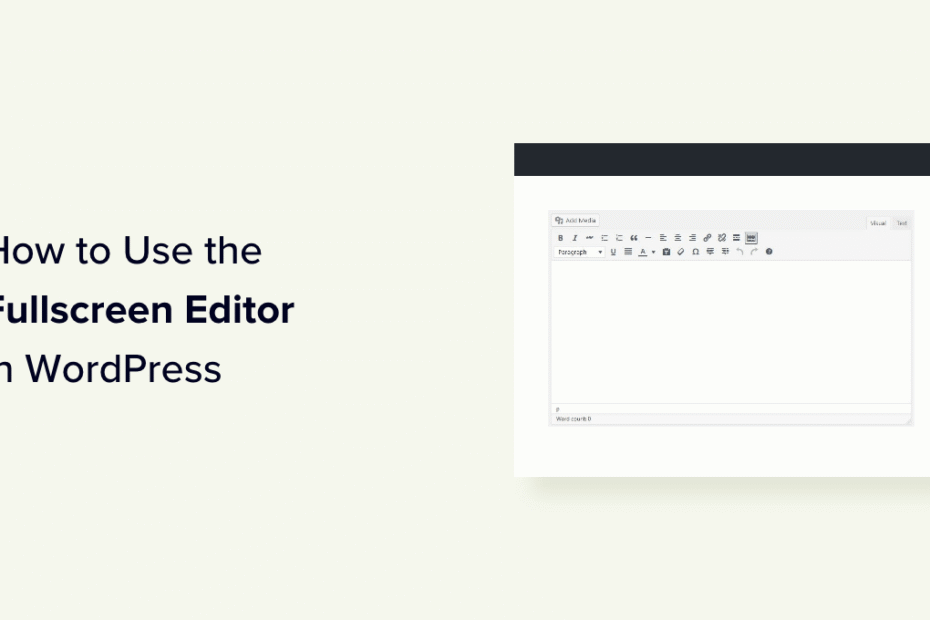
Does this sound familiar? You sit down, motivated to crank out an epic blog post in WordPress. But as soon as you open the editor, distractions start popping up left and right. Before you know it, your attention is pulled in a million directions and your momentum fizzles out.
If you struggle to stay focused while writing in WordPress, you‘re not alone. With all the settings, options, menus and metaboxes crammed into the standard editor screens, it‘s easy to get sidetracked and lose your train of thought.
Fortunately, WordPress has robust built-in features to create a clutter-free, distraction-free writing environment. In this guide, we‘ll show you exactly how to use the distraction-free and full-screen modes like a pro.
By the end, you‘ll be able to quickly enter a flow state and churn out your best content without any distracting clutter in your workspace. Let‘s dive in!
WordPress By the Numbers
Before we get into the tutorial, let‘s take a quick look at some stats that illustrate just how important it is to optimize your WordPress writing process:
- Over 43% of all websites are built with WordPress, including many major publications and blogs (Source)
- WordPress sites publish over 70 million new posts every month (Source)
- The average blog post takes nearly 4 hours to write (Source)
- 61% of content marketers find it difficult to produce consistently great content (Source)
With so much content being published through WordPress, we could all benefit from optimizing our writing process and minimizing time-wasting distractions. Even small productivity boosts can add up to huge benefits over time.
The Science Behind Distraction-Free Writing
Our brains aren‘t wired for multi-tasking. Studies show that distractions and context switching destroy our focus and productivity:
- It takes an average of 23 minutes to regain focus after an interruption (Source)
- Switching between tasks can decrease productivity by as much as 40% (Source)
- Media multitasking is linked to poor attention and reduced ability to block out distractions (Source)
On the flip side, research also shows the power of focused concentration:
- Flow states, where you‘re fully immersed in a task, are linked to increased productivity, creativity, and satisfaction (Source)
- Engaging in deep work without distractions produces better results in less time (Source)
Luckily, creating a distraction-free writing environment in WordPress is easy. With a few clicks, you can achieve complete focus and avoid context switching. Here‘s how.
Using the Distraction-Free & Fullscreen Modes in the Block Editor
The WordPress block editor (aka Gutenberg) has multiple features to help you focus on your writing. Here‘s how to enable and use the distraction-free and fullscreen modes:
Enabling Fullscreen Mode
When you open a post or page in the block editor, fullscreen mode is enabled by default. This expands the editor to fill your entire browser window, hiding the WordPress admin bar and sidebar:

If you ever want to turn off fullscreen mode, simply click the three-dot menu icon in the top-right corner of the editor and uncheck "Fullscreen mode":

We recommend keeping fullscreen mode on to maximize your writing space and minimize distractions.
Enabling Distraction-Free Mode
To focus your view even further, you can enable distraction-free mode. This removes the block settings sidebar on the right and the document tools on the left:
- Make sure you‘re in fullscreen mode as shown above
- Click the three-dot menu icon in the top-right corner
- Check the box for "Distraction Free" mode

Voila! You now have a clean, clutter-free canvas for your writing:

When you need to access the hidden tools and settings again, simply hover your mouse near the top of the screen to reveal the editor menu. Then you can turn off distraction-free mode from the three-dot icon dropdown.
Using Spotlight Mode
The block editor also includes a "spotlight mode" that dims everything except the block you‘re currently working in. This is super useful for focusing on one section at a time without getting overwhelmed by the length of your document.
To turn on spotlight mode:
- Make sure you‘re in fullscreen mode
- Click the three-dot menu icon in the top-right corner
- Check the box for "Spotlight Mode"

Now, the currently selected block will be highlighted while everything else fades into the background:

You can turn off spotlight mode at any time from that same three-dot menu dropdown.
Distraction-Free Mode FAQ
Before we move on, let‘s address a few common questions about the distraction-free block editor:
Q: Do I still have access to important tools and settings?
A: Yes. Even in distraction-free mode, a minimal formatting toolbar appears at the top of the editor with options to add new blocks, undo/redo changes, and see a document outline. For more tools, just exit distraction-free mode.
Q: Can I use distraction-free mode on mobile?
A: Yes. The block editor is responsive and works on any device. However, spotlight mode and other features may be simplified or unavailable on small screens.
Q: Does distraction-free mode work with page builder plugins?
A: No. Page builders have their own unique interfaces. The distraction-free features are specific to the native WordPress block editor.
Q: Is my content auto-saved when I use these modes?
A: Yes. The block editor automatically saves your changes in the background, just like the regular editor view. You never have to worry about losing your work.
Using Distraction-Free Mode in the Classic Editor
If your site still uses the Classic WordPress editor, you can use distraction-free writing mode there too:
- Open a post or page in the classic editor
- Click the distraction-free writing button in the toolbar (rectangle with arrows pointing to the corners)

- The editor will expand to fill your screen with a minimal toolbar at the top

To exit distraction-free mode, move your mouse to the top of the screen to reveal the full toolbar, then click the distraction-free mode button again.
A few limitations to note with the classic editor‘s distraction-free mode:
- The "Publish" metabox and other sidebar settings are completely hidden from view. Be sure to exit distraction-free mode before publishing or updating the post.
- Some plugins may add visible metaboxes to the editor area that can still distract from writing.
- The distraction-free view is more limited than the block editor. You can‘t enable fullscreen mode separately or use spotlight mode.
Despite the limitations, the classic editor‘s distraction-free mode still works well to provide a simpler, more focused writing environment.
10 Tips for Productive Writing Sessions in WordPress
In addition to the distraction-free editor features, here are 10 more tips to boost your productivity and consistency when writing with WordPress:
Learn keyboard shortcuts: WordPress has dozens of keyboard shortcuts for formatting and navigating the editor quickly. Print out a cheat sheet and train yourself to use them. (WordPress Keyboard Shortcuts)
Use reusable blocks: The block editor allows you to save any block combo as a reusable block that can be added to any page or post. This is a huge time saver for adding repetitive content snippets like call-to-action sections or bio boxes. (How to Use Reusable Blocks in WordPress)
Outline before you write: Starting with an outline helps you organize your thoughts and write more efficiently. Try outlining your posts in bullet-point form before fleshing them out. There are even block editor outline plugins to streamline the process. (Create a Structured Outline in the Block Editor)
Set a timer for focused writing sprints: Break your writing sessions into focused 25-50 minute sprints with short breaks in between. You can use a simple online timer or the popular Pomodoro technique to maintain your concentration and momentum. (Pomodoro Timer for Writers)
Optimize your physical workspace: Your surrounding environment plays a huge role in your ability to focus. Declutter your writing space, use an ergonomic chair, add plants or inspiring visuals, and wear noise-canceling headphones if needed. (Optimize Your Home Office for Productivity)
Use the WordPress mobile apps: With the WordPress mobile apps, you can draft posts from anywhere. Next time you‘re stuck waiting in line or riding transit, whip out your phone and knock out a few paragraphs. (WordPress Apps for iOS and Android)
Separate your writing and editing process: Resist the urge to edit while you write. Just focus on getting your thoughts out of your head and onto the screen, even if it‘s messy. You can always go back and revise later with a fresh set of eyes. (Writing Tips: Write First, Edit Later)
Take advantage of templates: If you publish the same types of content often, create templates to avoid starting from scratch. You can use a simple copy/paste system or try a template plugin to streamline your workflow. (WordPress Template Plugins)
Eliminate small decisions and context switching: Decision fatigue is a real problem for writers and creators. Simplify your workflow by making permanent decisions about your writing process, like what time of day to write, how long to write for, what software to use, etc. The less decisions and context switching, the more brainpower for putting words on the page. (Productive Writers Have Systems)
Set up a dedicated writing site: If you write for multiple websites, it can help to set up a dedicated "distraction-free" WordPress install that you only use for first-draft writing. This can be a completely separate site (or even a local install) to minimize distractions and context switching. Then when it‘s time to edit and publish, you can copy the content over to the live site. (Set Up a Local WordPress Environment)
Start Writing With Renewed Focus
We covered a lot in this post! To recap:
- WordPress has robust distraction-free and fullscreen modes in both the new block editor and the classic editor
- You can use these features to create a clutter-free workspace and enter a focused flow state
- There are simple psychology hacks and workflow tips you can use to become a more productive writer in WordPress
Hopefully this guide has given you a solid roadmap to optimizing your WordPress writing process. Pick one or two tips to implement today, and see how much more you‘re able to accomplish with fewer distractions and interruptions.
You‘ve got everything you need to become a WordPress writing powerhouse and publish content you‘re proud of, consistently. Now go create!
)