Are you ready to take a peek behind the curtain of your WordPress plugins? If you‘re curious how they work or need to make a quick tweak, the Plugin Editor is your ticket to the show.
In this comprehensive guide, we‘ll dive deep into this handy WordPress tool. You‘ll learn what it is, where to find it, and how to use it safely and effectively to view and modify plugin code. Let‘s get started!
What is the WordPress Plugin Editor?
The Plugin Editor is a built-in WordPress feature that lets you view and edit the source code of your plugins right from your admin dashboard. It‘s a powerful tool, but one that should be used with caution.
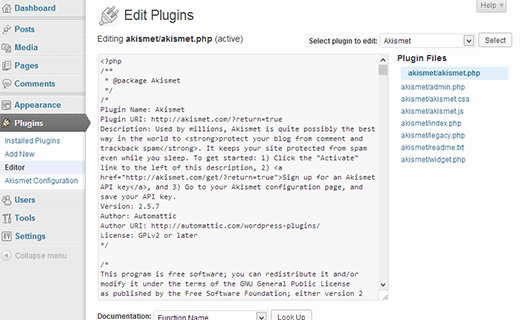
You can access the Plugin Editor by navigating to Plugins > Editor in your WordPress admin menu. Here‘s what you‘ll see:

On the right side of the screen is a list of all the PHP files that make up the currently selected plugin. Click on any file to load it into the main editor pane, where you can view its contents and make changes if needed.
To switch between your installed plugins, just use the dropdown menu at the top of the editor. This makes it easy to access and edit files for any plugin on your site.
How the Plugin Editor Works
Behind the scenes, the Plugin Editor is a file manager and a code editor rolled into one. When you select a plugin to edit, WordPress scans the plugin‘s directory on your server and lists all the PHP files it contains.
When you choose a file to edit, WordPress loads its contents into a text editor pane powered by CodeMirror, a flexible browser-based code editor. CodeMirror provides syntax highlighting, line numbering, and other features to make editing code more user-friendly.
Any changes you make in the editor are saved directly to the plugin‘s files on your server when you click the "Update File" button. There‘s no "undo" button, so be sure you really want to make a change before saving!
How to Use the Plugin Editor
Using the Plugin Editor is simple, but there are a few key steps you should always take to avoid breaking your site:
Back up your site first. Before making any changes to plugin code, always make a complete backup of your WordPress site. That way, if something goes wrong, you can easily restore your site to its previous working state.
Create a staging site. Whenever possible, make changes to a copy of your site on a staging server first. Test thoroughly to make sure everything works as expected before making the same changes on your live production site.
Document your changes. As you edit code, keep detailed notes of what you changed and why. This will make it much easier to re-apply your customizations after updating the plugin in the future.
Here‘s a quick step-by-step overview of how to edit a plugin file:
- Go to Plugins > Editor in your WordPress admin.
- Use the dropdown menu at the top to select the plugin you want to edit.
- Click on the file you want to edit from the list on the right to load it in the editor.
- Make your changes in the editor pane. Be sure to follow WordPress coding standards and best practices to avoid errors.
- Double-check your changes for accuracy.
- Click "Update File" to save your changes.
- Test thoroughly to make sure your changes work as intended and didn‘t introduce any new bugs.
When Should You Use the Plugin Editor?
Most of the time, you‘ll never need to use the Plugin Editor. Plugins are designed to work "out of the box" without modification.
In fact, editing plugin files directly can be risky:
- Plugin updates will overwrite your changes
- You could accidentally break the plugin
- You might introduce new security vulnerabilities
There are a few situations when you might need to use the Plugin Editor:
- You‘re developing your own plugin and need to quickly test changes
- You‘re trying to diagnose a plugin issue and need to look at its code
- A plugin‘s author provided you with a small snippet to add for custom functionality
Even in these cases, using the Plugin Editor should be a last resort. Exhaust all other options, like finding an alternative plugin or working with the plugin‘s developer, before resorting to editing its code yourself.
Plugin Editor vs Other Editing Methods
The WordPress Plugin Editor isn‘t the only way to view and edit plugin files. Two other common methods are:
Editing files with FTP/SFTP: You can use an FTP client like FileZilla to download plugin files from your server, edit them on your computer, and re-upload them. This can be safer than using the Plugin Editor because you‘re not working on a live site.
Using WP-CLI: WP-CLI is a command line tool for managing WordPress. If you‘re comfortable with the command line, you can use WP-CLI‘s
wp plugin editcommand to modify plugin files without using the Plugin Editor.
While both of these methods work, they require additional tools and setup. The benefit of the Plugin Editor is that it‘s built right into WordPress, making it quick and convenient to access.
Plugin Editor FAQs
Let‘s address some common questions and concerns about the WordPress Plugin Editor:
What happens if I make a mistake when editing a plugin file?
If you make a syntax error (a typo that breaks PHP‘s rules), WordPress will detect the problem, deactivate the plugin, and show you an error message. Unlike the Theme Editor, a plugin syntax error won‘t take down your whole site.
However, if you make a logic error that doesn‘t violate PHP syntax, the plugin may still run but not work right. That‘s why testing is so important!
Can I use the Plugin Editor to edit theme files too?
Nope – the Plugin Editor is only for plugins. If you need to edit your theme files, use the Theme Editor under Appearance > Theme Editor instead.
Just keep in mind that editing theme files directly has similar risks to editing plugins. Whenever possible, create a child theme instead.
How can I prevent accidental changes to plugin files?
If you want an extra layer of security, you can completely disable the Plugin and Theme Editors. Just add this line to your wp-config.php file:
define(‘DISALLOW_FILE_EDIT‘, true);With this setting enabled, the Plugins > Editor and Appearance > Theme Editor menu items will disappear. If a user tries to access the editors directly, they‘ll get an error message.
Can I use the Plugin Editor with plugins from the official WordPress directory?
Yes, the Plugin Editor works with any plugin, whether it comes from the official directory or from a third party. Just keep in mind that editing the code of plugins you didn‘t write yourself is especially risky.
WordPress Plugin Editor Best Practices
Editing plugin code can have serious consequences if you‘re not careful. Follow these tips for the best results:
- Always back up your site before editing any code
- Test changes on a staging site, not your live site
- Only edit plugins you wrote yourself unless absolutely necessary
- If you just need to add custom functionality, try creating a companion plugin instead
- Document all changes so you can recreate them after plugin updates
- Regularly review plugins for updates to get important bug fixes and security patches
By being proactive and following best practices, you can avoid many of the pitfalls associated with using the Plugin Editor.
Tools for Smarter Plugin Editing
If you know you‘ll need to use the Plugin Editor often, consider investing in some helpful tools to streamline the process and protect your site:
BackupBuddy: BackupBuddy is a popular WordPress backup plugin that makes it easy to back up your entire site. You can download a backup before editing any code, and quickly restore it if something breaks.
WP Staging: WP Staging lets you instantly create a staging copy of your WordPress site for testing. Make changes there first, then push to your live site once you‘ve confirmed everything works.
Code Snippets: The Code Snippets plugin provides an alternative to using the Plugin Editor. You can add custom code snippets right from the WordPress admin, without worrying about updates overwriting your changes.
Armed with these tools, you‘ll spend less time stressing over plugin editing and more time growing your site.
Is the WordPress Plugin Editor Right for You?
As you can see, the WordPress Plugin Editor is a powerful tool for viewing and modifying plugin code, but it‘s not without risks. Accidentally breaking a plugin or introducing security holes is all too easy if you‘re not an experienced developer.
If you‘re comfortable with WordPress code and want a quick way to test changes or debug issues, the Plugin Editor can be a handy tool. But for most users, it‘s better to leave plugin code alone and find alternate solutions.
Remember, with great power comes great responsibility! Use the Plugin Editor wisely, back up religiously, and don‘t be afraid to ask for help if you‘re unsure. Here‘s to happy, safe plugin editing!
