How to Master WordPress Settings for a Better Website
As a WordPress site owner, properly configuring your WordPress settings is one of the most important things you can do to set your site up for success. The Settings area of the WordPress admin dashboard contains a wealth of options that control key aspects of how your site looks and functions.
In this ultimate guide, we‘ll take an in-depth look at the WordPress Settings tab and share expert tips to help you get the most out of each option. By the end, you‘ll have a solid grasp of what each setting does and how to configure them optimally for your unique WordPress website.
What Is the WordPress Settings Tab?
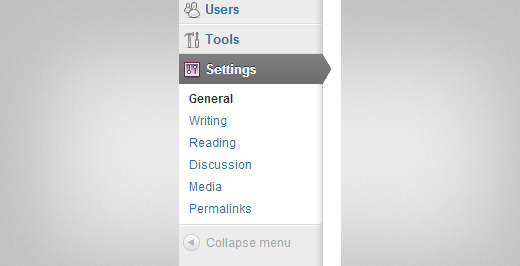
The Settings tab is located in the left sidebar of your WordPress admin area. It‘s the central place to manage global configuration options for your WordPress installation.
Clicking into Settings will first bring you to the General Settings screen. You‘ll also see several other sub-panels listed below:
- Writing
- Reading
- Discussion
- Media
- Permalinks
We‘ll go through the options found in each screen and share best practices for configuring them. Note that depending on the theme and plugins you have installed, you may see some additional settings panels listed here as well.
Properly managing your settings is an essential part of WordPress site maintenance. While the default settings will work fine in most cases, taking the time to review and customize them can help you optimize your site‘s functionality, security, and performance.
Let‘s dive into each of the Settings sub-panels and see what we can configure.
General Settings
The General Settings panel contains some of the most important global options for your WordPress site:
Site Title: The name of your website that is displayed in the browser tab and used in various places throughout your site.
Tagline: A brief description or motto for your site, often displayed under the site title.
WordPress Address (URL): The address where your WordPress core files reside. You should only change this if you move WordPress to a different directory.
Site Address (URL): The web address people use to visit your site. Changing this will make your site load from the new URL.
Administration Email Address: The email where WordPress sends important notices like registration and comment notifications. Use an address you check regularly.
Membership: Decide whether anyone can register an account on your site or not. For most sites, leave this unchecked to prevent spam user registrations.
New User Default Role: Set the default role for new users who register on your site. "Subscriber" is the most limited role and is recommended in most cases.
Site Language: Set the language for your site‘s admin dashboard. Does not affect the front-end of your site.
Timezone: Select the city or UTC offset that corresponds to your location to ensure timestamps are recorded accurately.
Date Format & Time Format: Choose your preferred formatting for how dates and times are displayed.
After making changes, be sure to click "Save Changes" at the bottom of the screen.
One setting to highlight is the Site Address (URL). Be very careful when changing this. If you put in the wrong address, it could make your site inaccessible. Only change it if absolutely necessary, such as when migrating your site to a new domain.
Writing Settings
The Writing Settings panel contains options related to writing and editing content:
Default Post Category: Set which category is selected by default when writing a new post. Useful if you publish most posts under the same category.
Default Post Format: Some themes support styling posts differently based on their format (e.g. gallery, video, quote). Select the default format to be used for new posts.
Post via email: Configure the ability to publish new posts by sending an email to a special address. Not commonly used.
Update Services: A legacy feature for notifying blog update services when you publish new content. Largely obsolete today with the ubiquity of RSS.
Generally, the default settings are fine here unless you want to change the default post category or format. The email publishing and update services are rather niche features that most WordPress users don‘t need to worry about.
Reading Settings
The Reading Settings panel controls how content is displayed to visitors:
Your homepage displays: Decide whether your homepage shows your latest blog posts or a static page you select.
Homepage: Choose which page to use as your static homepage (if selected above).
Posts page: Choose which page displays your blog post feed (if selected above).
Blog pages show at most: Set how many posts are displayed per page on your blog and archive pages.
Syndication feeds show the most recent: Specify how many posts to include in your RSS feed.
For each post in a feed, include: Decide between showing the full text of each post or just a summary in your RSS feed.
Search engine visibility: Tick this box to discourage search engines from indexing your site. Normally leave unchecked unless working on a development site.
The key setting here is choosing what displays on your homepage. Many business and organization sites prefer a static "Welcome" or "About" page as their homepage, while blogs commonly show a list of latest posts.
Also pay attention to the number of posts displayed per page. The default of 10 is usually suitable, but if you have very long or media-heavy posts you may want to reduce this number for better page loading speed.
Discussion Settings
The Discussion Settings panel is all about handling comments and links:
Default post settings: Set global defaults for allowing link notifications (pings) and allowing comments on new posts.
Other comment settings: Control the details of how comments are displayed and interacted with on your site:
- Comment author must fill out name and email
- Users must be registered and logged in to comment
- Automatically close comments on posts older than X days
- Enable threaded (nested) comments X levels deep
- Break comments into pages with X top level comments per page and the last/first page displayed by default
- Comments should be displayed with the older/newer comments at the top of each page
Email me whenever: Choose whether to be notified of new comments in general and/or comments that are held for moderation.
Before a comment appears: Decide how aggressively to filter new comments:
- Comment must be manually approved
- Comment author must have a previously approved comment
- Hold a comment in the moderation queue if it contains X or more links
Avatar: Control how user avatars (profile images) are displayed in comments:
- Avatar display: Show avatars, don‘t show avatars
- Maximum rating: Highest acceptable audience rating (G, PG, R, X) for avatars
- Default avatar: Image to use for commenters without a custom avatar
Comment settings are one area where the defaults are often too permissive. For example, you probably want to require manual approval for a user‘s first comment to cut down on spam. Also consider breaking comments into pages if you get a high volume.
Notifications of new comments can also get overwhelming on a busy site. You may want to turn those off and just check the "Comments" section in your dashboard periodically.
Media Settings
The Media Settings panel lets you control the sizing of images:
Image sizes: Set maximum dimensions in pixels for thumbnail, medium, and large image sizes. Also choose whether to crop thumbnail images to exact dimensions.
Uploading Files: Decide whether to organize uploads into month- and year-based folders and whether to give image files unique names when uploading.
Embeds: Control whether oEmbed is enabled for embedding media from other sites, e.g. YouTube videos. Also choose how embedded media should be sized.
The main settings to pay attention to here are the image sizes. WordPress automatically creates resized versions of images you upload based on these dimensions. For example, setting thumbnail size to 150 x 150 means WordPress will create a 150px square version of every image you upload to use as thumbnails.
If your theme uses other custom image sizes, you‘ll want to make sure those are set here as well. Refer to your theme‘s documentation for the recommended dimensions.
Permalinks Settings
The Permalinks Settings panel lets you customize the URL structure for your posts and pages:
Common Settings: Choose from a set of standard permalink formats, such as plain, day and name, month and name, numeric, or post name.
Optional: Specify a custom prefix to be used for category and tag URLs.
Custom Structure: Craft a completely custom permalink structure using tags like %postname% or %category%.
The permalink structure you choose can have a big impact on your site‘s SEO and user experience. In general, it‘s best to use a structure that includes the post name, such as "Post name" or "Custom Structure" with /%postname%/. This creates URLs that are readable and self-explanatory.
Avoid structures with generic information like numeric IDs or dates, as these don‘t give users (or search engines) any context about what the page contains.
Other Settings
In addition to the default Settings sub-panels, some WordPress plugins and themes may add their own settings page under this menu. For example, the Yoast SEO plugin adds several panels for managing your site‘s SEO options.
Always refer to the documentation for your specific theme and plugins to understand what settings they make available and how to configure them optimally.
If you‘re using WordPress Multisite, you‘ll also find options for managing your network under Settings » Network Settings. This is where you can control things like allowing new user registrations, limiting site storage space, and configuring domain mapping.
Tips for Managing WordPress Settings
Now that we‘ve covered all the key areas of the WordPress Settings tab, here are some general tips to keep in mind:
Review all settings when launching a new site. Don‘t just assume the defaults are ideal. Take time to understand each option and how it affects your site.
Document your settings. Keep a record of any changes you make and why. This can be helpful for troubleshooting issues or replicating your configuration on another site.
Check settings after installing new plugins or themes. Sometimes new extensions will override or conflict with existing settings. Review your options after any significant change.
Regularly audit your settings. Periodically revisit the Settings tab to ensure your choices still align with your current needs and goals. Remove settings for unused plugins.
Back up settings before making changes. If you‘re about to make substantial modifications, consider storing a backup of your existing configuration in case you need to revert.
Wrapping Up
The WordPress Settings tab is a powerful tool for controlling global configuration options across your entire website. Understanding what each setting does and taking time to customize them is an essential part of setting your site up for long-term success.
Use the tips and best practices covered in this post to make the most of the built-in WordPress settings. And remember, when in doubt, refer to the official WordPress documentation or reach out to your hosting provider for further guidance.
By optimizing your settings, you‘ll create a solid foundation on which to grow your WordPress site. Now go forth and configure with confidence!
