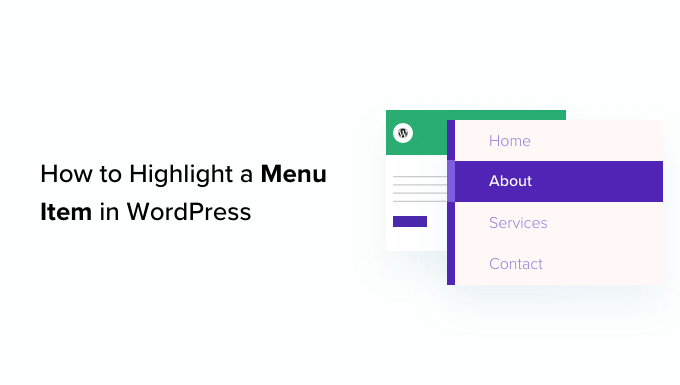
Hey there, WordPress user! Are you looking to draw more attention to your most important pages and boost your conversion rates? One simple but powerful technique is to highlight specific menu items with eye-catching colors, styles, or graphics.
By making key navigation links stand out, you can strategically guide visitors to your highest value content and encourage them to take action. In fact, a recent study by the Nielsen Norman Group found that users often rely on "information scent" from navigation design to decide where to click – so a highlighted menu item acts like a big, flashing "Click Me!" sign.
Whether you want to spotlight your contact page, promote a limited-time sale, or feature a new product, menu highlights are a versatile tool to have in your design arsenal. And the best part? You don‘t need any coding skills to implement them on your WordPress site.
In this ultimate guide, I‘ll walk you through two foolproof methods to highlight a menu item in WordPress:
- Using the built-in WordPress Customizer
- Adding custom CSS code
I‘ll also share expert tips on choosing the perfect highlight color, maintaining accessibility standards, and leveling up with advanced styling options. By the end of this post, you‘ll have all the knowledge you need to create highly effective, conversion-boosting menu highlights like a pro.
Sound good? Let‘s dive in!
Why Highlighting a Menu Item is a Game-Changer for Your WordPress Site
Before we get into the technical details, let‘s take a closer look at why menu highlights are so impactful. Here are some eye-opening statistics:
- According to a study by ConversionXL, changing the color of a call-to-action button can increase conversions by up to 34%.
- Research by Baymard Institute found that 50% of e-commerce sites have "severe navigational issues" that make it difficult for users to find what they‘re looking for.
- A survey by HubSpot revealed that 76% of consumers say the most important factor in a website‘s design is that "the website makes it easy for me to find what I want."
The takeaway? A well-designed navigation menu is critical for guiding users to your most valuable pages and driving conversions. And one of the easiest ways to optimize your menu is by highlighting important links.
Think about it – when you land on a website, where do your eyes naturally go first? More often than not, it‘s straight to the navigation bar. By making certain menu items visually distinct, you can immediately draw attention to your priority content and encourage clicks.
Menu highlights are especially effective for:
- Promoting time-sensitive offers: Running a seasonal sale or limited-time promotion? Make sure visitors don‘t miss out by highlighting the relevant menu link.
- Boosting email signups: Want to grow your subscriber list? Spotlight a "Subscribe" or "Join Newsletter" menu item to encourage opt-ins.
- Increasing contact form submissions: Need more leads? Highlight your "Contact Us" page to make it easy for prospects to get in touch.
- Driving product sales: Launching a new product or featuring a best-seller? Highlight the product page link in your menu to boost visibility and sales.
The possibilities are endless – but the common denominator is that menu highlights help you strategically control the user journey and guide visitors towards your goals. Pretty powerful for such a simple design tweak, right?
Method 1: Highlighting a Menu Item Using the WordPress Customizer
Okay, let‘s get into the nitty-gritty of actually highlighting a menu item on your WordPress site. The first (and easiest) method is using the built-in WordPress Customizer.
If you‘re not familiar, the Customizer is a user-friendly interface that allows you to preview changes to your site in real-time, without any coding required. Most WordPress themes come with Customizer options for adjusting colors, fonts, layouts, and more.
Here‘s how to use the Customizer to highlight a menu item:
- From your WordPress dashboard, navigate to Appearance > Customize.
- In the Customizer sidebar, click on the Menus panel.
- Select the menu you want to edit from the list (e.g. "Primary Menu").
- Hover over the menu item you want to highlight and click the Edit icon (looks like a pencil).
- Expand the CSS Classes field and enter a unique class name, like "highlight-link".
- Click Save & Publish to apply your changes.
Now, your menu item has a special CSS class that you can target with styling rules. But we still need to actually define those styles. Here‘s how:
- In the Customizer sidebar, scroll down to the Additional CSS panel.
- Click inside the code editor and paste the following CSS:
.highlight-link a { background-color: #FFD700; color: #000000; padding: 10px 20px; border-radius: 5px; }
Customize the values to fit your design:
- background-color: Change the hex code to your desired highlight color (e.g. "#FF0000" for red).
- color: Set the text color for the highlighted link (e.g. "#FFFFFF" for white).
- padding: Adjust the spacing around the link text (e.g. "15px 30px" for more padding).
- border-radius: Control the roundness of the highlight box corners (e.g. "0" for square, "25px" for fully rounded).
Click Publish to make your changes live.
That‘s it! With just a few clicks in the Customizer, you‘ve added a custom menu highlight that will grab your visitors‘ attention and encourage them to click through to your most important content.
Here‘s a before-and-after example of how a simple menu highlight can make a big impact:
| Before | After |
|---|---|
 |  |
See how the highlighted "Contact Us" link immediately jumps out and draws your eye? That‘s the power of a well-placed menu highlight.
Of course, this is just a basic example – the Customizer gives you a lot of flexibility to fine-tune your highlight styles to perfectly match your brand and design preferences. Don‘t be afraid to experiment with different colors, spacing, and effects to find the perfect combination for your site.
Method 2: Highlighting a Menu Item with Custom CSS
If you‘re comfortable working with code (or feeling adventurous), you can skip the Customizer and highlight your menu items directly with CSS. This method gives you complete control over the styling and allows you to create more advanced effects.
Here‘s how to highlight a menu item with CSS:
- From your WordPress dashboard, navigate to Appearance > Menus.
- Locate the menu item you want to highlight and click to expand it.
- In the CSS Classes field, enter a unique class name like "highlight-link".
- Click Save Menu to apply the class.
- Now, you‘ll add the actual styling. Go to Appearance > Theme Editor.
- In the file list on the right, locate your theme‘s stylesheet (style.css) and click to open it.
- Scroll down to the bottom of the file and paste the following CSS:
.highlight-link a {
   background-color: #FFD700;
   color: #000000;
   padding: 10px 20px;
   border-radius: 5px;
}

.highlight-link a:hover {
   background-color: #FFC000;
}
Customize the values as desired:
- background-color: Set the highlight background color.
- color: Set the link text color.
- padding: Adjust the space around the link text.
- border-radius: Control the roundness of highlight corners.
- hover styles: Optionally, define styles for when a user hovers over the highlight (e.g. change background color).
Click Update File to save your changes.
With your custom CSS in place, your menu highlight will now appear on the front end of your site. The advantage of this method is that you have much more flexibility to fine-tune the appearance and create advanced effects compared to the Customizer.
For example, you could add a subtle gradient background to your highlight with CSS like this:
.highlight-link a {
   background: linear-gradient(#FFD700, #FFC000);
}
Or, add a stylish shadow effect:
.highlight-link a {
   box-shadow: 0 2px 5px rgba(0,0,0,0.2);
}
You can even create fun hover animations, like this bounce effect:
.highlight-link a:hover {
   animation: bounce 0.5s;
}

@keyframes bounce {
  0%, 20%, 50%, 80%, 100% {transform: translateY(0);}
  40% {transform: translateY(-10px);}
  60% {transform: translateY(-5px);}
}
The sky‘s the limit with CSS – just keep in mind that not all effects will be suitable or practical for every site. When in doubt, keep your menu highlights simple, on-brand, and focused on enhancing usability.
Tips for Choosing the Perfect Menu Highlight Color
One of the most impactful decisions in implementing menu highlights is choosing the right color. Color psychology plays a big role in how users perceive and interact with your site, so it‘s important to select a highlight hue that aligns with your goals and brand identity.
Here are some guidelines to keep in mind:
Complement your color scheme: Your highlight color should fit seamlessly with your existing site design. Use a tool like Adobe Color or Coolors to find complementary shades based on your primary brand colors.
Consider color meanings: Different colors are associated with different psychological effects. For example, red is often used for urgency or excitement, while green can signify growth or success. Choose a highlight color that reinforces the desired emotion or action.
Prioritize contrast: To ensure your highlighted menu items are easily visible, there needs to be sufficient contrast between the highlight and background colors. Use a contrast checker tool to make sure your color combo meets WCAG accessibility guidelines.
Use action colors: Certain colors, like red, orange, and green, are especially effective for call-to-action elements because they stand out and encourage clicks. Consider using these "action colors" for your most important menu highlights.
Test and iterate: Don‘t be afraid to experiment with different color variations and placements to see what works best for your audience. Use A/B testing to compare highlight options and let the data guide your decisions.
Here are some examples of effective menu highlight color schemes in action:
| Website | Highlight Color | Effect |
|---|---|---|
| Shopify | Green | The green highlight on the "Start free trial" CTA stands out against the neutral background and encourages clicks. |
| HubSpot | Orange | The orange "Get HubSpot Free" button is impossible to miss and reinforces the free offer. |
| Dropbox | Blue | The bold blue "Sign up for free" highlight aligns with Dropbox‘s brand colors and draws attention to their primary CTA. |
Remember, the goal is to choose a highlight color that is both visually striking and strategically aligned with your business objectives. By carefully considering color psychology and accessibility, you can design menu highlights that not only look great but also drive meaningful results.
Advanced Menu Highlighting Techniques and Plugins
By now, you should have a solid understanding of how to implement basic menu highlights using the WordPress Customizer or custom CSS. But why stop there? There are many ways to take your menu highlights to the next level with advanced styling options and powerful plugins.
Here are some ideas to explore:
Gradient backgrounds: Add visual interest and depth to your highlights with gradient backgrounds. Use a tool like CSS Gradient to generate the perfect color combo and code snippet.
Icon integration: Reinforce your highlighted menu items with relevant icons to quickly communicate purpose and encourage clicks. The free Menu Icons plugin makes it easy to add custom graphics to your menu links.
Animated effects: Grab attention and add personality with subtle animations on your menu highlights. Consider effects like color changes, underlines, or background shifts on hover. Just be sure to keep animations tasteful and unobtrusive.
Mega menus: If you have a large or complex navigation structure, implementing a mega menu can help organize your links and highlight important pages. Plugins like UberMenu and Max Mega Menu provide drag-and-drop interfaces for designing custom mega menus with highlighted items.
Sticky menus: Ensure your highlighted menu items are always visible by making your navigation sticky (i.e. it stays at the top of the screen as users scroll). The free Sticky Menu plugin is a great option for adding this functionality to any theme.
A/B testing: Not sure which highlight style or placement will resonate best with your audience? Use a WordPress A/B testing plugin like Nelio AB Testing to compare different variations and optimize based on data.
Remember, the key to effective menu highlights is moderation. You don‘t want to turn your navigation into a garish circus of competing colors and effects. Choose one or two strategic highlights that will have the most impact on your goals, and use advanced techniques sparingly to avoid overwhelming visitors.
Menu Highlighting Best Practices and Common Mistakes
As you implement menu highlights on your WordPress site, keep these best practices in mind to ensure a positive user experience and maximum impact:
Highlight sparingly: Limit highlights to your most important menu items (ideally 1-2 per menu). If everything is highlighted, nothing stands out.
Ensure mobile-friendliness: Test your menu highlights on multiple devices to make sure they look and function correctly on smaller screens.
Maintain accessibility: Follow WCAG contrast guidelines and use clear, descriptive link text to ensure your menu is usable for all visitors.
Keep it on-brand: Choose highlight colors and styles that align with your overall brand identity for a cohesive look.
Prioritize clarity: Avoid using vague or misleading link text just to fit a highlight style. Always prioritize clear communication over clever design.
On the flip side, watch out for these common menu highlighting mistakes:
Overuse of highlights: Too many highlighted items can overwhelm users and defeat the purpose of drawing attention to key pages.
Poor color choices: Highlight colors that clash with your design, are difficult to read, or don‘t have enough contrast can frustrate users and hurt accessibility.
Inconsistent styling: Using different highlight styles for each menu item can look messy and confusing. Stick to a consistent design for a polished, professional look.
Ignoring user testing: Don‘t rely solely on your own judgment when deciding which items to highlight or how to style them. Use A/B testing and user feedback to guide your decisions.
By following these best practices and avoiding common pitfalls, you can harness the power of menu highlights to drive more clicks, conversions, and engagement on your WordPress site.
Wrapping Up
Menu highlights may seem like a small design detail, but they can have a big impact on how users navigate and interact with your WordPress site. By strategically using color, contrast, and placement to draw attention to your most important pages, you can encourage more clicks and conversions while providing a more user-friendly experience.
In this guide, we‘ve covered two primary methods for highlighting menu items in WordPress:
- Using the built-in WordPress Customizer
- Implementing custom CSS code
We‘ve also explored tips for choosing effective highlight colors, maintaining accessibility standards, and enhancing your highlights with advanced styling options and plugins.
Whether you‘re a WordPress novice or a seasoned pro, experimenting with menu highlights is a smart way to optimize your navigation and guide visitors towards your most valuable content. By taking the time to implement highlights thoughtfully and strategically, you can create a more engaging, conversion-friendly site that truly showcases your brand‘s unique value.
So what are you waiting for? Go forth and highlight those menu items like the WordPress rockstar you are! Your visitors (and your conversion rates) will thank you.
)