Hey there, WordPress wizard!
Quick question: Are you harnessing the full power of Facebook for your site? If you‘re not using Facebook insights, the answer is probably "nope".
But don‘t worry, I‘m here to change that. 🙌
In this guide, I‘ll walk you through exactly how to unlock this treasure trove of data and use it to supercharge your Facebook strategy. Trust me, your site traffic and engagement rates will thank you.
Why WordPress Sites Need Facebook Insights
First, let‘s talk about why you should even care about Facebook insights. I mean, you‘ve already got Google Analytics, right?
Well, consider this:
- 🌐 Facebook has over 2.9 billion monthly active users (Statista, 2022)
- 🕘 The average user spends 33 minutes per day on Facebook (Broadband Search, 2022)
- 🔗 Facebook drives over 70% of all social media visits to websites (Parse.ly, 2022)
In other words, Facebook is a MAJOR source of traffic and engagement for WordPress sites. And insights give you the keys to optimize that traffic and engagement.
With insights, you can:
- 🎯 See which content resonates most with your Facebook audience
- 📅 Learn the best times to post for maximum reach
- 📈 Track your Facebook referral traffic and conversions
- 👥 Better understand your audience demographics and interests
Basically, it‘s like having a crystal ball for your Facebook performance. 🔮 Pretty neat, right?
How to Set Up Facebook Insights on WordPress
Alright, let‘s dive into the nitty gritty of HOW to actually get insights set up on your WordPress site.
Step 1: Install the Facebook for WordPress Plugin
Your first step is to install and activate the Facebook for WordPress plugin. This is the official plugin from Facebook that makes integrating features like insights a breeze.
Once it‘s activated, head to the settings page and click the big blue "Connect to Facebook" button:

This will open a popup prompting you to log in to Facebook and grant the necessary permissions. Make sure to allow permissions for "Page Public Content Access" and "Web Analytics".
Step 2: Configure the Facebook Settings
After connecting your site, you‘ll be redirected back to the Facebook settings page in WordPress. Here, you have a few options to configure:
- 🖼️ Profile Picture: Upload a profile picture to be used as the thumbnail when your content is shared on Facebook.
- 📰 Default Thumbnail: Choose a default thumbnail to be used for posts that don‘t have a featured image set.
- 🏷️ Default Description: Write a default description to be used as the preview text when your content is shared on Facebook. You can use tags like
{site-name}and{post-title}to dynamically insert content.
Further down the page, you‘ll see options for the Facebook Insights section:

The main setting to pay attention to here is the Facebook Page field. If you have a Facebook page associated with your website, select it from the dropdown menu. This will allow the plugin to pull in insights data for that page.
Step 3: Add the Facebook Tracking Pixel (Optional)
For even more granular insights, you can add the Facebook tracking pixel to your site. This is a small piece of JavaScript code that allows you to track specific events and conversions.
To set up the pixel:
Go to the Facebook Business Suite and click the gear icon in the top left corner.
Click Data Sources > Pixels in the dropdown menu.
Click the green Add New Data Source button and select Facebook Pixel.
Follow the prompts to create your pixel and copy the code snippet.
Back in WordPress, install and activate a plugin like Insert Headers and Footers.
Navigate to Settings > Insert Headers and Footers.
Paste your pixel code into the Scripts in Header field and click Save.
Now you‘re tracking advanced events and conversions!
Step 4: Start Analyzing Your Insights
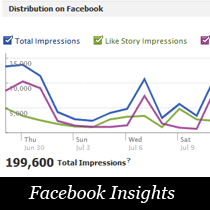
Give Facebook a little time to start collecting data (usually around 24-48 hours), then navigate to the Facebook Business Suite Insights to start exploring.
The Business Suite is divided into sections for your Facebook page insights and your website insights.

In the Website section, you‘ll see data like:
- 📈 Page Views: The number of times a page on your website was viewed by someone who found it through your Facebook page.
- 👥 Unique Visitors: The number of unique people who visited your website after clicking a link from your Facebook page.
- ⌚ Average Time Spent: How long, on average, people spent on your website after coming from Facebook.
- 📊 Top Sources and Pages: Which specific Facebook posts drove the most traffic to your website.
- 🗺️ Demographics: Data on the age, gender, and location breakdown for people coming to your site from Facebook.
Turning Facebook Insights into Action
Okay, so you‘ve got all this shiny data – now what? Let‘s talk about some ways to actually USE your Facebook insights to improve your WordPress site‘s performance.
1. Double Down on Top Content
One of the first things to look at in your insights is which website content is getting the most traction on Facebook.
Head to the Posts and Tags tab to find your top-performing posts by reach, engagement, and click-through rate.

Do you notice any patterns? Are certain topics or post types (like videos or list posts) consistently getting more engagement?
Make a list of your top 5-10 posts and look for commonalities. Then, use that intel to guide your content strategy moving forward. More of what works, less of what doesn‘t!
2. Optimize Your Posting Schedule
Another key insight that can make a big impact is WHEN you‘re posting. Under the Page Insights tab, you‘ll see a section for Day/Time, showing when your Facebook fans are most active on the platform.

Experiment with scheduling your posts to align with those peak activity times. Facebook‘s algorithm favors recency, so getting your content in front of people when they‘re actively scrolling can help boost your organic reach.
You may need to do some time zone math based on where the bulk of your audience is located. And keep in mind that while these are averages, your specific audience‘s behavior may vary. Test a few different posting times and keep an eye on your results!
3. Refine Your Target Audience
Head to the People Insights tab to get a detailed breakdown of the people interacting with your website content on Facebook, including:
- 🎂 Age and Gender: The distribution of your audience across age ranges and binary genders.
- 📍 Top Cities and Countries: Where in the world your Facebook traffic is coming from.
- 📲 Device Usage: The percentage of people accessing your content via desktop vs. mobile.
Use these demographic insights to better tailor your content and messaging. For example, if your audience skews younger, you may want to experiment with more video content or casual, relatable copy.
You can also use this data to inform your Facebook advertising strategy. Create lookalike audiences based on the characteristics of your top website visitors to expand your reach to new potential fans.
4. Calculate Your Facebook ROI
Likes and shares are great, but at the end of the day, most businesses care about one metric: revenue. Facebook insights can help you connect the dots between your social media efforts and your bottom line.
In the Website insights tab, look at the Referral Traffic data to see how many website visits and unique visitors Facebook is driving:

If you have e-commerce set up on your WordPress site, you can cross-reference this with your sales data to calculate your conversion rate and average order value for Facebook traffic.
For example, let‘s say your site received 500 unique visitors from Facebook in the last month, and those visits resulted in 10 sales with an average order value of $50.
Your Facebook conversion rate would be: 10 sales / 500 visitors = 2%
And your Facebook revenue would be: 10 sales x $50 average order value = $500
Tracking these metrics over time will give you a clear picture of the ROI of your Facebook marketing. You can also use the Facebook pixel to track specific events and conversions, like email signups or product purchases, for even more granular data.
Facebook Insights FAQs
Before we wrap up, let‘s address some common questions and concerns about using Facebook insights with WordPress:
Why am I not seeing any data in my insights?
First, double-check that you‘ve completed all the setup steps correctly. Make sure you‘ve connected your website in the Facebook for WordPress settings and that the plugin is active.
Insights data can also take up to 24-48 hours to start populating after the initial setup. If it‘s been more than a couple days and you‘re still not seeing any data, try disconnecting and reconnecting your site in the plugin settings.
Do I need a Facebook page to use insights?
Technically, no. You can still set up the Facebook for WordPress plugin and access basic insights without connecting a specific page.
However, connecting your site to a page does give you access to additional page-specific insights. Plus, having a Facebook page is a good idea anyway for branding and community-building.
Can I view Facebook insights outside of WordPress?
Yes! You can access your site‘s insights directly in the Facebook Business Suite. Just make sure your website is added and verified as a "Business Asset" in your settings.
The insights interface in Business Suite is a bit more robust and includes additional features like creating custom reports. But for quick, at-a-glance data, the WordPress plugin is super handy.
How much do Facebook insights cost?
Nada! Zilch! Zip! Facebook insights are completely free for any website with the proper setup.
The only potential costs would be if you choose to run paid Facebook ads to amplify your content‘s reach. But the insights themselves don‘t cost a dime.
Go Forth and Conquer Facebook!
Whew, that was a lot of info! But I hope this guide has shown you just how valuable Facebook insights can be for growing your WordPress site‘s traffic and engagement.
The key is to not just look at the data, but to actually USE it to inform your content and marketing strategies.
Remember:
🔍 Identify top-performing content and create more of what resonates with your audience
⏰ Post when your fans are most active to maximize your organic reach
👥 Tailor your content and ads based on audience demographics and interests
💸 Track Facebook referral traffic and conversions to measure your ROI
Armed with these insights, you can take your Facebook game to the next level and start seeing some serious results.
Now if you‘ll excuse me, I have some Facebook data to dive into. 🤿
Happy analyzing!
