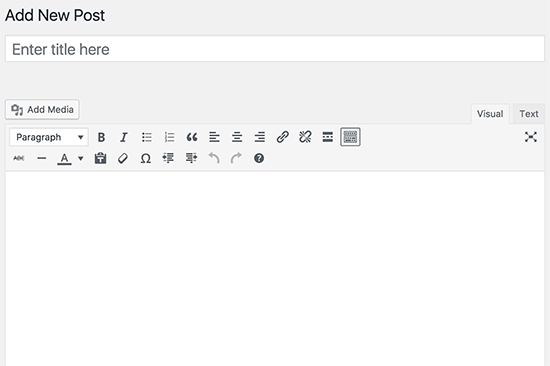
What Exactly is the WordPress Visual Editor? (And Why You Should Be Using It)
Hello there! If you‘re new to WordPress, you may be wondering what all those buttons are at the top of the post edit screen. That‘s the Visual Editor – your new best friend for creating beautiful posts and pages. Let me give you the full scoop on this essential WordPress tool and how it can empower you to write your best content yet.
The Visual Editor Explained
The WordPress Visual Editor is a WYSIWYG (What You See Is What You Get) editor built into WordPress that allows you to easily compose, format, and style your posts and pages. "Visual" means you can see what your content will look like as you‘re writing it, without needing to preview or publish the post. And "Editor" means it provides a variety of tools and options for working with your content.
Technically speaking, the Visual Editor automatically converts your text and formatting into the underlying HTML code used to render the content on your live website. But the magic is you don‘t have to know anything about HTML. You can just write and format your posts as if you were using a regular word processor like Microsoft Word or Google Docs.
Visual Editor vs Text Editor
You‘ll notice there are two tabs at the top of the WordPress post edit screen: Visual and Text. These toggle between two different editing modes. The Visual Editor is the default mode and shows your content as WYSIWYG. The Text Editor is really just a plain text HTML editor where you can view and edit the raw HTML code of your post.
For most users, the Visual Editor is the preferred way to compose content, as it‘s more user-friendly, intuitive, and doesn‘t require any technical knowledge. In fact, according to WordPress.org, over 80% of the 70 million new posts created each month are composed using the Visual Editor. The Text Editor is mainly used by developers or advanced users who need more control over the HTML structure and styling.
Key Features and Benefits
So what can you actually do with the Visual Editor? Turns out, quite a lot! Here are some of the key features and benefits:
Formatting text
The Visual Editor provides intuitive buttons for quickly applying common text formatting like:
- Bold, italics, underline
- Bullet or numbered lists
- Blockquotes
- Text color and background color
- Text alignment (left, right, center, justify)
Simply highlight the text you want to format and click the appropriate button in the toolbar. You‘ll see your text change appearance instantly.
For example, let‘s say I wanted to make a word bold to add emphasis. I would simply highlight the word with my cursor and click the Bold button (or press Ctrl+B on my keyboard):
This word will be bold.
Easy, right? You can apply multiple formats to the same text as well. So if I wanted the bold word to also be red, I would highlight it again and this time click the Text Color button and select red from the color picker:
This word will be bold and red.
Play around with the different formatting buttons and you‘ll quickly get the hang of it!
Headings and paragraphs
Another important feature of the Visual Editor is the ability to structure your content with headings and paragraphs. Headings are titles and subtitles that organize your content into sections, while paragraphs are for the main body text.
By default, any text you type into the Visual Editor will be a regular paragraph. To change it into a heading, use the Format dropdown menu and select from Heading 1-6. (In the underlying HTML, headings are wrapped in
For example, the heading of this section "Key Features and Benefits" is a Heading 2. And each subsection like "Formatting text" is a Heading 3. Using a clearly defined heading structure makes your content easier to read and helps with SEO.
Here‘s a pro tip: You can also use keyboard shortcuts to quickly apply heading tags. Place your cursor on a line of text (or highlight multiple lines) and press:
- Ctrl+Alt+1 for Heading 1
- Ctrl+Alt+2 for Heading 2
- … and so on for Headings 3-6
Adding links and media
The Visual Editor also allows you to easily add links and media like images and video to your content.
To add a link:
- Highlight the text you want to make into a link
- Click the Link button (or press Ctrl+K)
- Enter the destination URL
- Click the gear icon to configure more link options like opening in a new tab
- Click Add Link to insert
Inserting images is just as easy. Place your cursor where you want the image and click the Add Media button. This opens the media library where you can upload a new image or select an existing one. Once inserted, you can change the image size, add a caption, and configure more display settings in the Image Details panel.
Here‘s an example of an image inserted into this post with a caption:

The WordPress Visual Editor provides an intuitive, user-friendly interface for composing content.
Pretty neat, huh? Of course, this just scratches the surface of what you can do with links and media. You can also create link thumbnails, galleries, sliders, and more by combining the editor with WordPress plugins.
Why You Should Use the Visual Editor
Now at this point you may be thinking, this all sounds great but do I really need to use the Visual Editor? Can‘t I just write my posts in the Text Editor?
Of course you could, but here are a few key reasons why I think the Visual Editor is the better choice for most users:
It‘s more user-friendly and intuitive. The Visual Editor provides a familiar interface similar to other word processors, so there‘s almost no learning curve. You don‘t have to memorize any HTML tags or special formatting syntax.
It‘s much faster than writing HTML. Even if you know HTML, using the convenient editor buttons and keyboard shortcuts will save you a ton of time over hand-coding your formatting.
You can see what your content looks like as you write. The WYSIWYG nature of the Visual Editor means you can instantly see how your formatted content will appear on the front-end of your site. No guesswork or previewing required.
You‘re less likely to make mistakes. If you try to write HTML in the Text Editor, it‘s easy to make syntax errors or forget closing tags, which can break your formatting. The Visual Editor cleans the HTML for you behind the scenes.
You can still access the HTML when needed. On the occasion you do need to make a quick HTML tweak, you can toggle over to the Text Editor, make your edit, and then switch back to Visual without losing your place. The two editors work in tandem.
Bottom line – the Visual Editor is a powerful tool that can help you create better content faster and more easily, without any coding knowledge. Whether you‘re a blogger, marketer, small business owner, or anyone else publishing content in WordPress, I highly recommend using it as your go-to writing tool.
Tips for Using the Visual Editor
Before we wrap up, I want to leave you with a few tips to get the most out of the Visual Editor:
- Use keyboard shortcuts to format on the fly. Memorize the common ones like Ctrl+B for bold, Ctrl+I for italics, Ctrl+U for underline, or Ctrl+K to add a link. Your fingers will thank you!
- Take advantage of distraction-free writing mode. Click the fullscreen button in the editor‘s top right to enter distraction-free mode. This hides the admin sidebar and other clutter so you can focus solely on your writing.
- Use the built-in spell checker. WordPress automatically checks your spelling as you type and underlines errors with a red squiggly line. Right-click the word to see suggested corrections.
- Regularly save drafts. The Visual Editor autosaves your content every few minutes, but it‘s still a good habit to periodically click the Save Draft button to ensure your latest changes are safely stored.
- Use paste as text when copying from elsewhere. If you copy content from Google Docs, Word, or another web page, use the Paste as Text button in the toolbar (clipboard icon with a "T") to strip out all the messy formatting before pasting.
Conclusion
I hope this deep dive into the WordPress Visual Editor has given you a better understanding of what it is, how it works, and why it‘s such an indispensable tool for creating content in WordPress. Whether you‘re a beginner or a seasoned pro, mastering the Visual Editor will make you a faster, more efficient, and more effective writer.
The only way to truly appreciate the power of the Visual Editor is to start using it! Open up a new post, give that blank canvas a staredown, and then start writing and formatting to your heart‘s content. I think you‘ll be amazed at how intuitive and effortless it feels to craft your content visually.
If you have any other questions about the Visual Editor or WordPress in general, feel free to leave a comment below. I‘m always happy to help out my fellow WordPressers. Happy writing!
