Hey there! 👋 Want to design a professional WordPress website without spending days tweaking every page by hand? I‘ve got great news for you. Template kits are here to save the day! 🦸♀️
In this guide, I‘ll walk you through exactly what template kits are, how to choose an awesome one, and the steps to install and customize it on your WordPress site. By the end, you‘ll have a stunning custom site that looks like it was built by a pro designer. Sound good? Let‘s do this!
📈 The Rise of WordPress Template Kits
First off, some quick stats. Did you know that WordPress now powers over 43% of all websites? That‘s a huge chunk of the internet!
With so many folks using WordPress, it‘s no surprise that more and more are looking for faster ways to get a great-looking site up and running. In fact, a whopping 73% of WordPress users customize their theme design. But let‘s be real, not everyone has the time or skills to design each page from scratch.
Enter template kits. 🎉 These bundled sets of pre-designed templates have exploded in popularity lately as an easy way to achieve a cohesive, professional design across your entire WordPress site without starting from a blank slate.
🤔 What Exactly Is a WordPress Template Kit?
Picture this. You‘re building a WordPress site for your business or blog, but you don‘t have the budget to hire a web designer. You‘ve got a vision for how you want your site to look, but you‘re not sure how to make it happen.
A template kit is like a big box of Lego blocks for your website. It comes with pre-made designs (templates) for all the key parts of your site – header, footer, homepage, about page, contact page, blog, you name it. And just like Lego, the pieces are designed to fit together seamlessly.
The best part? Template kits are made to be customized. So you can take those pre-designed "blocks", rearrange them, add your own content and images, tweak the colors and fonts, and voila! You‘ve got a custom website that looks like it was made just for you.
🛠️ How to Install a WordPress Template Kit (Step-by-Step)
Alright, ready to see how it works? I‘m going to walk you through installing a template kit with one of my favorite WordPress design tools: SeedProd.
SeedProd is a drag-and-drop WordPress page builder that makes creating custom layouts a breeze. It comes with a library of gorgeous template kits for all sorts of sites – business, portfolio, blog, eCommerce, you name it. Plus, you can customize everything visually, no coding needed.
Here‘s how to install one of SeedProd‘s template kits on your WordPress site in 4 simple steps:
Step 1: Install & Activate SeedProd
First things first, head to the SeedProd website and grab yourself a copy of the plugin. You‘ll need either the Pro or Elite version to access the template kits. Install and activate it on your WordPress site. If you need help, check out this guide on installing WordPress plugins.
Step 2: Choose Your Perfect Template Kit
Next, log in to your WordPress dashboard and navigate to SeedProd → Theme Builder. See that shiny button that says "Themes & Template Kits"? Give it a click to open up the template library.
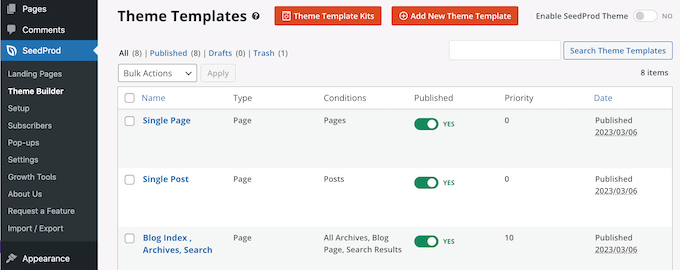
You‘ll see tons of beautiful multi-purpose and niche-specific template kits to choose from. Hover over any kit and click the little magnifying glass icon to preview what‘s inside.
Take your time browsing through the designs. Picture how your content and images would look in each one. Found a favorite? Hover over the kit and click the checkmark icon to import it into your WordPress site.
Step 3: Make It Yours
After importing your chosen kit, head back to the Theme Builder. You‘ll see a list of all the template parts that make up your kit – stuff like the header, footer, homepage, posts, etc.
By default, these templates will be deactivated, so they won‘t change how your site looks right away. That‘s a good thing! It means you can customize them to your heart‘s content before publishing.
Let‘s start with the header template. Hover over it and click the "Edit Design" button to open it in SeedProd‘s visual builder.

See that logo placeholder? To swap it out with your own logo, just click on the image and either upload a new one or choose one from your media library.
How about the navigation menu? Click on any of those menu items to change the text and link. To add a new item, just click the "Add New Item" button.
Feel free to add or remove content blocks using the panel on the left. You can insert things like buttons, social media icons, opt-in forms, you name it. Each block has its own settings, so you can customize the layout, spacing, colors, and more without any coding.
Repeat this process for the other templates in your kit, like the footer, homepage, blog post layout, etc. SeedProd automatically saves your changes, so don‘t sweat it.
One last thing – don‘t forget to customize the "Global CSS" template! This is where you can set site-wide styles like your color scheme, fonts, button styles, and more. That way your whole site will have a consistent look and feel.

Step 4: Take It Live! 🚀
Happy with how everything looks? Awesome! Time to show your snazzy new design to the world.
Head back to the Theme Builder and look for the "Enable SeedProd Theme" toggle at the top of the page. Flip that sucker to "Yes" and boom! 💥 Your WordPress site is now rocking your customized template kit.
It really is that easy. I told you template kits were a game-changer!
⚡ More Ways to Customize Your Template Kit
While template kits give you a huge head start, they‘re really just the beginning. Here are some more tips to help you squeeze even more value out of yours:
Customize with the block editor: Most newer template kits are designed to work with the WordPress block editor (AKA Gutenberg) and full site editing. That means you can use the block editor to add, remove, and customize your kit‘s templates and content blocks.
Mix and match individual templates: Found an about page template you love in one kit and a blog page you adore in another? Most page builder plugins let you mix and match individual templates from different kits.
Don‘t be afraid to experiment: Template kits are designed to be customized, so go nuts! Play with colors, swap out images, rearrange sections – make that design your own. If you don‘t like a change you made, you can always undo it.
Learn from the pros: Studying the templates in your kit is an awesome way to learn design best practices you can apply to your own pages. Take note of things like font pairings, color schemes, content hierarchy, whitespace, etc.
Extend with plugins: Template kits play nice with most popular WordPress plugins. Extending your kit with tools for SEO, performance, security, marketing, etc. can help you get even more from your site.
🏆 Examples of Successful Template Kit Sites
Need some inspiration? Here are some awesome examples of WordPress sites built using template kits:
The Blonde Abroad – This popular travel blog used a blog-centric template kit as a starting point, then customized it to create a unique, on-brand design.
Madewell – Believe it or not, the women‘s clothing retailer used Elementor‘s Fashion template kit as the foundation for their eCommerce site.
The Printable Princess – This online store sells printable worksheets for kids. They started with SeedProd‘s Children‘s Education template kit.
The possibilities really are endless. With a solid template kit as your starting point, you can create pretty much any kind of website you can imagine.
Template Kits vs Starter Sites: What‘s the Difference?
At this point, you might be wondering about the difference between template kits and starter sites (AKA child themes). While they‘re similar in some ways, there are a few key differences:
| Template Kits | Starter Sites |
|---|---|
| Bundled set of individual templates for specific pages/content types | A complete, ready-to-go website with demo content |
| Designed to be customized | Designed to be used as-is (with your own content) |
| Flexible – can be mixed and matched with other kits | Less flexible – tied to a specific parent theme |
| Better for creating unique designs tailored to your brand | Better for getting a generic site up quickly |
| Requires a compatible page builder plugin | Requires their specific parent theme to be installed |
So which one‘s right for you? It really depends on your needs and how much customizing you want to do.
If you‘re building a site for a client and want it to perfectly match their brand, go with a template kit you can tailor to their exact specifications. But if you need to spin up a quick MVP site and aren‘t as concerned about customizing every little detail, a starter site might be the faster route.
🌟 Take Your Template Kit Further
Want to become a real template kit pro? Check out some of our other guides on getting the most from your WordPress page builder:
- 🎨 How to Customize Your WordPress Theme (Without Coding!)
- 🏗️ How to Create a Custom Page Layout in WordPress
- 🌐 How to Create a Multi-Language Website in WordPress
- 💰 How to Create a Pricing Page in WordPress
- 🛒 How to Customize the WooCommerce Shop Page
🤗 You‘ve Got This!
Whew, that was a lot to cover! I hope this guide has shown you just how easy it is to get a beautifully designed WordPress website with template kits. It really is one of the quickest paths to a professional site, even if you‘re a total beginner.
Remember, choose a kit that matches the vibe you‘re going for, customize it to make it yours, and don‘t be afraid to experiment. With a little creativity and the right tools, you can build the WordPress website of your dreams.
Now go forth and design some awesome websites! And if you found this guide helpful, I‘d be thrilled if you shared it with your fellow WordPress buds. If you have any questions or just want to chat WordPress, give me a shout on Twitter or Facebook. Happy designing!
)